Best Desktop Ebook Readers in 2026: 8 Free Apps Compared
Reading on a computer sounds simple until you try it. Some apps only open books from one store. Others choke on certain file types. A few look like they were designed in 2009.
We compared eight free desktop ebook readers for Windows and Mac. Below you'll find what each one does well, where it falls short, and who should use it. If you have a file that won't open anywhere, there's a section on that too.
Why Read Ebooks on Your Desktop?
What a desktop reader does better than a browser or phone app
A bigger screen is the obvious win, but it's not the only one.
Comfort for long sessions. You can adjust fonts, margins, and line spacing without squinting at a phone.
Easier study and research. Side-by-side windows, quick searching, and copy-and-paste notes make a desktop reader a good fit for textbooks and long reports.
Offline access. Books are stored on your computer, so you don't need a connection.
Your own files. Many desktop apps open EPUB and PDF files you already own, not just books from one store.
Better library tools. Sorting hundreds of books is far less painful with a mouse and keyboard.
Who this guide is for
This guide is for anyone who reads on a Windows PC or a Mac. That includes students, people with a large ebook collection, library borrowers, and anyone who just wants to stop reading PDFs in a browser tab. You don't need to be technical. If you can install an app, you can use anything on this list.
How We Compared These Ebook Readers
We looked at the same five things for every app.
Format support. EPUB and PDF are the basics. Many readers also need to handle MOBI, AZW3, TXT, and comic formats like CBZ. A reader that can't open your files isn't much use.
Reading features. Bookmarks, highlights, notes, dark mode, adjustable fonts, and text-to-speech all make a difference on a long book.
Library management and search. Can you sort, tag, and search a large collection, or is it a plain file opener?
Windows and Mac support. Some apps work on both. Others are limited to one system, and we say so clearly.
Price and privacy. All eight apps are free to download. Some are fully open source. Others, like Kindle and Kobo, are free apps that tie into a store where you buy books. We also note when an app ties you to an account.
App details change often, so check the official download page for current requirements before you install.
Quick Comparison Table
| App | Platforms | Main formats | Price | Best for |
|---|---|---|---|---|
| Calibre | Windows, Mac, Linux | EPUB, MOBI, AZW3, PDF, TXT, CBZ, FB2 and more | Free, open source | Big libraries |
| Thorium Reader | Windows, Mac, Linux | EPUB, PDF | Free, open source | Modern EPUB, accessibility |
| Koodo Reader | Windows, Mac, Linux | EPUB, PDF, MOBI, AZW3, TXT, CBZ and more | Free (optional paid extras) | Clean, minimal reading |
| Adobe Digital Editions | Windows, Mac | EPUB, PDF | Free | Library loans, DRM books |
| Kindle app | Windows, Mac | Kindle books, PDF | Free app, paid books | Your Amazon library |
| Kobo Desktop | Windows, Mac | Kobo books | Free app, paid books | Kobo users |
| Apple Books | Mac only | EPUB, PDF | Free | Mac users |
| SumatraPDF | Windows only | PDF, EPUB, MOBI, CBZ and more | Free, open source | Fast, light reading |
The 8 Best Free Desktop Ebook Readers
1. Calibre: Best for Managing a Big Library
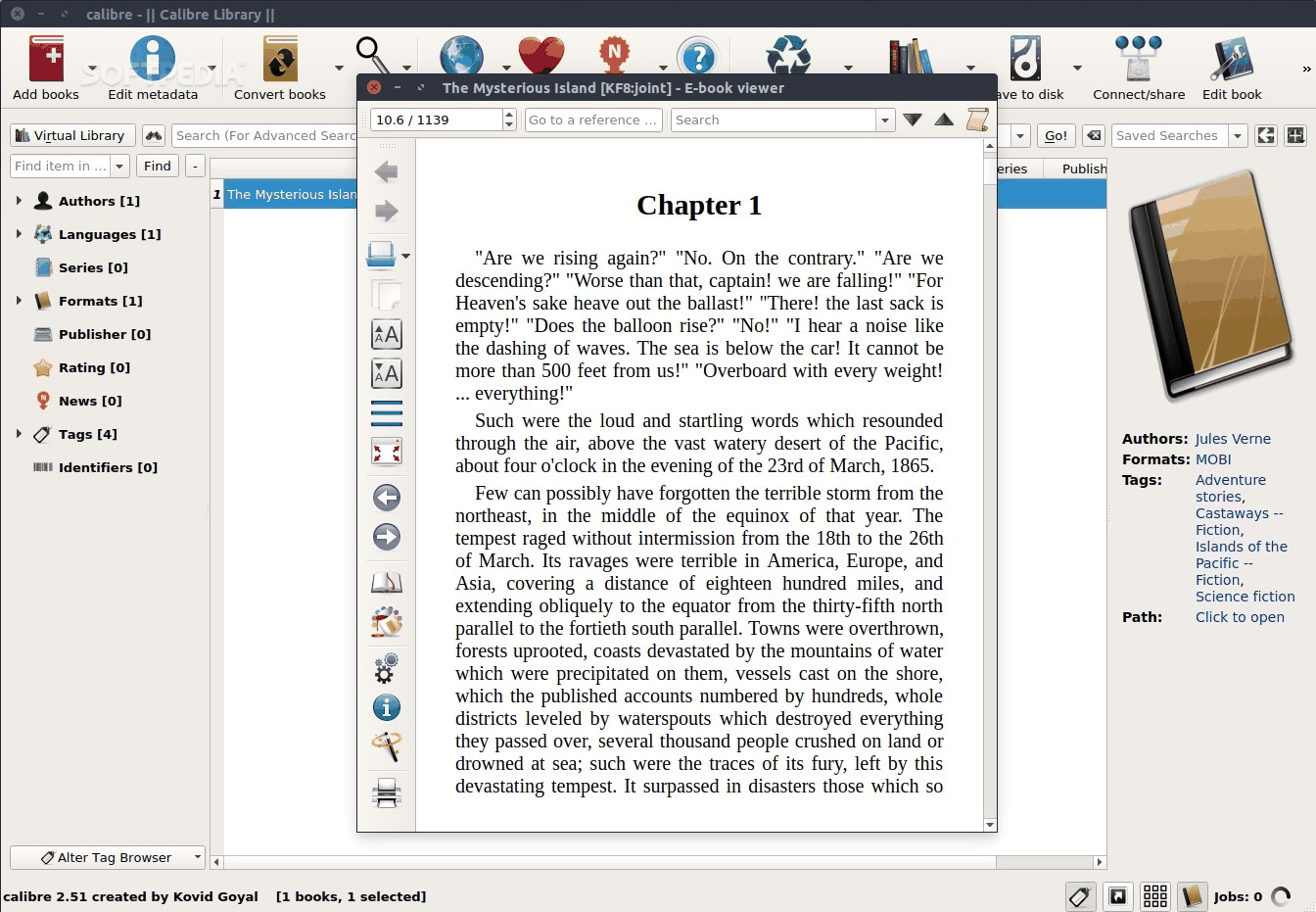
What it is. Calibre is the Swiss Army knife of ebooks. It's a free, open-source library manager with a built-in reader, and it has been around for years.
Key features
Opens a wide range of formats, including EPUB, MOBI, AZW3, PDF, TXT, and comics.
Organizes books by author, series, tags, and custom columns.
Converts books between formats.
Includes a built-in viewer with highlights and bookmarks.
Can send books to many e-reader devices.
Pros
Free, with an active community.
Handles huge collections without trouble.
Strong metadata editing, including covers and descriptions.
Cons
The interface looks dated, and there are a lot of buttons.
The reading view is functional, not pretty.
Setup takes some time if you want to use everything.
Best for. Readers with large collections who want full control over how their books are organized.
2. Thorium Reader: Best for Modern EPUB and Accessibility
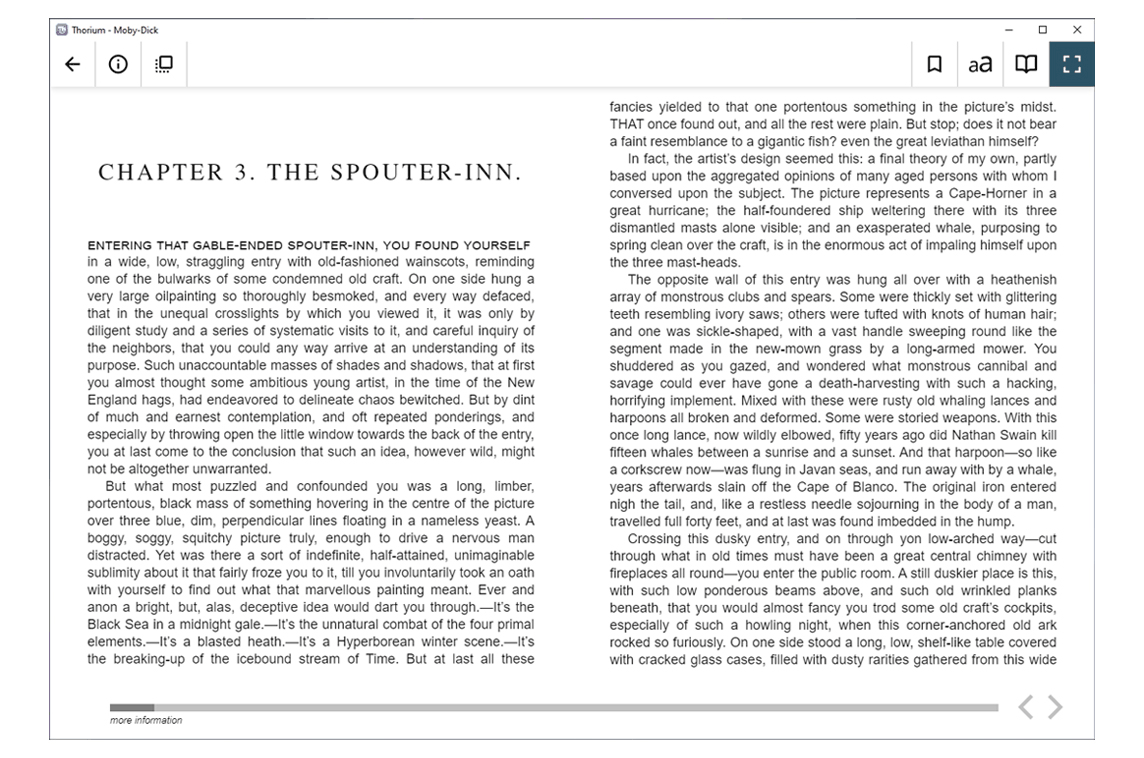
What it is. Thorium is a free, open-source reader built around modern EPUB standards. It focuses on accessibility, and it's one of the better choices if you read with a screen reader or need high-contrast options.
Key features
Strong support for EPUB 3, including fixed layout and read-aloud books.
Adjustable fonts, spacing, and themes, with dyslexia-friendly font options.
Works with screen readers.
Supports some protected library books.
Bookmarks, notes, and full-text search.
Pros
Clean, modern layout.
Excellent accessibility features.
Free and open source.
Cons
Mainly focused on EPUB and PDF. Formats like MOBI and AZW3 aren't a strength.
Library tools are basic compared with Calibre.
Best for. Readers who care about accessibility, or anyone who mostly reads EPUB files.
3. Koodo Reader: Best for a Clean, Minimal Look
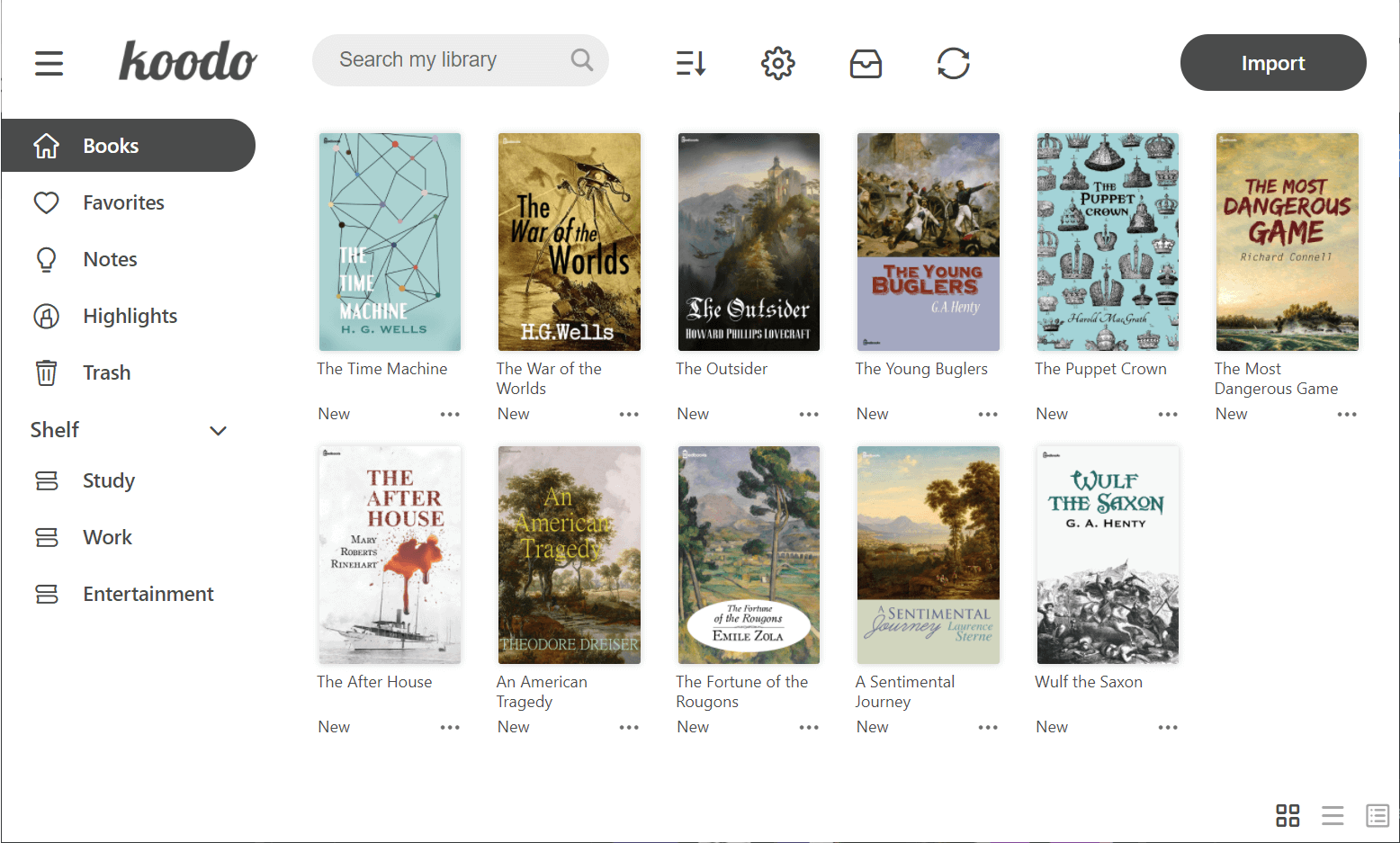
What it is. Koodo Reader is an open-source reader with a simple, modern design. It covers a long list of formats and keeps the interface out of your way.
Key features
Supports EPUB, PDF, MOBI, AZW3, TXT, FB2, comics, and more.
Highlights, notes, bookmarks, and dark mode.
Text-to-speech and translation tools.
Cloud sync through services such as Dropbox, OneDrive, and WebDAV.
Runs on Windows, Mac, and Linux.
Pros
Easy to use from the first launch.
Wide format support for a single reader.
Syncing across devices.
Cons
Some extras sit behind an optional paid tier.
Its library tools aren't as deep as Calibre's.
Best for. People who want a good-looking, no-fuss reader that opens most files.
4. Adobe Digital Editions: Best for Library Loans and DRM Books
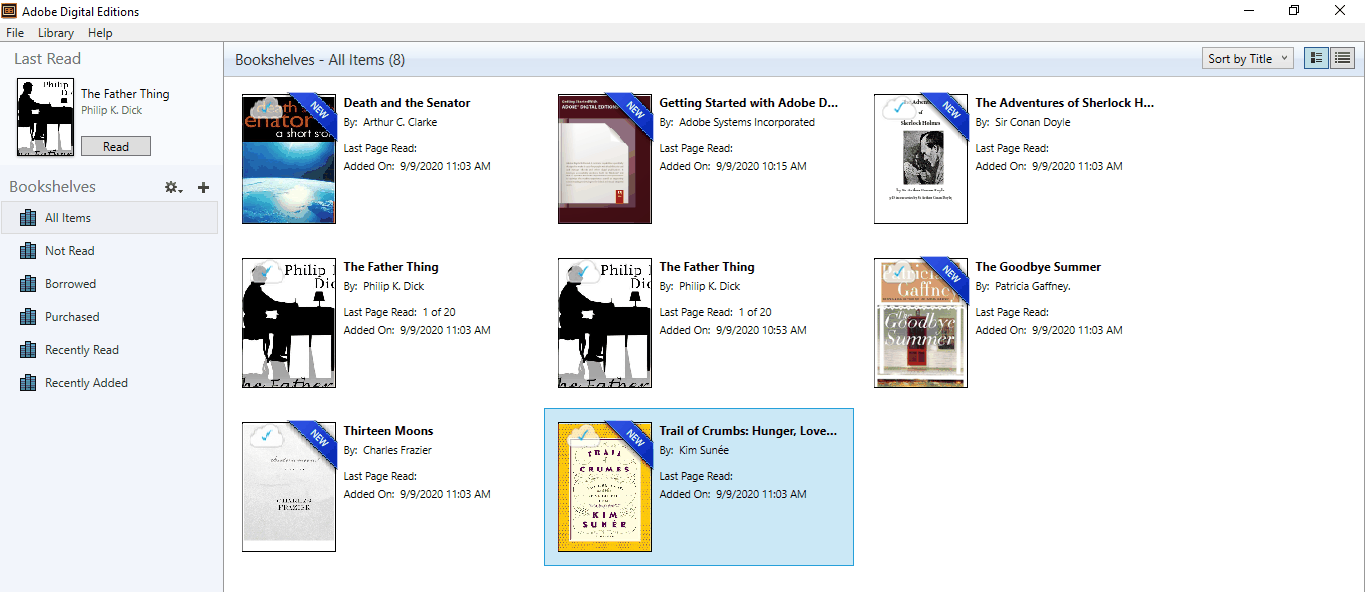
What it is. Adobe Digital Editions (ADE) is a free reader from Adobe. It's older and plain, but it does one thing very well: it opens books protected by Adobe DRM, which many libraries and bookstores still use.
Key features
Opens EPUB and PDF files.
Handles Adobe-protected library loans and purchases.
Moves books to some e-reader devices.
Basic bookmarks, highlights, and notes.
Pros
A reliable choice if your library lends books through Adobe.
Light and quick to install.
Free.
Cons
The design hasn't changed much in years.
Limited format support.
You need an Adobe ID to authorize your computer for protected books.
Best for. Readers who borrow books from the library or buy from stores that use Adobe DRM.
5. Kindle App for Windows and Mac: Best for Your Amazon Library
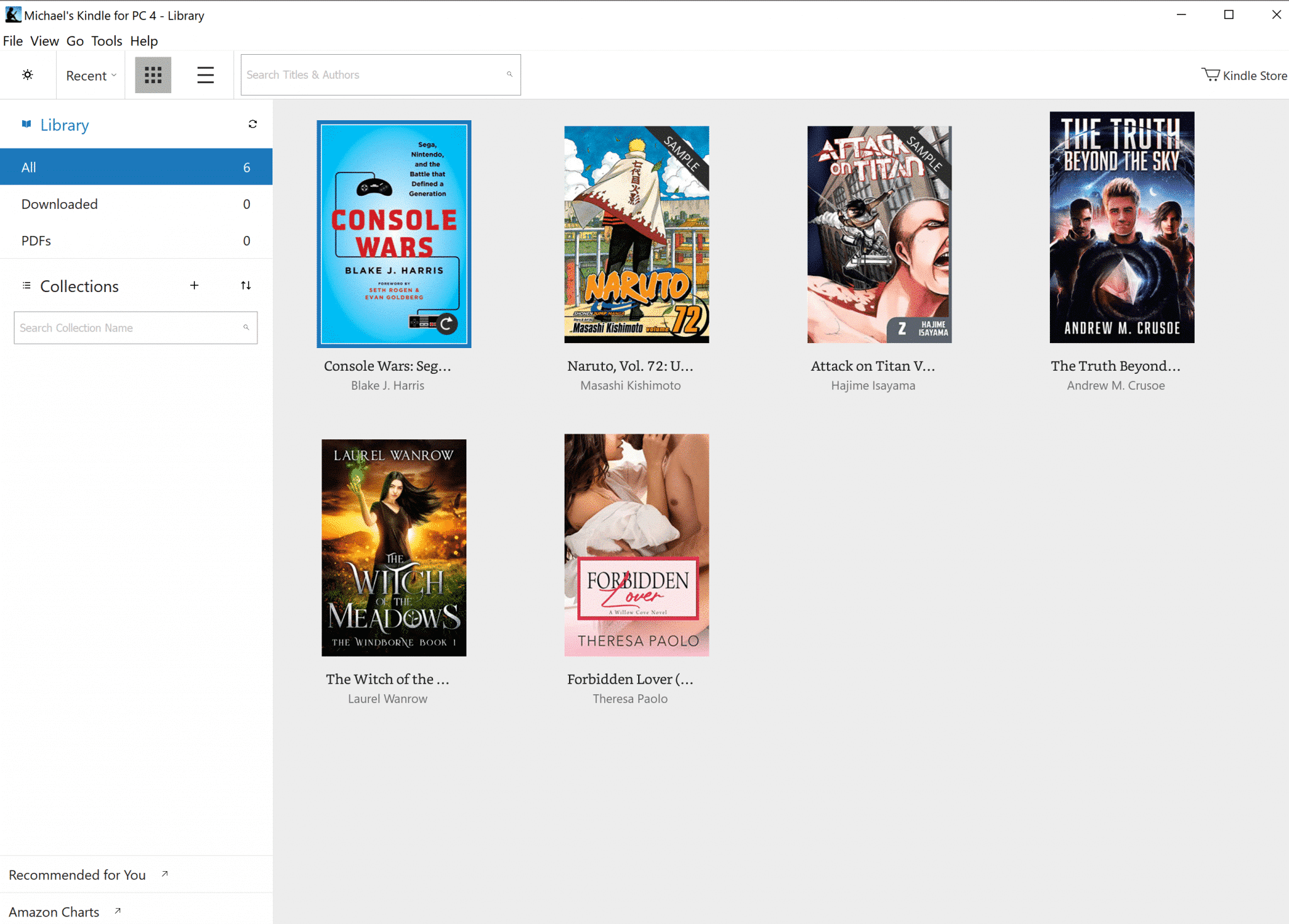
What it is. The Kindle app lets you read the books you've bought from Amazon on your computer.
One thing to know: Amazon shut down the old "Kindle for PC" app on June 30, 2026. The replacement is called Kindle for Windows, and you download it from Amazon's Kindle apps page. Amazon's help pages list Windows 11 as the supported system, so check compatibility before you install. If your PC isn't supported, Kindle for Web works in any browser. On Mac, you get the app from the Mac App Store.
Key features
Syncs your place, notes, and highlights across devices.
Offline reading for downloaded books.
Font, background, and margin settings.
Works with Kindle Unlimited and Prime Reading titles you've borrowed.
Pros
Easy if most of your books come from Amazon.
Sync works smoothly across devices.
Free to install.
Cons
It mainly opens books from the Kindle store.
Fewer library tools than a general manager.
Amazon has removed some download options in recent years, so you can't easily keep your own copy of purchased books.
Best for. Readers whose collection lives mostly in the Kindle store.
6. Kobo Desktop: Best for Kobo Users
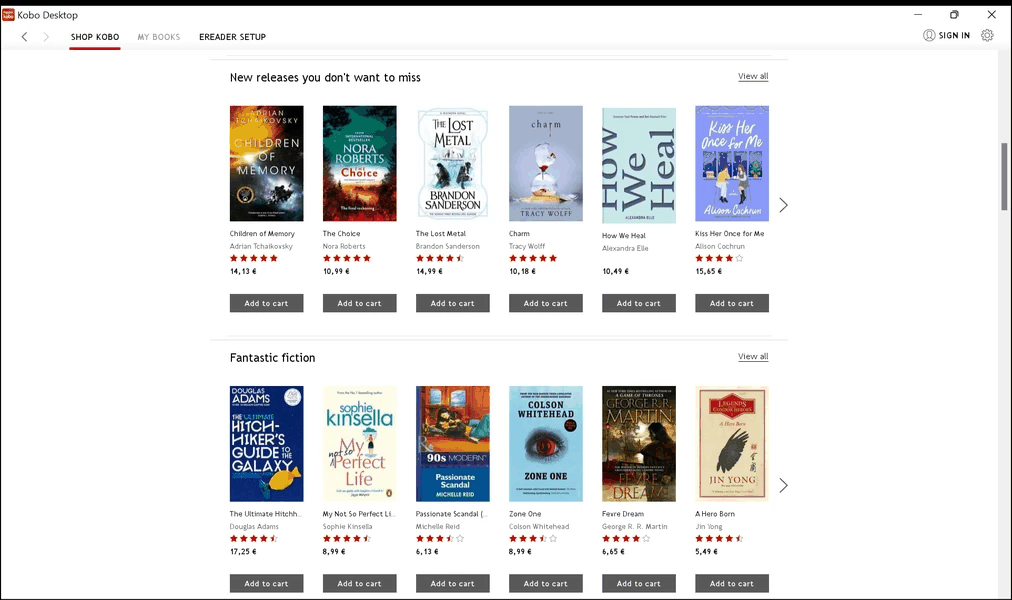
What it is. Kobo Desktop lets you read and buy Kobo books on a PC or Mac. It also manages books on a Kobo e-reader.
Key features
Read and shop for Kobo books on your computer.
Sync with a connected Kobo e-reader, including bookmarks and annotations.
Basic font and page settings.
Pros
Convenient if you own a Kobo e-reader.
Free.
Cons
Kobo says it's no longer available for users in Europe.
It doesn't support audiobooks.
It isn't compatible with some newer Kobo models, such as the Libra Colour and Clara Colour.
A narrow tool compared with the others on this list.
Best for. Kobo e-reader owners who want to manage their device and read on the same computer.
7. Apple Books: Best for Mac Users
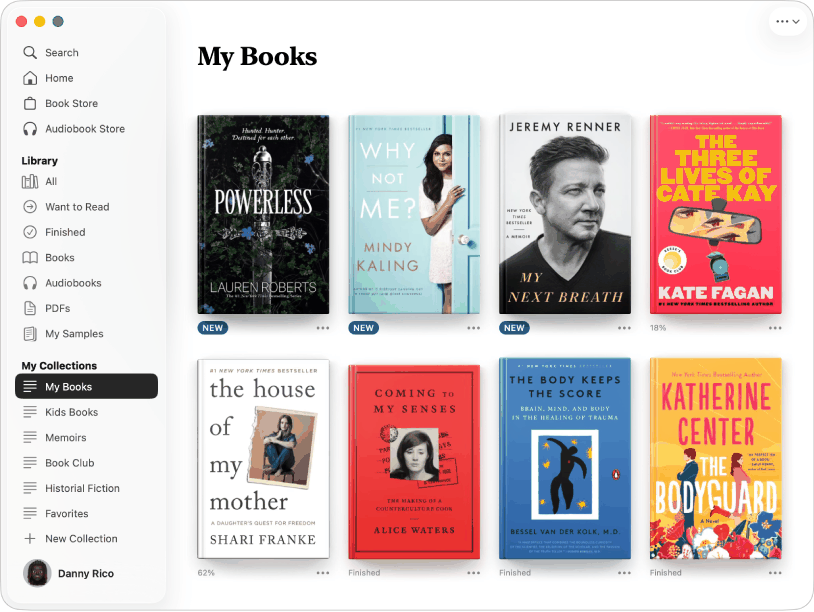
What it is. Apple Books comes with every Mac. It's a simple, polished reader that's already there when you need it.
Key features
Opens EPUB and PDF files, along with books from the Apple Books store.
Syncs your library and reading progress with iCloud.
Themes, fonts, highlights, and notes.
Audiobook support.
Pros
No download needed.
Clean design that fits macOS.
Syncs with your iPhone and iPad.
Cons
Mac only. There's no Windows version.
Formats like MOBI and AZW3 won't open.
Limited library organization.
Best for. Mac users who mostly read EPUB and PDF and already use an iPhone or iPad.
8. SumatraPDF: Best for Fast, Lightweight Reading on Windows
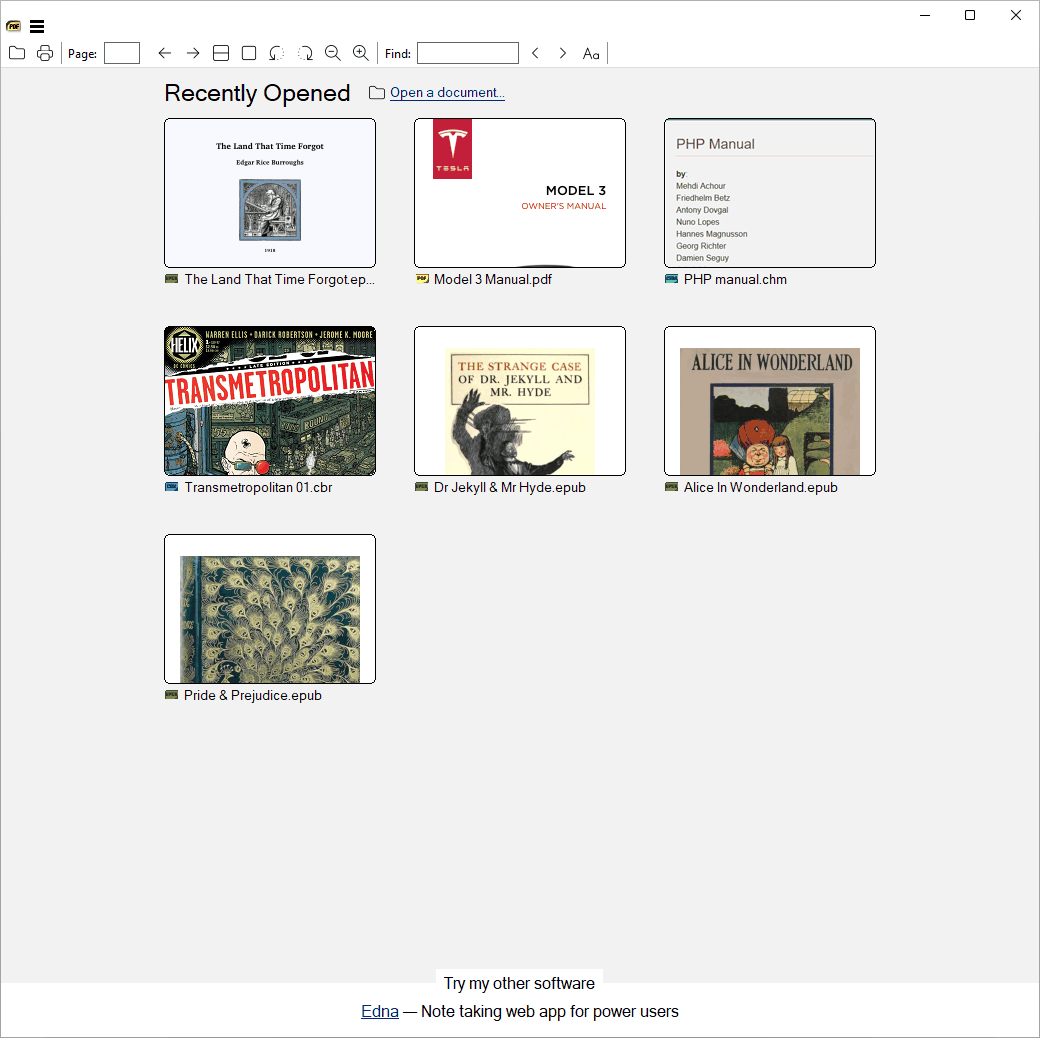
What it is. SumatraPDF is a tiny, open-source viewer for Windows. It starts almost instantly and uses very little memory, which makes it a great pick for older computers.
Key features
Opens PDF, EPUB, MOBI, comic formats like CBZ and CBR, DjVu, and more.
Portable version that runs without installing.
Simple keyboard shortcuts.
Very small file size.
Pros
Very fast, even on old hardware.
Free and open source.
No clutter.
Cons
Windows only.
No real library management.
Minimal tools for highlights and notes.
Best for. Anyone who wants a fast reader on Windows, especially on an older or low-spec PC.
Which Ebook Reader Should You Choose?
There's no single winner. Pick based on how you read.
For students and researchers. Calibre is a solid base for organizing course materials, and Thorium or Koodo Reader give you comfortable reading with notes and highlights. If most of your material is PDF, SumatraPDF is the quickest way to open it on Windows.
For large ebook collections. Calibre. Nothing else here comes close for sorting, searching, and editing book details.
For borrowing library books. Adobe Digital Editions works with Adobe-protected loans, and Thorium supports some protected library books. Check which system your library uses before you choose.
For older or low-spec computers. SumatraPDF on Windows. On a Mac, Apple Books is already installed, so it adds no extra weight.
For readers who need accessibility features. Thorium Reader. Its focus on accessibility, screen reader support, and font options is the strongest on this list.
For store-based libraries. Use the Kindle app if you buy from Amazon, and Kobo Desktop if you own a Kobo device. Neither is a good general reader, so pair them with one of the others for your own files.
A common setup is to use two apps: a store app for purchased books, plus Calibre or Koodo Reader for everything else.
Can't Open Your Ebook? How to Fix Format Problems
Why some files won't open
Ebooks come in many formats, and not every reader supports them all. A few common problems:
AZW3 and MOBI. These are Amazon-era formats. Many modern readers skip them.
KFX. Amazon's newer format. Most general readers can't open it.
Odd EPUB files. Some EPUBs use features older readers don't handle.
DRM-protected files. Books locked to a specific store or app usually only open in that app.
A simple fix: convert the ebook
Instead of hunting for a reader that supports your file, convert the file to a format your reader already opens. The usual targets:
EPUB for most readers.
PDF if you want a fixed layout that looks the same everywhere.
TXT for plain text with no formatting.
DOCX if you want to edit or quote the text in Word.
Convert ebooks offline with Linraw doBook
Linraw doBook is a desktop tool for Windows and Mac with a set of ebook and PDF tools. It can convert ebooks to formats like PDF, EPUB, TXT, and DOCX. Everything runs on your computer, so your files stay on your machine and you don't need to upload anything.
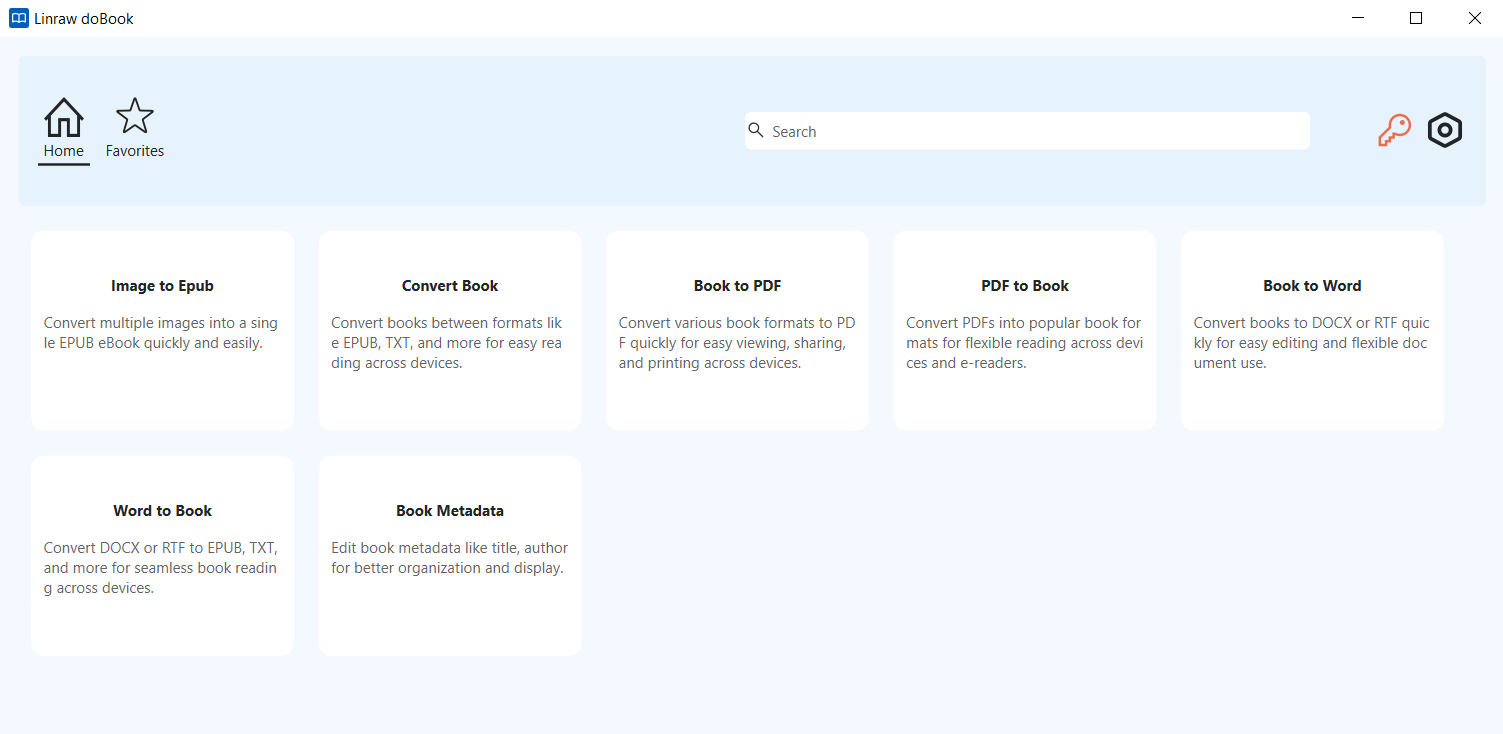
The steps are simple:
Open Linraw doBook and go to the ebook tools.
Choose the conversion you need, such as ebook to PDF or ebook to DOCX.
Add your file.
Pick where to save the result.
Start the conversion and open the new file in your reader.
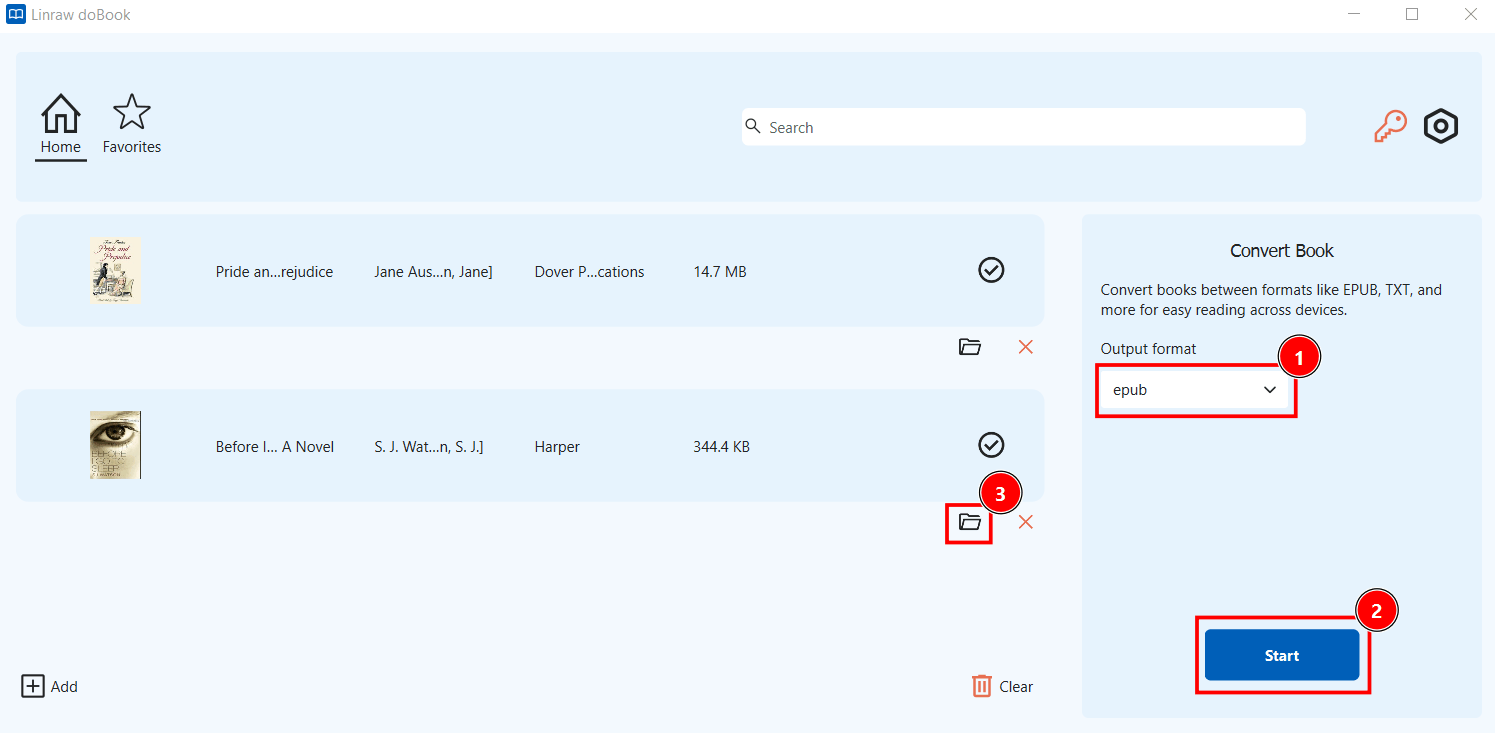
This is handy when your reader refuses a file, or when you want a copy of a book in a different format for a different device.
Other ways to convert
Calibre. It includes a conversion tool, so if you already use it for your library, there's nothing extra to install. It has many settings, which is great for control and a bit much for a quick job.
Online converters. Good for a one-off file when you're in a hurry. The trade-off is that you upload your file to someone else's server, and many sites limit file size or the number of conversions. Skip them for anything private.
A quick note on DRM
DRM (digital rights management) locks a book to certain apps or devices. A DRM-protected book generally can't be converted or opened outside its original app. We don't recommend trying to remove DRM, since it may break the terms of the store you bought from, and the law differs by country. If you want freedom to read anywhere, look for DRM-free titles, which many publishers and stores sell.
Tips for a Better Reading Setup
Pick a comfortable font, size, and theme. Spend a minute in the settings. A slightly larger font and softer background can make a long session far easier on your eyes. Dark mode helps at night, but some people find light text on a dark background tiring, so try both.
Back up your library and reading progress. Copy your book folder to an external drive or cloud storage now and then. If you use Calibre, back up the whole library folder. If your reader supports sync, turn it on so your place and notes aren't tied to one computer.
Keep your ebooks organized. Use clear file names, such as the author and title, and sort books into folders or tags from the start. It's much easier than cleaning up hundreds of files later.
Take breaks. The 20-20-20 habit is easy to follow: every 20 minutes, look at something about 20 feet away for 20 seconds.
FAQ
What is the best free ebook reader for PC?
It depends on what you read. Calibre is best for big libraries, Thorium Reader for EPUB and accessibility, Koodo Reader for a clean look, and SumatraPDF for speed. If you're not sure, start with Koodo Reader or Calibre.
What is the best ebook reader for Mac?
Apple Books is the easiest choice, since it's already on your Mac and handles EPUB and PDF well. If you need more formats or better library tools, try Calibre or Koodo Reader.
Which reader works best for both EPUB and PDF?
Thorium Reader, Koodo Reader, and Adobe Digital Editions all open both. SumatraPDF handles both on Windows, and Apple Books handles both on a Mac.
Can I read Kindle books on my computer?
Yes. Use the Kindle app for Windows or Mac, or Kindle for Web in your browser. The old "Kindle for PC" app stopped working on June 30, 2026, so download the current version from Amazon's Kindle apps page.
Can I read ebooks offline?
Yes. Most desktop readers store books on your computer. With store apps like Kindle and Kobo, download the book first, then you can read without a connection.
Can I borrow library ebooks on my desktop?
Yes. Many libraries lend through Adobe-protected files, which work in Adobe Digital Editions. Some also offer reading in the browser or through their own apps. Ask your library which method it uses.
What's the difference between an ebook reader and an ebook manager?
A reader opens and displays books. A manager helps you organize, tag, search, and convert them. Calibre is both. Most of the others are readers, with light library features.
How do I open an ebook that my reader doesn't support?
Convert it to a format your reader supports, such as EPUB or PDF. You can do that offline with Linraw doBook or Calibre. Another option is to try a different reader that supports the format, like Calibre, Koodo Reader, or SumatraPDF. If the file is DRM-protected, open it in the app it came from.
Conclusion
Here's the short version of the eight apps:
Calibre for managing a big library.
Thorium Reader for modern EPUB and accessibility.
Koodo Reader for a clean, easy design.
Adobe Digital Editions for library loans and Adobe-protected books.
Kindle app if you buy from Amazon.
Kobo Desktop if you own a Kobo device.
Apple Books if you're on a Mac.
SumatraPDF for speed on Windows.
Pick one, install it, and read a few pages. You'll know quickly whether it suits you. And if a file won't open, don't give up on it. Convert it to EPUB, PDF, TXT, or DOCX with a tool like Linraw doBook, and open it in the reader you like.
However, if your workflow involves multiple types—such as images, audio, video, PDFs, or eBooks—then Linraw doUltra is a more powerful all-in-one option.
Related Chapters
