How to Unlock a PDF Offline (No Upload, Windows & Mac)
You open a PDF, try to copy a paragraph, and nothing happens. Or you try to print it and the button is greyed out. Or the file asks for a password before it will even open.
Locked PDFs are annoying, and most guides tell you to upload the file to some website. That's fine for a menu or a flyer. It's not so fine for a contract, a bank statement, or a tax form.
This guide shows you how to unlock a PDF offline on Windows and Mac, so your file never leaves your computer. We'll cover six methods, compare them, and fix the most common problems.
Why You Might Need to Unlock a PDF
People unlock PDFs for ordinary reasons. You received a report and need to copy a few lines into your own document. You want to print a form that was set to "no printing." You're tired of typing the same password every time you open a file you use daily.
Before you pick a method, it helps to know what kind of lock you're dealing with.
Two kinds of PDF locks: open password vs. restrictions
A PDF can be protected in two different ways:
Open password (also called a user password). The file won't open until you type the password. This is real encryption, so you need to know the password to get in.
Restrictions (also called an owner password or permissions password). Anyone can open and read the file, but actions like printing, copying text, editing, or adding comments are blocked.
Some files have both.
Which one are you dealing with?
It's easy to tell. If the PDF asks for a password the moment you open it, it has an open password. If it opens fine but you can't print, copy, or edit, it has restrictions. You might also see "(SECURED)" in the title bar of Adobe Acrobat.
Restrictions are much easier to remove than an open password. Keep that in mind, because it affects which methods will work for you.
Is It Safe to Use Online PDF Unlockers?
Online unlockers are everywhere, and they're convenient. But convenience has a cost.
What happens to your file after you upload it
When you use an online tool, your PDF is sent to someone else's server. It gets processed there, and a copy is stored, at least for a while. If the file has an open password, you also hand over that password so the site can open it.
Most well-known services say they delete files after an hour or so. That may well be true. But you're trusting their policy, their security, and every service they use behind the scenes. You can't check any of it yourself.
There are smaller annoyances too: file size limits, daily caps, slow uploads on a weak connection, and ads that look a lot like download buttons.
Why offline is the smarter choice for private documents
An offline tool runs on your own computer. The file never goes anywhere, so there's nothing to leak, nothing to delete later, and no size limit set by a server. It also works without an internet connection, which is handy on a plane or in an office with a locked-down network.
If the PDF contains anything personal, financial, legal, or confidential, offline is the safer habit.
Before You Start: A Quick Note on Legality
Only unlock PDFs that belong to you, or that you have permission to change. Removing a password from your own tax return is fine. Stripping restrictions from a paid ebook or someone else's confidential file may break copyright law, a license agreement, or your workplace rules.
Laws differ from country to country, and this isn't legal advice. When in doubt, ask the person or company who owns the file.
Method 1: Unlock a PDF with Linraw doPDF (Offline, Windows & Mac)
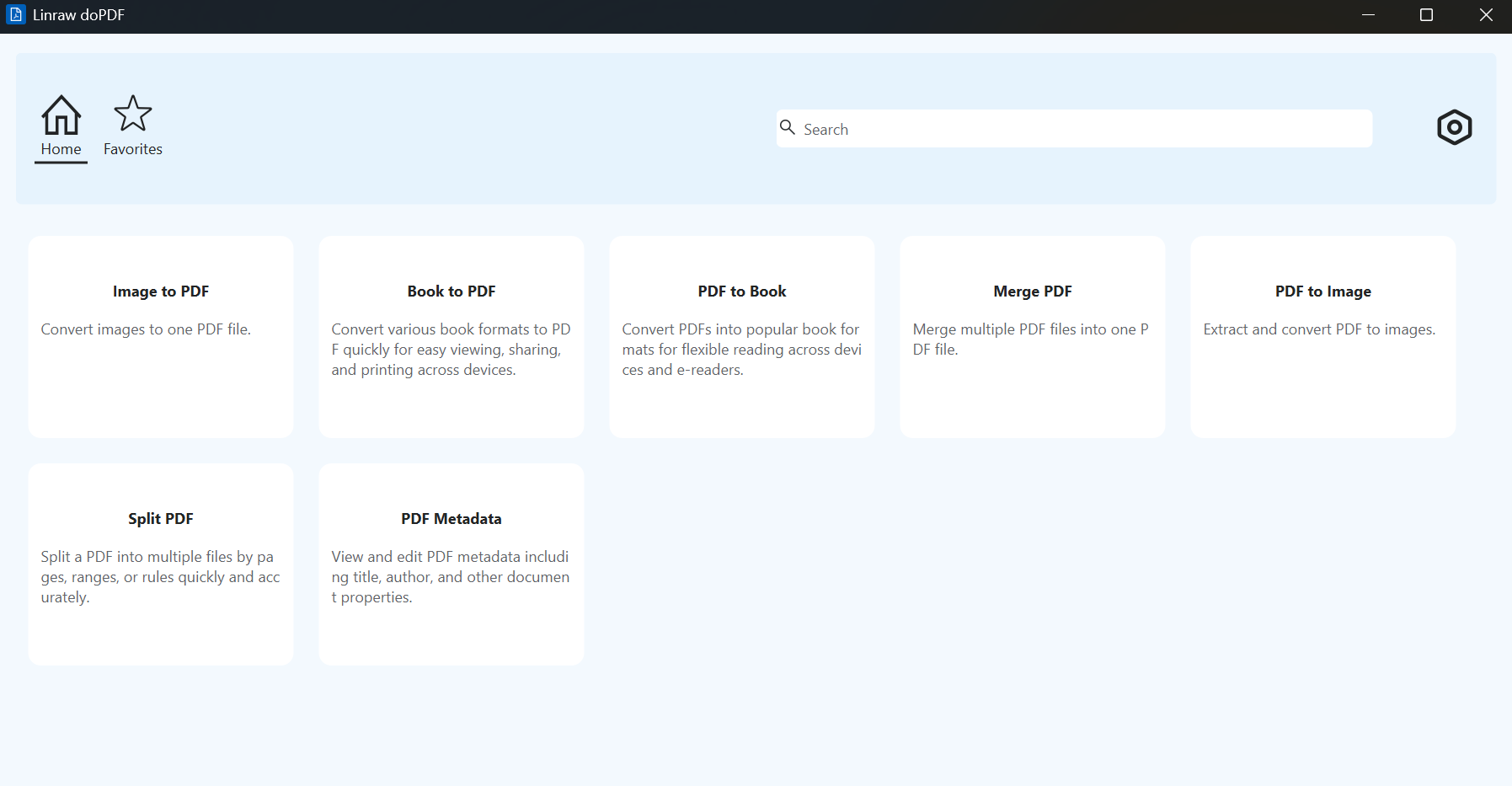
Linraw doPDF is a desktop toolkit for Windows and Mac, and it has a dedicated Unlock PDF tool in its PDF category. It runs locally, so your file stays on your computer the whole time. For most people, this is the quickest way to get it done.
Step 1: Open the Unlock PDF tool
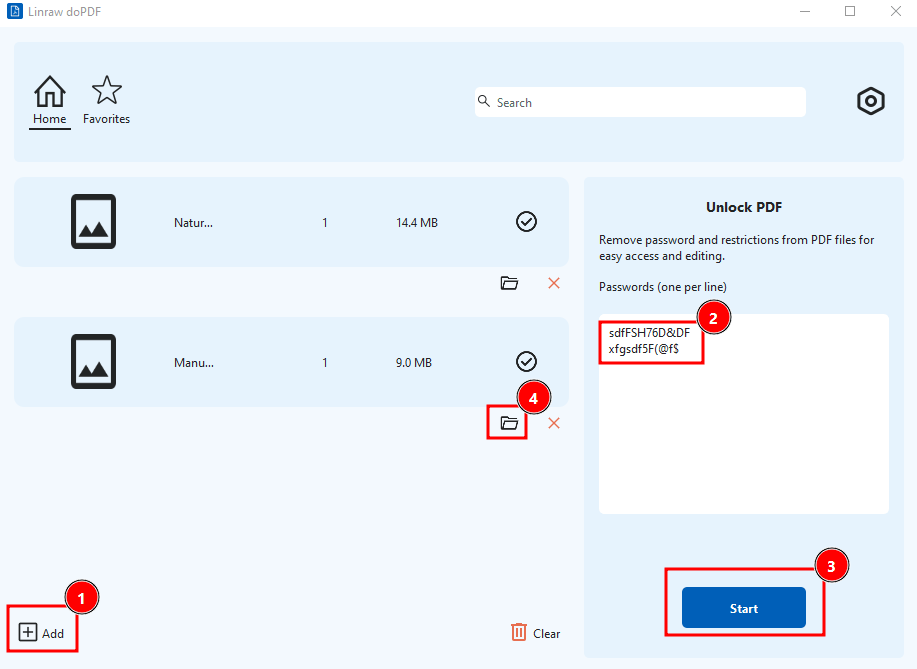
Download and install Linraw doPDF, then open it. Go to the PDF tools and choose Unlock PDF.
Step 2: Add your PDF file
Add the locked PDF to the tool. You can usually click to browse for the file or simply drag it into the window.
Step 3: Enter the password, if there is one
If the file needs a password to open, type it in. If the PDF only has restrictions (no printing, no copying), you can skip this step.
Step 4: Start to unlock the PDF
Click the button to start. When it finishes, open the new file and check that you can now print, copy, or edit as needed.
What the tool can and can't do
It can: remove restrictions from a PDF, and remove the password from a file once you've entered the correct one. Your text, images, and layout stay the same.
It can't: guess or recover a password you've forgotten. If a file has a strong open password and you don't know it, no honest tool can open it for you. More on that in the troubleshooting section below.
Method 2: Unlock a PDF with Adobe Acrobat
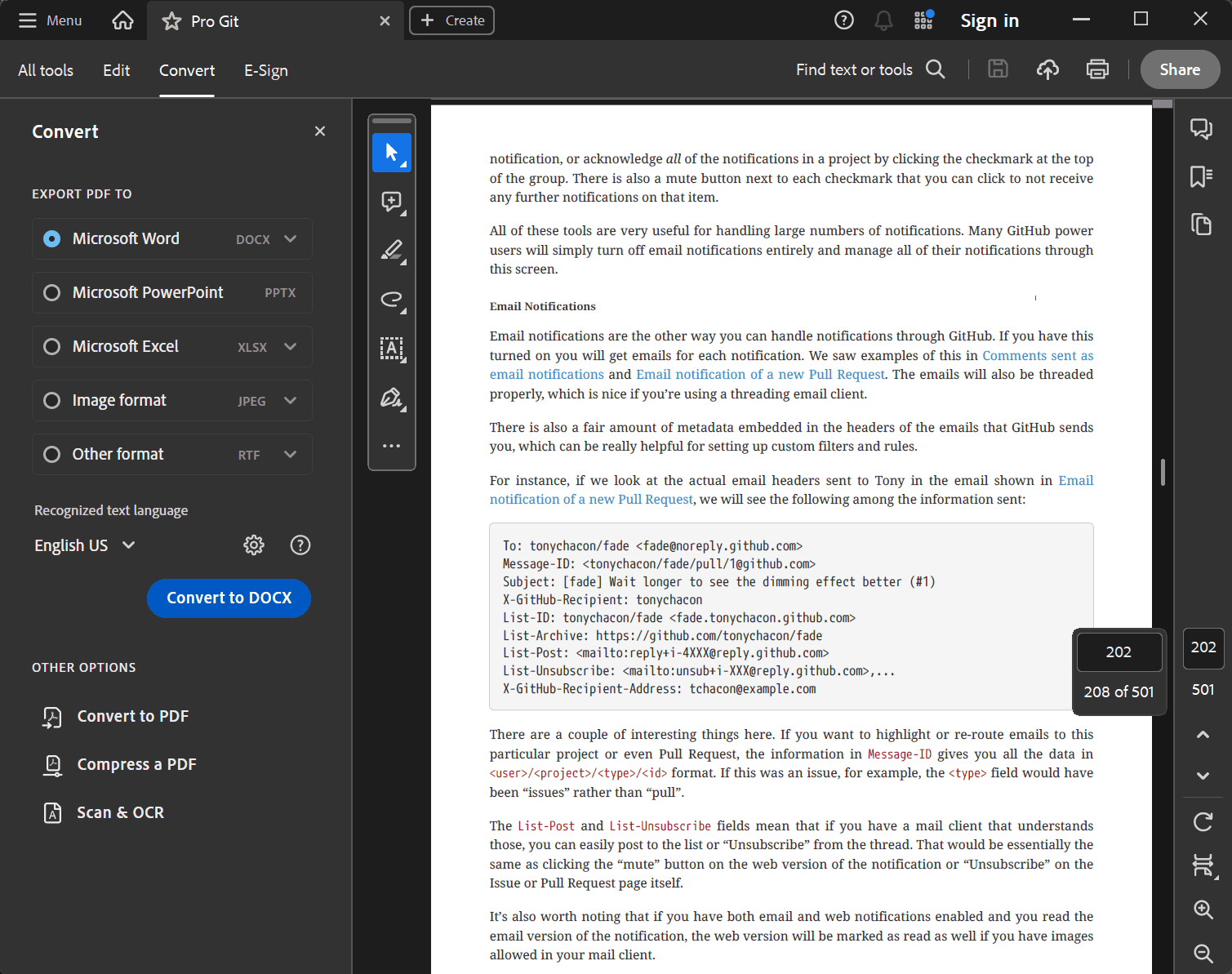
Adobe Acrobat Pro can remove security from a PDF. The free Acrobat Reader can't, so you'll need the paid version.
Open the PDF in Acrobat Pro. Enter the password if it asks for one.
Go to File > Properties and open the Security tab.
Change Security Method to No Security.
Click OK, then save the file.
If the file has a permissions password, Acrobat will ask you to enter it before it lets you remove the restrictions. If you don't have it, this method is a dead end.
It's reliable and gives clean results. The downsides are the subscription price and the fact that it's a heavy program for such a small job.
Method 3: Unlock a PDF with Google Chrome or Microsoft Edge
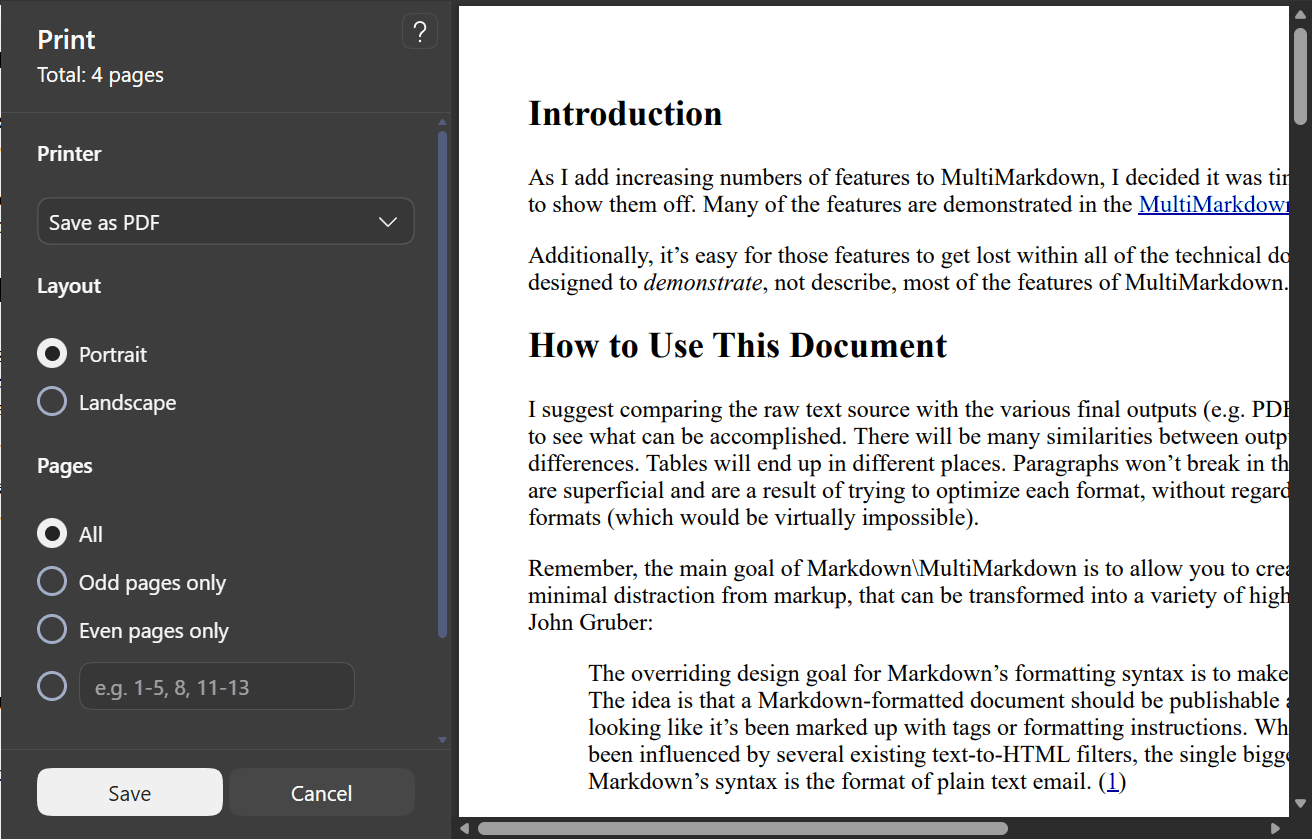
You probably already have a browser that can do this. Chrome and Edge can open a PDF and "print" it to a new PDF file, and the new copy has no restrictions.
The "Print to PDF" trick, step by step
Open the PDF in Chrome or Edge. If there's an open password, enter it.
Press Ctrl + P (Windows) or Cmd + P (Mac).
Set the destination to Save as PDF. In Edge on Windows, you may see Microsoft Print to PDF instead.
Click Save and choose where to put the new file.
The new file is an unlocked copy. It's free, and there's nothing to install.
When this method fails
This trick has limits:
If the PDF blocks printing, the print option may be disabled, and then there's nothing to work with.
The new file is rebuilt from scratch, so bookmarks, form fields, and some links can disappear.
Long or complex files sometimes come out with layout changes.
It's a good quick fix for simple documents. For anything more complicated, use a dedicated tool.
Method 4: Unlock a PDF on a Mac with Preview
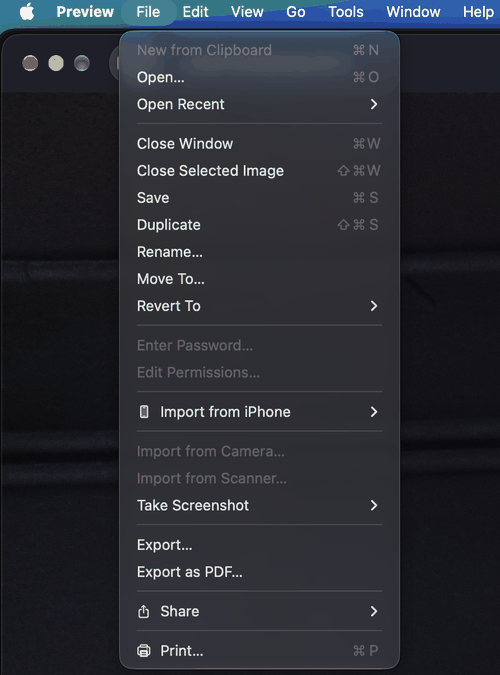
If you're on a Mac, Preview is already built in.
Open the PDF in Preview and enter the password if you're asked for one.
Go to File > Export as PDF. (On older macOS versions, it may be File > Export.)
Make sure the encryption option is not ticked.
Choose a name and location, then click Save.
This works well for files with an open password. For files with restrictions, results vary. If Preview won't cooperate, try File > Print, click the PDF menu in the corner, and choose Save as PDF. That's the same idea as the browser trick, and it comes with the same limits.
Method 5: Unlock a PDF with the Command Line (qpdf)
A short guide for people who like the terminal
qpdf is a free, open-source tool that works on Windows, Mac, and Linux. It doesn't have a graphical interface, but it's fast and doesn't change your content.
Install it:
Mac: run
brew install qpdfif you use Homebrew.Windows: download it from the qpdf releases page on GitHub, or install it with Chocolatey.
Unlock a file that has an open password:
qpdf --password=YOURPASSWORD --decrypt locked.pdf unlocked.pdf
Remove restrictions from a file that opens without a password:
qpdf --decrypt locked.pdf unlocked.pdf
If you have a lot of files to process, qpdf is also easy to put in a small script that loops through a folder. If the terminal isn't your thing, skip to another method.
Method 6: Use an Online PDF Unlocker (and What to Watch Out For)
Sites like Smallpdf, iLovePDF, and Sejda let you upload a PDF and download an unlocked version. They're simple, and they work on any device, including phones.
If you go this route, keep a few things in mind:
Never upload sensitive files. Treat anything you upload as no longer fully private.
Read the privacy policy. Look for how long files are kept and whether they're shared with third parties.
Watch for limits. Free plans often cap file size or the number of files per day.
Be careful with ads. Some "Download" buttons on free sites are really ads.
Check the result. Open the downloaded file and make sure it looks right before deleting the original.
For casual, non-sensitive files, online tools are fine. For everything else, stay offline.
Which Method Should You Choose? (Comparison Table)
| Method | Offline? | Price | File privacy | Ease of use | Windows & Mac |
|---|---|---|---|---|---|
| Linraw doPDF Unlock PDF | Yes | Free to try | High, nothing is uploaded | Very easy | Both |
| Adobe Acrobat Pro | Yes | Paid subscription | High | Easy | Both |
| Chrome / Edge Print to PDF | Yes | Free | High | Easy, but can lose bookmarks and forms | Both |
| Mac Preview | Yes | Free | High | Easy | Mac only |
| qpdf | Yes | Free | High | Hard for beginners | Both |
| Online unlockers | No | Free, with limits | Low, files are uploaded | Very easy | Any device with a browser |
A quick way to decide:
Want the simplest offline option on either system? Use Linraw doPDF.
Already pay for Acrobat Pro? Use it.
Just need a quick fix for a simple file? Try the browser trick.
On a Mac and the file only has an open password? Preview is enough.
Comfortable with the terminal, or have many files? Try qpdf.
Common Problems and How to Fix Them
"The password I entered is wrong"
Check the basics first: caps lock, extra spaces, and whether you copied the password from an email with a stray character at the end. Also make sure you're typing the right kind of password. An open password and a permissions password are different, and a file can have both.
The unlocked PDF still won't let me edit or copy
Unlocking only removes the lock. It doesn't make the text editable if the PDF is really a scanned image. In that case, you need OCR software to turn the image into text. Check whether you can select text with your cursor. If you can't, that's your answer.
The file is damaged or won't open
Try opening the original in a different viewer first, such as your browser. If the original opens fine and the unlocked copy doesn't, run the unlock again with a different method. If the original won't open anywhere, the file itself is likely corrupted and you'll need a fresh copy from the sender.
The output looks different from the original
This usually happens with the "Print to PDF" methods, since they rebuild the file. Fonts can shift, and links or bookmarks can vanish. Use a tool that removes the protection without rebuilding the document, such as Linraw doPDF, Acrobat, or qpdf.
I forgot the password. What now?
This is the hardest case. If it's an open password, there's no shortcut. The file is encrypted, and strong passwords can't be removed by any normal unlocking tool. Your realistic options are:
Check your password manager, old emails, or notes.
Ask the person who created or sent the file.
Ask the company that issued the document, such as your bank or school, to send a new copy.
Be wary of any site or software that promises to crack any password instantly. Many of them are scams or take far longer than advertised.
Tips to Keep Your Unlocked PDFs Safe
Keep the original file
Always work on a copy. If something goes wrong, you still have the original, and you won't have to ask someone to send it again.
Don't leave sensitive files unprotected
An unlocked PDF is readable and copyable by anyone who gets hold of it. If it contains personal or financial details, don't leave it in your Downloads folder, email it casually, or save it to a shared drive. Delete the unlocked copy when you're done with it.
Re-protect a PDF after editing
Finished your edits? Add a new password or set new restrictions before you share the file. Acrobat Pro and many PDF editors can do this in a few clicks.
FAQ
Can I unlock a PDF without the password?
It depends on the type of lock. If the PDF has only restrictions (no printing, copying, or editing), you can usually remove them without any password. If it has an open password, you need to know it. There's no reliable way around that for strongly encrypted files.
What's the difference between an open password and an owner password?
An open password stops anyone from opening the file at all. An owner password, also called a permissions password, lets people open and read the file but blocks actions like printing, copying, and editing. Removing an owner password's restrictions is much easier than getting past an open password.
Does unlocking change the content or quality of my PDF?
Not if you use a tool that only removes the protection, like Linraw doPDF, Acrobat, or qpdf. Your text, images, and layout stay the same. The "Print to PDF" method is different, because it rebuilds the file, so it can alter links, bookmarks, and form fields.
Is it legal to remove PDF restrictions?
It's generally fine for files you own or have permission to modify. It can be illegal or against a license agreement if the file belongs to someone else, such as a paid ebook or confidential company documents. Laws vary by country, so when you're unsure, ask the owner.
Can I unlock a PDF on my phone?
Yes, mostly through online tools or mobile apps. The catch is that you're uploading your file to a server or trusting an app with it. If privacy matters, copy the PDF to your computer and unlock it offline instead.
Is there a file size limit for offline unlocking?
Offline tools don't have the upload limits that online services do, because nothing is being uploaded. Very large files just take longer, depending on your computer.
Can I unlock several PDFs at once?
Yes. Linraw doPDF's Unlock PDF tool supports batch unlocking, so you can add multiple PDFs and unlock them all in one go instead of handling them one by one. This saves a lot of time if you have a folder full of locked files. If you prefer the terminal, qpdf can do the same thing with a short script that loops through a folder.
Is Linraw doPDF's Unlock PDF tool really free?
You can download Linraw doPDF and try the Unlock PDF tool on your own files. Check the Linraw doPDF website for current pricing and what's included.
Conclusion
Unlocking a PDF doesn't need to mean uploading your private files to a stranger's server. First, work out which lock you have: an open password or restrictions. Then pick the method that fits.
Quick recap:
Restrictions only? Almost any method on this list will work.
Open password you know? Enter it and unlock the file with any offline tool.
Forgot the password? Look for it, or ask the sender for a new copy.
For the easiest offline option on Windows and Mac, download Linraw doPDF, open the Unlock PDF tool, add your file, and you're done in a few clicks. Your PDF stays on your computer from start to finish.
However, if your workflow involves multiple types—such as images, audio, video, PDFs, or eBooks—then Linraw doUltra is a more powerful all-in-one option.
Related Chapters
