How to Batch Convert PDF to Word (DOCX) on Windows & Mac (2026)
If you've ever needed to turn a folder full of PDFs into editable Word documents, you already know the problem: doing it one file at a time is slow, and most free online tools cap how many files you can process before asking you to pay or wait until tomorrow. Whether you're digitizing a stack of contracts, prepping research papers for editing, or converting an old ebook library, batch conversion is the only realistic option once you're past a handful of files.
This guide walks through the most practical ways to batch convert PDF to Word (DOCX) on both Windows and Mac, compares their strengths and limits, and helps you pick the right one for your situation.
Why Convert PDF to Editable Word Documents?
PDFs are great for sharing a fixed layout, but they're a dead end the moment you need to edit the content. Copying text out of a PDF often drags along strange line breaks, missing spaces, or broken formatting. Converting to DOCX gives you a document you can actually edit, reformat, comment on, or run through track changes — which matters a lot if you're revising contracts, updating reports, or repurposing old documents for a new project.
Benefits of Batch PDF to DOCX Conversion
Doing this one file at a time is fine for a single document. It stops being fine at ten, and it's genuinely painful at a hundred. Batch conversion lets you point a tool at an entire folder and walk away, which matters if you're:
Digitizing a backlog of scanned or exported documents
Migrating an archive from PDF to an editable format
Preparing a batch of reports or contracts for the same round of edits
Converting an ebook collection for a specific editing workflow
The time savings add up fast, and doing it in one pass also means consistent settings and output naming across every file.
Overview of Solutions for Windows and Mac Users
There's no single "best" tool for every situation — it depends on how many files you're converting, how sensitive the content is, and whether you're willing to pay. Broadly, your options fall into four camps: dedicated desktop converters (like Linraw doBook), the batch features built into apps you may already own (Word, Acrobat), free cross-platform tools (LibreOffice), and web-based converters (iLovePDF, Smallpdf, and similar). We'll go through each below.
Understanding PDF to Word Conversion Challenges
Common Issues with PDF Formatting and Layout Preservation
PDFs aren't built the way Word documents are. A PDF is really just instructions for where to place text and images on a page — it doesn't understand "this is a heading" or "this is a table" the way a DOCX file does. So when a converter turns a PDF back into an editable document, it has to guess at that structure. Multi-column layouts, tables, footnotes, and mixed fonts are where conversions most often go wrong, showing up as jumbled columns, misplaced images, or headings that lose their formatting.
Why Batch Processing Matters for Efficiency
Beyond the obvious time savings, batch processing keeps your output consistent. Converting files one by one, especially across different sessions or tools, tends to produce inconsistent naming, folder structures, and settings. A proper batch tool applies the same conversion logic to every file in one run, which matters when you need the output to be predictable at scale.
Key Features to Look for in a PDF to Word Converter
Before picking a tool, it's worth checking for:
True batch support — not just "upload multiple files" but actually processing them together
No aggressive file-size or daily-count limits
Reasonable formatting accuracy on the kind of PDFs you actually work with
Where your files go — uploaded to a server, or processed locally
Platform support — many tools are Windows-only or web-only, which is a problem if you're on a Mac
Method 1: Batch Convert PDF to Word with Linraw doBook (Windows & Mac)
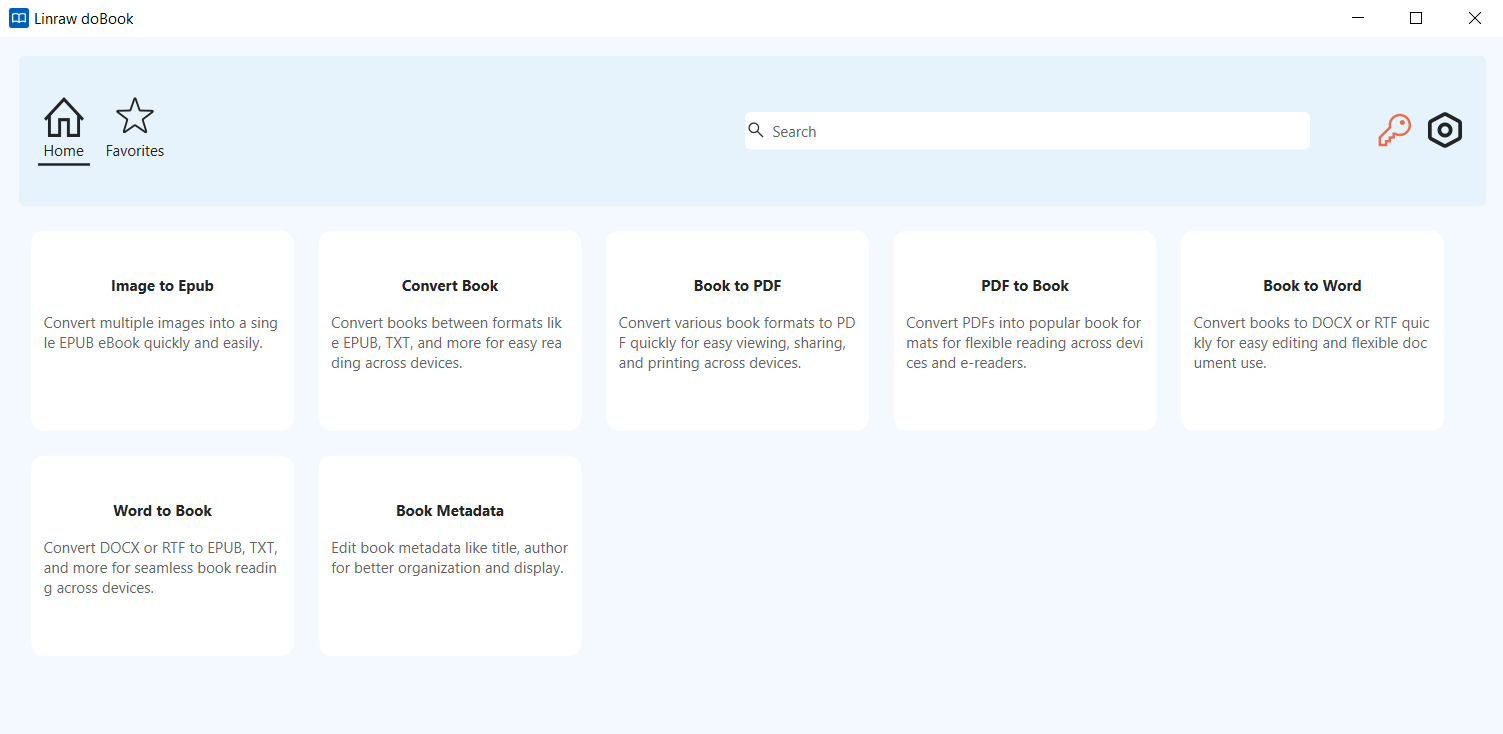
Linraw doBook is a desktop toolbox built around dozens of small tools. The eBook to DOCX tool, found in the ebook category, is the one you'll want here: it converts PDF, EPUB, TXT, HTML, and a few related formats directly into DOCX.
Overview of the eBook to DOCX Tool
The tool is built for exactly this use case — taking a folder of source files and producing clean, editable Word documents without needing an internet connection. Because it runs locally, there's no upload step and no server-side queue to wait on.
Step-by-Step: Selecting Multiple PDFs and Converting in One Pass
Open Linraw doBook and select the eBook to DOCX tool from the ebook category.
Click to add files, then select every PDF you want to convert — the tool supports multi-file selection, so you can grab an entire folder at once.
Choose your output folder.
Start the batch. Each file converts in sequence, with progress shown per file.
Once finished, your DOCX files land in the output folder, named to match their originals.
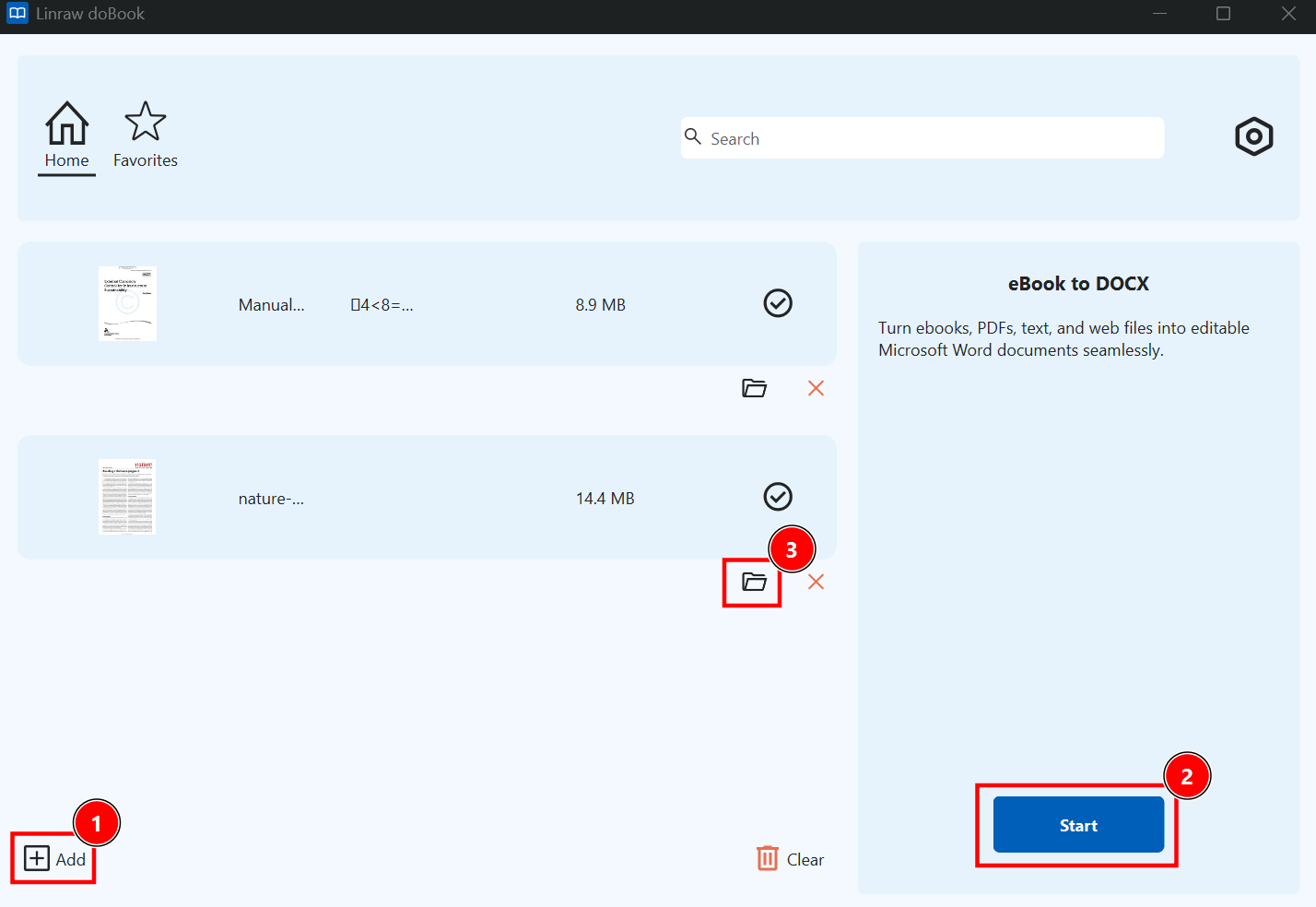
There's no per-session cap on how many files you can queue up — whether that's five PDFs or five hundred, the process is the same.
Key Advantages: No Upload, No File-Size Cap, No Daily Limit, Works Offline
This is where Linraw doBook separates itself from most of the online alternatives. Because everything happens on your own machine:
Files never leave your computer, which matters for anything sensitive
There's no daily conversion limit or "upgrade to continue" wall
Large files and large batches aren't throttled by an upload connection
It works with no internet connection at all — useful when traveling or working with locked-down office networks
Supported Formats Alongside PDF
Beyond PDF, the eBook to DOCX tool also handles EPUB, TXT, HTML, XHTML, and HTM conversions into DOCX, which is handy if your batch job is mixed — say, a folder containing both PDFs and old EPUB files you want standardized into Word format.
Method 2: Batch Convert Using Microsoft Word's Built-In Import
If you already have Microsoft Word, you can open a PDF directly and it will convert it into an editable document on the spot.
How Word's Native "Open PDF" Feature Works
Go to File > Open, select a PDF, and Word converts it automatically before displaying it. It's genuinely convenient for a one-off file.
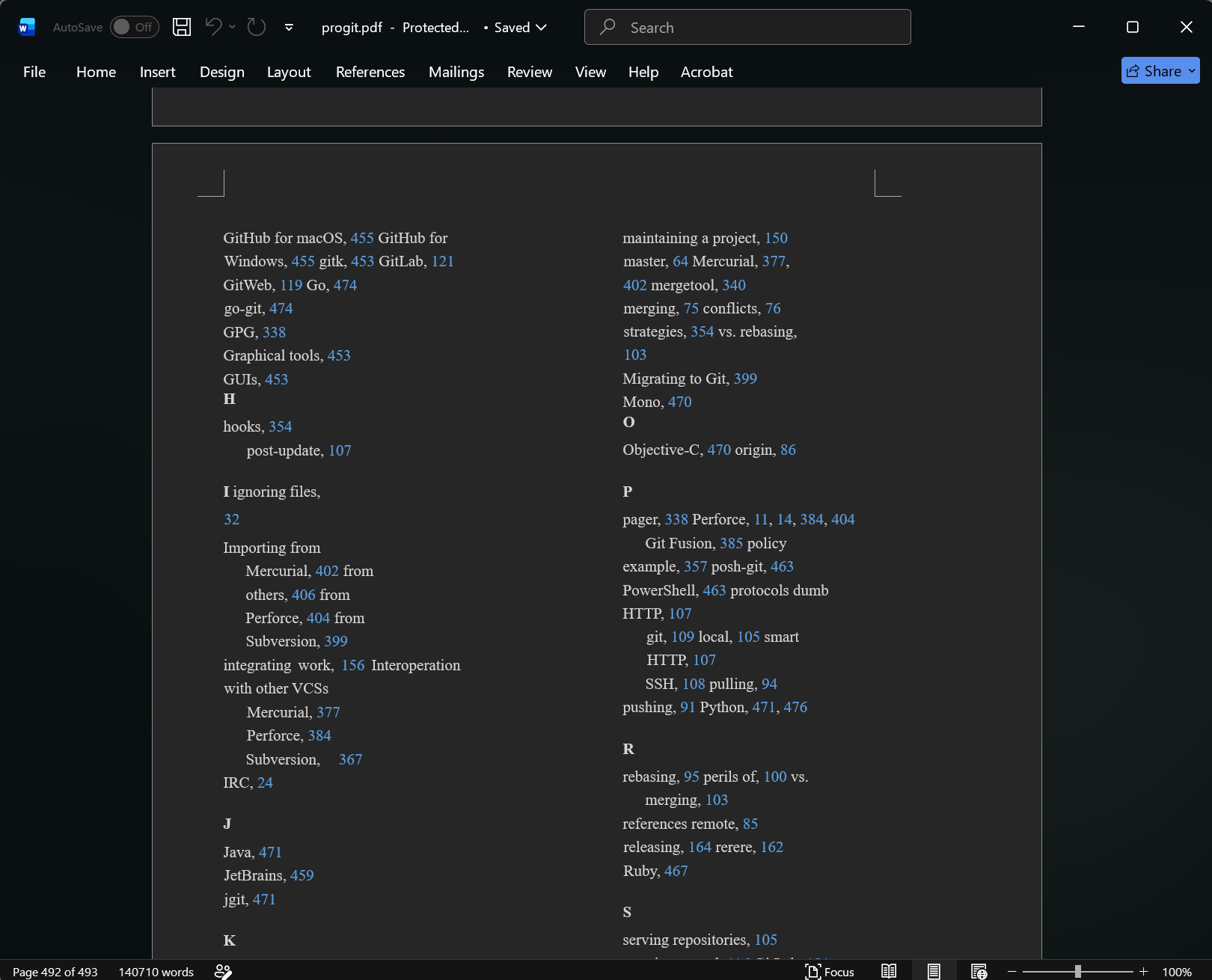
Limitations: No True Batch Mode, One File at a Time, Formatting Loss on Complex Layouts
The catch is that this only works one file at a time — there's no way to queue up a folder of PDFs and have Word convert them all in one go. You'd have to open, convert, and save each file manually, which defeats the purpose if you're working with more than a few documents. Complex layouts (multi-column pages, tables, scanned pages) also tend to come through messier than a purpose-built converter would handle them.
When This Method Is Good Enough
It's a reasonable choice if you only have one or two simple, text-based PDFs to convert and already have Word open.
Method 3: Batch Convert with LibreOffice (Free, Cross-Platform)
LibreOffice, the free open-source office suite, has a command-line batch conversion option that works on both Windows and Mac.
Command-Line Batch Conversion via soffice --headless
Using a terminal command like:
soffice --headless --convert-to docx *.pdf
you can convert every PDF in a folder in one command, without opening the LibreOffice interface at all.
Pros: Free, Scriptable, No Upload
It costs nothing, runs entirely offline, and because it's command-line based, you can fold it into a larger automation script if you're comfortable with that.
Cons: Technical Setup, Inconsistent Formatting on Complex PDFs
The downside is obvious: this requires comfort with the command line, which rules it out for a lot of everyday users. Formatting results can also be inconsistent, especially on PDFs with complex layouts or embedded images.
Method 4: Batch Convert with Online Tools (iLovePDF, Smallpdf, PDF Candy, CloudConvert)
Web-based converters are the most familiar option for a lot of people, and there are several well-known ones — iLovePDF, Smallpdf, PDF Candy, and CloudConvert among them.
How Each Handles Multi-File Batches
Most of these tools do support uploading multiple PDFs at once and converting them together, though the exact batch size and workflow varies by site.
Free-Tier Batch Limits Compared
Free tiers typically cap you on daily conversions, individual file size, or both, and some add watermarks or limit output quality unless you subscribe. If you're converting a large batch regularly, you'll likely hit these limits fast.
Privacy Tradeoff: Files Uploaded to Third-Party Servers
The bigger issue for a lot of use cases is that your files have to be uploaded to a third-party server to be processed. For a handful of non-sensitive documents, that's a non-issue. For contracts, financial records, or anything under an NDA, it's a real consideration.
When Online Tools Make Sense
They're a solid choice for occasional, small, non-sensitive conversions — especially if you're on a locked-down machine where you can't install software.
Method 5: Batch Convert with Adobe Acrobat
Adobe Acrobat is the industry standard for PDF work, and its paid tiers include genuine batch-processing tools.
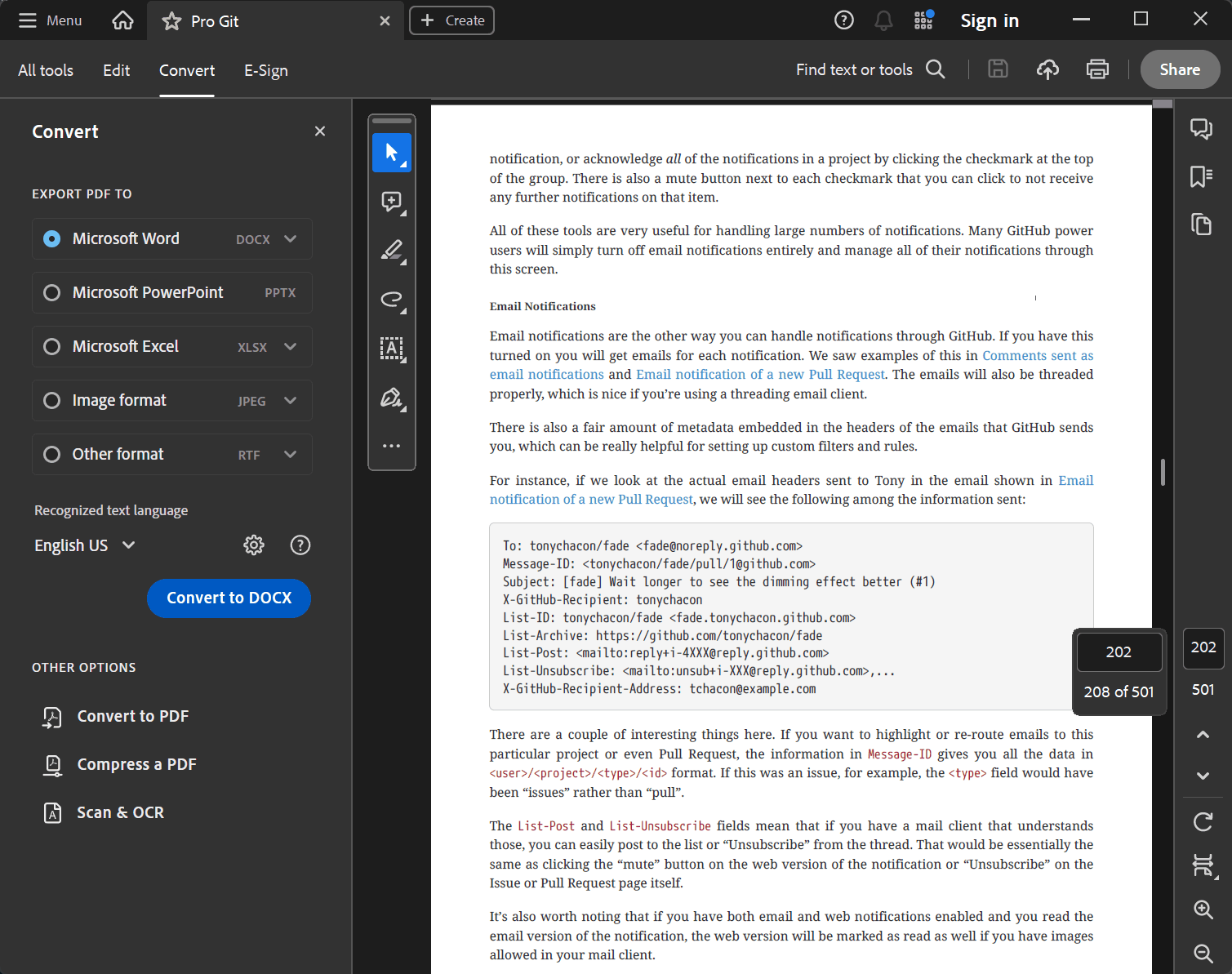
Action Wizard / Batch-Processing Feature
Acrobat's Action Wizard lets you build a repeatable action — including PDF-to-Word export — and apply it across an entire folder of files in one run.
Best-in-Class Formatting Accuracy
Acrobat's conversion engine is generally regarded as one of the most accurate at preserving complex layouts, tables, and fonts.
Cost Barrier: Subscription Required for Batch Features
The catch is cost — batch processing requires a paid Acrobat Pro subscription, which is a lot to pay if PDF conversion is an occasional task rather than a daily one.
Comparison Table: Best Batch PDF-to-Word Tools for 2026
| Tool | Platform | Free Batch Limit | Upload Required? | Offline? | OCR Support | Price |
|---|---|---|---|---|---|---|
| Linraw doBook (eBook to DOCX) | Windows, Mac | No cap | No | Yes | No (text-based PDFs) | Free/Paid tiers |
| Adobe Acrobat | Windows, Mac, Web | None on paid tier | No | Yes | Yes | Subscription ($) |
| iLovePDF | Web | Daily limit on free tier | Yes | No | Limited (paid) | Free/Paid |
| Smallpdf | Web | Daily limit on free tier | Yes | No | Limited (paid) | Free/Paid |
| LibreOffice | Windows, Mac, Linux | No cap | No | Yes | No | Free |
| Microsoft Word | Windows, Mac | One file at a time | No | Yes | No | Included with Office |
| CloudConvert | Web | Limited free credits | Yes | No | Limited (paid) | Free/Paid |
| PDF Candy | Web, Desktop | Daily limit on free tier | Yes (web) | Desktop only | Limited (paid) | Free/Paid |
Formatting Accuracy: What to Expect When Batch Converting
Text-Based vs. Scanned PDFs
A PDF that was generated from a Word document or similar source ("text-based") converts far more cleanly than a scanned PDF, which is essentially a photo of a page. Scanned documents need OCR (optical character recognition) to extract editable text at all.
Tables, Multi-Column Layouts, Footnotes/Headers
These are consistently the hardest elements to preserve. Tables can lose their borders or merge cells incorrectly, multi-column pages sometimes convert into a single jumbled column, and footnotes or running headers occasionally get pulled into the body text.
When OCR Is Required
If your source PDFs are scans — old contracts, printed forms, book pages photographed or scanned in — you'll need a tool with OCR support to get usable text out of them. Not every converter includes this, including some of the free options above, so check before committing to a tool for a scan-heavy batch.
Tips to Check/Fix Formatting After Conversion
Spot-check a few converted files before trusting the whole batch
Watch for merged or split table cells
Check that headings retained their styles rather than converting to plain text
Re-run problem files individually if a batch setting doesn't suit a particular document
Windows vs. Mac: Any Differences in Batch Conversion?
Platform-Specific Quirks (File Paths, Fonts, Permissions)
File path formats differ between Windows and Mac, and font availability can vary too — a font embedded in a PDF may render differently if it isn't installed on the converting machine. Permissions can also trip up command-line tools like LibreOffice's batch mode if you're not used to granting terminal access on macOS.
Confirming Linraw doBook Feature Parity Across Both OSes
Linraw doBook is built to work the same way on both Windows and Mac — the eBook to DOCX tool, its batch behavior, and its supported formats are consistent across both platforms, so you're not choosing a lesser version depending on which machine you're on.
Tips for Large-Scale Batch Jobs
Organizing Source Files Before Converting
Group your PDFs into a single folder (or subfolders by category) before starting. It makes it much easier to track what's been converted and to isolate problem files.
Naming Conventions for Output Files
Keep source and converted file names aligned wherever possible, so you can match them up later without guesswork.
Handling Failed/Corrupted PDFs in a Batch
Occasionally a file in a batch will fail — usually because it's corrupted or password-protected. Most batch tools will skip it and continue rather than stopping the whole job, but it's worth reviewing the output folder afterward to catch anything that didn't convert.
Backing Up Originals Before Bulk Conversion
Always keep your original PDFs until you've verified the converted files. It costs nothing and saves you from having to re-scan or re-source a document if something goes wrong mid-batch.
Privacy & Security Considerations for Bulk Documents
Risks of Uploading Sensitive/Confidential Files in Bulk
Uploading one PDF to a web converter is a small risk. Uploading a hundred contracts, tax documents, or HR files is a much bigger one — you're trusting a third-party server with a large volume of potentially sensitive material, and it's not always clear how long that data is retained.
Why Offline Conversion Matters for Legal, Financial, and HR Documents
For anything covered by confidentiality obligations — client contracts, financial statements, personnel records — an offline, local tool like Linraw doBook or LibreOffice avoids the question entirely, since the files never leave your machine.
Frequently Asked Questions
Can I batch convert PDF to Word for free?
Yes. Linraw doBook and LibreOffice both let you batch convert without paying, though LibreOffice requires command-line comfort. Most online tools also offer a free tier, but with daily limits.
Is there a limit to how many PDFs I can convert at once?
It depends on the tool. Desktop tools like Linraw doBook and LibreOffice generally don't cap batch size, while free online tools usually limit you to a certain number of conversions per day.
Does batch conversion preserve formatting and images?
Mostly, for text-based PDFs with simple layouts. Complex tables, multi-column pages, and images can shift or lose formatting during conversion, regardless of which tool you use — it's worth spot-checking a batch after conversion.
Can I batch convert scanned PDFs (with OCR)?
Only with a tool that includes OCR, such as Adobe Acrobat or the OCR-enabled tiers of some online converters. Tools without OCR will convert scanned PDFs but leave the text unselectable and uneditable.
Is it safe to batch convert confidential documents online?
It carries more risk than converting locally, since your files are uploaded to a third-party server. For sensitive documents, an offline tool is the safer choice.
What's the fastest way to convert 100+ PDFs to Word?
A desktop tool with genuine batch support and no daily cap — like Linraw doBook's eBook to DOCX tool or LibreOffice's command-line mode — will handle large volumes faster and with fewer interruptions than uploading files one batch at a time to a web tool.
Do I need Microsoft Word installed to convert PDFs to DOCX?
No. Tools like Linraw doBook, LibreOffice, and most online converters produce standard DOCX files without requiring Word to be installed — you'll only need Word (or a compatible app) to open the result afterward.
Conclusion
Summary of the Best Ways to Batch Convert PDF to Word
There's no universally "best" tool — it comes down to volume, sensitivity, and budget. Word's built-in import is fine for a single file. LibreOffice is a solid free option if you're comfortable with the command line. Online tools work for small, non-sensitive batches. Adobe Acrobat delivers the most accurate conversions but at a real cost. And for everyday batch conversion without upload limits, daily caps, or a subscription, a dedicated offline desktop tool is hard to beat.
Why eBook to DOCX Stands Out for Windows and Mac Users
Linraw doBook's eBook to DOCX tool covers the middle ground well: it's free to use, works identically on Windows and Mac, handles genuinely large batches without uploading anything, and supports more than just PDFs if your conversion needs go beyond that.
Final Recommendations and Next Steps
If you're converting PDFs occasionally and they're not sensitive, an online tool will do the job. If you're working through a real backlog — dozens or hundreds of files, especially anything confidential — download Linraw doBook and try the eBook to DOCX tool on a small batch first to see how it handles your specific documents before committing to the full job.
However, if your workflow involves multiple types—such as images, audio, video, PDFs, or eBooks—then Linraw doUltra is a more powerful all-in-one option.
Related Chapters
