Split PDF Tool – Split PDF Files by Pages, Range, or Chapters on Windows & Mac
1. Introduction: Why You Need a PDF Split Tool
What Does "Splitting a PDF" Mean?
Splitting a PDF means dividing a single PDF document into two or more separate files. You might extract one page, pull out a specific range, or break the whole file apart by its chapter bookmarks. The end result is smaller, more focused documents that are easier to share, store, and manage.
Common Problems with Large or Unorganized PDFs
Large PDFs create real friction in everyday workflows. A 300-page company report is unwieldy when you only need pages 40–55. Emailing a 50 MB scanned manual fails because of attachment size limits. Sharing an entire contract when the recipient only needs one clause wastes everyone's time and raises unnecessary privacy concerns.
When You Should Split a PDF (Real-World Use Cases)
Sending only the relevant section of a legal contract to a client
Submitting specific pages of a portfolio or report to a reviewer
Breaking a textbook into individual chapters for students
Isolating invoices from a batch-scanned document
Cutting large PDFs down to meet email or cloud upload size limits
Benefits of Using a Desktop PDF Split Tool (Windows & Mac)
A desktop tool like Linraw doPDF processes files directly on your machine. There are no upload queues, no file size caps, and no third-party servers receiving your sensitive documents. You get faster performance on large files, full offline access, and consistent results across both Windows and Mac without switching tools.
2. Key Features of a Modern PDF Split Tool
Split by Individual Pages (One Page per File)
Turn any multi-page PDF into a set of single-page files in one click. Ideal for batch-processing scanned documents or distributing pages independently.
Split by Custom Page Ranges (e.g., 1–5, 6–10)
Define exactly which pages belong together. Linraw doPDF accepts flexible range inputs, so you can extract non-consecutive pages or combine multiple ranges in a single operation.
Split by Chapters or Bookmarks
If your PDF contains a table of contents with bookmark navigation, Linraw doPDF can detect those bookmarks and use them as natural split points — producing one file per chapter automatically.
Preserve Original Quality and Formatting
Linraw doPDF does not re-render or recompress pages during splitting. Fonts, images, vector graphics, and embedded metadata are carried over to each output file exactly as they appear in the original.
Fast Processing and Offline Security
All processing happens locally. There is no internet dependency, no waiting for server responses, and no risk of your documents being stored on a remote system. Linraw doPDF handles even hundred-megabyte PDFs in seconds on modern hardware.
3. Understanding Different PDF Splitting Methods
Split by Pages
What It Does and When to Use It
Page-based splitting creates one output file per page. Every page of your source PDF becomes its own standalone document. This method is best when you need total granularity — for example, breaking a scanned batch of forms into individual form files.
Example Scenarios
A 50-page scanned receipt archive split into 50 individual receipt PDFs
A product catalog where each item page must be stored and shared separately
Isolating a single-page certificate from a multi-page document packet
Split by Page Range
How Range-Based Splitting Works
You define one or more page ranges, and Linraw doPDF creates one output file per range. A range like 1–10, 11–25, 26–50 produces three files. Ranges do not need to be equal in size, and you can specify non-consecutive pages such as 1, 3, 7–12.
Flexible Range Input (e.g., 1, 3, 5–10)
Linraw doPDF's range input field accepts comma-separated values and hyphenated spans together. This makes it possible to extract scattered pages alongside grouped blocks in a single pass — something that saves significant manual effort compared to repeating the operation multiple times.
Split by Chapters / Bookmarks
How Bookmark-Based Splitting Works
PDFs that contain bookmarks (also called outlines) store a navigational hierarchy. Linraw doPDF reads that hierarchy and treats each top-level bookmark as a chapter boundary. Each chapter is extracted into its own file and named after the bookmark label automatically, eliminating the need to manually identify page numbers.
Best Use Cases (eBooks, Reports, Manuals)
Technical manuals where each chapter is distributed to a different team
Annual reports split into financial, operational, and strategic sections
Academic eBooks divided into individual chapters for course distribution
4. How to Split PDF Files on Windows & Mac (Step-by-Step Guide)
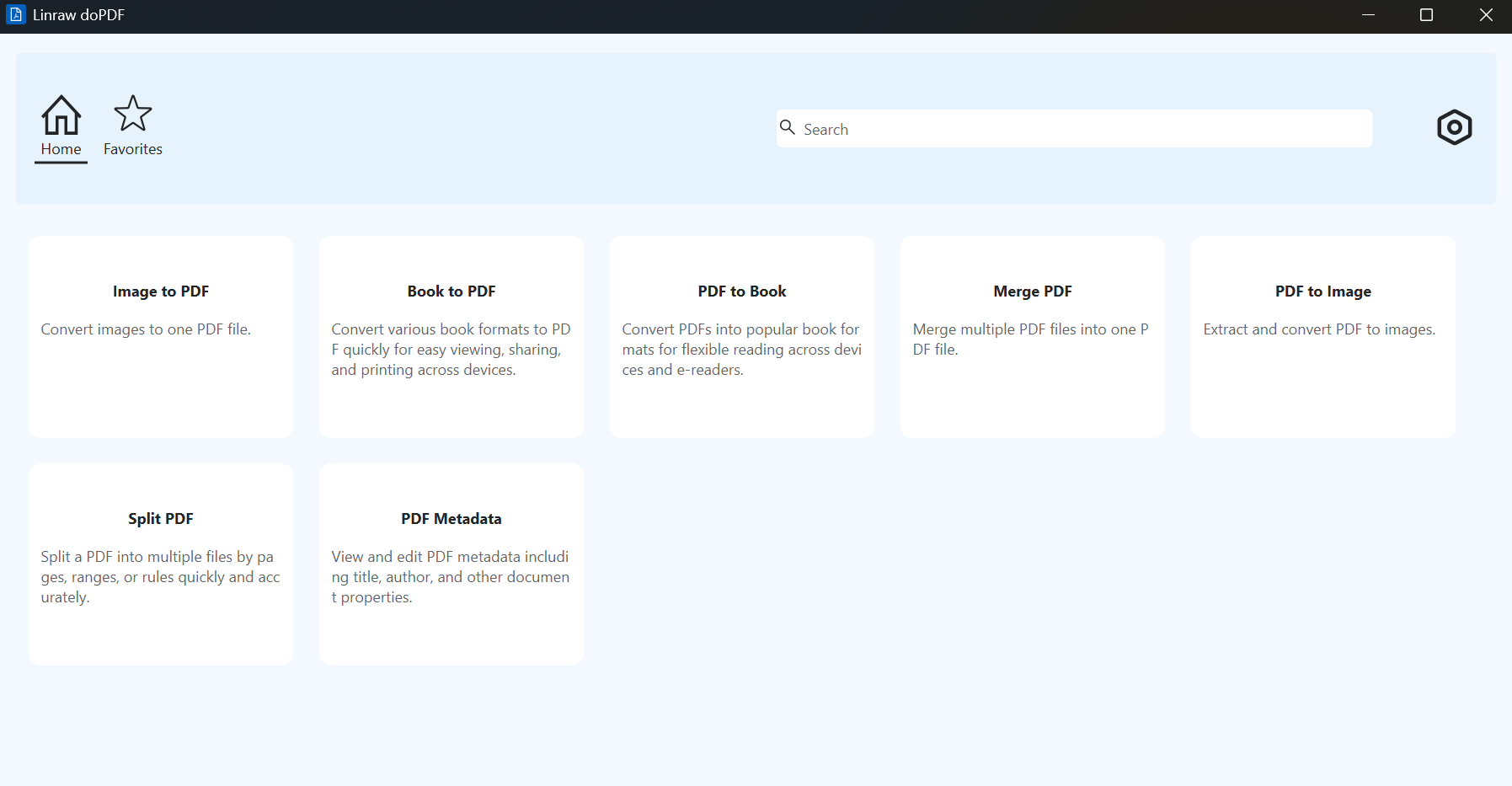
Step 1: Launch the Split PDF Tool
Open the Linraw doPDF desktop application and select the Split PDF module from the main dashboard.
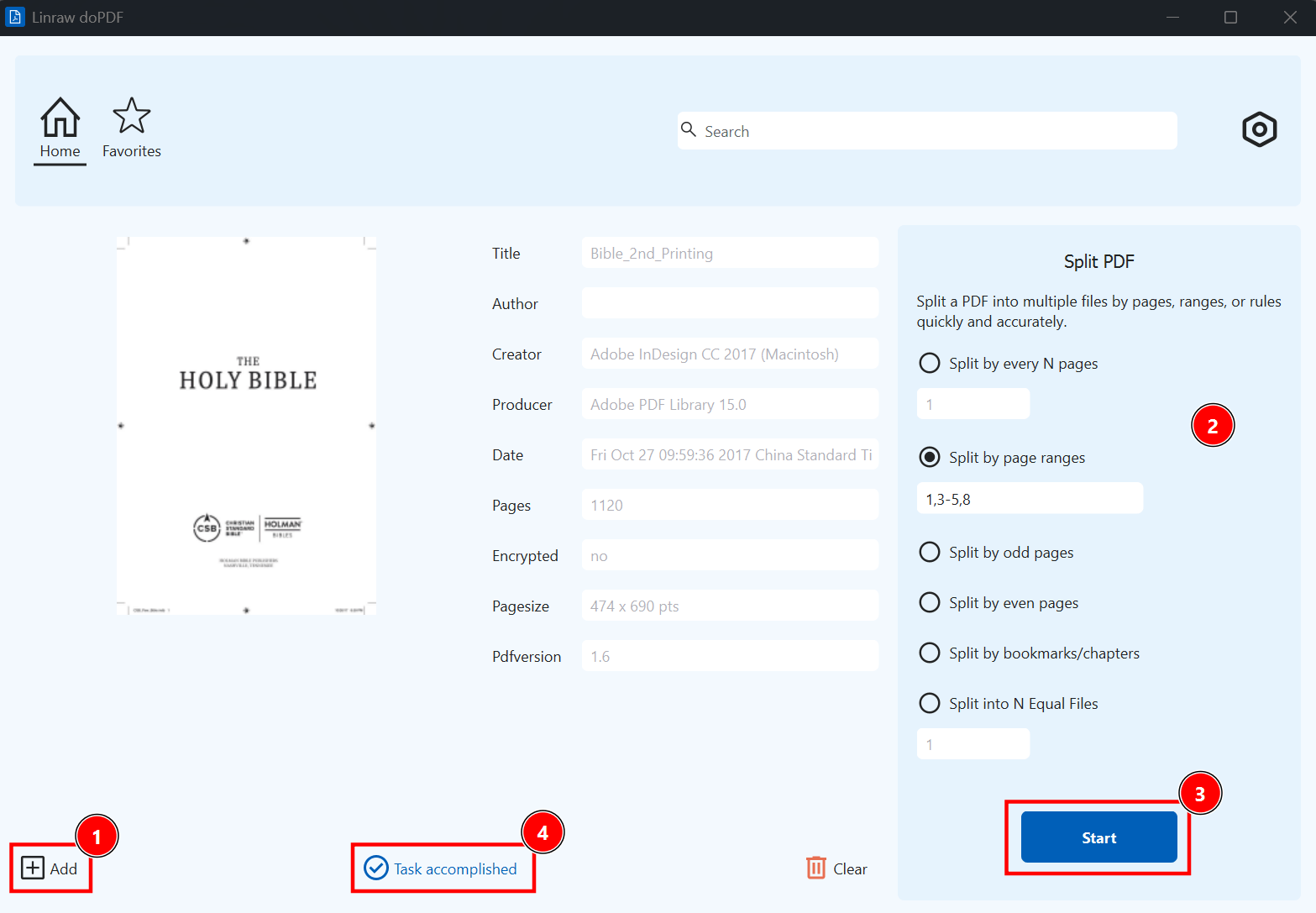
Step 2: Import Your PDF File(s)
Click "Add File" to browse your computer, or simply drag and drop the PDF you wish to divide directly into the software interface.
Step 3: Choose a Splitting Method (Pages, Range, Chapters)
Select one of the three splitting modes from the toolbar:
By Pages — splits every page into its own file
By Range — enter your custom ranges in the input field (e.g.,
1–5, 6–15, 16–30)By Chapters — available when bookmarks are detected; Linraw doPDF lists the found chapters for your review before splitting
Step 4: Start Splitting and Export Files
Click Start. A progress bar tracks the operation. For most documents, splitting completes in under ten seconds. Large files with hundreds of high-resolution pages may take slightly longer but remain fully responsive throughout.
Step 5: Verify Output Files
Navigate to your destination folder to review the newly created, smaller PDF files and ensure they meet your requirements.
5. Common Use Cases for Splitting PDFs
Extracting Specific Pages for Sharing — Pull only the pages a colleague or client needs instead of forwarding the entire document and exposing unrelated content.
Dividing Large PDFs for Email or Upload Limits — Most email servers cap attachments at 10–25 MB. Splitting a large PDF into parts keeps each file within those limits without quality loss.
Organizing Documents into Sections — A 200-page policy handbook becomes far more navigable when its HR, compliance, and operations sections each live in their own file.
Preparing Files for Printing or Review — Send only the chapter currently under review to proofreaders, keeping unrelated content separate and reducing confusion in collaborative workflows.
Splitting Scanned Documents or Reports — Batch-scanned paperwork often arrives as one giant PDF. Splitting it by page creates individual records that can be named, filed, and retrieved separately in a document management system.
6. Tips for Better PDF Splitting Results
How to Choose the Right Splitting Method — Use By Pages for uniform granularity, By Range when you know exactly which page numbers you need, and By Chapters when the document has a structured bookmark outline you want to honor.
Maintaining Document Quality — Linraw doPDF never recompresses images or re-renders text during splitting, so output quality is identical to the source. If output looks degraded, the issue originates in the source file itself.
Avoiding Common Mistakes — Double-check your range input before splitting. Always review the page count summary Linraw doPDF displays before clicking Split, and use the thumbnail preview to confirm you are working with the correct file.
7. Alternative Ways to Split PDF Files
Using Online PDF Split Tools
Pros: No installation required; accessible from any browser on any device, making them convenient for occasional one-off tasks.
Cons: Most free services cap file sizes at 5–50 MB. Your document is transmitted to and temporarily stored on a third-party server — a serious concern for contracts, medical records, or any confidential content. Many free tools also insert watermarks into output files.
Using Built-in System Tools (Preview on Mac, etc.)
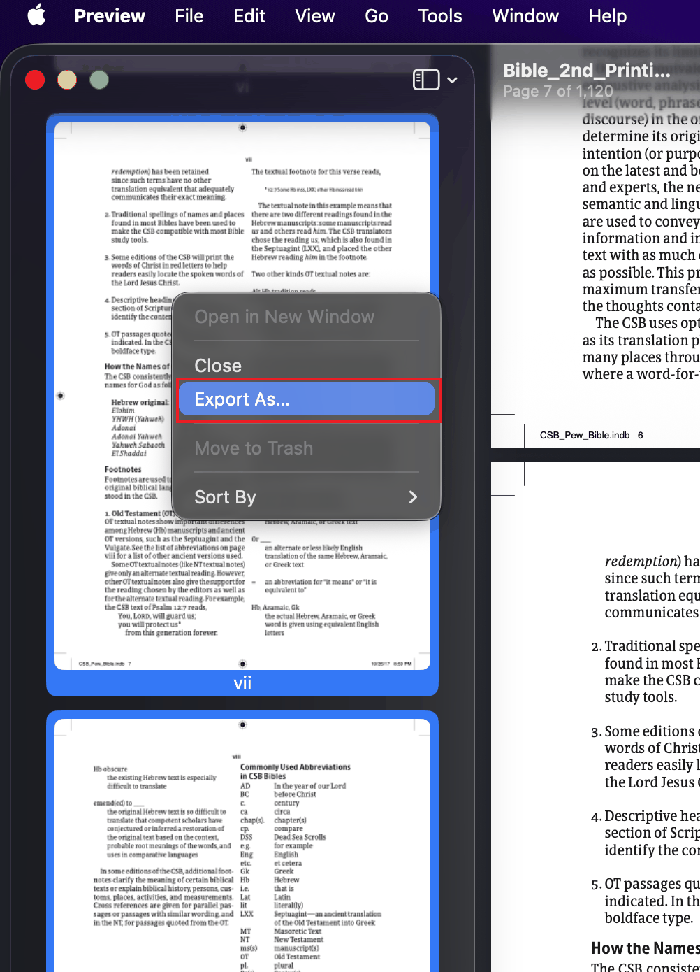
Mac's Preview app can drag pages out of a PDF to create a new file, but the workflow is entirely manual and error-prone beyond a handful of pages. There is no range input, no chapter detection, and no batch capability. Windows has no comparable built-in PDF tool.
Using Command-Line Tools (Advanced Users)
Tools like pdftk or Ghostscript offer powerful scripting options for automated splitting pipelines. However, they require command-line familiarity, manual syntax construction, and provide no visual confirmation of results — making them impractical for most day-to-day users.
Use pdftk to split PDF:
pdftk input.pdf burst output page_%02d.pdf
Use Ghostscript to split PDF:
gs -sDEVICE=pdfwrite -dNOPAUSE -dBATCH -dSAFER -sOutputFile=output_%03d.pdf input.pdf
8. Comparison with Alternative Tools
| Feature | Linraw doPDF | Online Tools | Mac Preview | Command-Line |
|---|---|---|---|---|
| Split by Page Range | ✅ | ✅ Limited | ❌ | ✅ |
| Split by Bookmarks/Chapters | ✅ | ❌ Rare | ❌ | ✅ |
| Offline / No Upload Required | ✅ | ❌ | ✅ | ✅ |
| Preserves Original Quality | ✅ | Varies | ✅ | ✅ |
| Beginner-Friendly Interface | ✅ | ✅ | Partial | ❌ |
| Windows & Mac Support | ✅ | ✅ | ❌ Mac only | ✅ |
| No File Size Limit | ✅ | ❌ | ✅ | ✅ |
| No Watermark on Output | ✅ | ❌ Often | ✅ | ✅ |
9. Why Choose This Split PDF Tool?
All-in-One PDF Toolkit Integration — Split PDF is one tool within Linraw doPDF's full PDF suite. After splitting, you can immediately compress, merge, convert, or annotate the output files without switching applications.
Cross-Platform Support (Windows & Mac) — Linraw doPDF delivers an identical experience on both operating systems. Your workflow, keyboard shortcuts, and output settings stay consistent whether you are on a Windows workstation or a MacBook.
Fast, Secure, and Offline Processing — Because everything runs locally, your files never leave your machine. This makes Linraw doPDF the right choice for professionals handling sensitive or regulated documents.
Beginner-Friendly Interface — The visual page preview, clearly labeled splitting modes, and one-click export make the tool accessible to users with no prior PDF experience.
10. Troubleshooting Common Issues
PDF Won't Split Properly — Confirm the file is not corrupted by opening it in a PDF viewer first. If it opens normally, check whether it is permission-locked — an owner password may block editing operations even if a user password lets you view it.
Missing Pages After Splitting — Review your range input carefully. A range like 5–10 produces six pages (5, 6, 7, 8, 9, 10). Verify the total page count of the source file in the preview panel before running the split.
Slow Performance with Large Files — Files over 500 MB with many high-resolution images are CPU and memory intensive. Close other heavy applications before splitting, or compress the source PDF first using Linraw doPDF's Compress PDF tool, then split the lighter version.
Issues with Bookmarks or Chapters — If chapter-based splitting produces unexpected results, inspect the source PDF's bookmark panel in a viewer. Nested bookmarks (sub-chapters) may not align with your expected top-level divisions. Switch to range-based splitting for more precise control in these cases.
Output File Errors — Ensure the destination folder exists and that Linraw doPDF has write permissions to it. On Mac, check System Settings → Privacy & Security → Files and Folders if the app cannot access your chosen output directory.
11. Frequently Asked Questions (FAQ)
How do I split a PDF into individual pages?
Open the Split PDF tool in Linraw doPDF, import your file, select By Pages, and click Split. Each page of the source PDF is saved as a separate numbered PDF file in your chosen output folder.
Can I split a PDF without losing quality?
Yes. Linraw doPDF extracts pages without re-rendering or recompressing them, so fonts, images, and layout are preserved exactly as they appear in the original document.
How do I split a PDF by page range?
Choose the By Range mode, enter your ranges in the input field (e.g., 1–10, 11–25), and click Split. Linraw doPDF creates one output file per defined range.
Is it safe to use an offline PDF splitter?
Absolutely. Because Linraw doPDF operates entirely offline, your files are never transmitted to or stored on any external server. This is especially important for confidential business, legal, or medical documents.
What is the best way to split large PDF files?
For very large files, use range-based splitting to process only the sections you need rather than splitting every page at once. If performance is still an issue, compress the source PDF first using Linraw doPDF's Compress PDF tool, then run the split on the lighter version.
12. Conclusion: The Best Way to Split PDF Files Efficiently
Recap of Key Splitting Methods
Linraw doPDF gives you three precise ways to split PDF files: by individual pages for maximum granularity, by custom page ranges for targeted extraction, and by chapters or bookmarks for structure-aware division that respects the document's own organization.
When to Use Each Method
Use By Pages when every page is its own distinct record. Use By Range when you know exactly which page numbers you need. Use By Chapters when the document has a structured bookmark outline and you want each section delivered as a clean, self-contained file — no manual page counting required.
Why Desktop PDF Tools Are the Best Choice
Online tools trade convenience for privacy, impose size restrictions, and often degrade quality or add watermarks. Built-in OS utilities lack the range input and batch capability needed for real workflows. Command-line tools are powerful but inaccessible to most users. Linraw doPDF hits the right balance: a full-featured, visually guided desktop application that protects your data, imposes no file size limits, and handles every splitting scenario from the simplest page extraction to chapter-level document restructuring.
Final Tips for Fast and Secure PDF Splitting
Always preview your source file before splitting to confirm page count and layout. For sensitive documents, Linraw doPDF's offline-first design means your files stay exactly where they belong — on your computer, under your control.
Related Chapters
