Merge PDF Tool: Combine PDF Files Quickly & Losslessly
1. Introduction: Why You Need a PDF Merge Tool
If you handle digital documents regularly, you know the frustration of a cluttered workspace. Having a dozen separate PDF files for a single project is not only disorganized but also makes sharing and printing a tedious process.
A Merge PDF Tool is the ultimate antidote to document chaos. By combining multiple PDF files into a single, cohesive document, you streamline your workflow, improve readability, and present your work professionally. Whether you are compiling monthly financial reports for work, assembling research papers for study, preparing legal briefs, or simply archiving old invoices, merging your PDFs saves time and eliminates the hassle of tracking down missing email attachments.
2. What Is a Merge PDF Tool?
At its core, a Merge PDF tool is a software utility designed to take two or more separate Portable Document Format (PDF) files and stitch them together sequentially into one new file.
Merge vs. Combine vs. Join: You will often see these terms used interchangeably in software and tutorials. Functionally, they mean the exact same thing. Whether a tool says "Merge PDFs," "Combine PDFs," or "Join PDFs," the end result is a single document containing the pages of the original files.
How it Works: When you merge PDFs, the software essentially reads the page tree structure of each document and writes a new PDF dictionary that references all the pages in the order you specified. A truly "lossless" merger does this without rasterizing or re-rendering the pages, preserving the original text, vectors, and image quality perfectly.
3. Key Features of a Powerful PDF Merger
Not all PDF combiners are created equal. A robust desktop solution should offer a specific set of features to ensure a smooth, professional experience:
Fast and Lossless Merging: The tool should combine files in seconds without degrading image resolution, breaking hyperlinks, or altering fonts.
Batch Merge Support: The ability to import dozens or even hundreds of files at once, rather than adding them one by one.
Drag-and-Drop File Ordering: A visual interface that lets you easily drag files into the exact order you want them to appear.
Cross-Platform Support: Seamless operation on both Windows and macOS environments.
Offline Processing: Local processing guarantees that your sensitive documents never leave your computer, ensuring absolute privacy and security.
Support for Large PDF Files: The capacity to handle massive files (e.g., blueprints, high-res textbooks) without crashing or imposing upload limits.
4. How to Merge PDF Files Step-by-Step
Combining documents should be intuitive. Here is how you can consolidate your files using a dedicated desktop application.
4.1 Using Linraw doPDF Merge PDF Tool
Launch the Software: Open Linraw doPDF on your Windows or Mac computer and select the "Merge PDF" tool from the main dashboard.
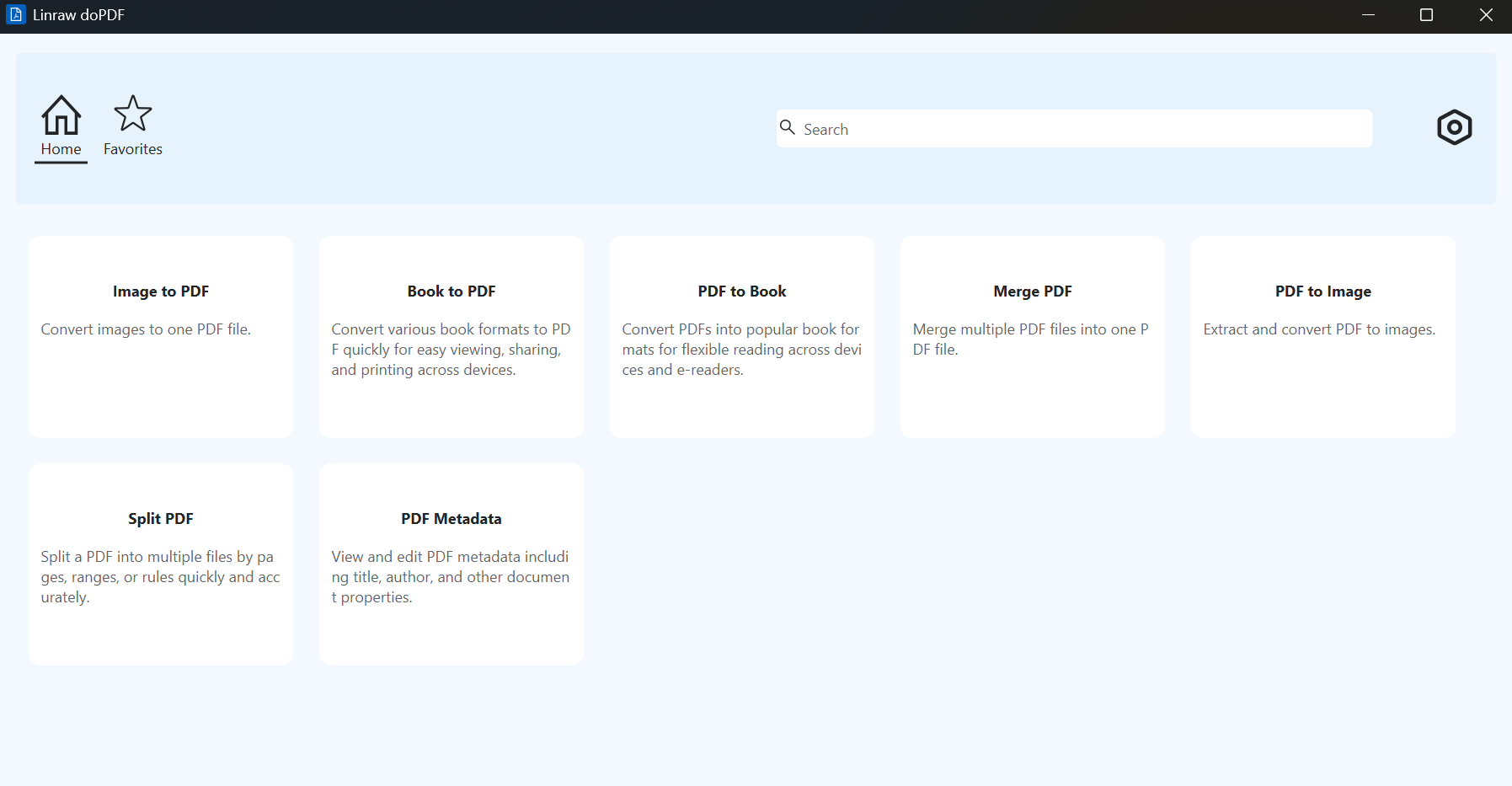
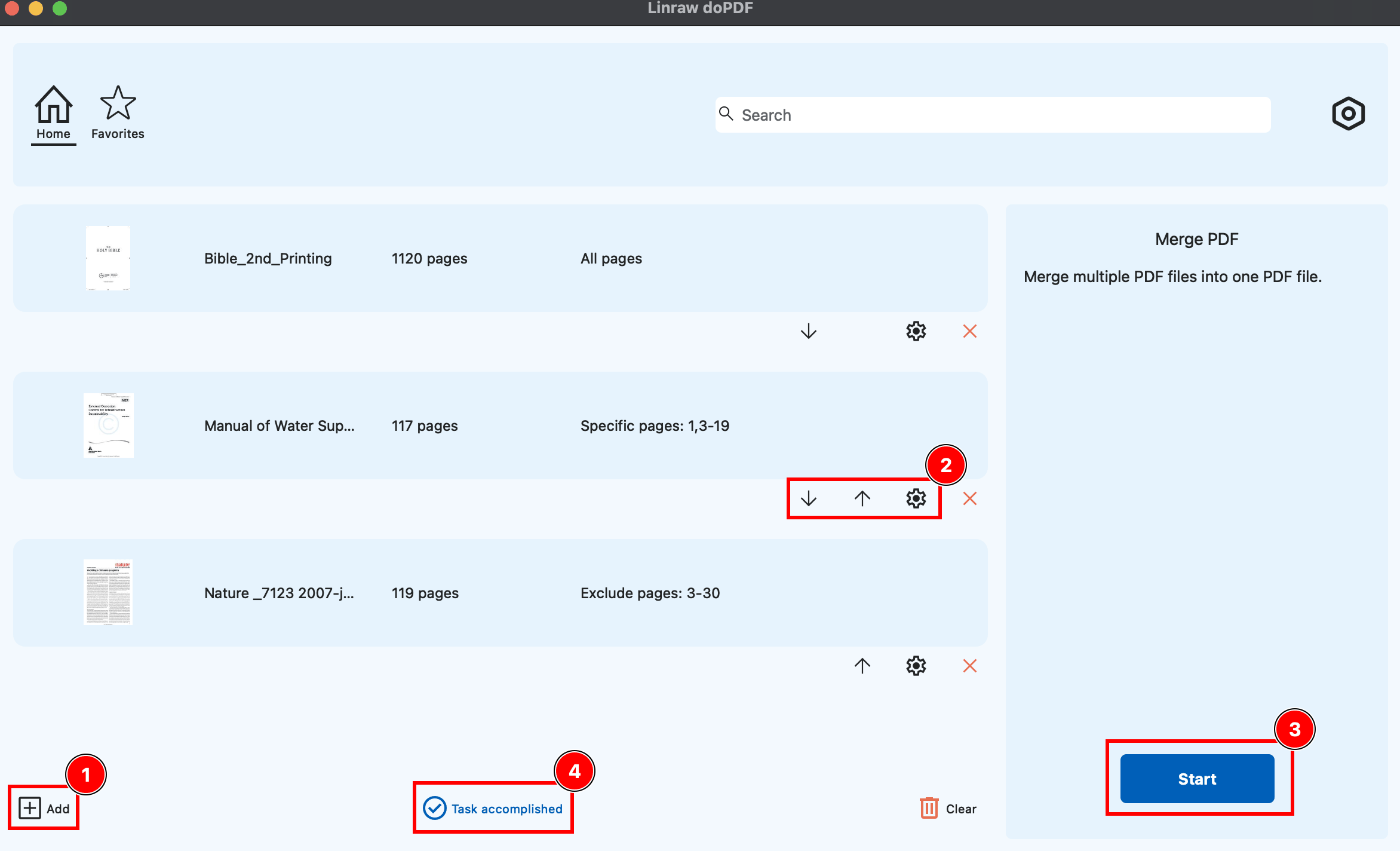
Add Your Files: Click "Add Files" or simply drag and drop the PDFs you want to combine directly into the application window.
Arrange the Order: Click and drag the files in the list to sequence them. The file at the top will be the beginning of your new document.
Merge and Save: Click the "Merge" button. The software will process the files instantly and prompt you to save the new, combined PDF to your desired folder.
Tip for Best Results: Ensure all your source files are not password-protected against editing, as this can block the merging process.
4.2 Reordering and Customizing Before Merge
Sometimes, you don't need the entire document. Advanced desktop tools allow you to customize the output before hitting the merge button:
Adjusting File Order: Use the up/down arrows or drag-and-drop mechanics to fix the flow of the document.
Selecting Specific Pages: Instead of merging a whole 50-page document, specify page ranges (e.g., pages 1-5, 10) to include only what is relevant.
Handling Bookmarks: Choose whether to discard original bookmarks or merge them so the new document retains an organized table of contents.
5. Advanced PDF Merging Scenarios
Beyond simply stacking files together, power users often encounter complex merging scenarios:
Merging Specific Pages from Multiple PDFs: You can act as an editor, pulling chapter 1 from File A, the appendix from File B, and the graphs from File C, weaving them into a brand-new custom report.
Combining Scanned and Digital PDFs: You can seamlessly mix natively digital PDFs (where text is selectable) with scanned image-based PDFs.
Handling Complex Documents: When merging files with different page orientations (landscape vs. portrait) or sizes (A4 vs. Letter), a quality tool will preserve these individual page properties without forcing them into a unified, distorted size.
6. Other Solutions to Merge PDF Files
If you don't have dedicated desktop software installed, there are other avenues to explore, though each comes with trade-offs.
6.1 Online PDF Merge Tools
Browser-based tools are highly convenient and often free.
Pros: No installation required; works on any device with a browser.
Cons: Major privacy risks as you must upload your files to a third-party server. They also strictly limit file sizes and the number of files you can process per day.
6.2 Desktop Software Alternatives
General-Purpose PDF Editors: Heavyweight programs like Adobe Acrobat offer merging capabilities but are often tied to expensive monthly subscriptions and can be resource-heavy for simple tasks.
Lightweight PDF Utilities: Built-in OS tools like Mac’s Preview can merge files, but the interface can be clunky for batch processing, and Windows lacks a native equivalent that is easy to use.
6.3 Command-Line and Developer Tools
For the tech-savvy, command-line interfaces (CLI) like Ghostscript or PDFtk offer powerful automation.
Pros: Highly customizable; great for scripting batch jobs.
Cons: Steep learning curve; no graphical user interface (GUI); requires coding knowledge.
7. Comparison: Linraw doPDF vs Other PDF Merge Solutions
To help you decide the best route for your workflow, here is a breakdown of how Linraw doPDF compares to other common methods.
| Feature / Solution | Linraw doPDF (Desktop) | Free Online Tools | Premium PDF Editors (e.g., Acrobat) | CLI Tools (e.g., PDFtk) |
|---|---|---|---|---|
| Privacy / Offline Use | Yes | No (Upload required) | Yes | Yes |
| Cost | One-time or affordable | Free (with limits) | High monthly subscription | Free |
| Ease of Use | High (Drag-and-drop) | High | Medium (Steep learning curve) | Low (Code-based) |
| File Size Limits | Unlimited | Strictly Limited | Unlimited | Unlimited |
| Processing Speed | Instant (Uses local CPU) | Slow (Depends on internet) | Fast | Fast |
When to choose other solutions: If you are on a public computer and need to merge two non-sensitive, tiny files instantly, a free online tool might suffice. If you need to build automated server-side workflows, CLI tools are the way to go. For everything else, a dedicated desktop utility offers the best balance of speed, safety, and usability.
8. Benefits of Using an Offline PDF Merge Tool
Opting for an offline desktop application like Linraw doPDF over a cloud-based service provides several undeniable advantages:
Data Security and Privacy: Your files never leave your hard drive. This is non-negotiable for legal professionals, HR departments, and anyone handling sensitive financial or personal data.
No File Upload Limitations: You aren't restricted to a "10 MB maximum" or "2 files per hour" cap. Combine gigabytes of data if needed.
Faster Processing for Large Files: Bypassing the need to upload and download heavy documents over an internet connection saves massive amounts of time.
Reliability: You can work from an airplane, a coffee shop with terrible Wi-Fi, or a remote location without ever worrying about an internet connection dropping out mid-merge.
9. Common Issues and How to Fix Them
Even with the best software, you might run into occasional hiccups. Here is how to handle them:
Merged File Size Too Large: If combining files creates a massive document that you cannot email, use a "Compress PDF" tool afterward to reduce the file size without losing visual quality.
Formatting Inconsistencies: If forms or interactive elements break during a merge, try "flattening" the source PDFs before combining them.
Corrupted or Unreadable PDFs: If the software fails to merge a specific file, that file might be corrupted. Try opening it in a web browser and "Printing to PDF" to generate a clean, new version before merging.
Password and Permission Issues: You cannot merge a file that is locked against editing or copying. You must unlock the PDF with its respective password before adding it to the merge queue.
10. Best Practices for Merging PDF Files
To ensure your combined documents are professional and accessible, keep these best practices in mind:
Organize and Rename First: Give your source files clear, sequential names (e.g., "01-Title.pdf", "02-Index.pdf") before importing them. This makes auto-sorting a breeze.
Maintain Document Quality: Avoid merging files that have been heavily compressed multiple times. Whenever possible, use original exports to ensure the final merged document remains sharp and legible.
11. Frequently Asked Questions (FAQ)
Is merging PDF files safe?
Yes, provided you use an offline desktop tool. Because the processing happens locally on your machine, your data is completely secure. Using online tools carries inherent risks as your files are uploaded to remote servers.
Does merging affect file quality?
No. A high-quality merge tool performs a lossless join, meaning it simply strings the existing pages together without re-rendering them. Text, vectors, and images will look exactly as they did in the original files.
Can I merge PDFs without the internet?
Absolutely. With a desktop application installed on your Windows or Mac, no internet connection is required to process, merge, or save your documents.
How many PDFs can I merge at once?
Desktop software generally has no hard limits. You can merge dozens or even hundreds of files at once, limited only by your computer's processing power and storage space.
Will bookmarks and links be preserved?
Advanced desktop tools will retain internal and external hyperlinks. Many also offer the option to preserve, combine, or discard existing bookmarks to suit the needs of your new master document.
Is Linraw doPDF compatible with the latest macOS and Windows updates?
Yes. Desktop utilities are regularly updated to ensure full compatibility with the latest iterations of both Windows 11 and macOS environments.
12. Conclusion: The Best Way to Merge PDF Files Efficiently
Managing digital paperwork shouldn't be a chore. A reliable Merge PDF tool simplifies your digital life, allowing you to consolidate project files, organize archives, and present information cleanly.
While online tools offer a quick fix for casual use, they compromise on privacy and restrict your workflow with file limits. An offline, desktop-based solution like Linraw doPDF provides the security, speed, and cross-platform flexibility necessary for modern document management. By keeping your files local, you guarantee data privacy while enjoying lossless, limitless merging capabilities.
If you are tired of juggling endless email attachments and scattered files, bringing a dedicated PDF merger into your daily toolkit is the smartest upgrade you can make for your productivity.
Related Chapters
