How to Convert Word to PDF Without Uploading Your Files (Free, Offline, Windows & Mac)
Uploading a Word document to a random website just to turn it into a PDF sounds harmless — until you remember what's actually in that file. Resumes have your address and phone number. Contracts have signatures and financial terms. Work files might be covered by an NDA you signed without reading closely.
The good news: you don't need to upload anything. Word to PDF conversion can be done entirely offline, for free, on both Windows and Mac. Here's how.
Why Convert Word to PDF Without Uploading Files?
Privacy and data security. Once a file leaves your computer, you lose control over it. Even converters that promise to delete files after an hour still process them on a server you don't own.
No internet connection required. Offline tools work on a plane, on a train, or anywhere your Wi-Fi is unreliable.
Faster conversion for large Word files. No upload/download round trip means less waiting, especially for long documents with lots of images.
No file-size or upload limits. Free online converters often cap file size or the number of conversions per day. Local tools don't care how big your file is.
Better for sensitive documents. Legal contracts, medical records, financial statements, and HR files are safer when they never touch a third-party server.
Can You Convert Word to PDF Offline?
Yes — and it's simpler than most people expect.
How offline conversion works: the software reads the Word file's internal structure directly on your device and rebuilds it as a PDF, without sending any data over the internet.
DOCX vs. DOC: both formats convert offline without issue. DOCX (the modern XML-based format) generally converts more reliably than the older binary DOC format, especially for complex layouts.
Formatting, images, fonts, tables: a good offline converter preserves all of these, since it's reading the actual document structure rather than a flattened preview.
When internet may still be needed: only if your Word file references cloud-linked images, or if the software itself needs an internet connection to verify a license — most standalone desktop tools don't.
Method 1: Convert Word to PDF with Microsoft Word
If you already own Microsoft Word, this is the most obvious option.
On Windows: open your document, go to File > Export > Create PDF/XPS, choose a save location, and click Publish.
On Mac: open your document, go to File > Save As, then choose PDF from the File Format dropdown.
Advantages and limitations: it's built in and reliable, but you need a paid Microsoft 365 subscription or standalone Office license. There's also no batch conversion — you're doing one file at a time.
Does Word work offline? Yes, once installed and activated, Word doesn't need internet to save a file as PDF.
Method 2: Convert Word to PDF with LibreOffice
LibreOffice is a free, open-source alternative to Microsoft Office that runs fully offline.
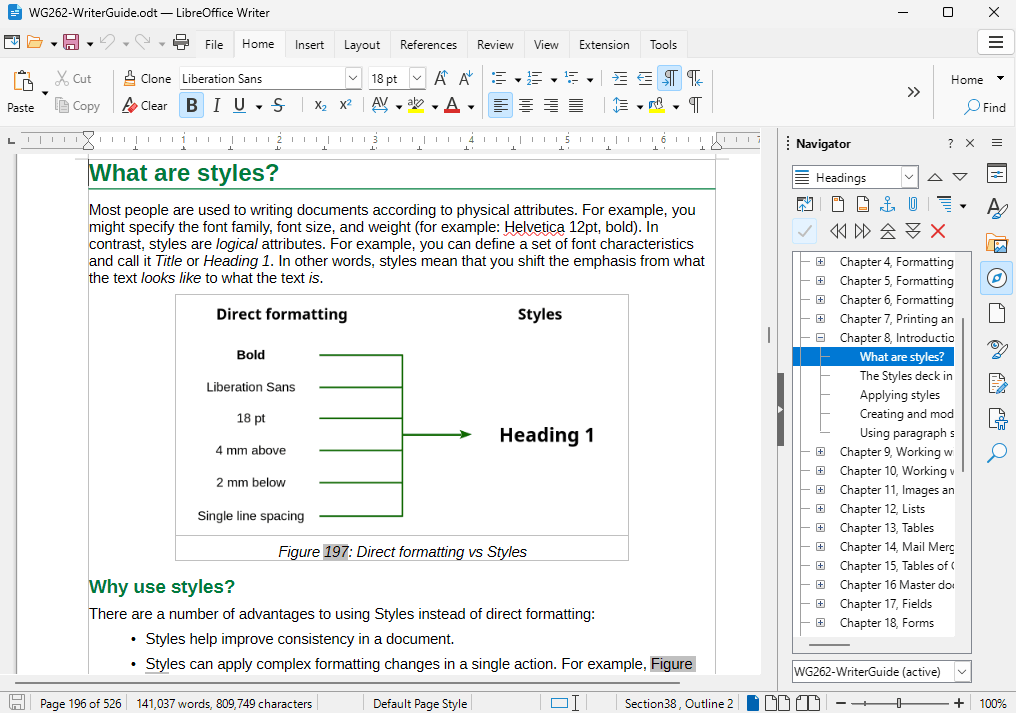
Install LibreOffice on Windows or Mac from libreoffice.org.
Open your DOC/DOCX file in LibreOffice Writer.
Export as PDF: go to File > Export As > Export as PDF, then save.
Advantages and limitations: it's completely free and works offline, with no account needed. The trade-off is a heavier install, and complex documents (unusual fonts, tightly nested tables) can shift slightly compared to the Word original.
Method 3: Convert Word to PDF with Linraw doPDF
What is Linraw doPDF? It's a desktop utility for Windows and Mac built around dozens of small, focused tools — all designed to run locally, without uploading files anywhere.
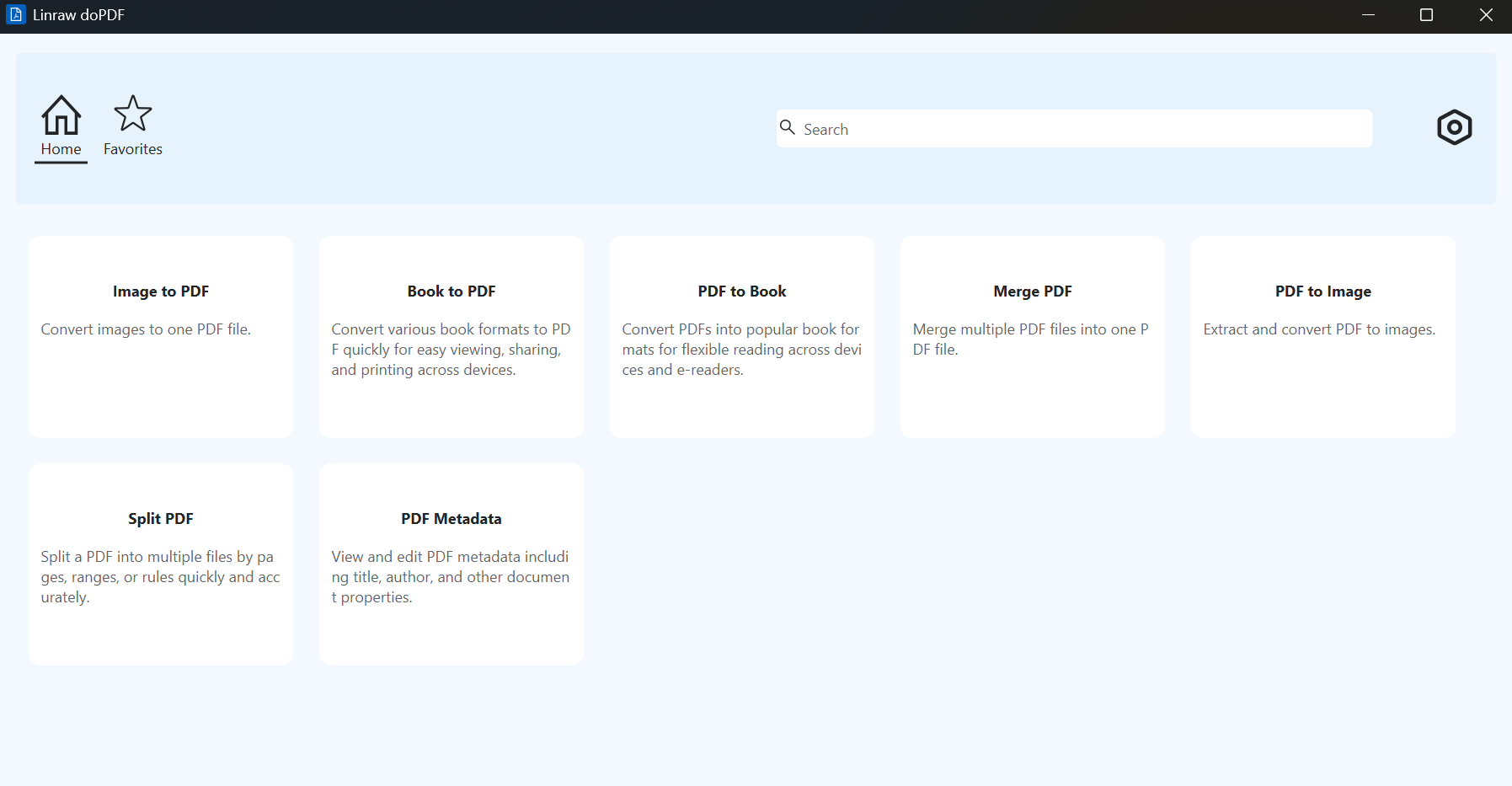
Steps:
Open Linraw doPDF and find the eBook to PDF tool.
Add one or more Word documents — drag and drop, or browse to select them.
Click Start to convert. Since everything runs on your device, there's no upload step and no waiting on a server.
Your PDFs are saved to your chosen output folder, ready to use.
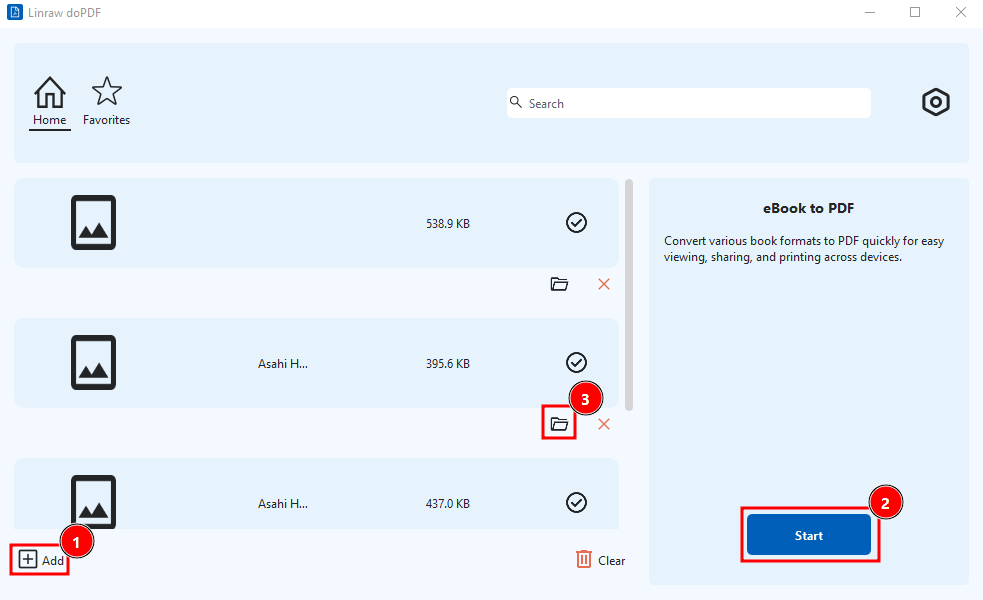
Windows and macOS workflows: the process is identical on both platforms — same interface, same steps.
Why use Linraw doPDF for private Word-to-PDF conversion? It's free, handles multiple files in one batch, has no file-size limit, and never sends your documents anywhere. For anyone converting resumes, contracts, or internal reports regularly, it removes the repetitive upload-download cycle of browser-based tools entirely.
Method 4: Use Built-in System Tools (Print to PDF)
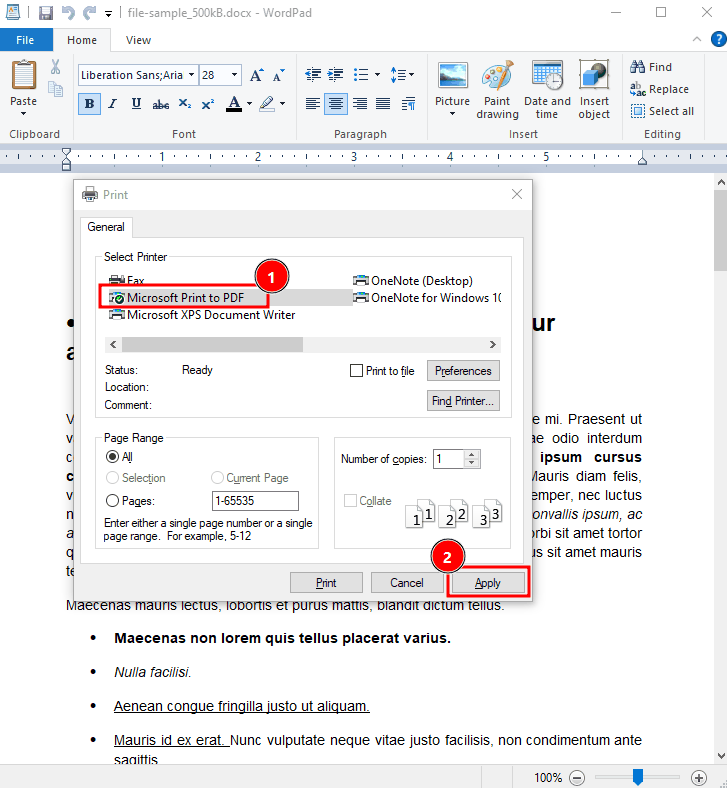
Windows: open the document (in Word, WordPad, or any app that can display it), press Ctrl+P, choose Microsoft Print to PDF as the printer, and save.
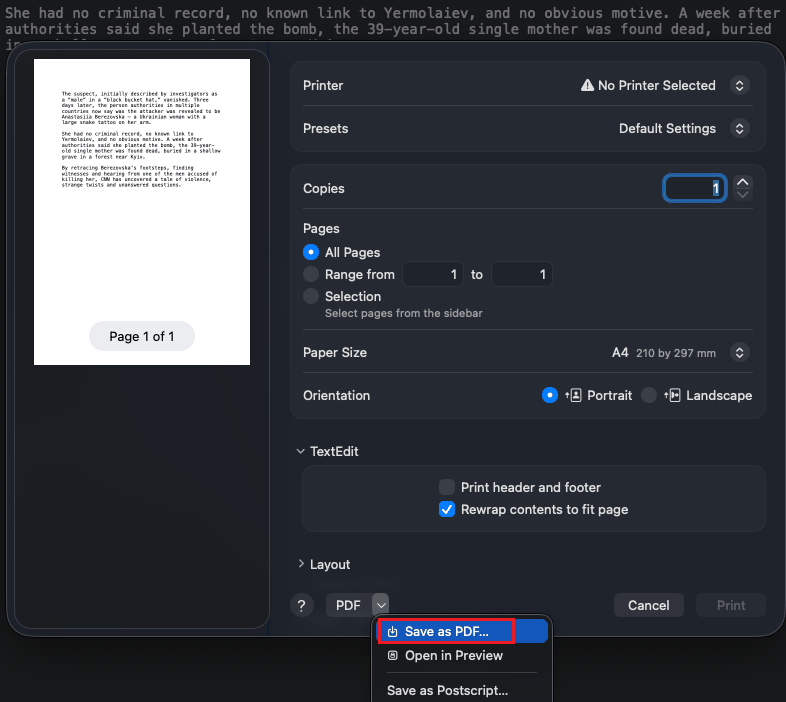
Mac: open the document in a compatible application, choose File > Print, and select the PDF option in the print dialog. You can then save the document as a PDF.
When this works best — and when it doesn't: it's fast and needs no extra software, but it converts a printed representation of the document rather than the underlying file. Clickable hyperlinks, some formatting, and text selectability can be lost in the process. Fine for a quick one-off; not ideal for a document you'll reuse.
Method 5: Using Google Docs (Free, but Requires Upload)
Go to Google Docs and upload your .docx file.
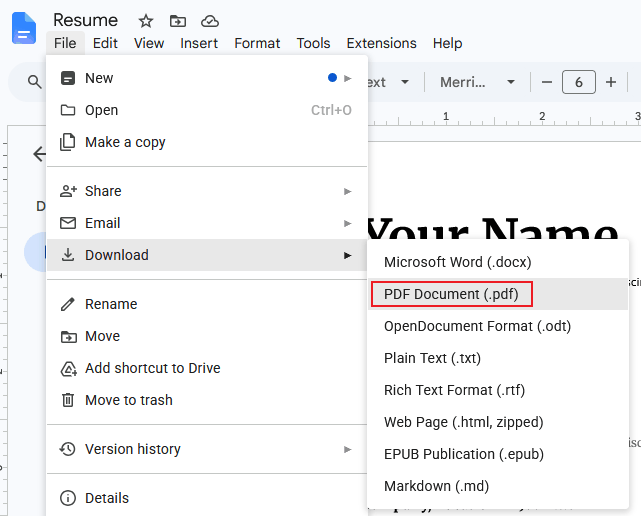
Open it, then go to File > Download > PDF.
Pros: free and works across any device with a browser.
Cons: the file has to leave your device and sit on Google's servers, you need internet access, and complex formatting can shift slightly during the upload conversion.
Method 6: Online Converters (Smallpdf, iLovePDF, FreeConvert, PDF Candy, Soda PDF)
These sites work the same basic way: you upload a Word file, their server converts it, and you download the result.
Pros: no installation, and they're fine for a single, non-sensitive file when you're in a hurry.
Cons: every file is uploaded to a third-party server, free tiers usually cap file size or daily conversions, many are ad-supported, and the "unlimited" tier is often a paid subscription.
Word to PDF Conversion: Method Comparison
| Method | Offline | Free | Batch | No Account Needed | File Size Limit |
|---|---|---|---|---|---|
| Microsoft Word | ✅ | ❌ (license) | ❌ | ✅ | None |
| LibreOffice | ✅ | ✅ | Limited | ✅ | None |
| Linraw doPDF | ✅ | ✅ | ✅ | ✅ | None |
| Print to PDF | ✅ | ✅ | ❌ | ✅ | None |
| Google Docs | ❌ | ✅ | ❌ | ❌ | Upload cap |
| Online Converters | ❌ | Freemium | Limited | Varies | Yes (free tier) |
Online vs. Offline Word-to-PDF Conversion
Privacy: offline tools never transmit your file; online tools always do, even briefly.
Speed: offline is generally faster once installed, since there's no upload/download wait.
File-size limits: offline tools typically have none; online free tiers usually do.
Internet dependency: offline tools work anywhere; online tools need a stable connection.
Convenience: online tools need no install, which is handy for a rare, low-stakes file.
Best for sensitive files: offline, without question.
Why You Should Avoid Uploading Sensitive Word Documents to Online Converters
Personal information: resumes and ID copies often contain full names, addresses, and phone numbers.
Business and financial documents: invoices, budgets, and statements can expose company finances.
Contracts and legal documents: terms, signatures, and clauses aren't meant for third-party servers.
Confidential work files: internal memos and strategy documents can carry real business risk if leaked.
Intellectual property: drafts, product specs, and manuscripts represent original work you don't want exposed.
Data retention: "auto-delete after one hour" is a policy, not a guarantee — and some sites don't state one at all.
How to Preserve Word Formatting When Converting to PDF
Check these after any conversion, offline or online:
Fonts — especially uncommon or custom ones, which can be substituted if not embedded.
Images — resolution and placement should match the original.
Tables — columns shouldn't shift or overflow the page.
Page breaks — content shouldn't jump to unexpected pages.
Headers and footers — page numbers and running titles should carry over.
Margins and page size — should match your original page setup.
Hyperlinks — links should stay clickable in the PDF.
Complex layouts — text boxes, columns, and wrapped images are the most likely to shift.
How to Check the Converted PDF
Before sending or archiving the file, quickly confirm:
Page count matches the original
Text reads correctly with no garbled characters
Images and tables display properly
Fonts look consistent with the source
Hyperlinks are clickable
File size is reasonable for its content
The PDF opens without errors in your default viewer
Troubleshooting Word-to-PDF Conversion
Formatting changes after conversion — usually caused by unsupported fonts or complex layouts; try a different converter or embed fonts before converting.
Missing fonts — install the font on your system, or embed it in the Word file first.
Images look different — check original image resolution; low-res images will look worse in any format.
Pages incorrectly separated — often a page-break setting issue in the original document.
Word file cannot be opened — the file may be corrupted; try opening it in a different app first.
PDF cannot be generated — close the Word file in other programs and retry.
Converted PDF is too large — compress embedded images before converting, or use a PDF compressor afterward.
Conversion takes too long — check file size, close other heavy applications, or convert in smaller batches.
Tips for Faster Offline Word-to-PDF Conversion
Close unnecessary applications before converting large files
Reduce oversized images in the Word document first
Use local files rather than network or cloud drives
Process files in batches instead of one at a time
Keep your conversion software updated
Use a dedicated desktop converter if you do this regularly — it saves the repeated upload/download cycle of browser tools
Frequently Asked Questions About Word to PDF Conversion
Can I convert Word to PDF without uploading the file?
Yes. Microsoft Word, LibreOffice, Linraw doPDF, and your system's built-in Print to PDF all convert locally, with no upload.
What is the best free offline Word-to-PDF converter?
LibreOffice and Linraw doPDF are both free and fully offline. Linraw doPDF adds batch conversion, which LibreOffice handles less smoothly.
Can I convert Word to PDF without Microsoft Word?
Yes — LibreOffice, Linraw doPDF, and Print to PDF all work without Word installed.
How do I convert DOCX to PDF offline?
Open the file in any offline tool above (LibreOffice, Linraw doPDF, Word) and export or convert to PDF — no internet needed.
Can I convert Word to PDF on Mac for free?
Yes, using LibreOffice, Linraw doPDF, or macOS's built-in Save as PDF from the print dialog.
Can I convert Word to PDF on Windows for free?
Yes, using LibreOffice, Linraw doPDF, or Windows' built-in Microsoft Print to PDF.
Does converting Word to PDF require internet access?
No, not with any of the offline methods covered here.
Is offline conversion safer than an online converter?
Yes. Your file never leaves your device, so there's no upload, no server storage, and no third party involved.
Can I batch convert Word documents to PDF?
Yes — Linraw doPDF supports converting multiple files in one batch. Microsoft Word and Print to PDF only handle one file at a time.
Will formatting be preserved when converting Word to PDF?
In most cases, yes, especially with DOCX files. Complex layouts and uncommon fonts are the most likely things to shift slightly.
Can I convert confidential Word documents to PDF offline?
Yes — that's exactly the use case offline conversion is best for.
What's the difference between DOC and DOCX when converting to PDF?
DOCX is the modern, XML-based format and generally converts more reliably. DOC is the older binary format and can occasionally lose formatting on complex documents.
Can I convert a Word document to PDF without installing Microsoft Word?
Yes, using LibreOffice or Linraw doPDF, neither of which requires Word to be installed.
How can I reduce the size of a converted PDF?
Compress large images in the original Word file before converting, or run the finished PDF through a PDF compression tool.
Conclusion: The Best Way to Convert Word to PDF Without Uploading Files
Best for privacy: any offline method — Microsoft Word, LibreOffice, Linraw doPDF, or Print to PDF.
Best for Windows and Mac: Linraw doPDF, since the workflow is identical on both platforms.
Best for batch conversion: Linraw doPDF, for converting multiple Word files in one go.
If you only need to convert a document once in a while, Word's export feature or your system's Print to PDF will do the job. But if you regularly convert Word files — especially ones with any sensitive content — a dedicated offline tool is worth the five-minute setup. Linraw doPDF's eBook to PDF tool covers exactly that: free, offline, batch-capable conversion on both Windows and Mac, with your files never leaving your computer.
However, if your workflow involves multiple types—such as images, audio, video, PDFs, or eBooks—then Linraw doUltra is a more powerful all-in-one option.
Related Chapters
