How to Protect a PDF Offline (No Upload, Windows & Mac)
You have a PDF that shouldn’t be open to everyone — a contract, a tax form, a personal scan, or a work report. Adding a password is the quickest way to control who can open or change it. The problem is that most “free PDF protect” tools ask you to upload the file to their servers first. For many documents, that feels like an unnecessary risk.
This guide shows you how to protect a PDF completely offline on both Windows and Mac. You’ll see the simplest desktop method first, then other free and paid options, a clear comparison, and answers to the questions people usually ask.
What Does "Protecting a PDF" Actually Mean?
PDF protection usually involves two different passwords:
Open password (also called a user password) — This is the one most people want. Anyone who tries to open the file must enter the password. Without it, the content stays locked.
Permissions password (also called an owner password) — The file can still open, but certain actions are restricted: printing, copying text, editing, or extracting pages.
For most personal and small-business use, an open password is enough. If you also need to stop people from printing or copying the content, you can set both.
Method 1: Protect a PDF with Linraw doPDF (Offline, Windows & Mac)
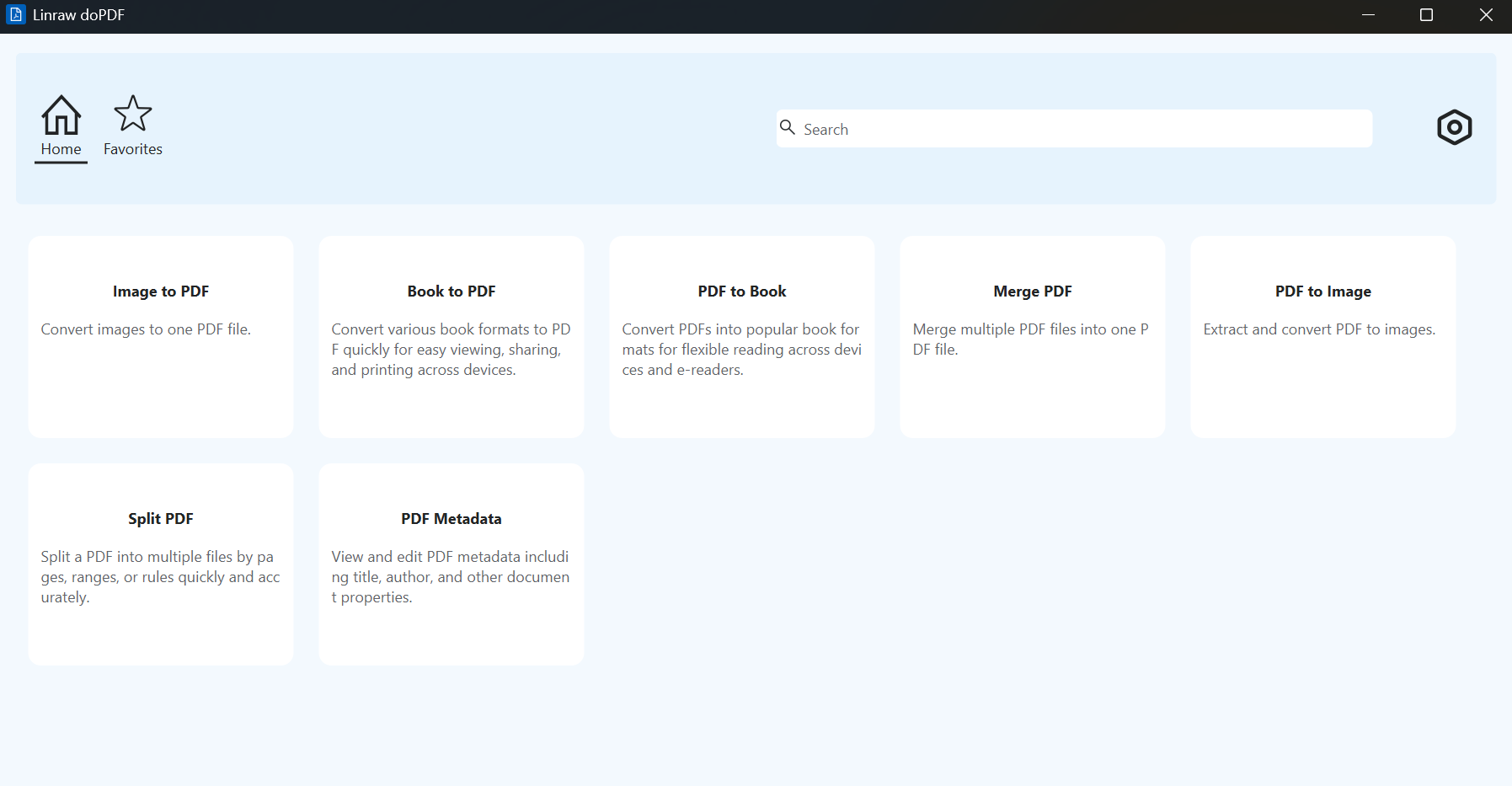
Linraw doPDF’s Protect PDF tool runs entirely on your computer. Your file never leaves your device, which is the main reason many people prefer it over browser-based tools.
Why this method keeps your file on your computer
Everything happens locally. There is no upload step, no account required for basic use, and no temporary copy sitting on a remote server.
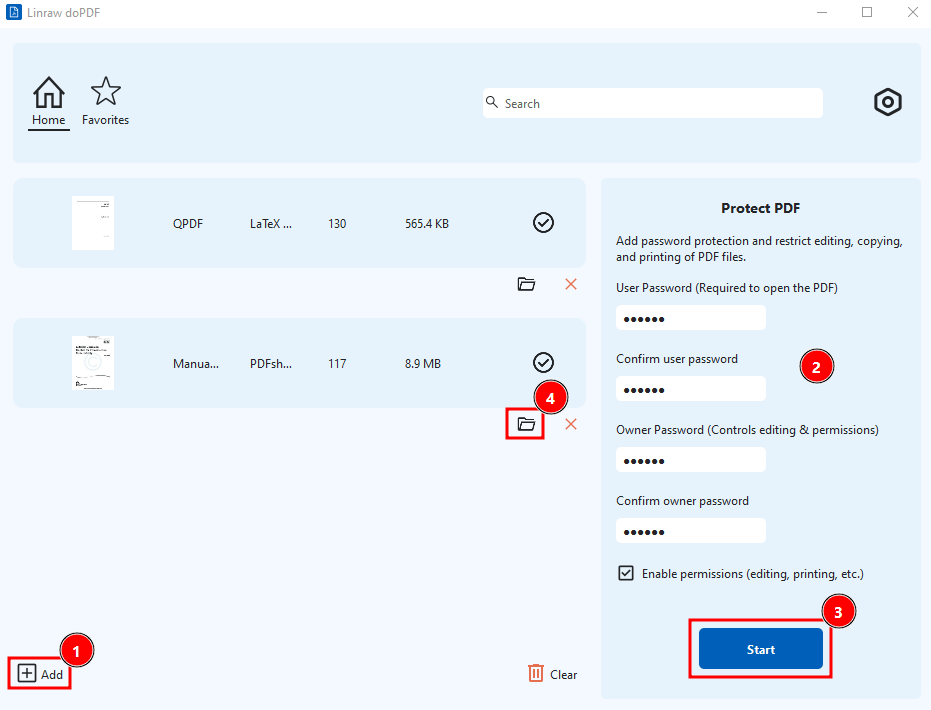
Step 1: Open the Protect PDF tool
Launch Linraw doPDF and select the Protect PDF tool.
Step 2: Add your PDF (or several at once)
Drag one or more PDF files into the window, or use the add button. Batch processing is supported, so you can protect several documents in one go.
Step 3: Set a password
Enter the password you want to use. You can usually choose whether it is required to open the file, and optionally set restrictions on printing, copying, or editing.
Step 4: Save the protected file
Choose where to save the new protected version. It’s good practice to keep the original file as a backup until you’ve confirmed the protected one works.
How to check that the password works
Close the tool, then try opening the new file. You should be prompted for the password. If it opens without asking, something went wrong — try the process again.
Pros and limits
Pros: Fully offline, works on both Windows and Mac, supports batch processing, straightforward interface.
Limits: Like most desktop tools, the exact options depend on the version you have installed.
Other Ways to Protect a PDF
Method 2: Adobe Acrobat Pro
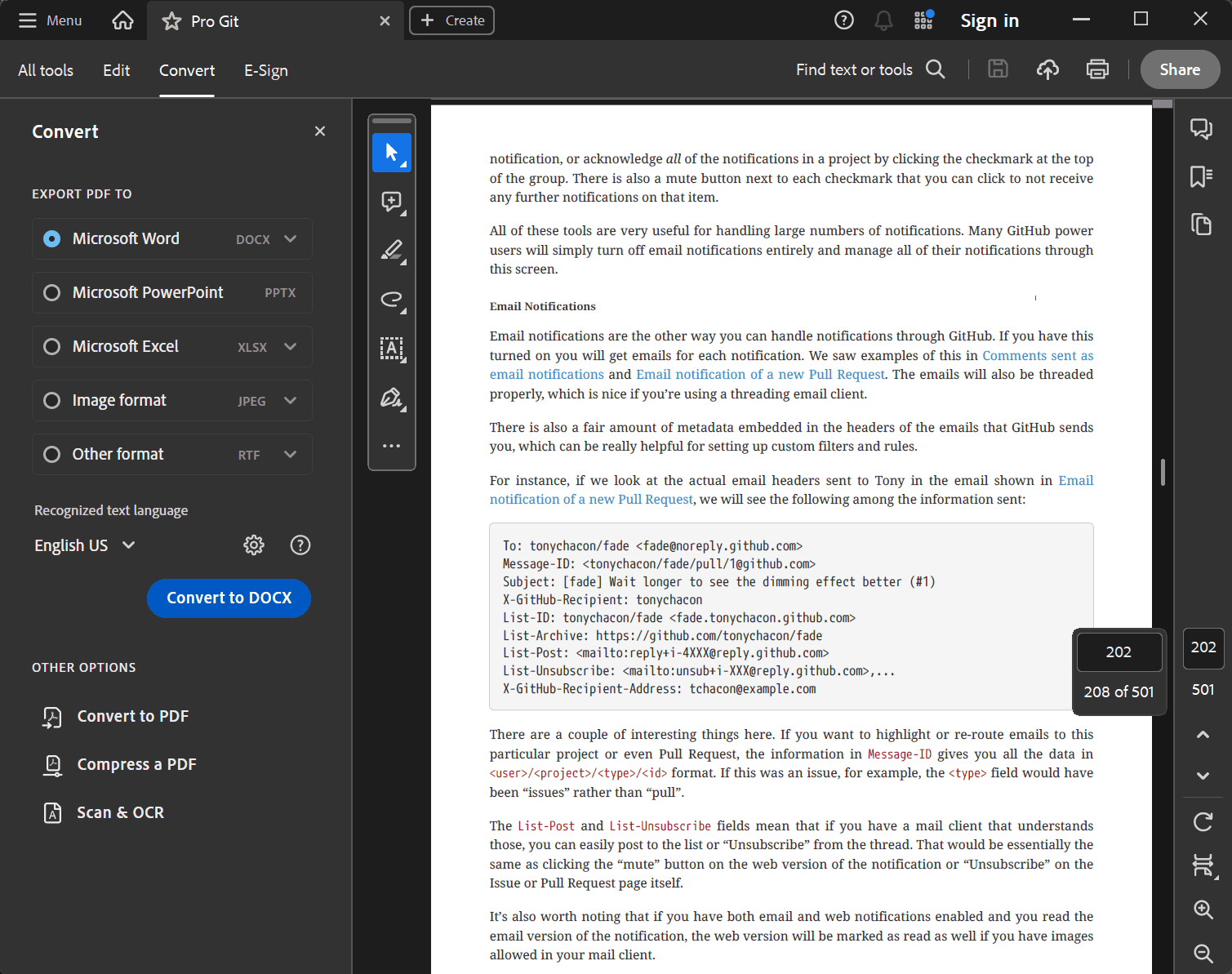
Acrobat offers the most complete set of options, including fine-grained permissions and certificate-based security. The downside is the subscription cost. If you already pay for Acrobat, it’s a solid choice. If not, there are free alternatives that handle basic password protection well.
Method 3: Microsoft Word
If your document started as a Word file, you can protect it while exporting:
Open the document in Word.
Go to File → Save As (or Export) and choose PDF.
Look for the Options or Tools button and enable password encryption.
Set the password and save.
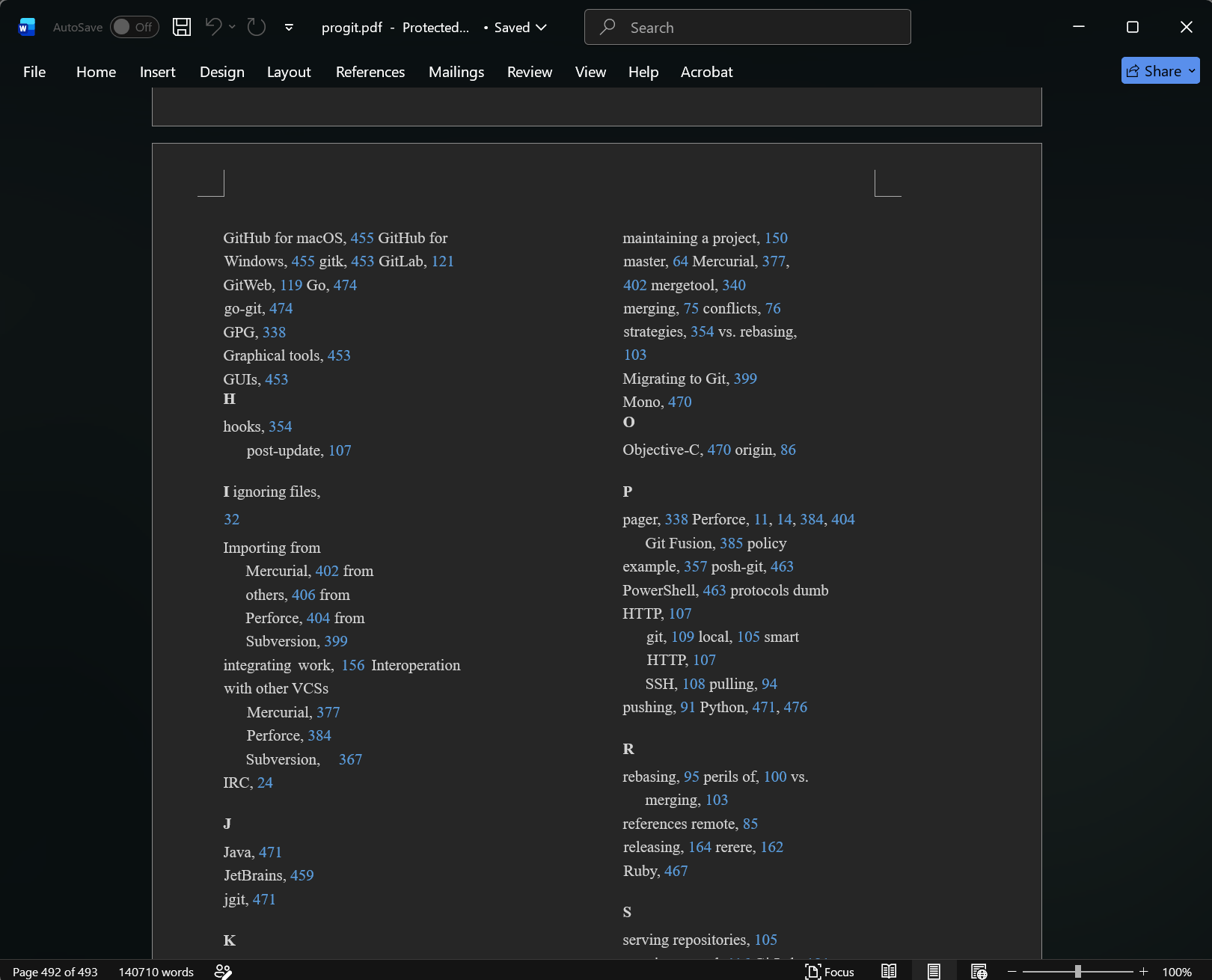
This works on both Windows and Mac if you have Microsoft 365 or a recent version of Office. It’s less convenient for PDFs you already have.
Method 4: Mac Preview
macOS users have a built-in option:
Open the PDF in Preview.
Choose File → Export.
Click the Permissions button (or look for the Encrypt checkbox, depending on your macOS version).
Set a password to open the document and, if needed, an owner password for restrictions.
Save the new file.
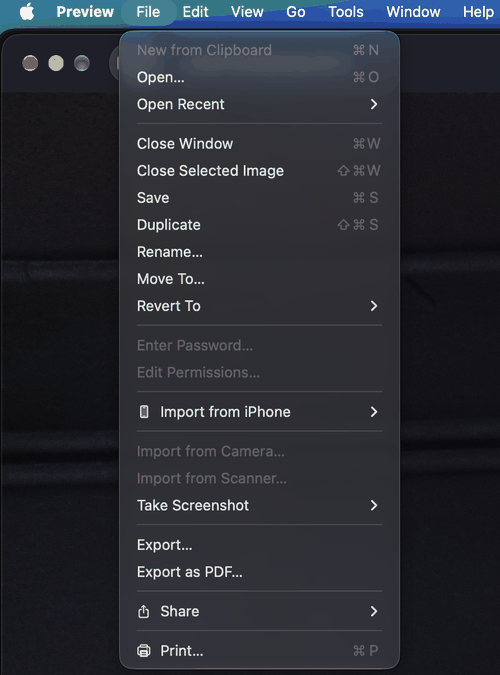
It’s free and offline, but the interface is a bit limited compared with dedicated tools.
Method 5: LibreOffice
LibreOffice is free and works on Windows, Mac, and Linux:
Open the PDF in LibreOffice Draw (it may convert the file).
Go to File → Export as PDF.
Open the Security tab.
Set an open password and any permission restrictions.
Export.
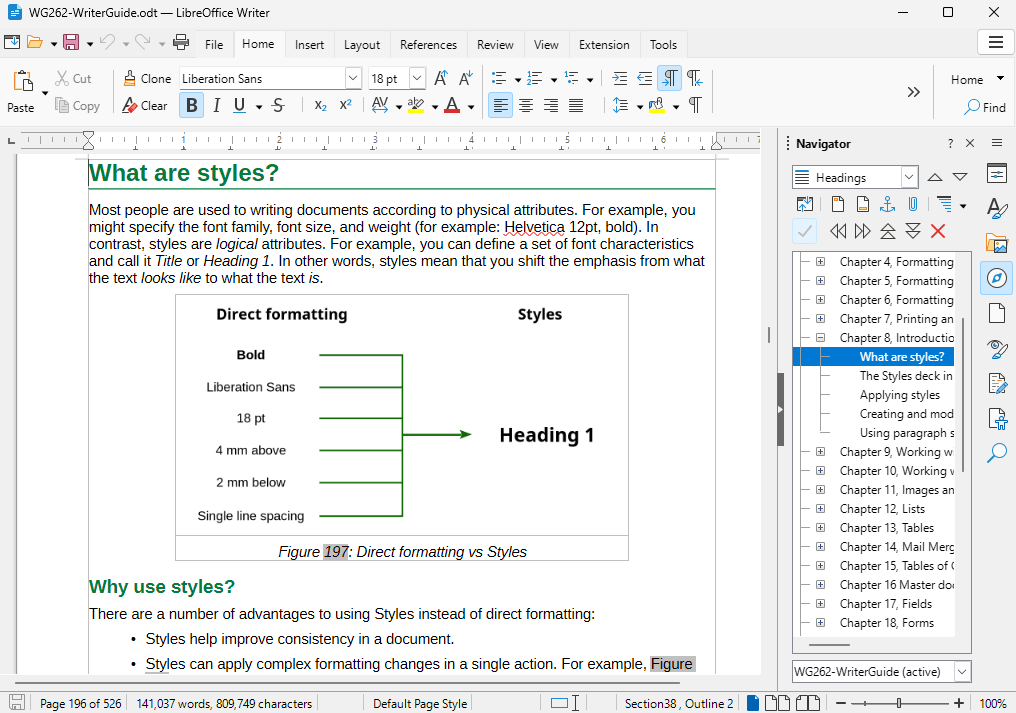
It takes a few more clicks than some other methods, but it works offline and costs nothing.
Method 6: qpdf command line
If you’re comfortable with the terminal, qpdf is a reliable free tool:
qpdf --encrypt userpassword ownerpassword 256 -- input.pdf output.pdf
Replace the passwords and file names as needed. It supports strong AES-256 encryption and can process files in scripts for batch work. Best suited for people who already use the command line.
Method 7: Online PDF protectors
There are many free websites such as Smallpdf and iLovePDF that let you upload a PDF, set a password, and download the result. They are convenient when you only need to protect one non-sensitive file quickly. The trade-off is that the file is temporarily stored on someone else’s server.
Online vs Offline: Which Is Safer?
When you use an online tool, your PDF is uploaded, processed, and then made available for download. Most reputable services delete files after a short time, but you have no real way to verify what happens in between. For documents that contain personal data, financial information, or confidential work material, staying offline removes that uncertainty.
Online tools are fine for low-stakes files — a flyer, a public report, or something you wouldn’t mind sharing openly. For anything sensitive, an offline method is the clearer choice.
Quick Comparison of All Methods
| Method | Price | Works Offline | Windows | Mac | Batch Support | Ease of Use |
|---|---|---|---|---|---|---|
| Linraw doPDF Protect PDF | Free / Paid suite | Yes | Yes | Yes | Yes | Easy |
| Adobe Acrobat Pro | Subscription | Yes | Yes | Yes | Yes | Easy |
| Microsoft Word | Requires Office | Yes | Yes | Yes | Limited | Easy |
| Mac Preview | Free | Yes | No | Yes | No | Easy |
| LibreOffice | Free | Yes | Yes | Yes | Limited | Medium |
| qpdf | Free | Yes | Yes | Yes | Yes (scripts) | Advanced |
| Online tools | Free / Freemium | No | Yes | Yes | Varies | Very easy |
Common Problems and Fixes
The password isn’t asked when I open the file
You may have set only a permissions password. Make sure you enabled the option that requires a password to open the document, then save a new protected copy.
The PDF opens, but I can’t print or copy
That’s the permissions password doing its job. This is expected behavior if you restricted those actions.
The protected file is bigger or looks different
Encryption itself rarely changes visual quality. Differences usually come from re-saving or conversion steps. Compare with the original to confirm nothing important was altered.
The tool says the PDF is already protected
You need to remove the existing password first (if you know it) before applying a new one. Most tools, including Linraw doPDF, offer an unlock or decrypt option for this.
FAQ
Can I protect a PDF for free?
Yes. Mac Preview, LibreOffice, qpdf, and several desktop tools (including the free tier or trial of Linraw doPDF) let you add a password without paying.
Is PDF password protection really secure?
With a strong password and modern encryption (AES-256), it is solid protection against casual access. It is not the same as enterprise DRM, but it is more than enough for most personal and small-business documents.
What’s the difference between an open password and a permissions password?
An open password stops people from viewing the file. A permissions password allows viewing but restricts actions such as printing, copying, or editing.
Can I password protect multiple PDFs at once?
Yes, if the tool supports batch processing. Linraw doPDF and qpdf both handle multiple files well.
Will the password work on both Windows and Mac?
Yes. Standard PDF password protection is cross-platform. The same protected file opens on Windows, Mac, phones, and tablets as long as the reader supports the encryption used.
Does protecting a PDF change its quality or content?
No. Proper encryption does not alter the text, images, or layout. The file simply requires a password to open or to perform restricted actions.
Can I protect a PDF without Adobe Acrobat?
Yes. Several free and low-cost offline tools can do it, including the methods listed in this guide.
Can I protect a PDF on my phone?
Some mobile apps offer password protection, but desktop tools generally give more control and better batch options. For sensitive files, many people prefer to protect them on a computer.
Can I remove the password later?
Yes, if you know the current password. Most tools that can add protection can also remove it.
What if I forget the password?
There is no simple recovery. Strong encryption is designed so that the password cannot be retrieved. Always store passwords in a secure password manager and keep an unprotected backup if the content is important.
Conclusion
Protecting a PDF offline is straightforward once you know the options. If you want a simple desktop tool that works on both Windows and Mac, supports batch processing, and never uploads your files, Linraw doPDF’s Protect PDF tool is one of the easiest routes. Built-in options like Mac Preview or Microsoft Word are fine for occasional use, while qpdf suits people who prefer the command line.
Choose the method that matches how often you need to protect files and how sensitive the documents are. For most people who value privacy and speed, staying offline is the better default.
However, if your workflow involves multiple types—such as images, audio, video, PDFs, or eBooks—then Linraw doUltra is a more powerful all-in-one option.
Related Chapters
