How to Convert HEIC to PDF Offline (No Upload, Windows & Mac)
You took a few photos of a contract, a receipt or a school form with your iPhone. Now you need to send them as one tidy PDF. But the files are HEIC, your Windows laptop won't open them, and most "free converter" websites want you to upload everything first.
There's an easier way. You can convert HEIC to PDF right on your own computer, with no upload and no internet connection. This guide covers six ways to do it on Windows and Mac, shows how they compare, and helps you fix the usual problems.
What Is HEIC, and Why Convert It to PDF?
HEIC is the photo format iPhones have used by default since iOS 11. It's Apple's version of the HEIF standard, and it stores photos at roughly half the file size of a JPG with similar quality. That's great for your phone's storage. It's less great when you need to share the file with someone else.
A PDF is often the better choice than JPG when you want to:
Submit forms or documents. Many portals only accept PDF.
Keep receipts and scans together. Ten photos become one file.
Send a portfolio. Pages stay in order and look the same on every device.
Email attachments. One PDF is easier to attach and open than a pile of images.
The other problem is compatibility. Windows doesn't open HEIC files out of the box on many PCs. You usually need to install extra codecs from the Microsoft Store, and many websites and apps still reject HEIC uploads. Converting to PDF solves both problems at once.
Why Convert HEIC to PDF Offline?
Most people search for an online converter first. It works, but converting offline has real advantages:
Privacy. Your photos never leave your computer. That matters when the images show IDs, contracts, medical papers or family pictures.
No limits. Online tools often cap file size, page count or daily conversions. Offline, your computer is the only limit.
Speed for big batches. There's no waiting for uploads and downloads. Converting 50 photos takes a fraction of the time.
It works without internet. On a plane, in a poor-signal office, or anywhere else.
Method 1: Convert HEIC to PDF with Linraw doPDF (Windows & Mac)
Linraw doPDF is a desktop toolkit for Windows and Mac, and its Image to PDF tool is built for exactly this job. It reads HEIC directly, so you don't need to install extra codecs or convert to JPG first.
What you need: Linraw doPDF installed on your Windows PC or Mac, and your HEIC files. No internet connection is required for the conversion.
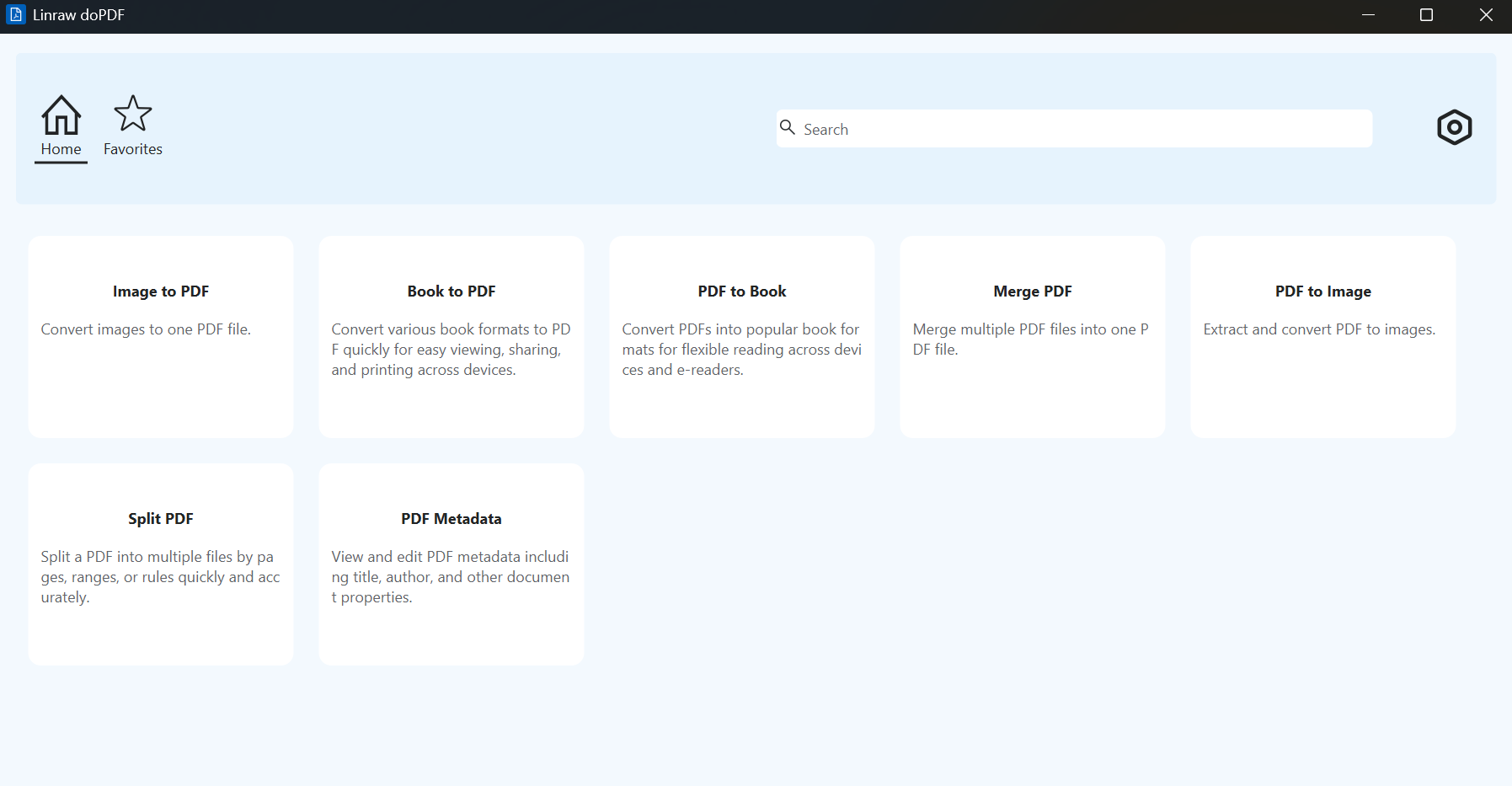
Step 1: Open the Image to PDF tool
Launch Linraw doPDF and choose Image to PDF from the PDF tools.
Step 2: Add your HEIC files
Click the add button and select your photos, or drag and drop them into the window. You can also drop in a whole folder to add everything at once.
Step 3: Arrange the page order
Each image becomes one page, in the order shown in the list. Drag the files up or down until the order is right. It's much easier to fix this now than after the PDF is made.
Step 4: Convert and save the PDF
Click the convert button, pick where to save the file, and you're done. The PDF is created on your computer, and your original photos stay untouched.
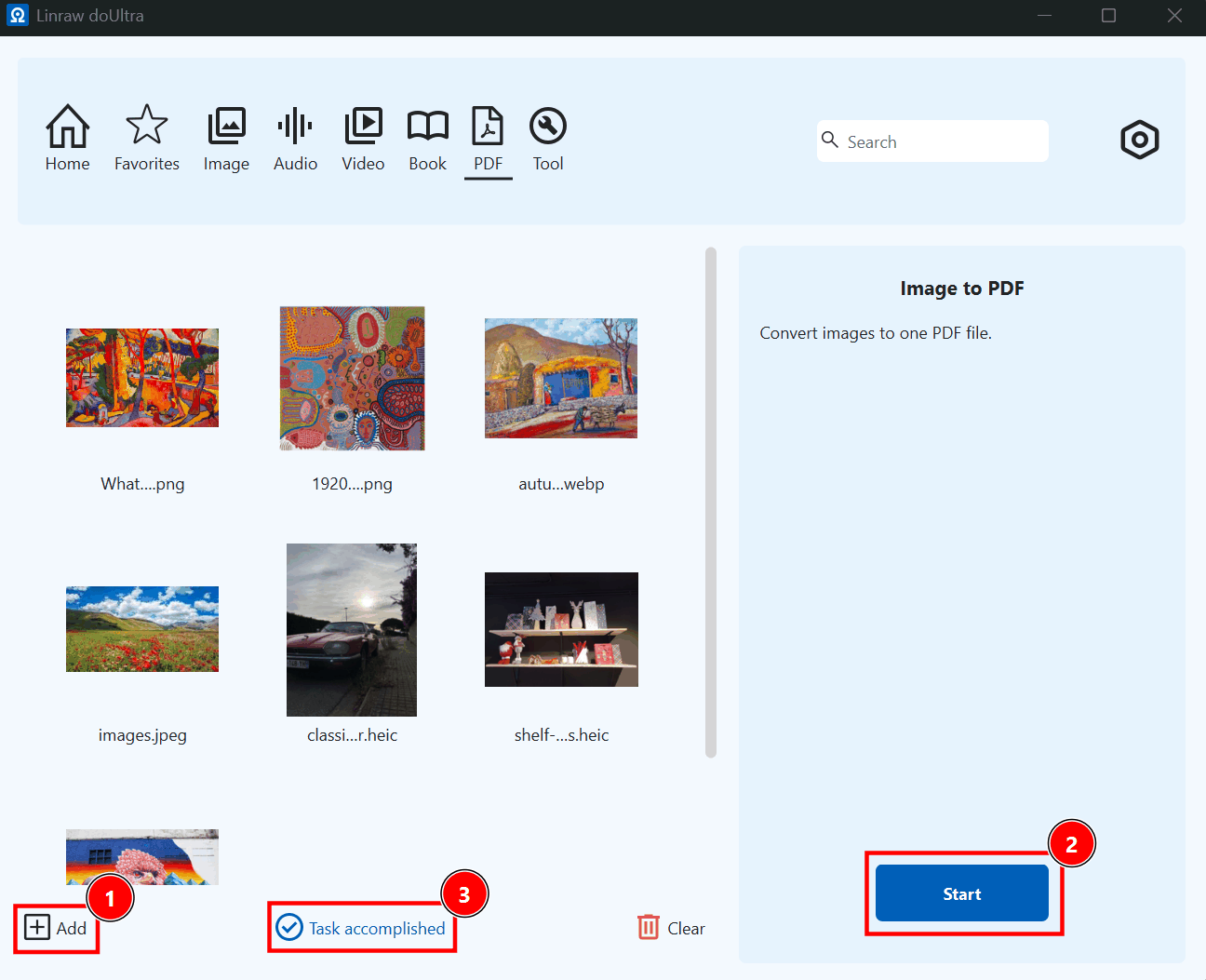
Combining several HEIC photos into one PDF
Add all the photos in step 2 and convert once. You'll get a single multi-page PDF instead of one PDF per photo. This is the fastest way to turn a set of scanned pages or receipts into one document.
Mixing HEIC, JPG, PNG and WebP in the same PDF
You don't have to sort your files by type. If your folder has iPhone photos (HEIC), screenshots (PNG), downloaded images (JPG) and a few WebP files, add them all and Linraw doPDF combines them into one PDF.
Pros and cons
Pros
Works offline and keeps your files private
Reads HEIC directly, with no codec setup
Handles many files at once, and lets you reorder pages
Same steps on Windows and Mac
Cons
You need to install a desktop app
Overkill if you only convert one photo once a year
Method 2: Use Mac Preview
If you're on a Mac, you already have a decent tool. Preview opens HEIC files natively.
Select your HEIC files in Finder and open them in Preview. They should open in one window, with thumbnails in the sidebar. (If the sidebar is hidden, go to View > Thumbnails.)
Drag the thumbnails to set the page order.
Press Cmd + A in the sidebar to select all pages.
Go to File > Print, click the PDF menu in the bottom-left corner, and choose Save as PDF.
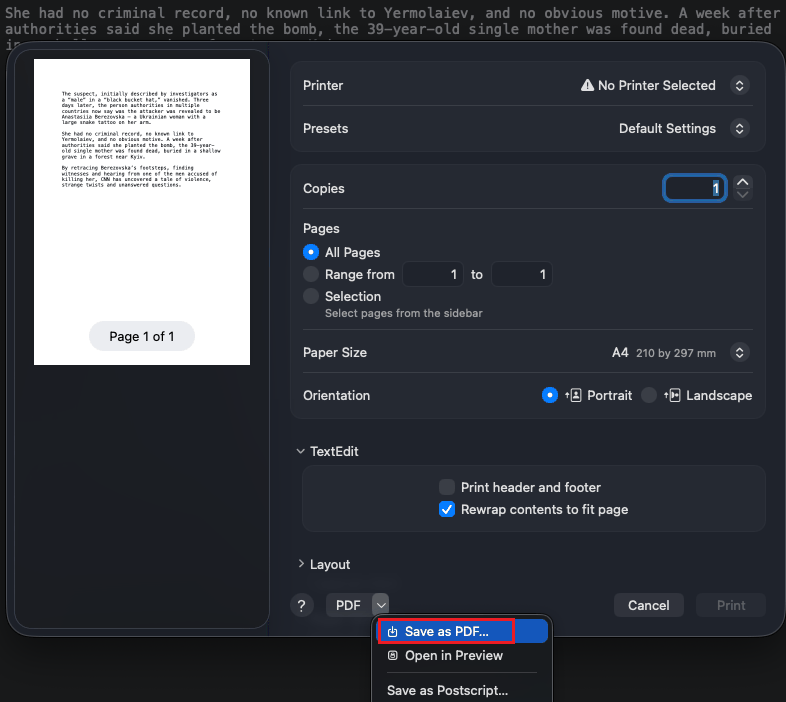
For a single photo, you can use File > Export as PDF instead.
Pros: Free, built in, offline, and fine for a handful of photos.
Cons: Mac only. Page size and margins are controlled by the print dialog, which can be fiddly. Large batches get slow and clunky.
Method 3: Use Windows Photos / Print to PDF
Windows can do it too, but it takes a little setup.
Install HEIC support. Open the Microsoft Store and install HEIF Image Extensions. Depending on your photos, you may also need HEVC Video Extensions, which costs a small fee on some systems. Some PCs include it for free from the manufacturer.
Open the photo in the Photos app.
Press Ctrl + P to open the print dialog.
Choose Microsoft Print to PDF as the printer, then click Print and name your file.
You can also select several images in File Explorer, right-click and choose Print, then pick Microsoft Print to PDF. This lets you combine a few pictures, but you have to fight with layout options such as images per page, borders and cropping.
Pros: No extra software beyond the Microsoft extensions, and it works offline.
Cons: Windows only. It's really a one-image-at-a-time method. Print scaling can crop or shrink your photo, and the codec setup may cost money.
Method 4: Convert HEIC to JPG First, Then to PDF
Some people take a two-step route: convert HEIC to JPG, then turn the JPGs into a PDF. It's a common workaround, and it makes sense when you need the JPG versions anyway, for example to upload them somewhere that doesn't accept HEIC.
The downside is that you do the work twice. JPG is also a lossy format, so a second round of compression can slightly reduce quality. And if the PDF is the only thing you need, there's no reason to take the detour.
Pros: Gives you JPG copies as a bonus. Works with almost any tool.
Cons: Slower, an extra file to manage, and a small quality loss. Use it only if you need both formats.
Method 5: Use an Online HEIC to PDF Converter
Sites like CloudConvert and Convertio let you upload HEIC files and download a PDF. The steps are simple:
Open the converter's website.
Upload your HEIC files.
Choose PDF as the output.
Wait for the conversion and download the result.
This is convenient when you're on a computer that isn't yours, or you only have one non-sensitive photo to convert.
The trade-offs are real, though. Free plans usually limit file size, the number of files and daily conversions. Large batches are slow because everything has to upload and download. And your photos are copied to someone else's server, which is a bad idea for documents with personal or financial information. Always read the site's privacy policy before uploading anything sensitive.
Pros: No install, works on any device with a browser.
Cons: Upload limits, slower speed, and privacy risks.
Method 6: Use Command-Line Tools (ImageMagick)
Developers and power users can use ImageMagick, a free tool that handles almost any image format.
Once it's installed with HEIC support, converting a single file looks like this:
magick photo.heic photo.pdf
To combine many photos into one PDF:
magick *.heic combined.pdf
The wildcard adds files in alphabetical order, so rename your photos first if the order matters.
Setup: On Mac, installing ImageMagick with Homebrew usually includes HEIC support. On Windows, download the official installer. Some builds don't include HEIC support, so test with one file first.
Pros: Free, scriptable, great for automation and big batches.
Cons: No visual interface, and it takes some technical comfort. Not recommended for casual users.
Quick Comparison: Which Method Should You Use?
| Method | Works offline | Batch support | Platform | Ease of use | Quality | Best for |
|---|---|---|---|---|---|---|
| Linraw doPDF Image to PDF | Yes | Yes | Windows & Mac | Easy | Good | Many photos, private files |
| Mac Preview | Yes | Limited | Mac | Easy | Good | A few photos on a Mac |
| Windows Print to PDF | Yes | Limited | Windows | Medium | Fair | One quick conversion |
| HEIC to JPG first | Depends on the tool | Depends | Both | Slow | Lower | When you also need JPGs |
| Online converter | No | Limited by free plan | Any | Easy | Good | One non-sensitive file |
| ImageMagick | Yes | Yes | Both | Hard | Good | Developers, automation |
Short recommendations:
Many photos at once: Use Linraw doPDF or ImageMagick. Both handle batches without limits.
Privacy-sensitive documents: Stay offline. Linraw doPDF, Preview or Windows Print to PDF keep your files on your computer.
A single quick conversion: Preview on Mac, or Print to PDF on Windows, if HEIC support is already set up.
Developers and automation: ImageMagick in a script.
Troubleshooting Common Problems
"My PC can't open HEIC files"
Windows needs the HEIF Image Extensions from the Microsoft Store, and sometimes the HEVC extension too. Or skip the setup entirely and use a tool that reads HEIC itself, such as Linraw doPDF.
The PDF is too large
HEIC is very efficient, so the same photos often become much bigger once they're in a PDF. If the file is too large to email, try converting fewer photos at a time, or run the PDF through a PDF compression tool afterward. You can also reduce the original photo size before converting.
Photos appear rotated or in the wrong order
Check the order before you convert. In Linraw doPDF, drag the files to rearrange them. In Preview, drag the sidebar thumbnails. With ImageMagick, rename the files so they sort the way you want. If a photo is rotated, rotate it in your photo app first and then convert again.
Colors look different after conversion
iPhones often capture in a wide color range, and some tools convert it to standard sRGB. This can make colors look a little flatter. For documents and receipts it doesn't matter. For photography, check the result before sharing.
Live Photos only export one frame
A Live Photo is a still image plus a short video. A PDF can only hold the still, so you'll get one frame. That's normal and can't be changed.
Frequently Asked Questions
Can I convert HEIC to PDF on Windows without installing extra codecs?
Yes, if you use a converter that reads HEIC itself, like Linraw doPDF. Windows' own tools, such as Photos and Print to PDF, need the HEIF extension first.
Is it safe to convert HEIC to PDF online?
It depends on what's in the photos. For a landscape or a meme, it's probably fine. For IDs, contracts, bank documents or private photos, offline is the safer choice because the files never leave your computer.
How do I convert multiple HEIC files into one PDF?
Add all the photos to a tool that supports batch conversion, set the page order, and convert once. In Linraw doPDF, add the files or a whole folder, arrange them, and save. In Preview, select all thumbnails and use Print > Save as PDF.
Does converting HEIC to PDF reduce image quality?
A little, in some cases. Converting means decoding the HEIC file and re-saving it inside a PDF, which can involve compression. For documents, receipts and normal photos, you won't see a difference. Avoid long chains of conversions (like HEIC to JPG to PDF) if quality matters.
Can I convert HEIC to PDF on iPhone directly?
Yes. In the Files app, press and hold an image, then choose Create PDF (available on recent versions of iOS). You can also use the Photos app: tap Share, choose Print, pinch out on the preview to enlarge it, then tap Share again and save the PDF. To avoid HEIC altogether, go to Settings > Camera > Formats and choose Most Compatible so new photos are saved as JPG.
What's the difference between HEIC and HEIF?
HEIF is the general image format standard. HEIC is the version Apple uses, which stores photos with HEVC compression. In daily life, people use the two names interchangeably, and you'll usually see the .heic extension on iPhone photos.
Can I convert HEIC to PDF for free?
Yes. Mac Preview and ImageMagick are free, and most online converters have a free plan with limits. Windows Print to PDF is free, though the HEVC codec can cost a small fee on some PCs. For Linraw doPDF's current pricing and trial options, check the Linraw doPDF website.
Will the PDF keep the photo's original resolution?
Usually the image keeps its pixel dimensions, but how it's displayed depends on the page size. Some tools fit the photo to a standard page like A4 or Letter. If you need maximum detail, check the output at full zoom before sharing it.
Can I convert JPG, PNG and WebP to PDF with the same tool?
Yes, with Linraw doPDF's Image to PDF tool. You can even mix HEIC, JPG, PNG and WebP files in one PDF. ImageMagick supports most formats too.
Can I turn the PDF back into images later?
Yes. A PDF to image tool can export each page as JPG or PNG. Linraw doPDF has a PDF to Image tool for this. Keep in mind that the exported pictures will match the quality of what's inside the PDF, so keep your original HEIC files if you may need them.
Conclusion
Converting HEIC to PDF doesn't have to mean uploading your private photos to a random website. For most people, doing it offline is safer, faster and has no limits.
Here's the short version:
For batches and private files: Use Linraw doPDF's Image to PDF tool on Windows or Mac. It reads HEIC directly and combines everything into one PDF.
For a few photos on a Mac: Preview is already on your computer.
For a single photo on Windows: Print to PDF works, once HEIC support is installed.
For automation: ImageMagick does the job with one command.
For a one-off, non-sensitive file: An online converter is fine.
If you often work with photos from your iPhone, give Linraw doPDF's Image to PDF tool a try. Add your HEIC files, set the order, and save a clean PDF in a couple of minutes, with nothing leaving your computer.
However, if your workflow involves multiple types—such as images, audio, video, PDFs, or eBooks—then Linraw doUltra is a more powerful all-in-one option.
Related Chapters
