How to Combine PDFs into One File on Windows & Mac (Free & Offline)
Need to turn several PDF files into one clean document? You’re not alone. Students merge lecture notes, professionals combine contracts and reports, and freelancers put portfolios together all the time. A single PDF is easier to email, upload, print, and share.
This guide shows you every practical way to combine PDFs on Windows and Mac — free, offline options included — so you can pick the method that fits your needs.
Introduction: Why Combine Multiple PDFs into One File?
People usually combine PDFs for simple reasons:
Putting a cover letter, resume, and samples into one application file
Joining scanned pages of a contract or invoice
Creating a single report from several chapters or attachments
Packaging lecture notes or research papers for easier reading
One file means less clutter, fewer emails, and no risk of someone opening the wrong attachment. Online tools are fast for quick jobs, but they force you to upload your files. Offline methods keep everything on your computer — safer for sensitive documents and more reliable when you have no internet or very large files.
Why Choose Free & Offline PDF Combining?
Uploading PDFs to a website always carries some risk. Even reputable tools can store files temporarily, and you never fully control what happens after you hit “upload.” Offline tools avoid that problem completely.
Other advantages of free offline combining:
No daily limits or file-size caps that online services often enforce
Works without an internet connection
Handles large batches or confidential documents without slowdowns or privacy worries
If privacy or reliability matters, offline is simply the better choice.
Built-in Ways to Combine PDFs on Windows
Windows does not include a dedicated PDF merger. You can still create a combined file with a browser workaround:
Open the first PDF in Microsoft Edge or Chrome.
Press Ctrl + P and choose “Save as PDF” or “Microsoft Print to PDF.”
Repeat for the remaining files, then manually arrange pages if needed (this part is clumsy).
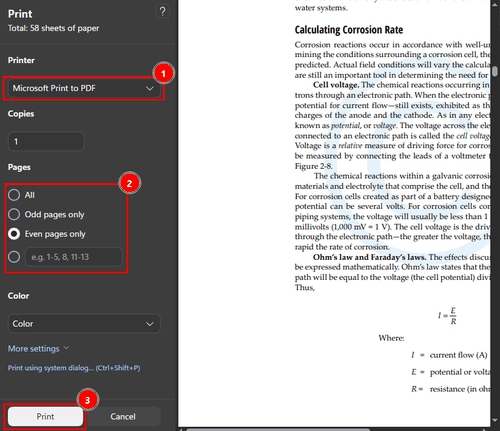
These methods work in a pinch but become frustrating with more than a couple of files. You cannot easily reorder pages, and the process feels like a workaround rather than a real tool. For anything beyond occasional use, most people look for better options.
Built-in Ways to Combine PDFs on Mac
Mac users have two solid free options.
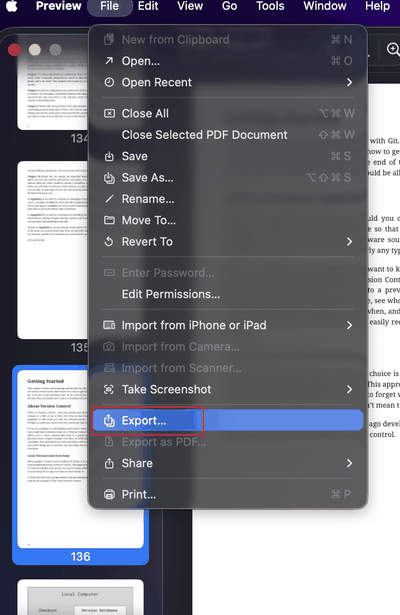
Using Preview
Open the first PDF in Preview.
Go to View → Thumbnails so you can see the pages.
Drag additional PDF files into the thumbnail sidebar.
Reorder pages by dragging the thumbnails.
Choose File → Export... and save the new file.
Free Online PDF Combiners (Quick but Risky)
Popular online services include Adobe’s free Merge PDF tool, Smallpdf, iLovePDF, and PDF24. The process is almost always the same:
Visit the website.
Upload your PDF files.
Drag them into the order you want.
Click Merge and download the result.
These tools are convenient when you need something done in thirty seconds. The drawbacks are real, though: your files leave your computer, free plans usually limit file size or daily uses, some add watermarks, and you need a stable internet connection. For private or large documents, most people prefer to stay offline.
Best Free Offline Desktop Software to Merge PDFs
Several free desktop programs do the job well:
PDFsam Basic – Open-source, simple interface, works on Windows, Mac, and Linux. Good for basic merging and splitting.
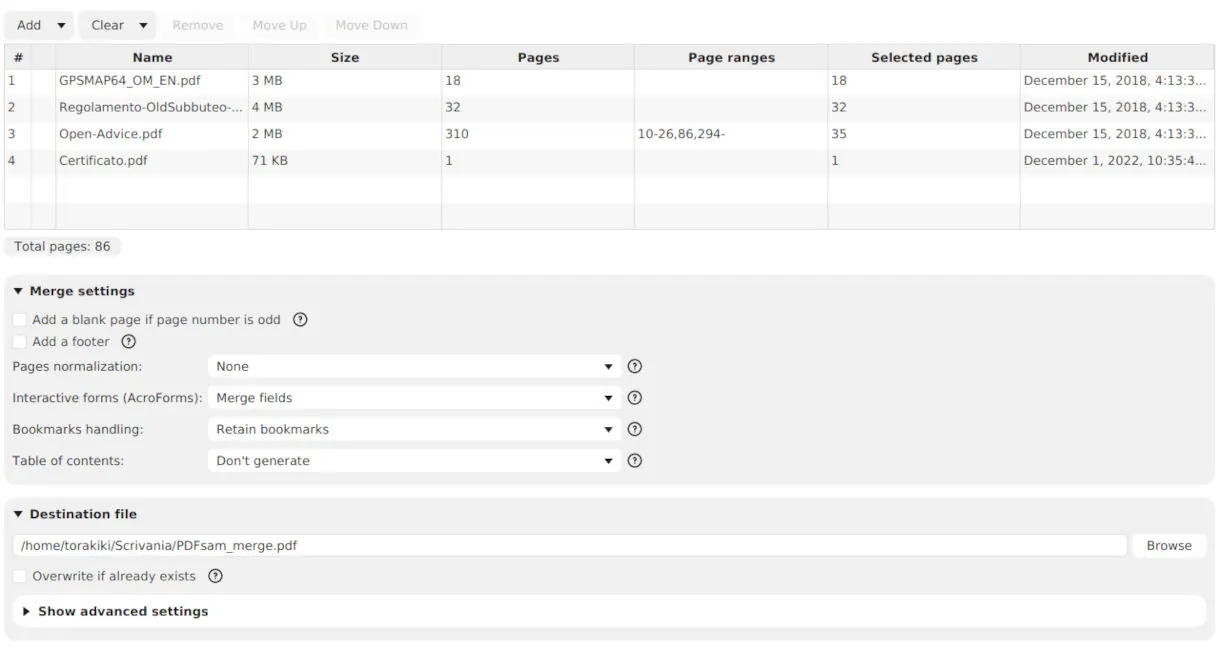
PDF24 Creator – Free Windows tool with a clean design and extra features such as compression.

Other options include smaller utilities that focus only on merging.
These programs keep files on your computer and remove the daily limits common with online tools. The main trade-off is that you need to install software, and feature sets vary.
How to Combine PDFs with Linraw doPDF (Recommended Offline Solution)
Linraw doPDF is a lightweight desktop suite for Windows and Mac that includes a dedicated Merge PDF tool along with many other small PDF utilities. Everything runs locally — nothing is uploaded.
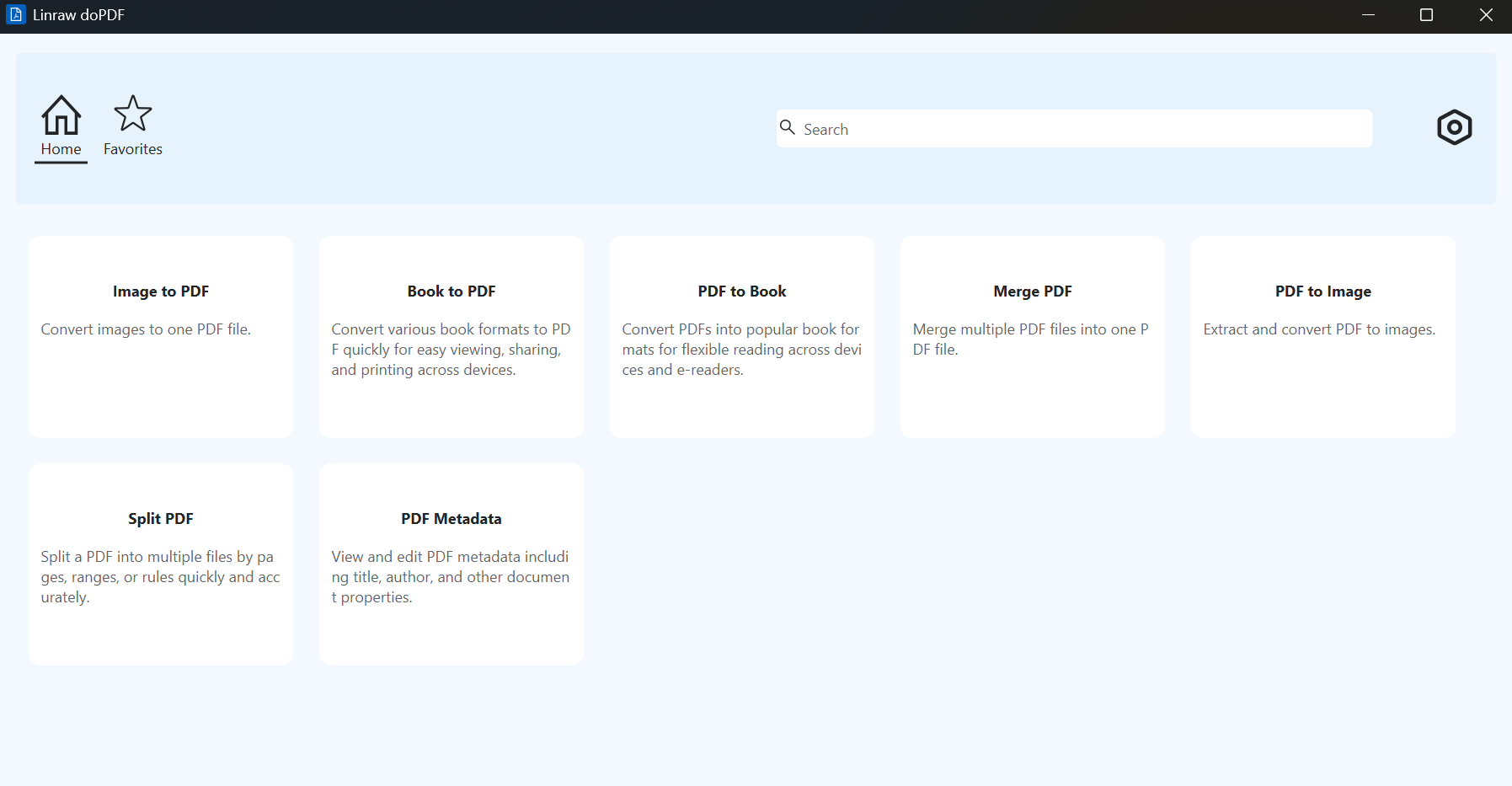
Step-by-step: combining PDFs with Linraw doPDF
Download and install Linraw doPDF for your platform (Windows or Mac).
Open the app and select the Merge PDF tool from the PDF category.
Add the files you want to combine — drag them in, or use the file picker to select several at once.
Reorder the files by dragging them into the sequence you want.
Click Start to combine PDFs.
Open the output PDF to confirm everything's in order.
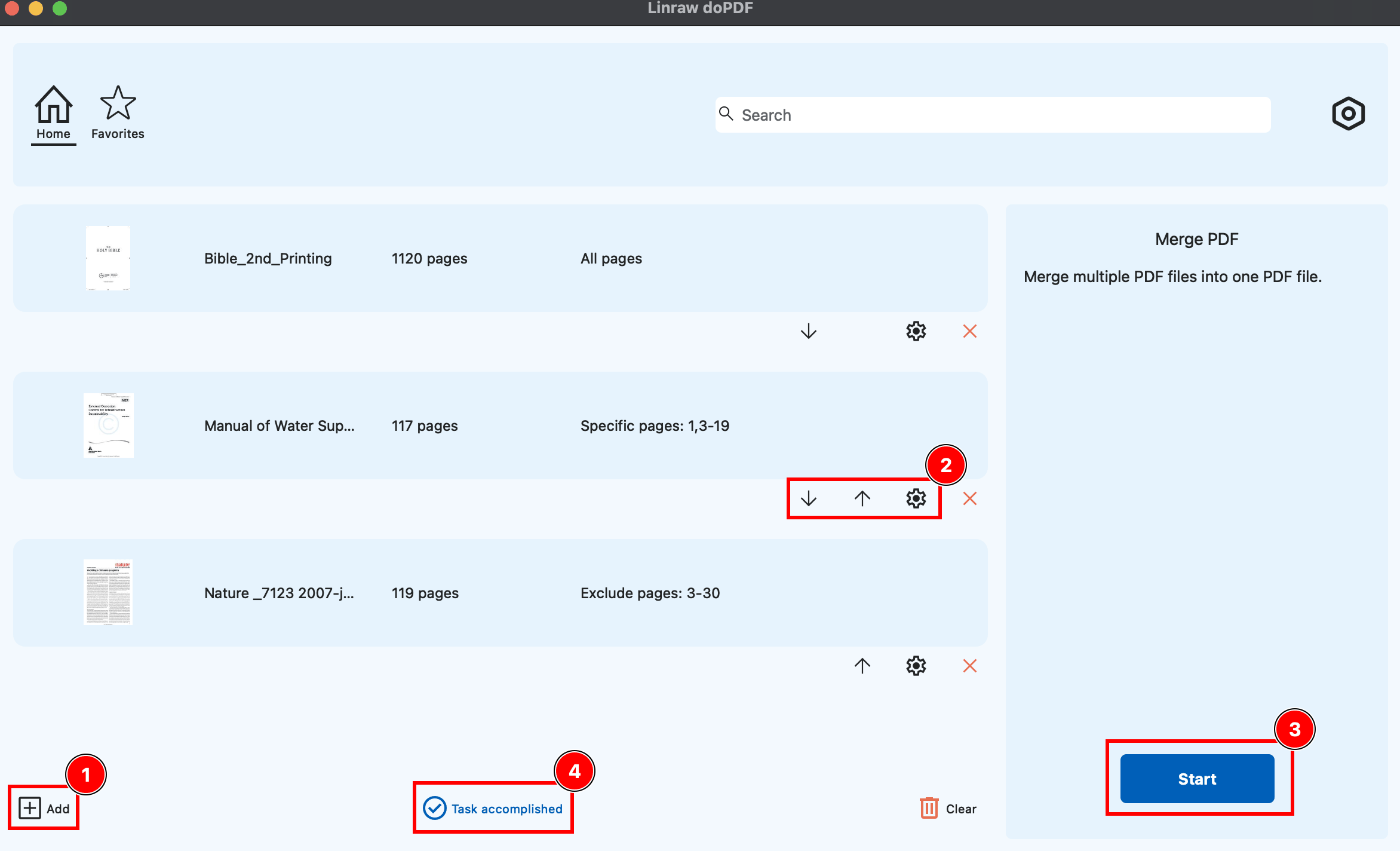
Key points:
Drag-and-drop reordering is straightforward
No file-size or quantity limits in normal use
No watermarks
Works offline on both Windows and Mac
Because Linraw doPDF also includes other PDF tools (split, compress, convert, etc.), you can handle related tasks without switching programs.
Detailed Comparison: Online Tools vs. Free Desktop Software vs. Linraw doPDF
| Feature | Online Tools | Free Desktop (PDFsam / PDF24) | Linraw doPDF |
|---|---|---|---|
| Privacy | Files uploaded | Files stay local | Files stay local |
| Offline use | No | Yes | Yes |
| File / daily limits | Often yes | Rarely | No practical limits |
| Page reordering | Yes | Yes | Yes (easy) |
| Batch merging | Limited | Good | Strong |
| Windows + Mac | Browser-based | Varies | Full support |
| Extra PDF tools | Sometimes | Limited | Many included |
Online tools win on pure speed for tiny jobs. Free desktop programs are solid if you only need basic merging. Linraw doPDF stands out when you want a consistent experience on both Windows and Mac plus a broader set of PDF utilities in one place.
Students often prefer free online tools for occasional use. Professionals and anyone handling sensitive files usually choose offline software. Businesses that regularly combine reports or contracts benefit most from a reliable desktop suite.
Pro Tips for Perfect PDF Merging
Always check the order of files before merging — drag-and-drop makes this easy in most modern tools.
Mixed page sizes (A4 + Letter) are allowed but can cause odd printing results. Crop or resize first if needed.
Good tools preserve bookmarks and basic metadata; check the final file if those matter.
After merging, run a compression tool if the new file feels too large.
Give the combined PDF a clear name such as “Project-Report-Final-2026.pdf” so you can find it later.
Common Problems When Combining PDFs (and How to Fix Them)
Password-protected files — Unlock them first with a PDF unlock tool, then merge.
Very large final file — Compress the result or merge fewer high-resolution scans at a time.
Lost bookmarks or links — Choose a tool that explicitly keeps them (most decent desktop programs do).
Mixed page sizes — Standardize pages before merging or accept that printing may need adjustment.
Wrong page order — Reorder in the tool’s list before clicking Merge; most allow easy drag-and-drop.
FAQ: Combining PDFs on Windows & Mac
Can I combine PDFs for free without installing software?
Yes. Online tools and Mac’s Preview let you do it without installing anything. Windows users have fewer free built-in options.
Is it safe to use online PDF combiners?
For non-sensitive public documents, usually yes. For contracts, personal data, or confidential reports, offline is safer.
How many PDF files can I merge at once offline?
Most desktop tools handle dozens or even hundreds of files with no hard limit, limited mainly by your computer’s memory.
Does combining PDFs reduce quality?
No. A proper merge simply joins the existing pages. Quality stays the same unless you later compress the file.
Can I merge PDFs on both Windows and Mac with the same tool?
Yes. Linraw doPDF and several other desktop programs offer versions for both operating systems.
What’s the difference between “merge PDF” and “combine PDF”?
None in everyday use. Both mean putting multiple PDF files into one document.
How do I combine only selected pages from multiple PDFs?
Extract or split the pages you need first, then merge those selected pages.
Will the combined PDF keep the original formatting?
Yes. Text, images, and layout remain unchanged.
Conclusion: The Smartest Way to Combine PDFs Offline
You now have clear options: quick online tools for non-sensitive files, built-in Mac methods, free desktop programs such as PDFsam, and a full offline suite like Linraw doPDF.
If you regularly combine PDFs and care about privacy, speed, and having extra tools in one place, Linraw doPDF is a practical choice. It works on both Windows and Mac, keeps every file on your computer, and includes a straightforward Merge PDF tool plus many other useful utilities.
Download Linraw doPDF, open the Merge PDF tool, and combine your files in a few clicks — offline, free of watermarks, and without uploading anything.
However, if your workflow involves multiple types—such as images, audio, video, PDFs, or eBooks—then Linraw doUltra is a more powerful all-in-one option.
Related Chapters
