How to Convert WebM to MP4 on Windows and Mac (Free, No Upload Limits)
Introduction: Why You Need to Convert WebM to MP4
WebM is a modern video format designed for the web, while MP4 is the most widely supported video format across devices and platforms. Although WebM works great in browsers, it often causes compatibility issues when used with video editors, mobile devices, or certain media players.
Understanding WebM vs. MP4 Formats
WebM: Open-source, optimized for web streaming (VP8/VP9 codecs)
MP4: Universal format supported by almost all devices and platforms (H.264/H.265)
Common Scenarios
You may need to convert WebM to MP4 when:
Editing videos in software like Premiere Pro or Final Cut
Uploading to platforms that prefer MP4 (e.g., YouTube, Instagram)
Playing videos on iPhone, iPad, or older devices
Converting screen recordings or browser-downloaded videos
Why Desktop Converters Are Better
Compared to online tools, desktop software offers:
No file size limits
Faster conversion speed
Batch processing
Better privacy (no uploads required)
Linraw doVideo Support Convert Video Tool: The Best Desktop Solution for Windows and Mac
Overview of Linraw doVideo Video Tools Suite
Linraw doVideo is a desktop software available on Windows and macOS that includes a collection of lightweight but powerful video tools. One of its key features is the Convert Video tool, which supports converting WebM to MP4 quickly and efficiently.
Key Features
Convert WebM to MP4 in seconds
Batch conversion for multiple files
High-quality output with optimized presets
Simple, beginner-friendly interface
Works completely offline (no uploads required)
System Requirements
Windows: Windows 10 / 11 (64-bit)
macOS: macOS 11 or later (Intel & Apple Silicon supported)
Installation is straightforward—download, install, and launch the software.
Method 1: Convert WebM to MP4 with Linraw doVideo (Recommended)
This is the easiest and most efficient method, especially for beginners and bulk conversions.
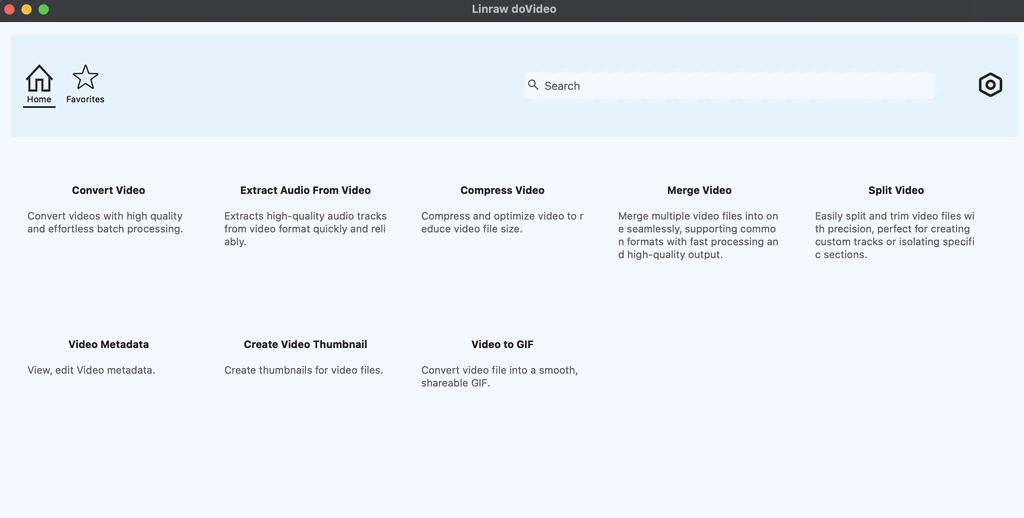
Step 1: Launch the Convert Video Tool
Open Linraw doVideo and select the Convert Video tool from the main interface.
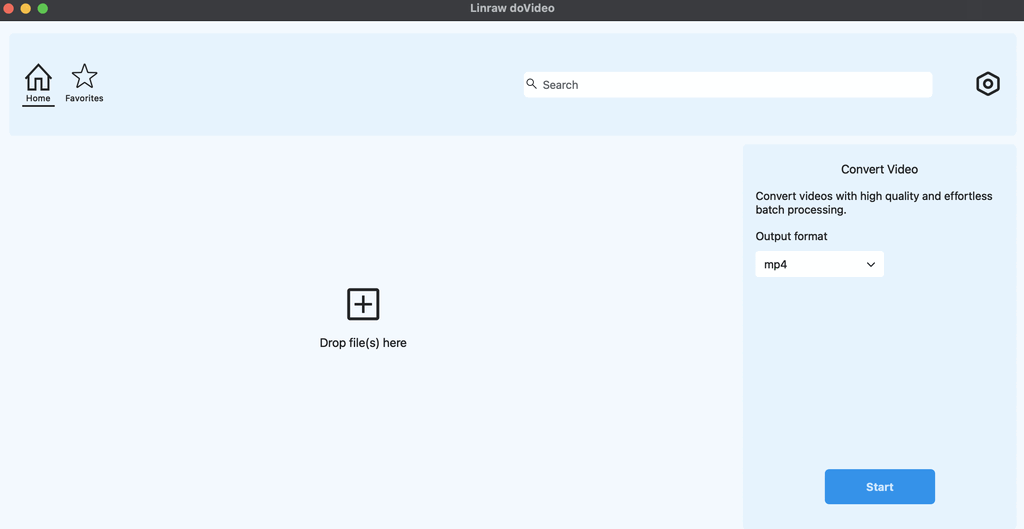
Step 2: Add WebM Files
Drag and drop your WebM files
Or click “Add Files” to import
Supports single and batch mode
Step 3: Select Output Format
Choose MP4 as the output format.
You can optionally adjust settings like resolution or quality.
Step 4: Start Converting
Click the Convert button.
The tool shows real-time progress and estimated time remaining.
Step 5: Locate and Verify Output
Once complete:
Open the output folder
Check video quality and playback compatibility
Method 2: Convert WebM to MP4 with FFmpeg (Free, Command Line)
FFmpeg is a powerful open-source tool for advanced users.
Install FFmpeg
Download from the official website and add it to your system PATH.
Basic Command
ffmpeg -i input.webm -c:v libx264 -c:a aac -movflags +faststart output.mp4
Batch Conversion Script (Example)
for %i in (*.webm) do ffmpeg -i "%i" -c:v libx264 -c:a aac "%~ni.mp4"
Pros & Cons
Pros:
Extremely flexible
High-quality output
Cons:
Command-line only
Not beginner-friendly
Method 3: Convert WebM to MP4 with VLC Media Player
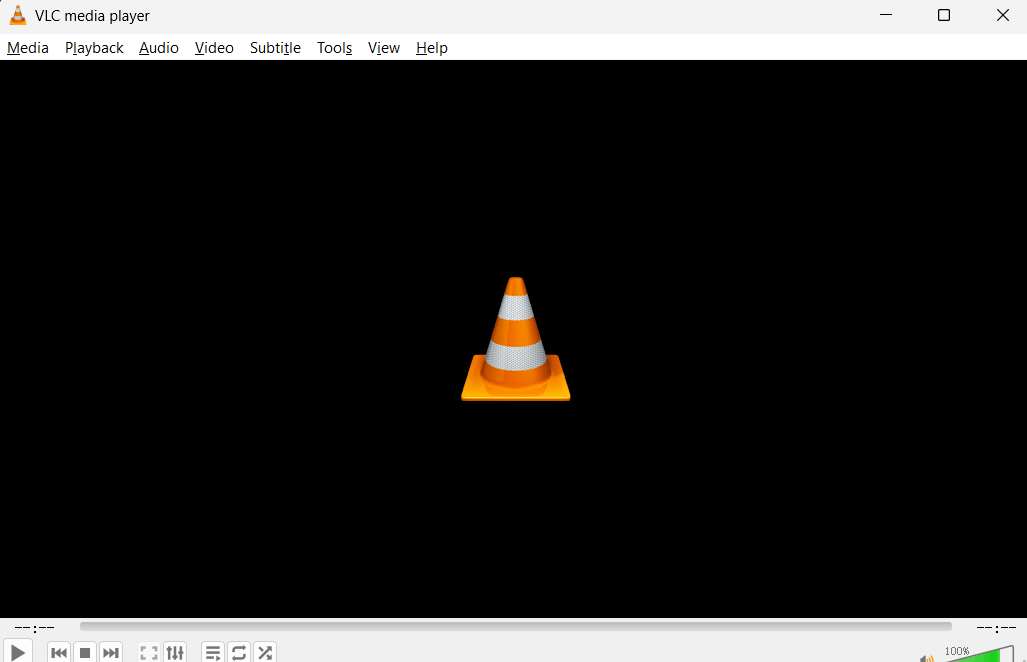
VLC is a free media player that also supports basic conversion.
Steps
Open VLC
Go to Media → Convert/Save
Add your WebM file
Choose Convert
Select MP4 profile
Start conversion
Limitations
Limited control over quality settings
No true batch processing
Slower compared to dedicated tools
Method 4: Online WebM to MP4 Converters
Popular tools include:
Limitations
File size restrictions
Slow upload/download speeds
Privacy concerns (files uploaded to servers)
Ads or watermarks
Requires stable internet connection
Comparison Table: All Methods at a Glance
| Tool | Platform | Free File Size Limit | Batch Support | Offline/Privacy | Ease of Use | Best For |
|---|---|---|---|---|---|---|
| Linraw doVideo | Win & Mac | Unlimited | Yes | Yes | Very Easy | All users |
| FFmpeg | Win/Mac/Linux | Unlimited | Yes | Yes | Hard | Advanced users |
| VLC | Win & Mac | Unlimited | Limited | Yes | Medium | Casual users |
| CloudConvert | Web | Limited | Limited | No | Easy | Small files |
| FreeConvert | Web | Limited | Limited | No | Easy | Quick tasks |
| Zamzar | Web | Limited | No | No | Easy | Occasional use |
Which Method Should You Use? (Decision Guide)
One small file, quick task → Use an online converter
Large files or batch conversion → Use Linraw doVideo
Privacy-sensitive files → Use Linraw doVideo or FFmpeg
Comfortable with command line → FFmpeg
Want speed + simplicity → Linraw doVideo
FAQ
Is WebM to MP4 conversion free?
Yes, many tools (including Linraw doVideo, FFmpeg, and VLC) allow free conversion.
Does converting WebM to MP4 reduce quality?
Not necessarily. With proper settings, quality loss is minimal or unnoticeable.
Can I convert WebM to MP4 without internet?
Yes, desktop tools like Linraw doVideo, VLC, and FFmpeg work completely offline.
What's the best WebM to MP4 converter for Mac?
Linraw doVideo is a great choice due to its ease of use and batch support.
Why won't my WebM file play on iPhone?
iPhones do not natively support WebM, but MP4 works perfectly.
Can I batch convert multiple WebM files at once?
Yes, Linraw doVideo and FFmpeg both support batch conversion.
Is there a file size limit?
Desktop tools have no limits, while online tools usually do.
How long does conversion take?
It depends on file size and system performance, but most conversions take seconds to minutes.
Conclusion
Converting WebM to MP4 is essential for better compatibility, editing, and sharing. While there are multiple methods available, the best choice depends on your needs:
Fast, easy, no limits → Linraw doVideo
Advanced control → FFmpeg
Occasional use → Online tools
For most users, a desktop solution like Linraw doVideo offers the perfect balance of speed, quality, and simplicity.
However, if your workflow involves multiple types—such as images, audio, video, PDFs, or eBooks—then Linraw doUltra is a more powerful all-in-one option.
Related Chapters
