Batch Video to GIF Converter — Convert MP4 & More to GIF in Bulk
1. What Is a Batch Video to GIF Converter?
Video to GIF explained — what changes and what's lost
A GIF (Graphics Interchange Format) is an animated image that loops silently. When you convert a video to GIF, you are extracting a sequence of frames and encoding them into a single looping file. The result plays automatically anywhere images are supported — in emails, chat apps, slide decks, and websites — with no sound, no play button, and no codec required.
What gets lost in the process is worth knowing upfront: audio is removed entirely, color depth drops from millions of colors to a maximum of 256 per frame, and file sizes can grow large relative to the source clip if the GIF is long or high-resolution. For short clips — product demos, reaction moments, tutorial highlights, or social content — the trade-off is well worth it.
Why "batch" matters — converting multiple videos at once
A single video-to-GIF conversion is straightforward. The real challenge arrives when you need to process dozens or hundreds of clips — for a product catalog, a training library, a marketing campaign, or a content pipeline. Doing these one by one in an online tool is slow, repetitive, and inconsistent.
A batch video to GIF converter solves this by letting you queue up multiple video files, apply a consistent set of output settings across all of them, and run the entire conversion in a single operation. What might take an hour of manual work is done in minutes — automatically, offline, and with uniform results.
When to use GIF vs keeping the original video
Use GIF when you need a clip to auto-play without interaction, loop silently, and embed anywhere — social posts, Slack messages, documentation, or email headers. Use your original video when you need audio, duration longer than about 15 seconds, full color fidelity, or smaller file sizes (modern video codecs like H.264 compress far more efficiently than GIF).
A useful rule: if the clip is under 10 seconds and the message works without sound, GIF is the right choice.
Supported input formats: MP4, MOV, AVI, MKV, WebM & more
Linraw doVideo's batch video to GIF tool accepts the most common video formats without requiring conversion beforehand:
MP4 — the universal standard from phones, cameras, and screen recorders
MOV — the native format for Apple devices and Final Cut Pro exports
AVI — the classic Windows container, still widely used in archival footage
MKV — common for HD and 4K content downloads
WebM — the open web video format used by browsers and streaming platforms
If your source file plays on your device, Linraw doVideo can convert it to GIF.
2. How to Batch Convert Video to GIF with Linraw doVideo
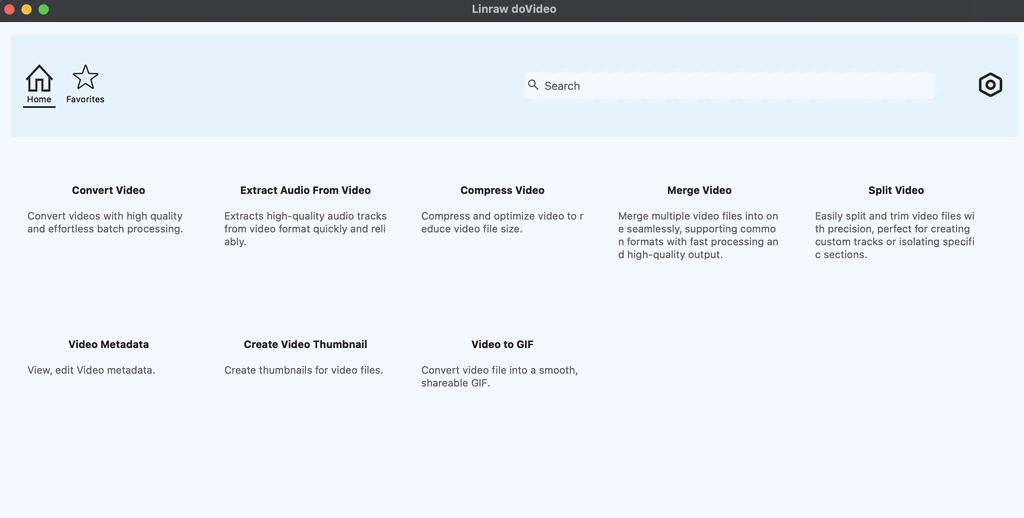
Step 1 — Import multiple video files at once
Open Linraw doVideo and select the Video to GIF tool from the toolbox. Click Add Files or drag and drop your video files directly into the queue. You can add files from multiple folders in one session. Linraw doVideo displays each file with its filename, duration, and resolution so you can review your queue before proceeding.
There is no cap on the number of files you can add. Whether you are converting 5 clips or 500, the import process is the same.
Step 2 — Set GIF output options: quality, duration
Before running the conversion, configure your GIF output settings. These settings apply to the entire batch unless you override them per file:
Quality level
Duration / trim: Set a start and end point to extract only the segment you need.
Choose your output folder — Linraw doVideo saves all converted GIFs there, named to match the original source files.
Step 3 — Run batch conversion
Click Start. Linraw doVideo processes every file in the queue simultaneously, using your system's CPU cores efficiently. A progress bar tracks each file. When complete, your GIFs are ready in the output folder — named, organized, and consistent.
No re-uploading, no waiting for a browser tab, no size limits.
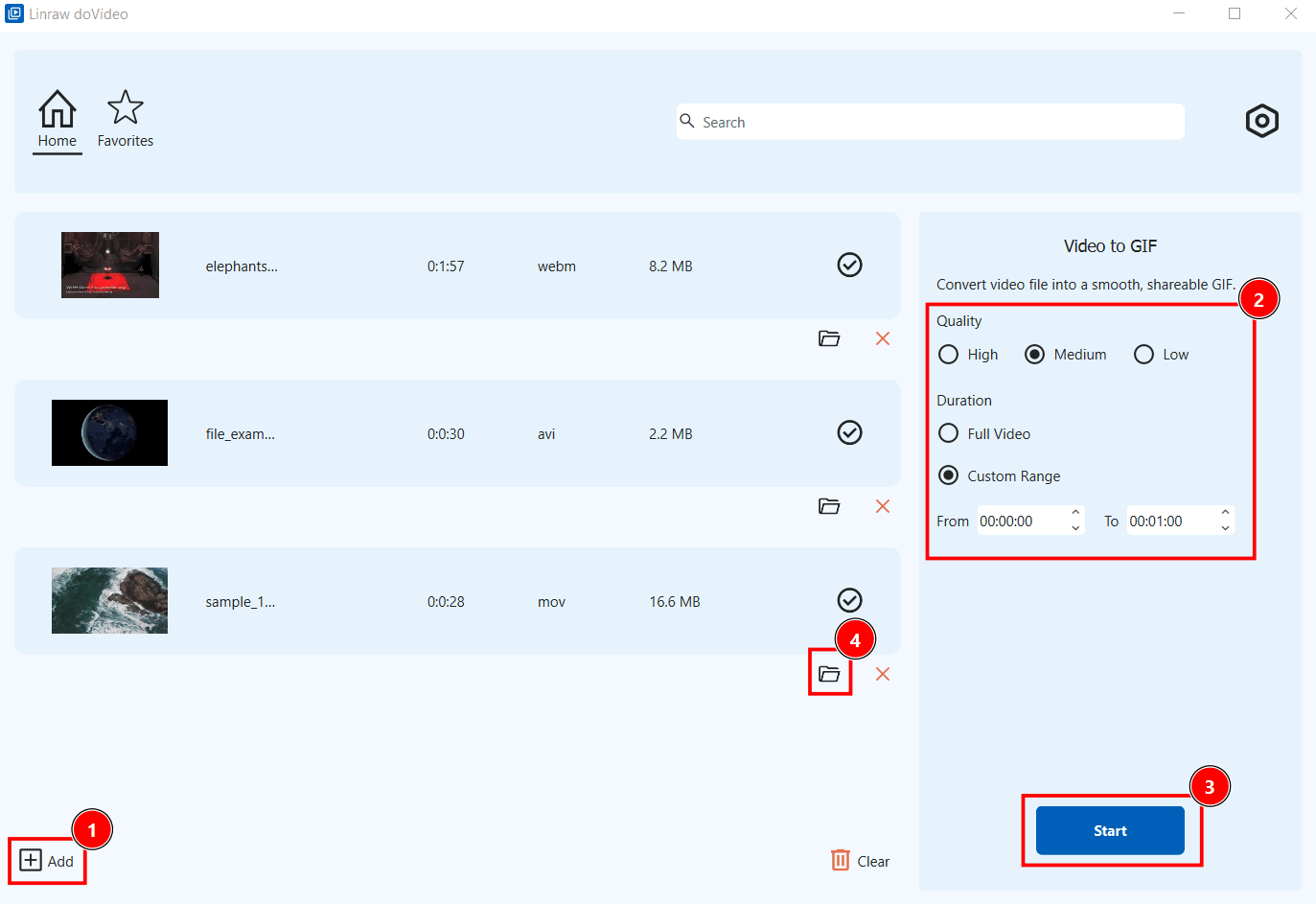
How to trim clips before converting (cut to GIF)
Linraw doVideo includes a built-in trim tool. Click the scissor icon next to any file in the queue to open the clip editor. Drag the handles on the timeline to set your start and end points, then confirm. The trim applies only to that file's GIF output — the original video is untouched. This means you can extract a precise 3-second highlight from a 10-minute recording without any external editing software.
3. Key Features of the Linraw doVideo Video to GIF Tool
Batch processing — convert 100s of videos simultaneously
Unlike online converters that process one file at a time, Linraw doVideo handles your entire queue in parallel. It distributes the conversion workload across your CPU cores, so a batch of 50 files does not take 50 times as long. For content teams, developers, and digital marketers working with large video libraries, this is the single most important advantage over any web-based tool.
Offline conversion — no upload, no internet required
Every conversion happens locally on your machine. Your video files never leave your device. This matters for three reasons: speed (no upload wait time), privacy (sensitive footage stays private), and reliability (works anywhere, even without Wi-Fi). For anyone handling confidential product demos, internal training videos, or client footage, offline processing is not a nice-to-have — it is essential.
No watermark, no file size limits
Free online GIF tools almost universally impose restrictions: watermarks on output, file size caps (typically 50–200 MB), or daily conversion limits. Linraw doVideo has none of these. There is no branding stamped on your GIFs, no limit on how large your source files can be, and no throttling on batch size. What you convert is yours, exactly as you configured it.
Windows & Mac support (cross-platform desktop app)
Linraw doVideo runs natively on both Windows 10/11 and macOS (including Apple Silicon). The interface and feature set are identical across platforms, so teams using a mix of operating systems can share the same workflow. No browser dependencies, no Java, no separate installs for Mac vs PC.
4. Linraw doVideo vs Other Video to GIF Solutions
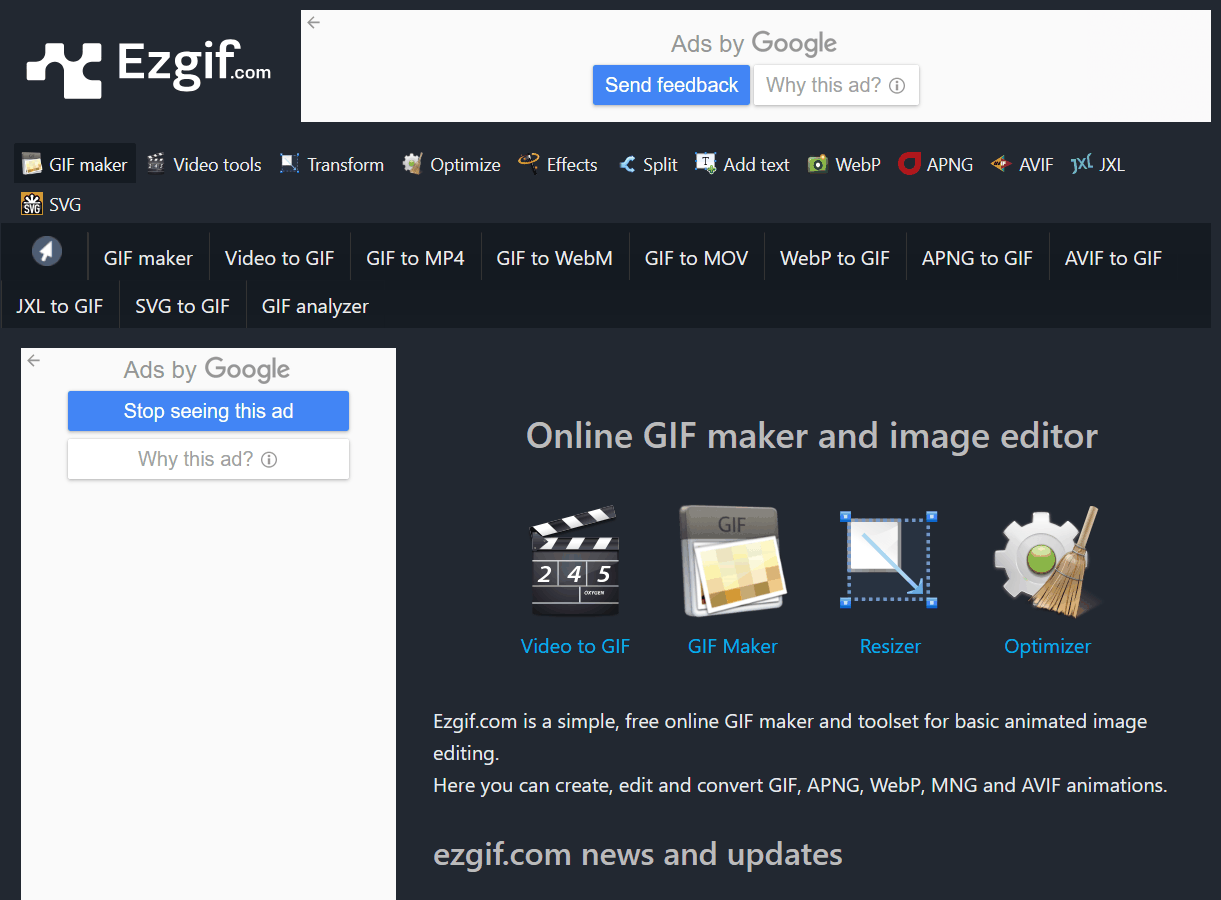
Linraw doVideo vs ezgif — online tool vs desktop batch converter
ezgif is the most popular free online video to GIF converter and genuinely useful for one-off conversions. Its limitations become clear at scale: one file at a time, a 200 MB file size cap, processing dependent on server load, and no batch support whatsoever. Linraw doVideo handles everything ezgif cannot — multiple files, large sources, offline use, and consistent output at volume.
Linraw doVideo vs GIMP — overkill vs purpose-built
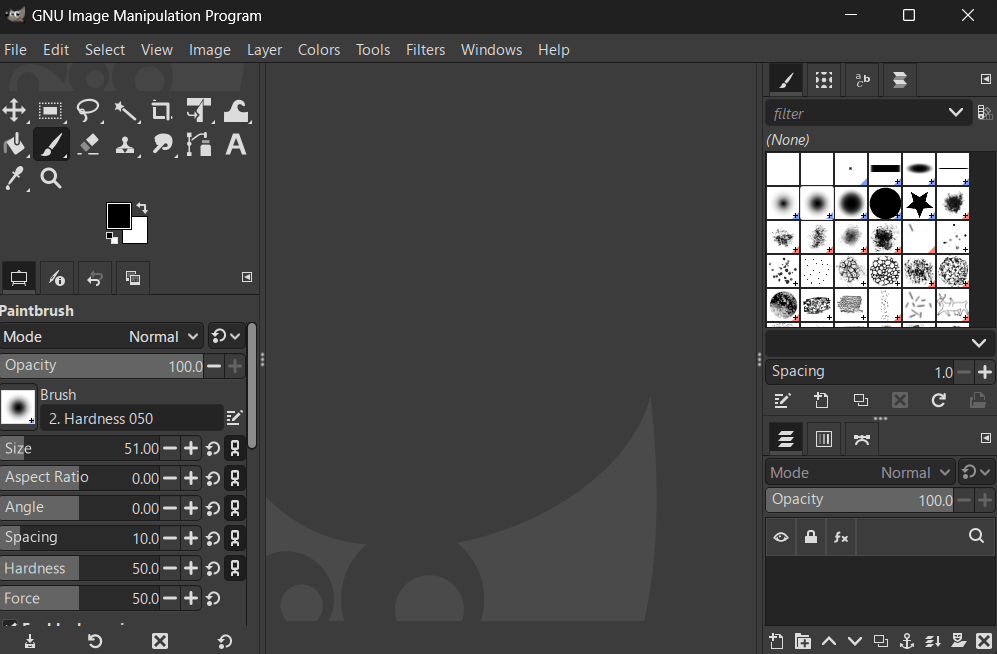
GIMP can technically produce GIFs from video frames, but it requires importing frames manually, adjusting layer timings by hand, and exporting through a multi-step process. It is a full image editor being asked to do a conversion job. For batch work, GIMP is effectively unusable. Linraw doVideo is purpose-built for exactly this task.
Linraw doVideo vs FFmpeg — command-line vs GUI for batch GIF
FFmpeg is the gold standard for video processing and produces excellent GIFs with the right command. The barrier is knowledge: constructing a two-pass palette-optimized FFmpeg command for GIF output is not beginner-friendly, and scripting it for batches requires shell scripting experience. Linraw doVideo delivers the same output quality through a visual interface, without a single line of code.
Linraw doVideo vs Adobe Photoshop — cost, speed, and batch ability
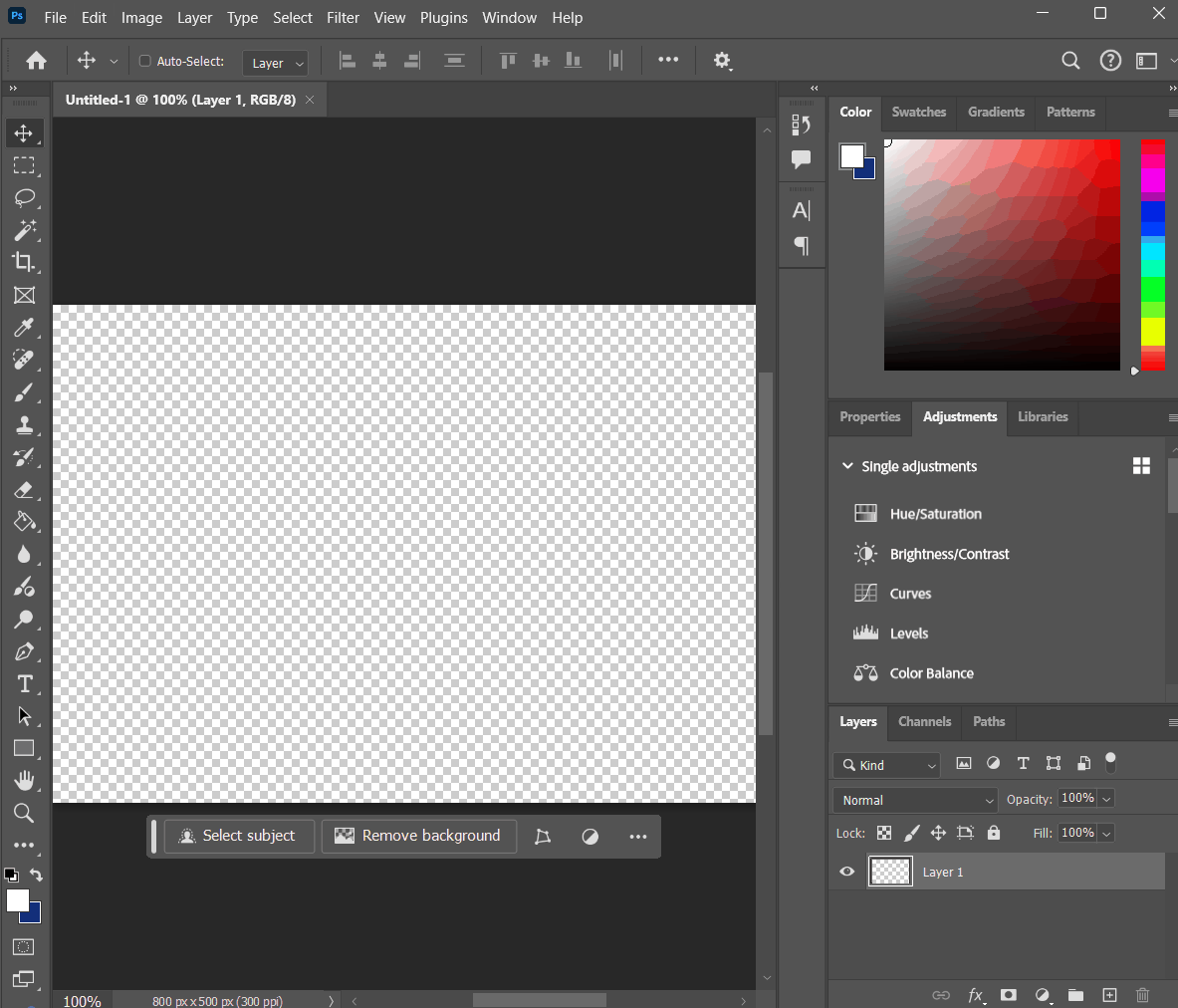
Photoshop's "Export as GIF" and batch action system can produce GIFs, but it requires a Creative Cloud subscription (~$55/month), significant setup time for batch actions, and a steep learning curve for non-designers. Linraw doVideo is a fraction of the cost, has no subscription, and is specifically optimized for video-to-GIF conversion — not retrofitted from an image editor.
Comparison table: features, batch support, price, platform
| Tool | Batch support | Offline | No watermark | File size limit | Platform |
|---|---|---|---|---|---|
| Linraw doVideo | Yes — unlimited | Yes | Yes | None | Windows & Mac |
| ezgif | No | No | Yes | 200 MB | Browser |
| Canva | No | No | Paid only | Varies | Browser |
| GIMP | Manual only | Yes | Yes | None | Win/Mac/Linux |
| FFmpeg | Via scripting | Yes | Yes | None | Win/Mac/Linux |
| Photoshop | Via actions | Yes | Yes | None | Win/Mac |
| VEED | No | No | Paid only | 1 GB (paid) | Browser |
5. Other Ways to Convert Video to GIF (Free Alternatives)
Online tools: ezgif, Canva, VEED, Convertio
Free browser-based converters are the right choice for quick, occasional single-file conversions. ezgif offers the most control of any online option. Canva and VEED integrate GIF export into broader design and video editing workflows. Convertio supports a wide range of formats but is limited to smaller files on its free tier. All of them share the same structural limitation: one file at a time, dependent on a server connection, and subject to size and usage caps.
Using FFmpeg command line to convert MP4 to GIF
FFmpeg produces some of the highest-quality GIFs available through its two-pass palette generation. The standard command for a high-quality MP4 to GIF conversion looks like this:
ffmpeg -i input.mp4 -vf "fps=12,scale=480:-1:flags=lanczos,palettegen" palette.png
ffmpeg -i input.mp4 -i palette.png -vf "fps=12,scale=480:-1:flags=lanczos,paletteuse" output.gif
For batch processing, this needs to be wrapped in a shell loop — workable for developers, impractical for most users.
VLC, Photoshop, and ScreenToGif as single-file options
VLC can export video frames but does not assemble them into GIF directly. Photoshop can create GIFs from video layers but requires manual setup. ScreenToGif is an excellent free Windows tool for creating GIFs from screen recordings — but it is a capture tool, not a converter for existing video files. Each of these fills a specific niche; none handles bulk conversion.
Why free tools fall short for bulk or professional use
The fundamental problem with free alternatives for bulk GIF conversion is not quality — it is scale and workflow. When you need to convert 50 product videos into GIFs for a launch campaign, or process weekly video exports into animated thumbnails, no free tool gives you a repeatable, fast, one-click workflow. The hidden cost of using free tools at volume is time: upload, wait, download, repeat, 50 times over.
6. Frequently Asked Questions
Can I convert multiple MP4 files to GIF at the same time?
Yes. Linraw doVideo is designed specifically for batch conversion. Add as many MP4 files as needed, configure your output settings once, and convert them all simultaneously. There is no per-session file limit.
What video formats can be converted to GIF?
Linraw doVideo supports MP4, MOV, AVI, MKV, WebM, and more. If the file is a standard video format, it is almost certainly supported.
Does Linraw doVideo add a watermark to converted GIFs?
No. Linraw doVideo never adds watermarks, branding, or any overlay to your output GIFs.
Is the converter available on both Windows and Mac?
Yes. Linraw doVideo is a native desktop application for both Windows 10/11 and macOS (including Apple Silicon M1/M2/M3). The full feature set — including batch GIF conversion — is available on both platforms.
Can I convert MOV and AVI to GIF, not just MP4?
Absolutely. Linraw doVideo converts MOV, AVI, MKV, WebM, and other formats to GIF with the same batch workflow. Just add the files regardless of format — Linraw doVideo handles the rest automatically.
How is a desktop converter better than an online GIF maker?
Three key differences: speed (no upload/download cycle), privacy (files never leave your device), and scale (batch processing with no file count or size limits). For occasional single conversions, an online tool is convenient. For regular, professional, or bulk use, a desktop converter is significantly faster and more capable.
7. Conclusion & Next Steps
Who should use a batch video to GIF converter
Linraw doVideo's batch video to GIF tool is built for anyone who converts video to GIF more than occasionally: content creators managing social media libraries, product teams generating animated documentation, developers building tutorial assets, e-commerce managers producing animated product previews, and marketing teams running campaigns with animated visuals. If you have ever spent an afternoon converting videos to GIF one by one, this tool was made for you.
Summary: Linraw doVideo vs alternatives — which is right for you
For a single quick conversion with no software install, ezgif or Canva will serve you well. For batch conversion, offline processing, no watermarks, and professional-grade output across Windows and Mac, Linraw doVideo is the clear choice. No competing desktop tool combines batch GIF support, format breadth, and ease of use at this price point.
Download Linraw doVideo and try batch video to GIF free
Linraw doVideo is available for Windows and Mac. Download it free and run your first batch conversion today — no account required, no upload, and no watermark on your output.
Explore other video tools in Linraw doVideo
The Video to GIF converter is one tool in Linraw doVideo's full video toolkit, which also includes video compression, format conversion, trimming, merging, and more. If you work with video regularly, the full suite covers every task you would otherwise need multiple apps to handle.
Related Chapters
