How to Convert MP4 to GIF on Windows & Mac (The Ultimate Guide)
Last Update: 2026/6/23
Introduction
What Is MP4 to GIF Conversion?
MP4 to GIF conversion is the process of extracting a segment of a video file and rendering it as an animated GIF — a looping, universally compatible image format. Unlike MP4, which uses advanced codecs and requires a video player, a GIF plays automatically inside any browser, chat app, or document viewer without any special software.
Under the hood, the conversion samples individual video frames at a chosen frame rate, maps each frame's colors to a 256-color palette, and stitches them into a single .gif container file. The result is a self-contained animation that starts looping the instant it loads.
Why Convert MP4 to GIF?
GIFs occupy a unique middle ground between static images and full video. They are widely used in technical documentation (to demonstrate UI interactions), in marketing (to highlight product features without asking visitors to click Play), and across social platforms and messaging apps where short, looping clips communicate tone and context more powerfully than text alone.
When Should You Use GIF Instead of Video?
Use a GIF when:
The clip is under 15 seconds and meant to loop continuously.
You need the animation to embed directly inside a web page, email, Markdown document, or messaging app without a play button.
You want guaranteed playback with zero plugin or codec dependencies.
The platform does not support embedded video (some email clients, Confluence wikis, GitHub README files).
Stick with MP4 when the clip is long, audio matters, or pixel-perfect quality is a priority — GIF's 256-color palette and larger-per-second file size make it a poor choice for full-length video content.
Benefits of Converting MP4 to GIF
Universal Compatibility Across Platforms
GIF is one of the oldest image formats on the web (introduced in 1987) and is natively supported by every modern browser, operating system, email client, and chat application — including Discord, Slack, Teams, iMessage, WhatsApp, and Gmail. You never need to worry about codec compatibility or whether the recipient has the right video player installed.
Perfect for Social Media & Websites
Social platforms prioritize fast-loading, auto-playing content. A well-optimized GIF embeds directly into a tweet, a LinkedIn post, a Notion page, or a product landing page, playing automatically as users scroll past — no tap required. This passive autoplay behavior consistently drives higher engagement than linked video content.
Lightweight and Looping Animation
A GIF loops endlessly without any additional JavaScript or CSS. For short product demos, loading spinners, or reaction clips, this seamless loop removes friction entirely: the viewer gets the full message before they consciously decide whether to pay attention.
No Need for Video Players
MP4 requires a player — whether the browser's native <video> element, QuickTime, or VLC. GIFs render as images. They work inside <img> tags, Markdown ![]() syntax, and every rich-text editor that accepts images, dramatically broadening where your animation can appear.
Method 1: How to Convert MP4 to GIF Offline with Linraw doVideo (Recommended)
For most users — whether designers, content creators, developers, or marketers — a dedicated desktop tool is the fastest, most reliable path to high-quality GIFs. Linraw doVideo is a multi-tool desktop utility for Windows and macOS that bundles a full suite of video, image, audio, PDF, and ebook tools in one clean interface. Its Video to GIF tool is purpose-built for this workflow.
Step 1: Download and Install Linraw doVideo
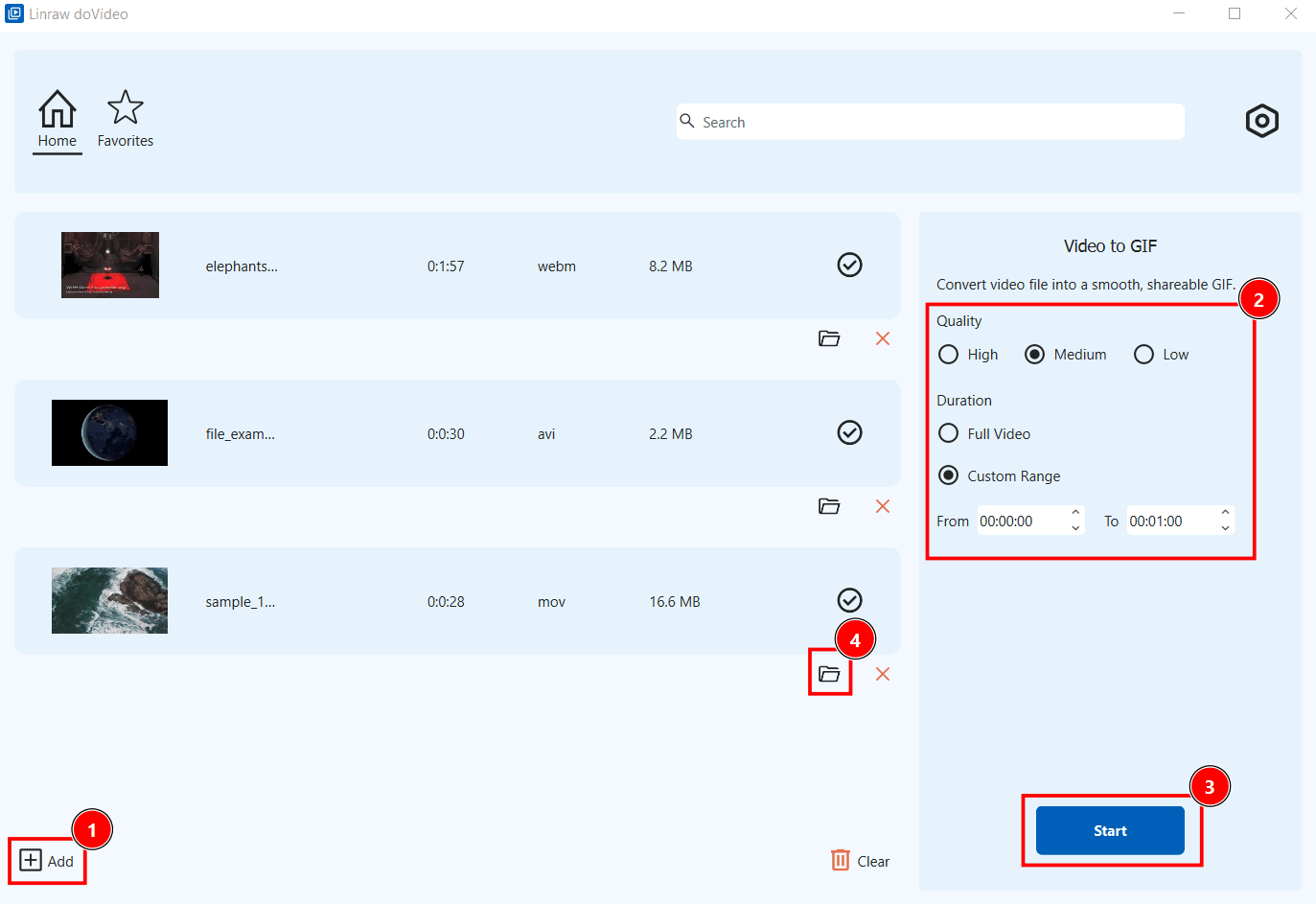
Visit the official Linraw doVideo website and download the installer for your operating system — Windows or macOS. Run the installer and follow the standard setup wizard. The app installs in under a minute and requires no additional runtimes or dependencies.
Step 2: Open the Tool "Video to GIF"
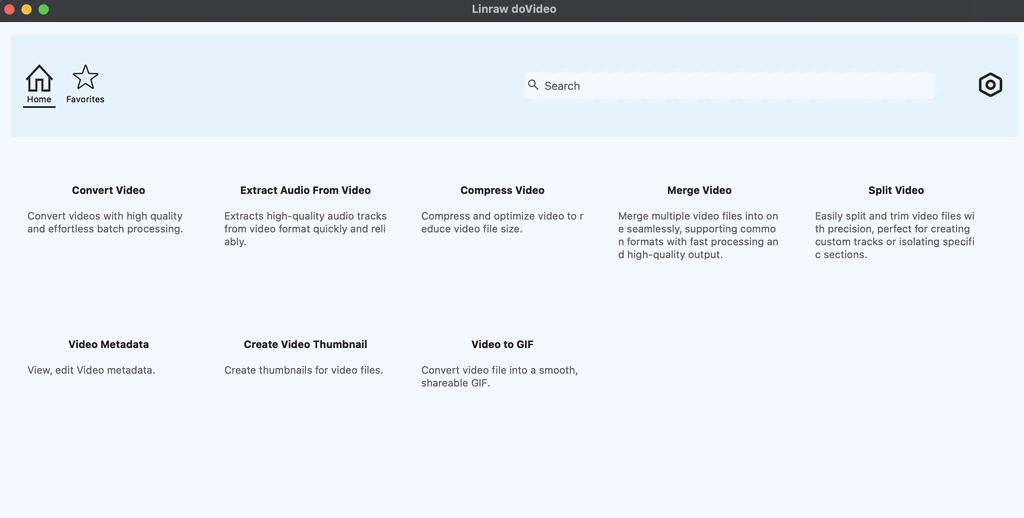
Launch Linraw doVideo and navigate to the Video category in the main dashboard. Click Video to GIF to open the tool. Drag and drop your .mp4 file into the import area, or click Add File to browse your drive. The tool displays a thumbnail preview and the source video's duration, resolution, and frame rate so you can make informed decisions before converting.
Step 3: Adjust Quality and Duration Settings
Before starting the conversion, configure the output parameters to match your target use case:
Quality - Just select High, Medium, or Low—no need to configure frame rate, resolution, color depth, or other complex settings.
Duration — Trim the clip to the exact segment you need. Shorter GIFs are dramatically smaller in file size.
Step 4: Click "Start" — Get High-Quality GIFs Without Watermarks
Click the Start button. Linraw doVideo processes the conversion locally on your machine and saves the output GIF to your chosen destination folder. The entire process takes a few seconds for short clips and a minute or less for longer segments, depending on your hardware. Critically, the output GIF carries no watermarks — something that free online converters frequently impose on unpaid users.
Pro Feature: Batch Processing Multiple MP4s to GIFs at Once
Linraw doVideo supports batch conversion, allowing you to queue multiple MP4 files and convert them all in a single run with the same output settings. This is invaluable for marketing teams exporting a series of product demo clips, developers generating animated documentation assets, or social media managers preparing a week's worth of content at once.
The Privacy Advantage: Keeping Your Video Files Offline
Every conversion in Linraw doVideo happens entirely on your local machine — no files are uploaded to external servers. For users handling confidential screen recordings, unreleased product footage, or proprietary demos, this offline architecture is a decisive advantage over web-based tools that transmit your content to third-party cloud infrastructure.
Method 2: Using FFmpeg to Convert MP4 to GIF (Command Line)
Why Developers Prefer CLI for Media Processing
FFmpeg is the industry-standard open-source media processing library. Developers and power users favor it because it integrates cleanly into build pipelines, CI/CD workflows, and automation scripts. It offers granular control over every encoding parameter, and it runs identically on Windows, macOS, and Linux.
Basic FFmpeg Commands for Quick Conversions
To convert an MP4 clip to a GIF with a single command:
ffmpeg -i input.mp4 -vf "fps=15,scale=480:-1:flags=lanczos" output.gif
Flag breakdown:
-i input.mp4— specifies the source filefps=15— sets the output frame rate to 15 FPSscale=480:-1— scales the width to 480px while preserving the aspect ratioflags=lanczos— uses the high-quality Lanczos resampling algorithm for cleaner downscaling
To trim a specific segment before converting:
ffmpeg -ss 00:00:05 -t 00:00:08 -i input.mp4 -vf "fps=15,scale=480:-1:flags=lanczos" output.gif
Here -ss 00:00:05 sets the start time and -t 00:00:08 sets the duration.
Advanced: Generating a Custom Color Palette (palettegen) for Crisp Output
FFmpeg's default color quantization produces visibly dithered GIFs. For significantly better quality, generate a custom palette in a two-pass workflow:
# Pass 1 — generate an optimized palette from the video content
ffmpeg -i input.mp4 -vf "fps=15,scale=480:-1:flags=lanczos,palettegen" palette.png

# Pass 2 — use the palette to encode the final GIF
ffmpeg -i input.mp4 -i palette.png \
  -filter_complex "fps=15,scale=480:-1:flags=lanczos[x];[x][1:v]paletteuse" \
  output.gif
This two-pass method produces noticeably sharper, more accurate colors — especially important for screen recordings and product UI animations where crisp text and icon rendering matter.
FFmpeg is best suited for developers, DevOps engineers, and technically proficient users comfortable with command-line tools. For everyone else, Linraw doVideo delivers comparable quality through a visual interface in a fraction of the time.
Method 3: Free Online Video to GIF Converters (Pros & Cons)
Quick Web Tools for Small Files (Ezgif, Adobe Express)
Several browser-based tools let you convert short MP4 clips to GIF without installing anything:
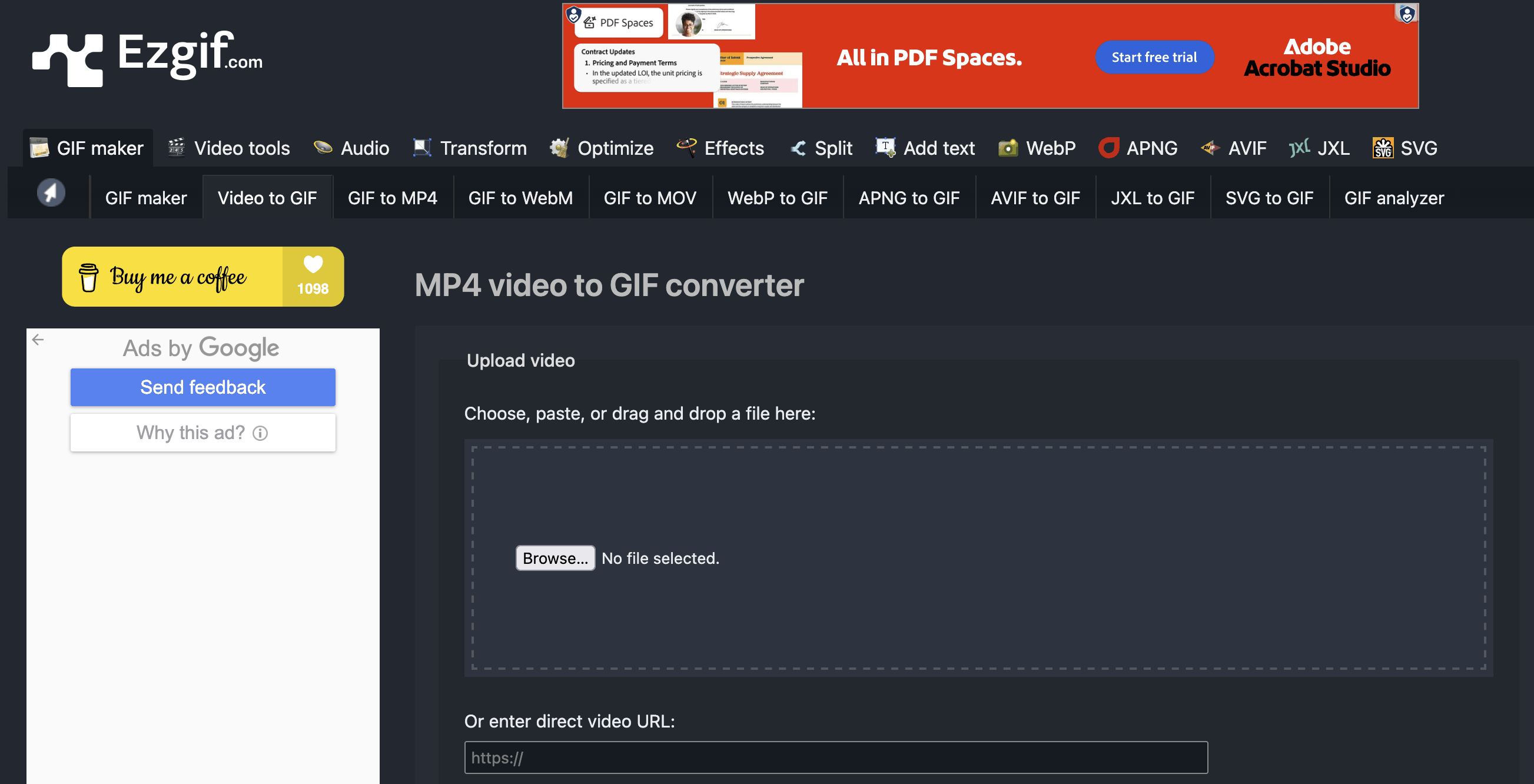
Ezgif.com — A long-standing free tool with trim, resize, and optimization controls. It handles files up to 100MB and is functional for one-off conversions.
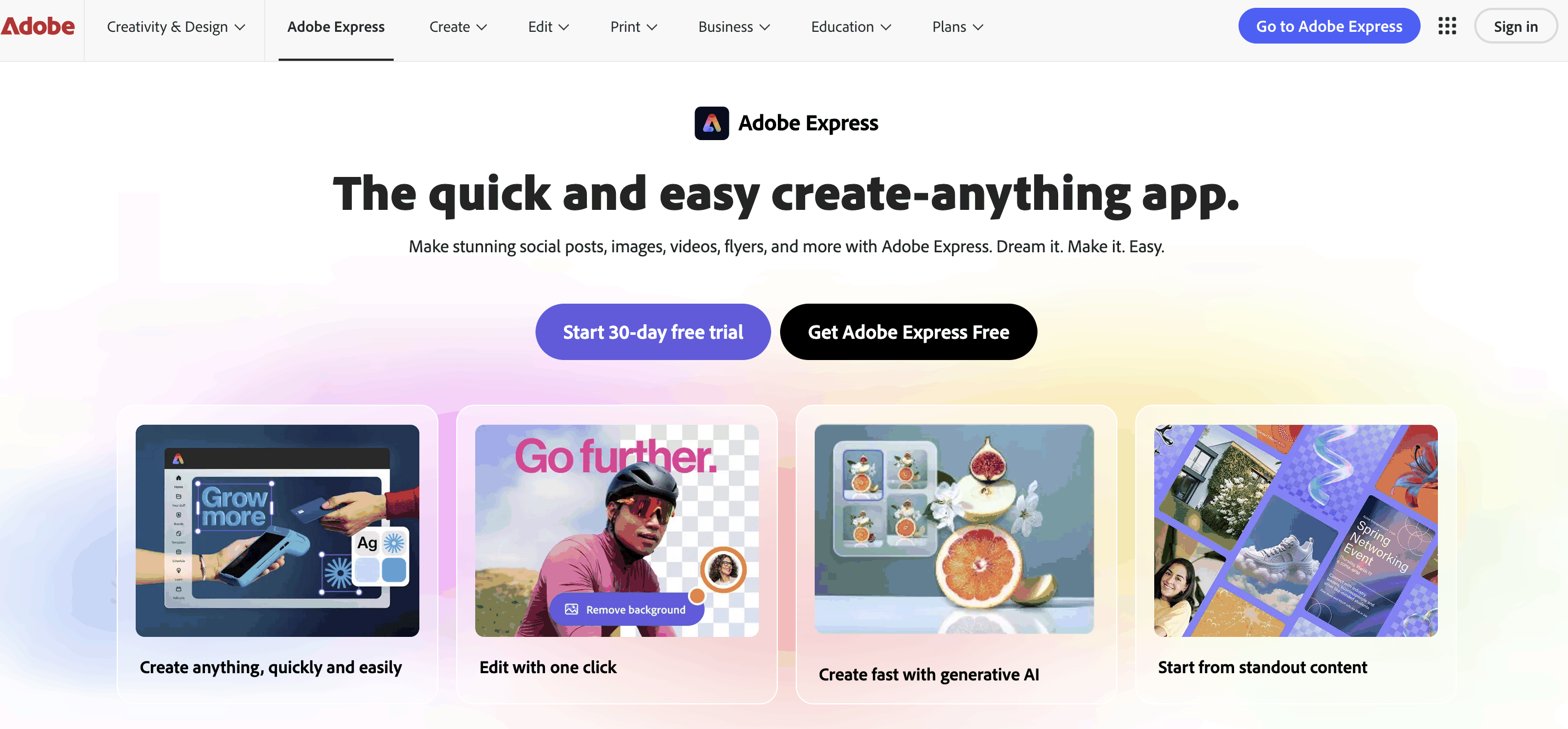
Adobe Express — Part of Adobe's creative cloud ecosystem, it offers a clean interface and basic conversion features, though advanced options are locked behind a paid subscription.
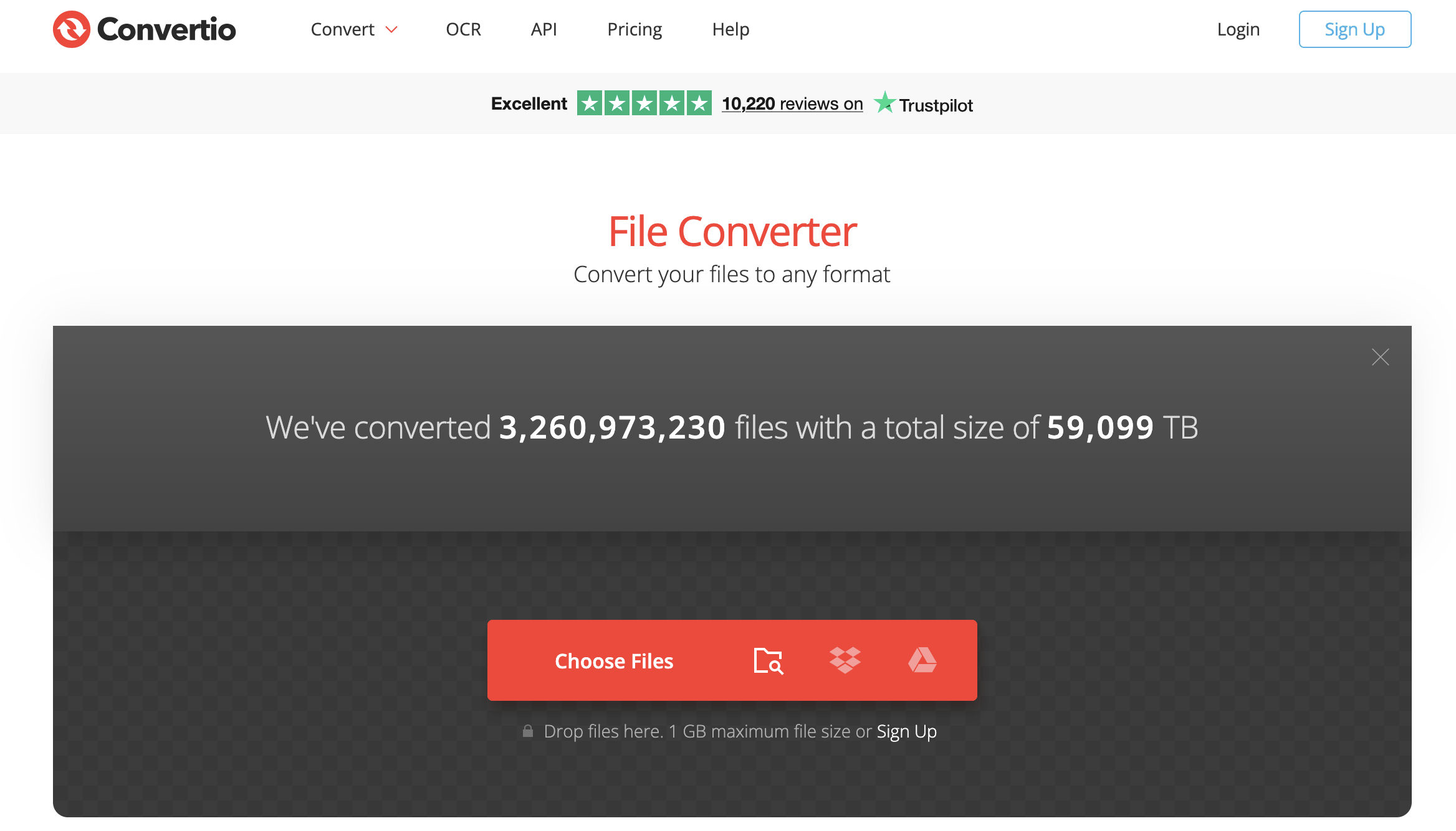
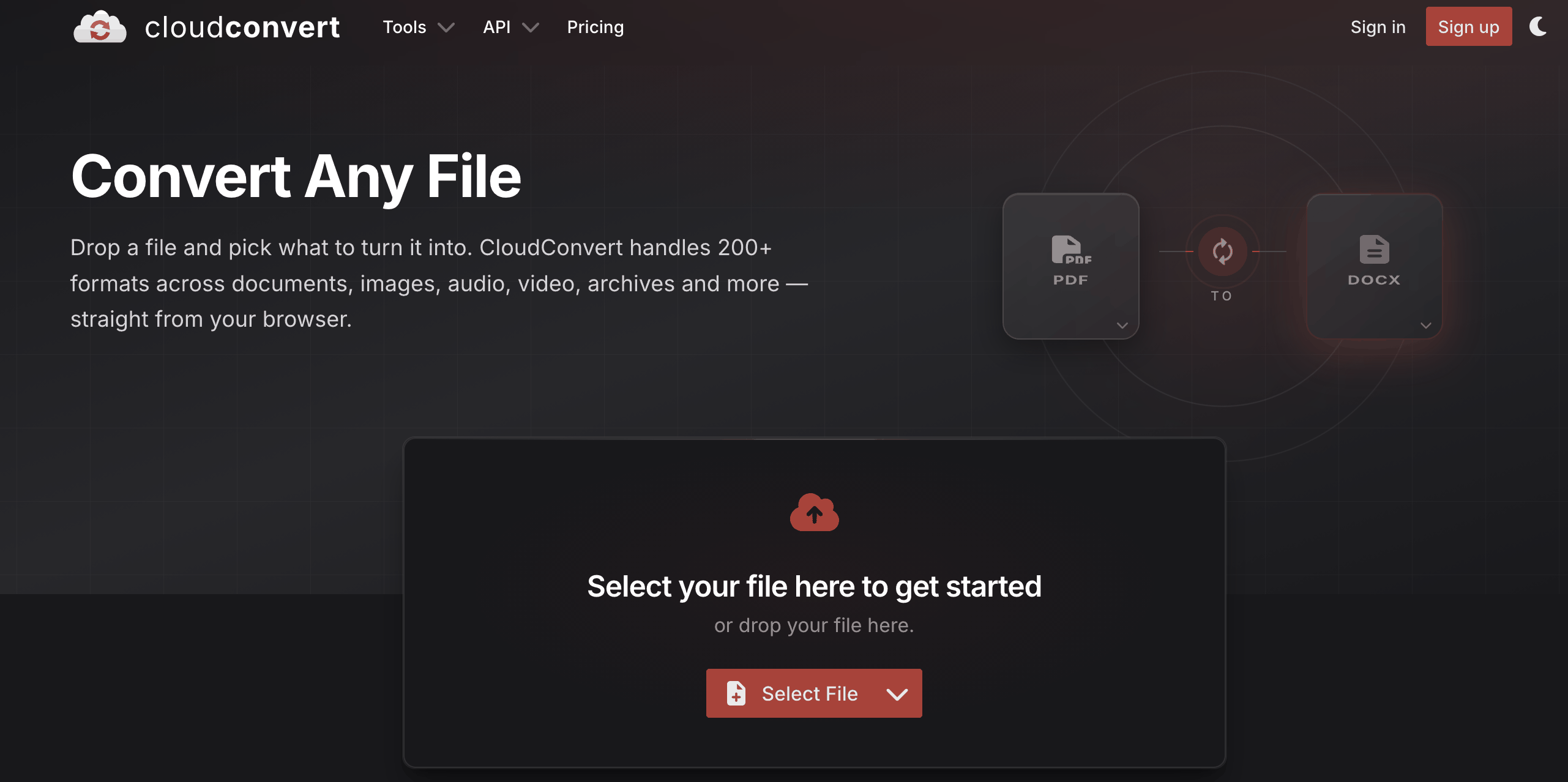
Convertio, CloudConvert — General-purpose file converters that handle MP4-to-GIF among hundreds of other format pairs, useful when you already have an account.
The Drawbacks: File Size Limits, Watermarks, and Cloud Privacy Risks
Free online converters come with meaningful trade-offs:
File size caps — Most free tiers limit uploads to 50–100MB, which excludes higher-resolution or longer clips.
Watermarks — Many tools embed a visible logo or URL on the output GIF unless you pay for a premium subscription.
Upload latency — Conversion speed depends entirely on your internet connection and the tool's server load, not your local hardware.
Privacy exposure — Your video content is transmitted to and processed on third-party servers. Terms of service for free tools often permit broad use of uploaded content, and data retention policies vary widely. For any footage that is confidential, unreleased, or sensitive, this is an unacceptable risk.
Software Comparison: Offline Desktop vs. Web vs. CLI
Feature Matrix
| Feature | Linraw doVideo (Desktop) | FFmpeg (CLI) | Online Tools |
|---|---|---|---|
| Ease of Use | ⭐⭐⭐⭐⭐ Easy | ⭐⭐ Technical | ⭐⭐⭐⭐ Easy |
| Batch Processing | ✅ Yes | ✅ Scriptable | ❌ No |
| Output Quality | ✅ High (palette-optimized) | ✅ High (with palettegen) | ⚠️ Variable |
| Processing Speed | ✅ Fast (local CPU/GPU) | ✅ Fast (local) | ⚠️ Depends on connection |
| Offline Support | ✅ Fully offline | ✅ Fully offline | ❌ Requires internet |
| Watermark-Free | ✅ Yes | ✅ Yes | ⚠️ Paid plans only |
| File Size Limits | ✅ None | ✅ None | ❌ 50–100MB cap |
| Privacy | ✅ Local processing | ✅ Local processing | ❌ Cloud upload |
| Best For | All users | Developers / automation | Quick one-off tasks |
Why Naive Cloud Compression Ruins GIF File Sizes
Online converters frequently apply heavy-handed compression or use poorly tuned color quantization in order to minimize server-side processing time. This produces GIFs with visible banding, washed-out colors, or excessive dithering artifacts — especially in clips with gradients, dark scenes, or fine text. Desktop tools like Linraw doVideo and FFmpeg's palettegen pipeline generate a color palette derived from the actual content of your clip, resulting in smaller file sizes and better visual quality simultaneously.
Optimization Tips: How to Make Your GIFs Web-Ready
How to Keep GIF File Sizes Under 5MB for Discord and Slack
Discord enforces an 8MB upload limit for standard accounts; Slack's default limit is 5MB per file. To stay within these thresholds:
Trim aggressively — Keep your GIF under 6–8 seconds. Every additional second multiplies the file size proportionally.
Scale down the resolution — 480px wide is typically sufficient for chat applications. Drop to 360px for very simple animations.
Reduce the frame rate — Dropping from 24 FPS to 12 FPS cuts file size nearly in half with minimal perceived quality loss for most content types.
Limit the color palette — If the source clip is not particularly colorful (for example, a screen recording of a dark IDE), reducing the palette from 256 colors to 128 or 64 can yield significant savings.
Use a post-processing optimizer — Tools like
gifsicle --optimize=3or Linraw doVideo's built-in optimization pass can strip redundant frame data and compress the final output further.
The Sweet Spot: Balancing Resolution vs. Frame Rate (12 FPS vs. 24 FPS)
The two biggest levers on GIF file size are resolution (pixel dimensions) and frame rate (frames per second). They interact:
24 FPS at 720px — Cinema-quality smoothness, large file size. Suitable only when visual quality is paramount and file size is not constrained.
15 FPS at 480px — The recommended default for most web and social media use cases. Smooth enough for motion-heavy content, manageable file size.
12 FPS at 480px — A solid choice for UI walkthroughs, screen recordings, and demos where motion is deliberate and slow.
10 FPS at 360px — Maximum compression mode. Use for reaction GIFs, simple loops, or platforms with strict size limits.
A general rule: prioritize reducing frame rate over reducing resolution when you need to cut file size, as dropping from 24 to 12 FPS halves the frame count (and thus roughly halves the file size) while the animation remains recognizable at its original dimensions. Dropping resolution makes the GIF visibly blurry on modern high-DPI screens.
Frequently Asked Questions (FAQ)
What is the best offline MP4 to GIF converter in 2026?
Linraw doVideo is one of the best offline MP4 to GIF converters available in 2026 for Windows and macOS users who want a no-code solution. It produces watermark-free, palette-optimized GIFs, supports batch processing, and processes all files locally without any internet connection. FFmpeg is the top choice for developers and automation pipelines.
How do I batch convert videos to GIFs on Windows?
Open Linraw doVideo, navigate to the Video to GIF tool, and use the Add Files button (or drag and drop) to import multiple MP4 files at once. Set your desired output parameters — quality, trim range — and click Start. Linraw doVideo will process every queued file sequentially and save all output GIFs to your chosen folder. FFmpeg users can achieve the same result with a shell loop:
for f in *.mp4; do
  ffmpeg -i "$f" -vf "fps=12,scale=480:-1:flags=lanczos" "${f%.mp4}.gif"
done
Why is my converted GIF file size larger than the original MP4?
This is expected behavior, not a bug. MP4 uses the H.264 or H.265 video codec, which achieves extremely high compression ratios by storing only the differences between consecutive frames (inter-frame compression). GIF stores each frame as a complete indexed-color image (intra-frame only), which is far less efficient for motion-heavy content. As a rough benchmark, a 5-second MP4 clip at 1080p might be 2–3MB; the equivalent GIF at the same resolution could be 20–40MB. This is why trimming, scaling, and frame rate reduction are essential optimization steps.
How can I reduce GIF file size?
The most effective strategies, ranked by impact:
Trim the clip — Fewer seconds = fewer frames = smaller file.
Lower the frame rate — Drop from 24 to 12 FPS to cut file size nearly in half.
Scale down resolution — A 480px-wide GIF is 44% fewer pixels than a 640px-wide one.
Reduce color depth — Use 128 colors instead of 256 for clips without complex gradients.
Run a GIF optimizer —
gifsicle --optimize=3or Linraw doVideo's optimization pass can shave an additional 10–30% off the final file.
Conclusion: Choosing Your Video Processing Toolkit
Choosing the Right Tool for Your Workflow
There is no single "best" method for converting MP4 to GIF — the right tool depends on your technical proficiency, workflow context, and privacy requirements:
Linraw doVideo is the best choice for the vast majority of users: designers, content creators, marketers, and anyone who wants high-quality, watermark-free GIFs through a clean visual interface, with batch processing and full offline privacy.
FFmpeg is the best choice for developers, DevOps engineers, and users who need to automate GIF generation as part of a larger pipeline or script.
Online tools are acceptable for quick, one-off conversions of non-sensitive clips under 100MB when you do not have a desktop tool installed.
For anyone working regularly with video content — whether for product documentation, social media, or technical tutorials — the investment in a reliable desktop tool pays off immediately in saved time, better output quality, and the peace of mind of keeping your files private.
Streamline Your Media Toolkit: Download Linraw doVideo Free for Windows & Mac
Linraw doVideo is available as a free download for both Windows and macOS. In addition to Video to GIF, it includes a full library of tools across video, image, audio, PDF, and ebook categories — giving you a complete media processing toolkit in a single lightweight application.
Download Linraw doVideo today and start creating high-quality, watermark-free GIFs from your MP4 files in seconds.
Related Chapters
