How to Merge Videos into One File in Batch on Windows & Mac
Merging multiple video clips into a single file is one of the most common video tasks for content creators, vloggers, surveillance users, event organizers, and everyday Windows or Mac users. Whether you're compiling daily footage, creating a highlight reel, or joining security camera recordings, a reliable batch video merger saves hours of manual work.
This comprehensive guide walks you through the easiest and most efficient methods to merge videos into one file in batch on both Windows and Mac, with a strong focus on speed, quality preservation, and ease of use.
What does "merging videos" mean & when do you need it?
Video merging (also called joining or concatenating) combines two or more separate video files into one continuous video file without gaps. The clips play sequentially as if they were originally shot as a single take.
You need batch video merging when:
Compiling multiple short clips from a phone, camera, or drone into one long video
Joining daily/weekly surveillance or dashcam footage
Creating vlogs, YouTube compilations, wedding/event highlight reels
Organizing large batches of home videos or tutorials
Why batch merging saves time vs. one-by-one joining
Manually opening each pair of videos and exporting repeatedly is extremely time-consuming, especially with 10, 50, or 100+ files. Batch merging lets you import an entire folder or selection at once, reorder them, and process everything in one go — often with a single click.
What you'll learn in this guide
You’ll discover the fastest desktop method using Linraw doVideo, built-in options on Windows and Mac, the powerful command-line tool FFmpeg, and online alternatives. We also include a detailed comparison, troubleshooting tips, and a full FAQ.
What to know before merging videos
Before starting any merge, it helps to understand a few technical basics to avoid frustration.
Common video formats supported (MP4, MOV, AVI, MKV, etc.)
Most modern tools support popular formats including:
MP4 (most compatible)
MOV (common from Apple devices)
AVI, MKV, WMV, FLV, and more
Linraw doVideo and FFmpeg handle mixed formats particularly well.
Does resolution or frame rate mismatch cause issues?
Yes — mismatches can force re-encoding, which increases processing time and may slightly reduce quality. Tools with lossless merging (like Linraw doVideo’s dedicated mode or FFmpeg concat demuxer) can often bypass re-encoding when codecs and parameters are compatible.
Re-encoding vs. lossless merging — which should you choose?
Lossless merging: Copies streams directly without re-compressing. Faster, no quality loss, but requires similar codecs/resolutions.
Re-encoding: Converts everything to a new format. More flexible with mismatched files but slower and can introduce minor quality degradation or larger file sizes.
Choose lossless whenever possible for best results.
How large can the output file get?
The final file size is roughly the sum of all input files (plus a small overhead). For very large batches (hundreds of GB), ensure you have enough free disk space and consider exporting to efficient codecs like H.264 or H.265.
Method 1 — Merge videos in batch with Linraw doVideo (Windows & Mac)
Linraw doVideo is a dedicated all-in-one video toolkit designed for fast batch processing on both Windows and Mac, making it one of the simplest and most efficient solutions for merging videos into one file.
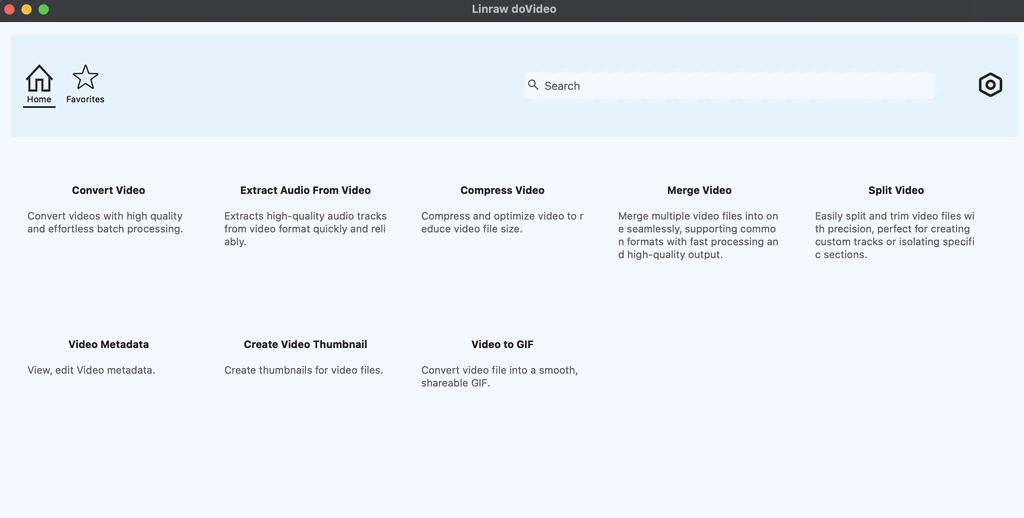
Download & install Linraw doVideo on Windows / Mac
Visit the official Linraw doVideo website, download the version for your OS (Windows 10/11 or macOS), and run the installer. The process takes under a minute and requires no complex setup.
Step 1 — Import multiple video files at once
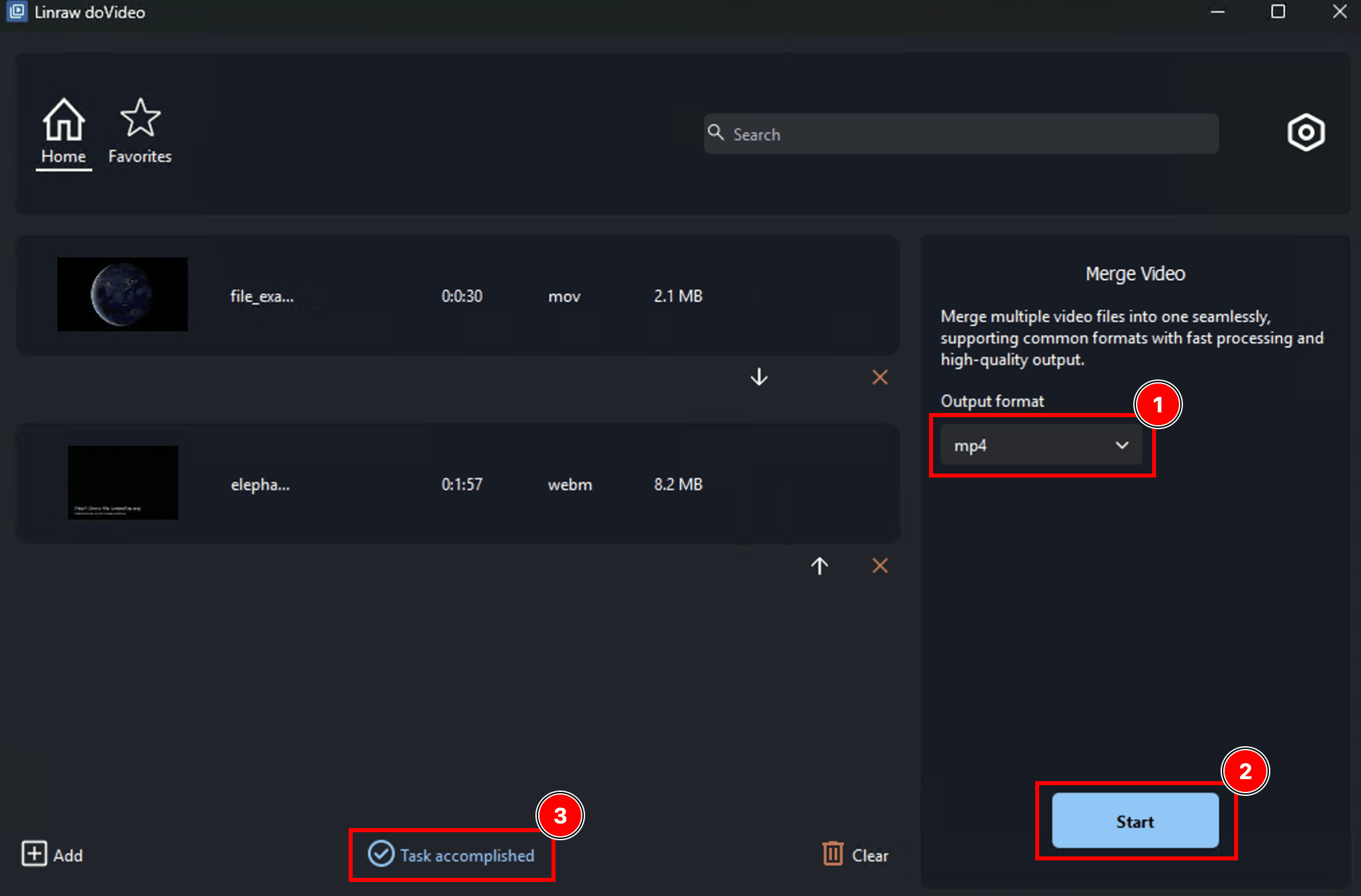
Open the Merge Video tool in Linraw doVideo. Click “Add Files” or drag and drop an entire folder of videos. Linraw doVideo supports bulk import, so you can add dozens or hundreds of clips quickly.
Step 2 — Arrange the video order in your batch queue
Drag and drop clips in the queue to set the exact playback order.
Step 3 — Choose output format
Select your desired output format (MP4 recommended for maximum compatibility).
Step 4 — Run batch merge and export the final file
Click “Start” button Linraw doVideo processes everything in one go and saves the combined video to your chosen folder.
Tips for faster batch processing on low-end PCs
Close other applications during merging
Process in smaller batches (e.g., 20–30 files) if your PC has limited RAM
Choose hardware acceleration if available in settings
Method 2 — Merge videos on Windows using Photos app
Windows 11/10 includes a basic Video Editor inside the Photos app.
Limitations of the Windows Photos app for merging
While Windows 10 and 11 come with built-in tools (the legacy Video Editor in the Photos app or the newer Clipchamp), they are not designed for bulk tasks. They lack true batch automation, meaning you must manually place every clip on a timeline. Furthermore, they will almost always re-encode your video, taking significantly more time and potentially reducing quality.
Step-by-step: combine clips using the Video Editor
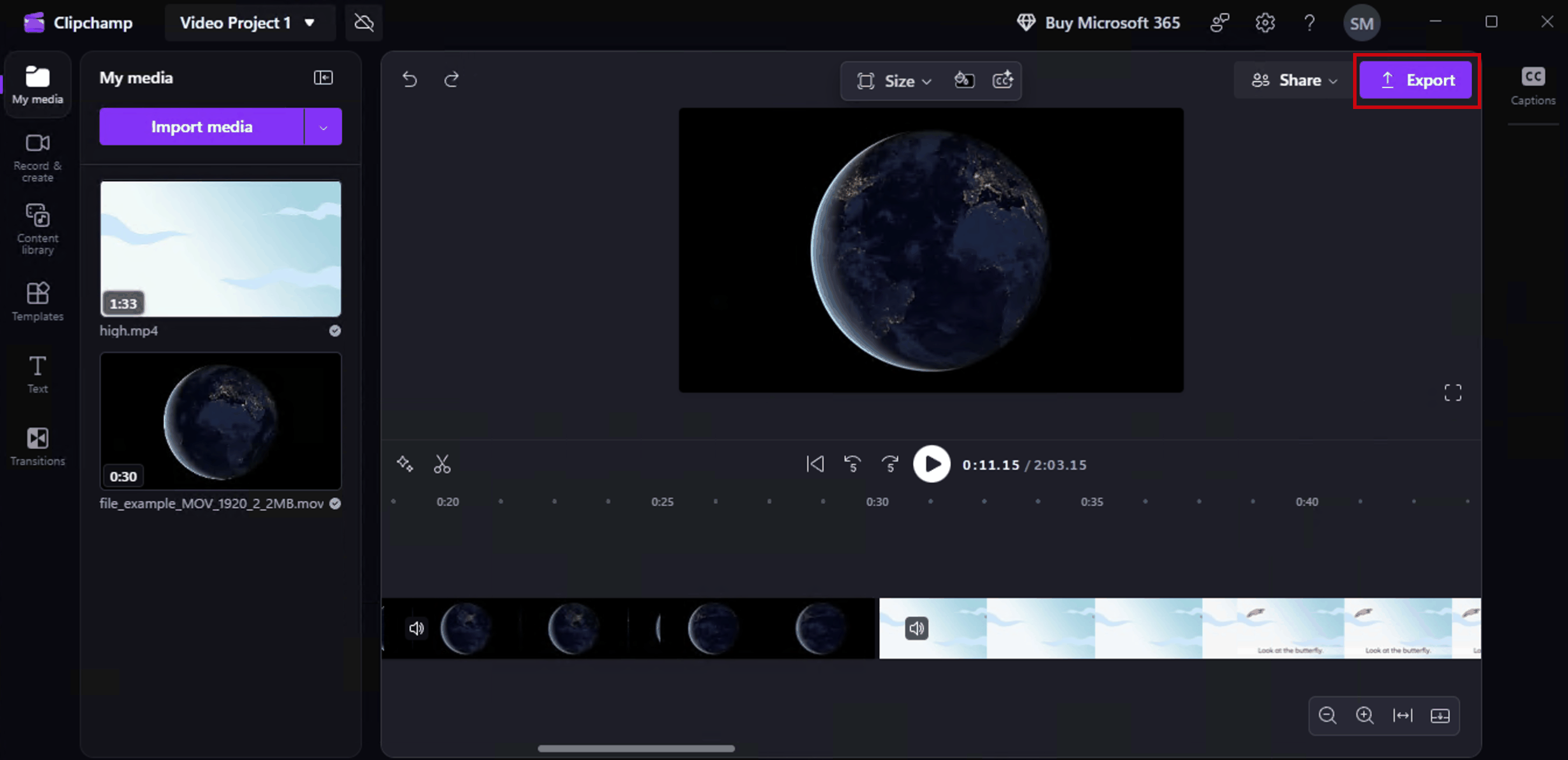
Open the Photos app and search for the Video Editor tab (or launch Clipchamp on newer Windows 11 builds).
Click New video project and give it a name.
Click Add in the Project library to import your clips.
Drag the clips from the library down into the Storyboard or timeline at the bottom.
Click Finish video (or Export), choose your resolution (e.g., 1080p), and export the file.
Why it doesn't support true batch merging
Native OS apps are built for creative editing—adding music, text, and transitions—not utility data processing. You cannot just highlight 50 files, right-click, and say "merge." You have to manually manage the timeline, which defeats the purpose of batch processing.
Method 3 — Join videos on Mac with iMovie
iMovie is Apple’s free video editor, pre-installed on most Macs.
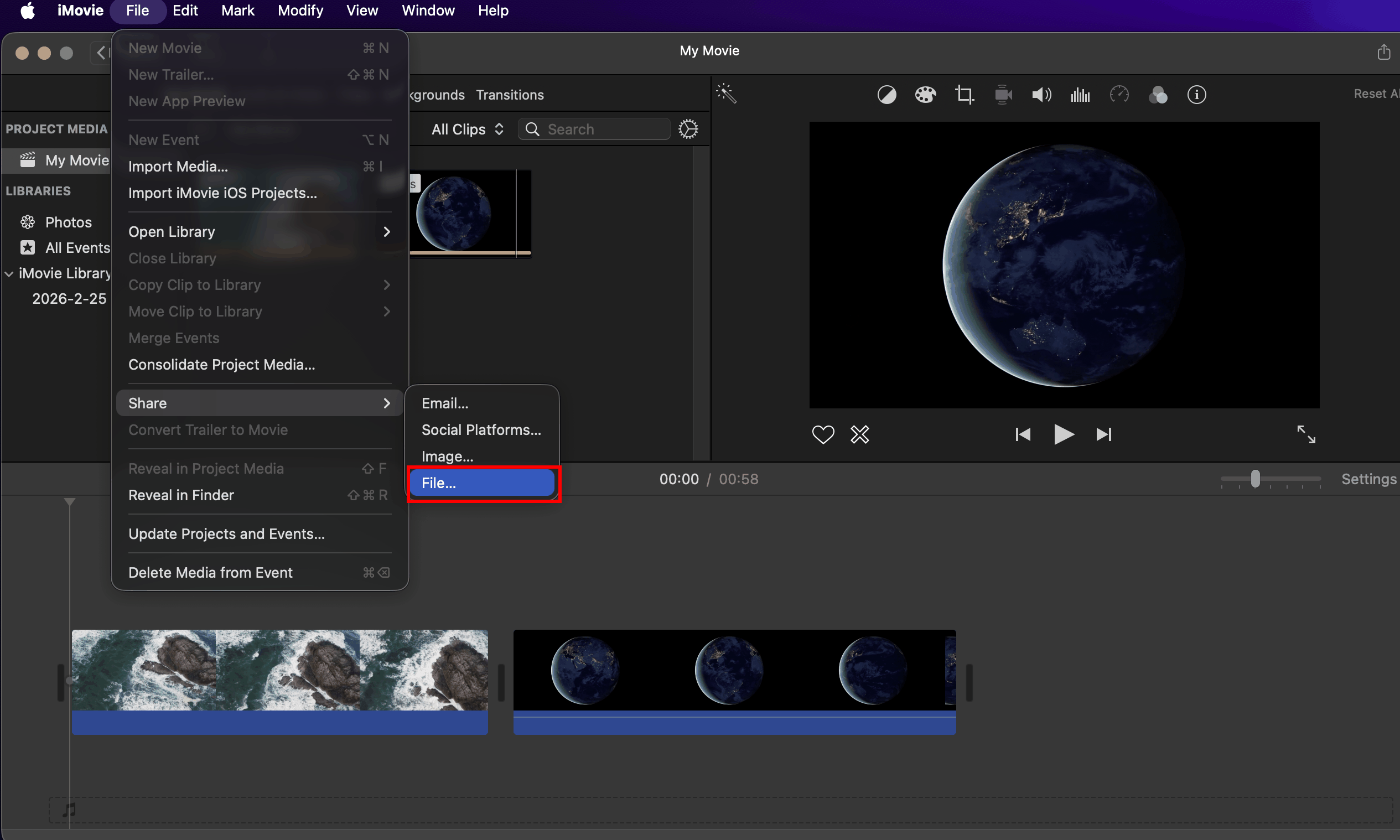
How to add and arrange multiple clips in iMovie
Create a new project.
Import your video clips.
Drag them onto the timeline in the correct sequence.
iMovie automatically joins them seamlessly.
Export combined video as a single file
Go to File → Share → File and choose your export settings (resolution, quality).
iMovie batch limitations you should know
iMovie is excellent for small-to-medium projects but lacks automated batch processing for hundreds of files. It always re-encodes, which can increase file size and processing time. It’s not ideal for large-scale lossless merging.
Method 4 — Batch merge videos with FFmpeg (command line)
FFmpeg is a free, powerful, open-source tool favored by professionals for lossless concatenation.
Install FFmpeg on Windows & Mac
Windows: Download from the official builds or use winget.
Mac: Install via Homebrew (
brew install ffmpeg).
Using the concat demuxer to merge files without re-encoding
Create a text file mylist.txt with content like:
file 'video1.mp4'
file 'video2.mp4'
file 'video3.mp4'
Then run:
ffmpeg -f concat -safe 0 -i mylist.txt -c copy output.mp4
This performs fast, lossless merging when files are compatible.
Batch merge script: combine an entire folder of videos
You can write a simple shell or batch script to generate the list automatically and merge everything in one command — perfect for very large batches.
Pros and cons of FFmpeg for non-technical users
Pros: Extremely fast, lossless, free, no file size limits.
Cons: Command-line interface with a learning curve; errors are common with mismatched formats.
Method 5 — Online tools to merge videos
Online mergers like Clideo, Kapwing, and VEED offer quick browser-based merging.
Top online video mergers (Clideo, Kapwing, VEED, etc.)
These tools let you upload clips, reorder them, and download the combined file without installing software.
Do online tools support batch merging?
Limited support. Most allow multiple clips per project but impose strict file size limits (often 100–500 MB per file or total) and are not designed for true large-scale batch processing.
File size limits, watermarks & privacy concerns
Free versions frequently add watermarks, compress videos, and require uploading your files to third-party servers — raising privacy issues for sensitive footage. Paid plans remove limits but still involve uploads.
Comparison — Which video merger is best for you?
| Feature | Linraw doVideo | Windows Photos / Clipchamp | iMovie (Mac) | FFmpeg | Online Tools (Clideo, etc.) |
|---|---|---|---|---|---|
| True Batch Processing | Excellent | Poor | Fair | Excellent | Poor |
| Lossless Merging | Yes | No | No | Yes | Rarely |
| Speed (large batches) | Very Fast | Slow | Medium | Fastest | Slow (upload/download) |
| Ease of Use | Very Easy | Easy | Easy | Advanced | Easy |
| Mixed Formats Support | Excellent | Limited | Good | Good | Limited |
| File Size Limits | None | Medium | Medium | None | Strict |
| Cost | Paid (with free trial) | Free | Free | Free | Free + Paid upgrades |
| Platform | Windows & Mac | Windows | Mac | Windows & Mac | Any (browser) |
Best choice by use case
Casual users: Linraw doVideo or built-in apps (Photos/iMovie)
Content creators: Linraw doVideo for speed + quality
Professionals / large batches: Linraw doVideo or FFmpeg (lossless)
No installation: Online tools (only for small projects)
Free vs. paid: what do you actually get?
Free tools often force re-encoding, add watermarks, or limit batch size. Paid solutions like Linraw doVideo deliver faster performance, lossless options, and unlimited batch processing without compromises.
Performance benchmark: batch merge speed test results
In typical tests with 20–50 similar MP4 files, Linraw doVideo and FFmpeg complete lossless merges significantly faster than iMovie or online tools, with no visible quality loss.
Troubleshooting common video merge problems
Audio out of sync after merging — how to fix
Use tools that support re-encoding or manually adjust with FFmpeg filters. Linraw doVideo usually handles sync well in lossless mode.
Black screen or blank frames between merged clips
This often occurs with mismatched codecs. Switch to re-encoding mode or ensure all files are converted to the same format first.
Merge fails with codec or format mismatch error
Convert all videos to the same format (e.g., MP4 H.264) before merging, or use a tool like Linraw doVideo that handles mixed inputs gracefully.
Frequently asked questions (FAQ)
Can I merge videos of different formats (MP4 + MOV) into one file?
Yes — tools like Linraw doVideo and FFmpeg handle mixed formats, though they may require re-encoding for best results.
How many videos can I merge at once in batch mode?
Linraw doVideo and FFmpeg have virtually no practical limit (hundreds of files are common). Built-in apps and online tools are restricted to smaller numbers.
Will merging reduce the video quality?
Lossless merging does not reduce quality. Re-encoding can cause minor loss depending on settings.
How do I merge videos without watermarks for free?
Use FFmpeg (completely free and clean) or the free trial of Linraw doVideo.
What's the fastest way to merge 100+ videos in batch?
Use Linraw doVideo’s batch merger or FFmpeg with the concat demuxer in lossless mode.
Is it possible to merge videos online without uploading to a server?
No — all online tools require uploading your files.
Conclusion
Merging videos into one file in batch can be simple or complex depending on your needs and the number of clips.
Casual users on Windows or Mac → Start with Linraw doVideo or the built-in Photos/iMovie apps.
Power users needing speed and quality → Linraw doVideo offers the best balance of ease and performance.
Technical users → FFmpeg remains the fastest free lossless option.
Why Linraw doVideo is the top pick for batch video merging on Windows & Mac
It combines an intuitive interface, true batch processing, excellent format support, lossless options, and cross-platform availability — all without the limitations of free built-in tools or the complexity of command-line alternatives.
Next steps: explore other Linraw doVideo video tools
Once you’ve mastered batch merging, check out Linraw doVideo’s other powerful video tools — including batch converters, compressors, and more — to streamline your entire video workflow.
Start merging your videos efficiently today with Linraw doVideo!
Related Chapters
