How to Compress MP4 Files Without Losing Quality
If you've ever tried to email a video, upload one to a website, or just free up space on your hard drive, you've probably run into the same wall: MP4 files can get huge, fast. The good news is that shrinking an MP4 doesn't have to mean watching it turn into a blurry, pixelated mess. With the right tool and a few smart settings, you can cut a file down to a fraction of its original size while keeping it looking almost identical to the original.
This guide walks through what MP4 compression actually does, the easiest way to do it on Windows or Mac, and a few backup options for when you need something different.
What Does "Compress MP4" Mean?
Compressing an MP4 simply means re-encoding the video so it takes up less storage space. The software analyzes the video and audio data, strips out redundant or less noticeable information, and repackages everything more efficiently. Done well, the result is a smaller file that still looks sharp on screen.
Why MP4 Files Become Large
A few things drive file size up: high resolution (4K files are several times larger than 1080p), high bitrate (more data used per second of footage), long duration, and the codec used to encode the video in the first place. Footage straight off a phone or camera is often encoded with quality as the only priority, size be damned — which is exactly why compression tools exist.
When You Need to Compress MP4 Videos
Common scenarios include attaching a video to an email that has a size cap, uploading clips to social platforms with upload limits, sending files over messaging apps like WhatsApp, freeing up storage on a laptop, or simply speeding up upload and playback times. Basically, any time file size becomes a practical obstacle.
How MP4 Compression Works
Bitrate vs. Resolution vs. File Size
These three factors are the main levers behind file size, and it helps to understand how they interact:
Bitrate is how much data is used per second of video. Lower bitrate means a smaller file, but push it too low and you'll start to see blocky artifacts.
Resolution is the pixel dimensions of the video (1080p, 4K, etc.). Reducing resolution cuts file size significantly, but it's a more noticeable change than adjusting bitrate.
File size is essentially the product of bitrate and duration — a longer video at the same bitrate will always be bigger.
For most people, adjusting bitrate is the better first move, since it preserves resolution and sharpness far better than shrinking the frame size does.
Lossy vs. Lossless Compression
MP4 compression is almost always lossy — some data is discarded permanently. Lossless compression exists but barely reduces file size for video, so it's not practical for everyday use. The goal with lossy compression isn't zero data loss; it's discarding the data your eyes are least likely to miss.
Why "Without Losing Quality" Is Possible (and Its Limits)
Modern codecs are very good at identifying which pixels and frames matter most to human perception and compressing the rest more aggressively. That's how a file can shrink by 50-70% while looking nearly indistinguishable from the original at normal viewing distance. That said, there's a ceiling — compress too aggressively and quality loss becomes visible no matter how smart the codec is. The trick is stopping at the point of diminishing returns, not chasing the smallest possible file.
Best Way to Compress MP4 on Windows & Mac (Desktop Software)
Why Use a Desktop MP4 Compressor
Desktop software has a few structural advantages over browser-based tools: there's no file size cap dictated by a web server, nothing gets uploaded anywhere (so your footage stays private), processing uses your computer's own hardware instead of a shared server queue, and you get more granular control over quality settings.
Overview of Linraw doVideo's Compress Video Tool
Linraw doVideo is a desktop toolkit for Windows and Mac that bundles a range of video utilities into one app, and its Compress Video tool is built specifically for this job — shrinking MP4 (and other video formats) without the guesswork.
Key features:
Simple quality presets — High, Medium, and Low options let you pick a quality/size tradeoff without needing to understand bitrate math.
Batch compression — Queue up dozens of files and compress them all in one pass instead of processing one at a time.
No upload limits — Because everything runs locally, there's no cap on file size or video length.
Fast, privacy-safe processing — Files never leave your computer, and compression uses your machine's own hardware, so there's no waiting behind other people's uploads.
Step-by-Step: Compress MP4 Using a Desktop Tool
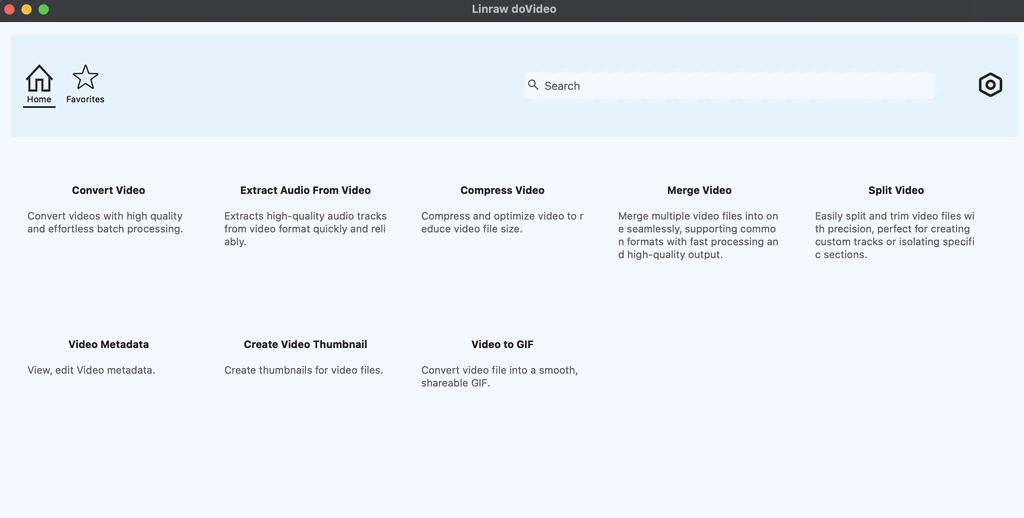
Install and open the software. Download Linraw doVideo for Windows or Mac, install it, and launch the app.
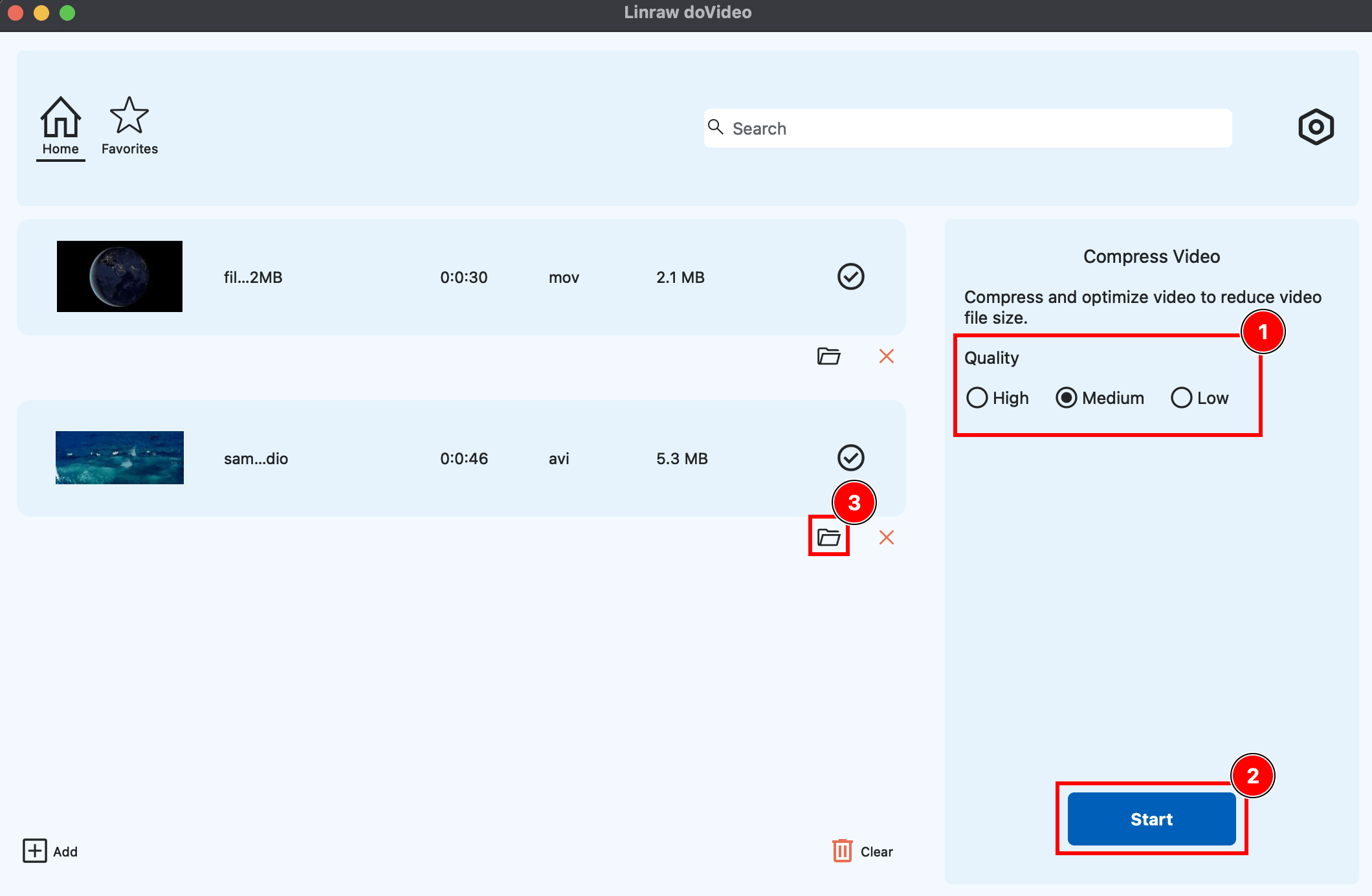
Add your MP4 files. Drag and drop a single video or a whole batch into the Compress Video tool.
Choose a compression level. Pick a quality preset based on what you need the file for — High for archiving or professional use, Medium for general sharing, Low when file size matters more than anything else.
Start compression. Click "Start" and let the tool process your file (or files, if you're doing a batch).
Check the output. Compare the new file size against the original and preview the video to confirm the quality holds up. If it's still larger than you'd like, drop down a preset level and run it again.
Alternative Ways to Compress MP4 Files
Desktop software isn't the only route. Here's how the other common options stack up.
Online MP4 Compressors (CloudConvert, Convertio, FreeConvert)
These browser-based tools require no installation — just upload a file, choose settings, and download the result. They're convenient for a one-off, small file, but they come with real tradeoffs: most cap file size on free plans, upload and download times add up fast for larger videos, and your footage is temporarily sitting on someone else's server, which isn't ideal for anything sensitive or private.
VLC Media Player
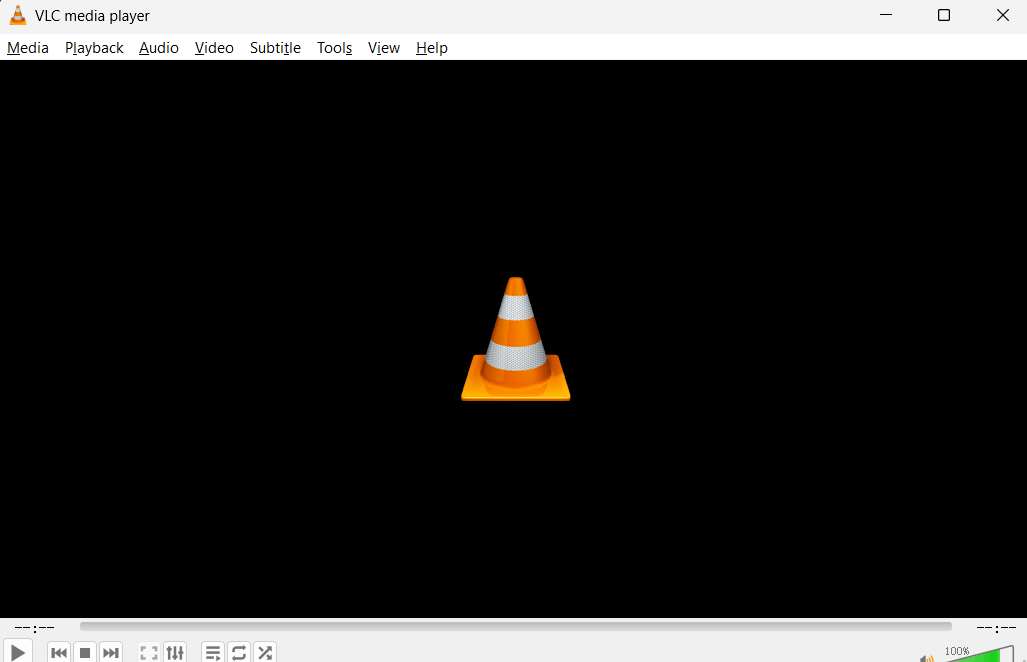
VLC isn't just a media player — it has a built-in "Convert/Save" feature that can re-encode video at a lower bitrate. It's a reasonable option if you already have VLC installed and just need a quick, basic compression job. The interface for this feature is buried a few menus deep and offers limited feedback during processing, so it's not the friendliest option if you're doing this for the first time.
HandBrake (Open-Source Tool)
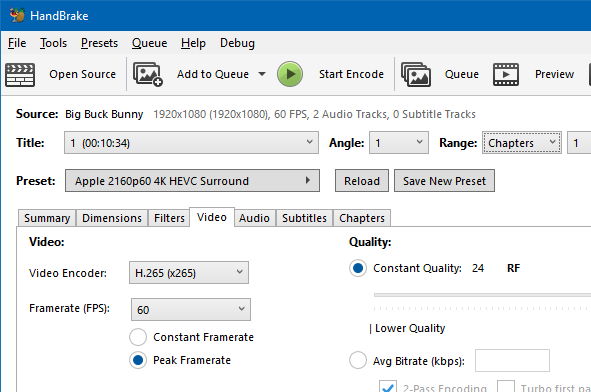
HandBrake is a free, open-source video transcoder with a genuinely deep set of options — custom bitrate, two-pass encoding, filters, and more. It's a favorite among people who want fine-grained control and don't mind a slightly technical interface. It's a solid choice once you understand what the settings mean; less so if you just want to drag a file in and get a smaller version out.
FFmpeg (Command Line)
FFmpeg is the tool most other compressors are quietly built on top of. It's free, extremely powerful, and entirely command-line based. A basic compression command looks something like this:
ffmpeg -i input.mp4 -vcodec libx264 -crf 28 output.mp4
The -crf value controls quality — lower numbers mean higher quality and larger files, higher numbers mean more compression. FFmpeg is best suited to developers, scripters, or anyone comfortable automating tasks from a terminal.
Comparison: Best MP4 Compression Methods
| Method | Ease of Use | Speed | Quality Control | Batch Support | Privacy |
|---|---|---|---|---|---|
| Desktop (Linraw doVideo) | ⭐⭐⭐⭐⭐ | ⭐⭐⭐⭐⭐ | ⭐⭐⭐⭐⭐ | ✅ | ✅ |
| Online Tools | ⭐⭐⭐⭐ | ⭐⭐ | ⭐⭐⭐ | ❌ | ❌ |
| VLC | ⭐⭐⭐ | ⭐⭐⭐ | ⭐⭐ | ❌ | ✅ |
| HandBrake | ⭐⭐ | ⭐⭐⭐⭐ | ⭐⭐⭐⭐⭐ | ✅ | ✅ |
| FFmpeg | ⭐ | ⭐⭐⭐⭐⭐ | ⭐⭐⭐⭐⭐ | ✅ | ✅ |
For most people, a desktop tool like Linraw doVideo hits the best balance — near the ease of an online tool with the control and privacy of the more technical options.
Best Settings to Compress MP4 Without Losing Quality
Bitrate: As a starting point, 8-12 Mbps works well for 1080p footage, and 35-45 Mbps for 4K. Drop from there in small increments and check the result rather than guessing at a low number upfront.
Resolution: Keep the original resolution if the file will be viewed on the same size screen it was shot for. Only downscale (say, 4K to 1080p) if the destination — a phone screen or a small embedded video player — won't benefit from the extra detail anyway.
Frame rate: Don't change frame rate unless the source is oddly high (60fps footage that doesn't need to be) — dropping it can save some size but will make motion look noticeably different.
Codec: H.264 is the safest choice for compatibility, playing smoothly on virtually any device or platform. H.265/HEVC compresses roughly 30-50% more efficiently at the same quality level, but isn't supported quite as universally, especially on older hardware.
Common Use Cases
Email attachments: Most providers cap attachments around 25MB, so a Medium or Low preset is usually needed to fit.
WhatsApp and social media: These platforms often re-compress video on upload anyway, so starting with a moderately compressed file saves upload time without sacrificing much extra quality.
YouTube uploads: YouTube re-encodes everything server-side, so there's little benefit to keeping an enormous source file — a well-compressed MP4 uploads faster with no visible downside.
Freeing up disk space: Old video libraries taking up space on a laptop or external drive are a great candidate for batch compression at a higher quality preset.
Tips to Reduce MP4 File Size Effectively
Use H.265/HEVC when compatibility isn't a concern — it's the single biggest efficiency gain available.
Lower bitrate before resolution. It preserves visual detail better for the same size reduction.
Trim unnecessary parts of the video before compressing; less footage is less data, full stop.
Compress in batches rather than one file at a time, especially when using a tool like Linraw doVideo that supports it — it saves a meaningful amount of manual effort.
Common Mistakes to Avoid
Over-compressing. Chasing the smallest possible file usually introduces visible blocking and blur — aim for "small enough," not "smallest possible."
Choosing the wrong codec. H.265 saves space but can cause playback issues on older devices or software that doesn't support it.
Ignoring bitrate settings. Relying entirely on a vague "quality slider" without understanding what it changes often gives inconsistent results.
Using unreliable online tools. Free online compressors with unclear privacy policies aren't worth the risk for anything personal or professional.
FAQ: Compressing MP4 Files
How can I compress MP4 without losing quality?
Use a moderate bitrate reduction rather than downscaling resolution, and choose an efficient codec like H.265 when compatibility allows. A tool with quality presets, like Linraw doVideo's Compress Video tool, makes this straightforward without needing to understand the underlying settings.
What is the best MP4 compressor for Windows and Mac?
A desktop tool that runs natively on both platforms, like Linraw doVideo, tends to offer the best mix of speed, privacy, and quality control since processing happens locally with no upload limits.
How much can you reduce MP4 file size?
It depends on the source, but 50-70% reduction with no visible quality loss is common when compressing footage that wasn't already heavily compressed.
Is online MP4 compression safe?
It depends on the provider. Files are uploaded to a third-party server, so for private or sensitive footage, a desktop tool that keeps everything local is the safer choice.
What is the best format after compression?
MP4 with H.264 remains the most broadly compatible option. H.265 offers better compression if your playback devices and destination platform support it.
Can I compress multiple MP4 files at once?
Yes, tools that support batch processing — including Linraw doVideo's Compress Video tool — let you queue up multiple files and compress them all in a single run.
Conclusion
Compressing MP4 files without losing quality comes down to understanding a few basics — bitrate matters more than resolution, codec choice affects both size and compatibility, and there's a point past which further compression just isn't worth it. Online tools and command-line utilities like FFmpeg both have their place, but for everyday use, a desktop tool strikes the best balance of speed, control, and privacy.
Linraw doVideo's Compress Video tool covers that ground well: simple presets for anyone who doesn't want to think about bitrate math, batch support for anyone with a folder full of files to shrink, and local processing that keeps footage private with no upload limits slowing things down. For a fast, reliable way to compress MP4 files on Windows or Mac, it's a solid place to start.
However, if your workflow involves multiple types—such as images, audio, video, PDFs, or eBooks—then Linraw doUltra is a more powerful all-in-one option.
Related Chapters
