Convert MOV to MP4 on Windows and Mac – Fast, High Quality & Free
Introduction
If you've ever tried to open a MOV file on a Windows PC, you've probably run into the same wall everyone does: double-click, nothing happens, or worse, it opens but the audio and video play out of sync. MOV is Apple's native video container, built around QuickTime, and while it works beautifully on a Mac or iPhone, plenty of Windows machines and non-Apple devices don't have the right codecs installed to read it properly. Android phones, smart TVs, older media players, and most video editors outside the Apple ecosystem expect MP4 instead.
So what's actually different between the two? Not as much as you'd think, structurally. Both MOV and MP4 are containers, meaning they're essentially wrappers that hold video, audio, and subtitle streams together. The real differences come down to compatibility and how each format handles compression. MP4 uses codecs like H.264 and H.265 almost universally, which is why it plays on nearly anything — browsers, phones, game consoles, streaming platforms. MOV can use those same codecs, but it's tied closely to Apple's ecosystem and isn't guaranteed to work outside it without extra software.
This guide walks through every practical way to convert MOV to MP4 on both Windows and Mac, completely free, without sacrificing video quality. We'll start with the fastest all-in-one method, then cover the built-in and free third-party tools for each platform, talk through online converters and when they make sense, and finish with a format comparison, troubleshooting tips, and answers to the questions people ask most.
The Best Way: Convert MOV to MP4 using Linraw doVideo (Windows & Mac)
Why Linraw doVideo Is the Ultimate Free Desktop Solution
Most conversion guides send you down a path of mismatched tools — one app for Windows, a completely different one for Mac, and a handful of settings menus you have to dig through just to find the export option. Linraw doVideo skips that problem entirely. It's a single desktop toolkit that runs natively on both Windows and macOS, and its Convert Video tool handles MOV-to-MP4 conversion (along with dozens of other format pairs) without asking you to understand codecs or bitrates first.
What makes it worth using over a browser-based converter is speed and control. Because everything runs locally on your machine, there's no upload wait, no file size cap, and no risk of your video sitting on someone else's server. Linraw doVideo also supports batch conversion, so if you're clearing out a folder of iPhone clips, you can queue them all at once instead of repeating the same steps file by file. It keeps the original resolution and frame rate intact by default, and gives you the option to fine-tune the codec if you want more control over file size versus quality.
Step-by-Step Guide: How to Convert on Windows & Mac
The process is identical on both platforms, which is part of the appeal — learn it once and you're set whether you're on a work laptop or your home Mac.
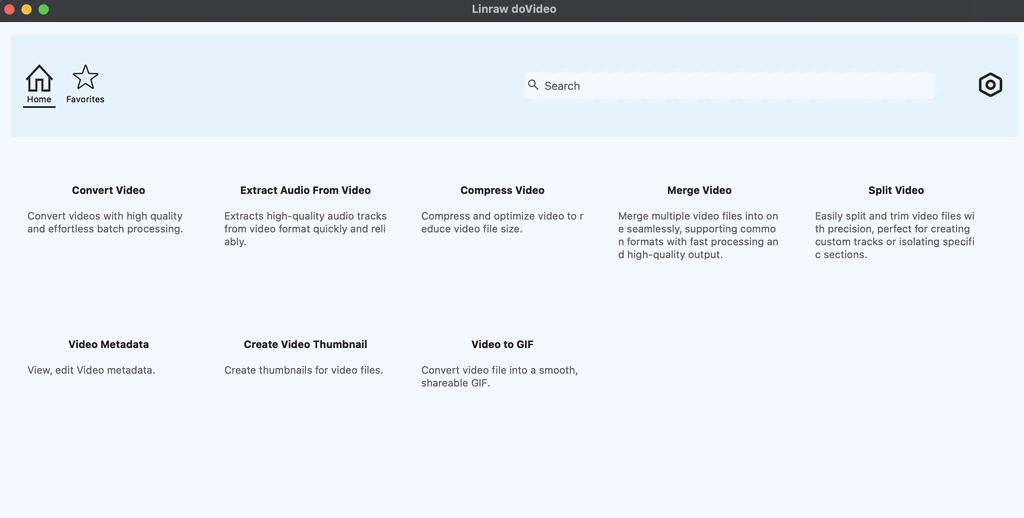
Step 1: Download and Launch Linraw doVideo Video Toolkit
Install Linraw doVideo from the official site and open it. You'll land on a dashboard organized by tool category — video, audio, image, PDF, and so on. Click into the video tools section to find Convert Video.
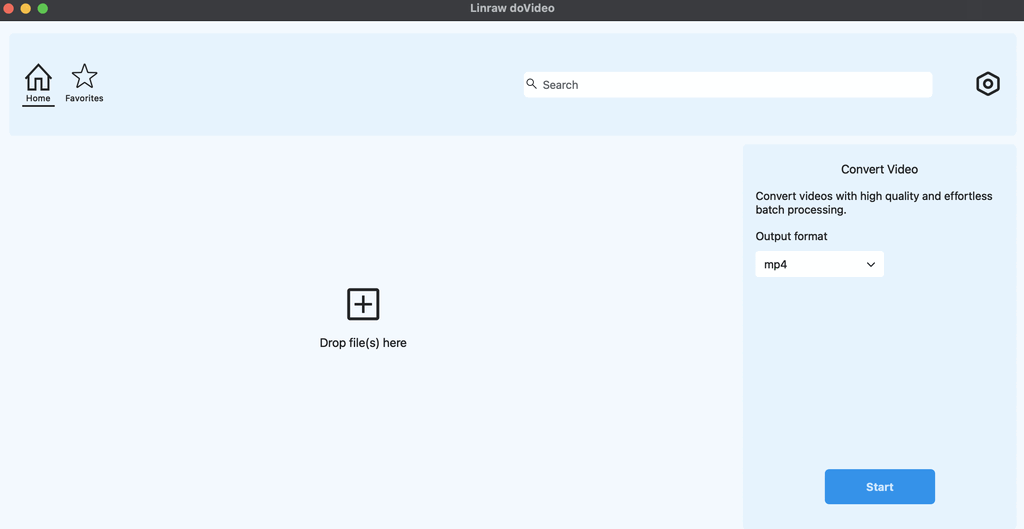
Step 2: Import Your MOV Files (Drag & Drop or Batch Add)
Drag your MOV file straight into the app window, or use the "Add Files" button to browse for it manually. If you've got more than one clip to convert, select them all at once — Linraw doVideo will queue them as a batch so you don't have to repeat the process.
Step 3: Select MP4 as Output Format
From the output format dropdown, choose MP4.
Step 4: One-Click High-Speed Start
Pick your destination folder and hit Convert. Most clips finish in well under a minute, and you can keep working in other apps while it processes in the background. Once it's done, the MP4 file is ready to share, upload, or drop straight into your editing software.
How to Convert MOV to MP4 on Windows (Free)
If you'd rather stick with tools you already have, or you just want options, here's what works well on Windows.
Method 1 – VLC Media Player
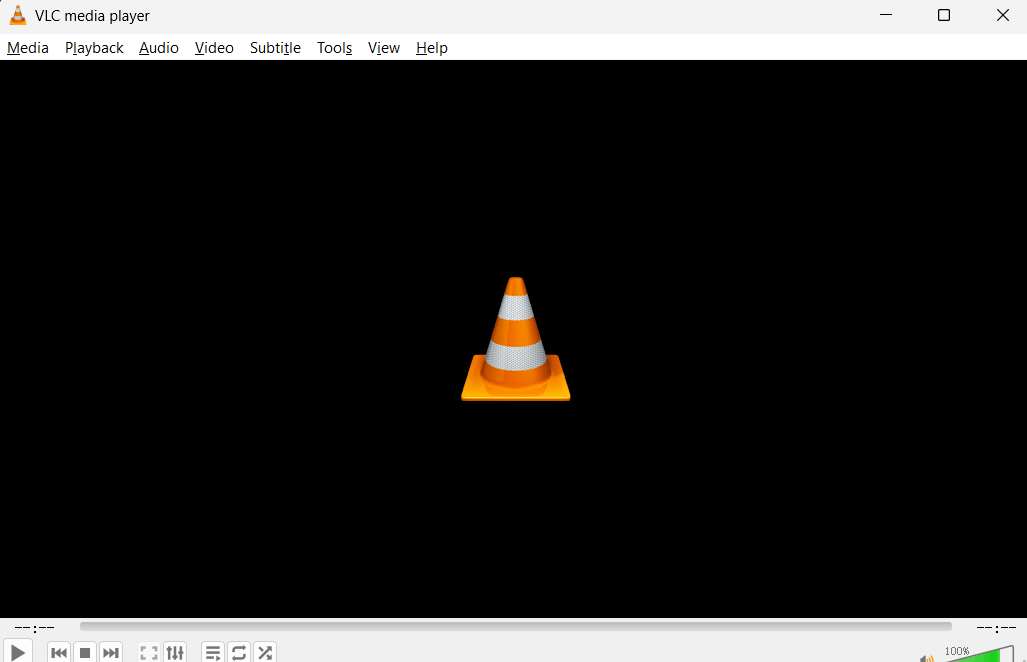
VLC isn't just a media player — it's also a capable, if slightly buried, converter. Open VLC, go to Media > Convert/Save, add your MOV file, and choose an MP4 profile from the conversion settings. It's free, it's been around forever, and it handles most common codecs without needing extra plugins. The interface is a bit dated and the conversion speed isn't the fastest, but for a one-off file, it gets the job done.
Method 2 – HandBrake
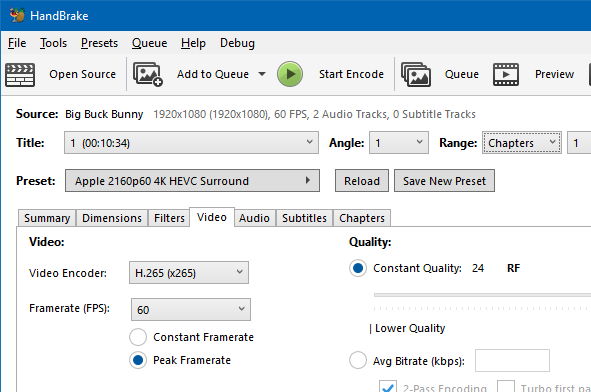
HandBrake is the go-to choice for anyone who wants more control without diving into command-line tools. Load your MOV file, set the output format to MP4, and choose an encoding preset — "Fast 1080p30" works well for general use. HandBrake gives you real control over bitrate, resolution, and quality settings, which makes it a solid pick if you're trying to shrink a large file without losing noticeable quality. The trade-off is a steeper learning curve than something like Linraw doVideo, especially if you start poking around the advanced tabs.
Method 3 – Windows Built-in: Photos App & Video Editor
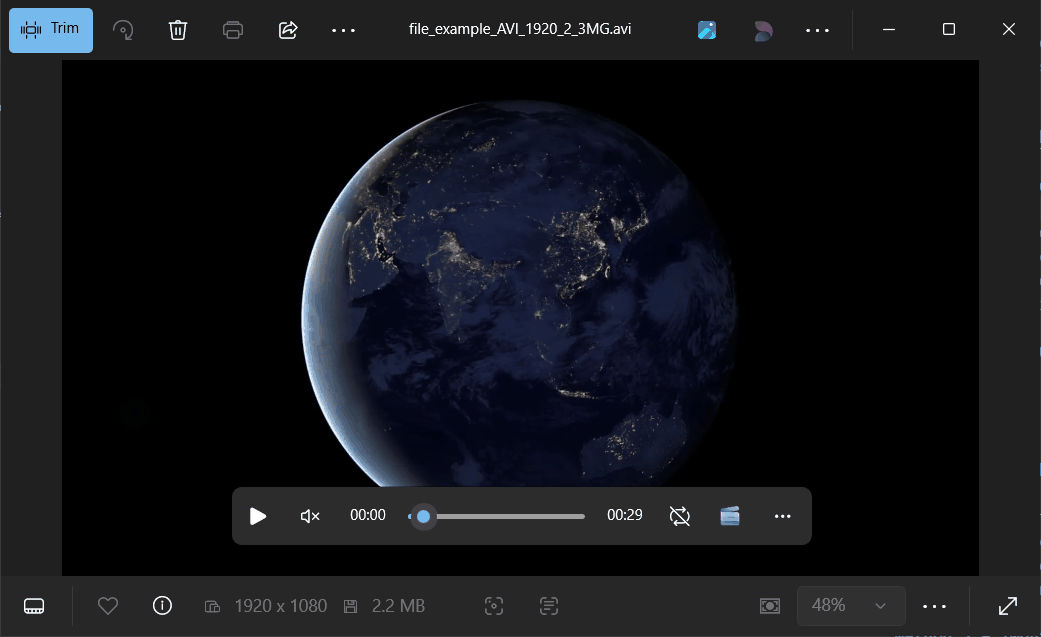
Windows 10 and 11 both include a built-in video editor inside the Photos app. It's not designed primarily as a converter, but you can import a MOV clip, make no edits at all, and export it — the output defaults to MP4. It's slow compared to dedicated tools and offers almost no control over quality settings, but if you just need a quick conversion without installing anything new, it's already sitting on your PC.
How to Convert MOV to MP4 on Mac (Free)
Since MOV is native to Apple, Mac users actually have it slightly easier — though the trade-offs are still worth knowing.
Method 1 – QuickTime Player
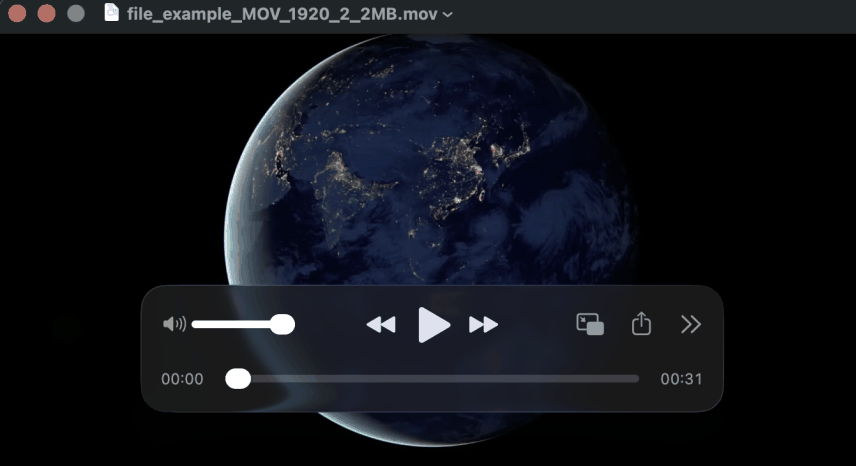
QuickTime can export MOV files directly to MP4 with almost no effort. Open the file in QuickTime, go to File > Export As, and pick a resolution. It's built into every Mac, it's fast, and for most everyday clips it's genuinely the simplest option on this list. The downside is limited control — you can't fine-tune the codec or bitrate, so if you need a specific output size, this isn't the tool for it.
Method 2 – iMovie
If you're already editing in iMovie, exporting your finished project as MP4 is built right into the share menu. It's not meant purely as a converter, so opening iMovie just to convert a single clip is overkill, but if you're already trimming or adjusting clips there, it's a natural way to finish the job.
Method 3 – HandBrake for Mac
The Mac version of HandBrake works identically to its Windows counterpart — same interface, same presets, same level of control over bitrate and resolution. It's worth installing if you're converting a lot of footage and want more flexibility than QuickTime offers.
Method 4 – FFmpeg via Terminal
For anyone comfortable with the command line, FFmpeg is the most powerful (and free) option available. A simple command like:
ffmpeg -i input.mov -c:v libx264 -c:a aac output.mp4
will convert the file while giving you full control over every encoding parameter. It's overkill for a single clip, but for scripting bulk conversions or automating a workflow, nothing else comes close.
Convert MOV to MP4 Online – No Software Needed
Top Free Online Converters
If you're on a computer where you can't install software — a work machine with locked-down permissions, for instance — browser-based converters like CloudConvert, Convertio, and FreeConvert can handle a quick MOV-to-MP4 job. Upload the file, wait for processing, download the result.
Limitations of Online Converters
The catch is real, though. Most free tiers cap file size somewhere around 100MB to 1GB, which rules out longer 4K clips. Upload and processing time depends entirely on your internet connection, so a large file can take far longer than a desktop conversion would. And since your video is being uploaded to a third-party server, it's worth thinking twice before sending anything sensitive or private through one of these tools.
Online vs. Desktop: When to Use Which
Online converters make sense for small, one-off files on a device where installing software isn't an option. For anything larger, more frequent, or remotely private, a desktop tool is faster, more secure, and doesn't come with upload limits.
MOV vs. MP4 – Format Comparison Explained
Side-by-Side Comparison Table
| Feature | MOV | MP4 |
|---|---|---|
| Developer | Apple | ISO/MPEG |
| Compatibility | Best on Apple devices | Universal — Windows, Android, web, smart TVs |
| Common codecs | H.264, H.265, ProRes | H.264, H.265 |
| File size | Often larger (especially with ProRes) | Generally smaller for equivalent quality |
| Best for | Video editing on Mac (Final Cut Pro) | Sharing, streaming, cross-platform playback |
When to Keep MOV
If you're editing in Final Cut Pro or another Apple-centric workflow, especially with ProRes footage, keeping files in MOV preserves quality and avoids unnecessary re-encoding until you're ready for final export.
When MP4 Is the Better Choice
For anything leaving your editing timeline — uploading to YouTube, sending to a colleague on Windows, posting to social media, or playing on a non-Apple device — MP4 is the safer, more universally compatible choice.
Best Free MOV to MP4 Converters – Comparison Table
Tool Comparison Table
| Tool | Platform | Batch Conversion | Ease of Use | Speed | Cost |
|---|---|---|---|---|---|
| Linraw doVideo | Windows & Mac | Yes | Very easy | Fast | Free |
| VLC | Windows & Mac | Limited | Moderate | Moderate | Free |
| HandBrake | Windows & Mac | Yes | Moderate | Fast | Free |
| QuickTime | Mac only | No | Very easy | Fast | Free |
| FFmpeg | Windows & Mac | Yes (scripted) | Difficult | Very fast | Free |
| CloudConvert | Web | Limited | Easy | Depends on upload | Free tier |
Editor's Pick by Use Case
For most people who just want a fast, no-fuss conversion on either platform, Linraw doVideo is the simplest all-around pick. If you need fine-grained control over compression settings, HandBrake is worth the extra setup time. And if you're automating conversions at scale, FFmpeg is hard to beat.
How to Convert MOV to MP4 Without Losing Quality
Understanding Transcoding Loss
Whenever you convert between codecs, you're technically re-compressing the video, which means some quality loss is happening at the pixel level — even if it's invisible to the eye. The amount of visible degradation depends almost entirely on your settings, not the act of converting itself.
Best Codec Settings: H.264 vs. H.265
H.264 is the safer choice for compatibility — it plays on virtually everything. H.265 (HEVC) compresses more efficiently, giving you a smaller file at a similar visual quality, but it's not supported by every older device or piece of software. If file size matters more than universal playback, H.265 is worth choosing; otherwise, stick with H.264.
Lossless and Near-Lossless Options
If the original MOV file already uses H.264 or H.265 and you just need a different container, tools like FFmpeg can perform a "stream copy" — repackaging the video into MP4 without re-encoding it at all. This is the only truly lossless option, since no actual transcoding happens. For everything else, setting a high bitrate or a low CRF value (around 18–20 in FFmpeg or HandBrake) keeps quality loss to a level most people won't notice.
Common Problems & Fixes
MOV File Won't Open on Windows
This almost always comes down to a missing codec. Installing VLC, which bundles its own codec library, usually solves it without needing to dig through Windows' codec settings.
Audio Out of Sync After Conversion
This typically happens when the original file has a variable frame rate, which some converters handle poorly. Switching to a tool that explicitly supports variable frame rate sources, or re-encoding at a fixed frame rate, usually fixes it.
Output File Is Larger Than the Original
If your MP4 comes out bigger than the source MOV, your bitrate setting is likely too high for the encoder you chose. Lowering the bitrate or switching to H.265 will shrink the file without a major quality trade-off.
Black Screen or Corrupt MP4
A black screen on playback usually points to a codec mismatch between the video stream and the container, often caused by an incomplete or interrupted conversion. Re-running the conversion with a different tool, or making sure the original file isn't corrupted, typically resolves it.
Frequently Asked Questions
Can I convert MOV to MP4 for free?
Yes. Tools like Linraw doVideo, VLC, HandBrake, QuickTime, and FFmpeg are all free and handle MOV-to-MP4 conversion without watermarks or time limits.
Does converting MOV to MP4 reduce quality?
Some quality loss is technically possible during re-encoding, but with the right settings — a reasonably high bitrate or low CRF value — the difference is virtually unnoticeable. A stream-copy conversion, where supported, avoids quality loss entirely.
What is the fastest way to convert MOV to MP4 on Windows?
Linraw doVideo is typically the fastest option for everyday use, since it runs locally with no upload step and supports one-click batch conversion.
Is MOV or MP4 better for YouTube and social media?
MP4 is the better choice. It's the format most platforms expect, and uploading MOV files can sometimes lead to longer processing times or compatibility issues on the platform's end.
Can Windows 11 play MOV files natively?
Not always. Windows 11 has improved codec support over previous versions, but playback still depends on which codec the MOV file uses internally. MP4 remains the more reliable choice for guaranteed playback.
What codec does MP4 use vs. MOV?
Both formats can use the same codecs — most commonly H.264 and H.265. The real difference isn't the codec but the container and how well each platform or device recognizes it.
Conclusion
Final Recommendations
There's no single "best" way to convert MOV to MP4 — it depends on what you're optimizing for. If you want speed and simplicity without learning a new interface, Linraw doVideo handles the job in a few clicks on either Windows or Mac. If you need granular control over compression, HandBrake is the better fit. And if you're scripting bulk conversions, FFmpeg remains unmatched.
Why Linraw doVideo Support Stands Out for Windows and Mac Users
What sets Linraw doVideo apart isn't just that it converts MOV to MP4 — it's that the same toolkit also handles dozens of other everyday video, audio, image, and PDF tasks, all in one place, on both Windows and Mac. Instead of hunting down a different app for every file type you run into, Linraw doVideo's Convert Video tool quietly takes care of conversions in the background while the rest of the toolkit covers whatever comes next.
However, if your workflow involves multiple types—such as images, audio, video, PDFs, or eBooks—then Linraw doUltra is a more powerful all-in-one option.
Related Chapters
