Best MKV to MP4 Converter: Easy Desktop Tool for Windows & Mac
If you've ever tried to play an MKV file on your phone, upload one to social media, or open it in an older version of iMovie, you've probably run into the same wall: "unsupported format." MKV is a fantastic container for storing high-quality video, but it's not exactly the friendliest format when it comes to compatibility. That's where converting to MP4 comes in.
In this guide, we'll walk through why MKV to MP4 conversion matters, show you the easiest way to do it on Windows and Mac using Linraw doVideo's Convert Video tool, and compare it against the other popular options out there — from free desktop apps to browser-based converters. By the end, you'll know exactly which tool fits your needs.
Why Convert MKV to MP4?
MKV (Matroska Video) is an open-source container format known for packing in multiple audio tracks, subtitle files, and high-quality video streams all in one file. It's a favorite among movie collectors and anime fans for exactly that reason. The problem is that plenty of devices and platforms simply don't play well with it.
MP4, on the other hand, is the closest thing we have to a universal video format. It plays on iPhones, Android phones, smart TVs, game consoles, and every major social media platform without a hiccup. So if you're planning to:
Watch a video on your phone or tablet
Upload footage to YouTube, Instagram, or TikTok
Edit a clip in a mobile-friendly editor
Share a file with someone whose device doesn't support MKV
MKV vs MP4: Key Differences Explained
Both formats can hold similarly high-quality video, so the differences come down to compatibility and flexibility rather than picture quality.
| Aspect | MKV | MP4 |
|---|---|---|
| Compatibility | Limited (mostly desktop media players) | Nearly universal |
| Multiple audio/subtitle tracks | Yes, natively supported | Limited support |
| File size | Similar or slightly larger | Similar or slightly smaller |
| Streaming/social media support | Poor | Excellent |
| Editing software support | Inconsistent | Broadly supported |
In short: MKV is great for archiving and storing rich video files, while MP4 is built for playback and sharing. Converting between the two doesn't need to hurt quality if you use the right tool and settings.
What to Look for in an MKV to MP4 Converter
Not all converters are created equal. Before picking one, it's worth checking for:
Quality retention — does it re-encode without visibly degrading the video?
Speed — some tools take minutes, others take hours for the same file
Batch support — can it handle a folder of files at once, or just one at a time?
Subtitle and audio track handling — will your extra tracks survive the conversion?
Platform support — does it work on both Windows and Mac, or just one?
Price and safety — is it free, and does it come bundled with unwanted software?
With that checklist in mind, let's look at the tools available, starting with the one built for exactly this job.
Best Overall: Linraw doVideo Convert Video Tool (Windows & Mac)
Linraw doVideo is a desktop utility app that bundles together dozens of everyday video tools into a single lightweight application for Windows and Mac. Its Convert Video tool is built specifically for fast, reliable format conversion, and MKV to MP4 is one of its most common use cases.
Unlike browser-based converters, Linraw doVideo runs locally on your machine, so there's no waiting on uploads, no file size caps, and no concern about sending your videos to a third-party server.
Key Features of Linraw doVideo's Convert Video Tool
One-click conversion — drag in your MKV file and Linraw doVideo handles the rest
Preserves audio and subtitle tracks where the target format allows
Batch conversion — convert an entire folder of MKV files in one go
Fast, local processing — no uploads, no internet dependency, no privacy concerns
Broad format support — beyond MKV to MP4, it also handles AVI, MOV, WMV, FLV, and more
Consistent output quality — smart encoding settings that balance file size and clarity
Works offline — handy for large files or unreliable connections
Step-by-Step Guide: How to Convert MKV to MP4 with Linraw doVideo
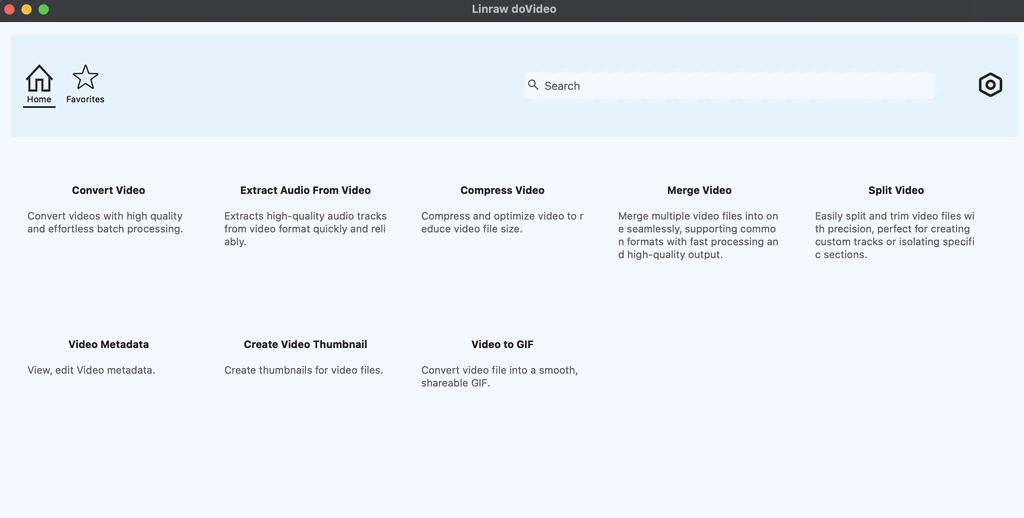
Download and install Linraw doVideo for Windows or Mac from the official site.
Open the app and select the Convert Video tool.
Add your MKV file(s) by dragging them into the window or using the file browser. You can add multiple files if you're converting a batch.
Choose MP4 as the output format from the format dropdown.
Click Start and let Linraw doVideo do the work. Conversion time depends on file size and length, but most videos finish in a few minutes.
Check your new MP4 file in the output folder — it's now ready to play, share, or upload anywhere.
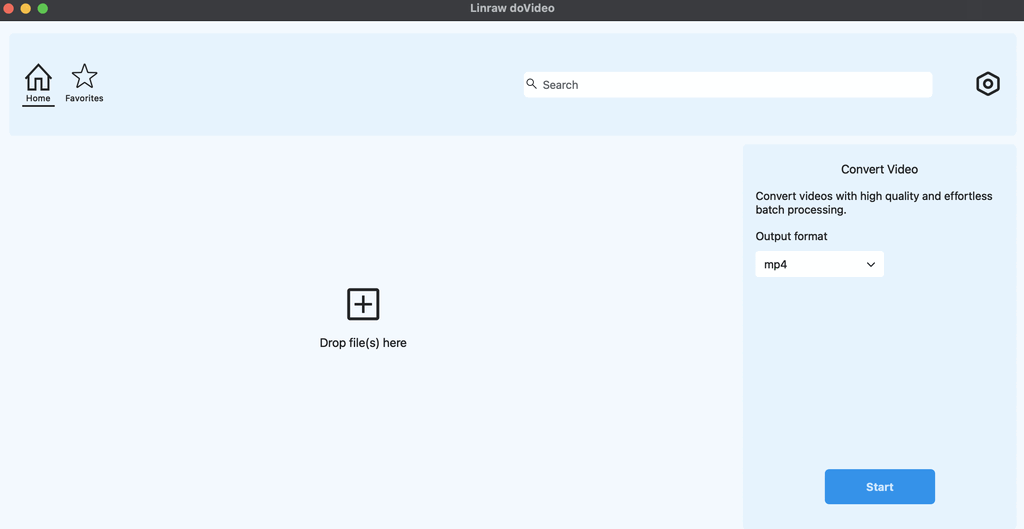
That's it. No command-line syntax, no confusing settings menus, no ads or pop-ups asking you to upgrade halfway through.
Batch Conversion & Supported Formats
If you've got a whole folder of MKV files — say, a downloaded series or a batch of camera footage — Linraw doVideo's batch conversion feature lets you queue them all up and convert them in one session instead of repeating the process file by file. Beyond MKV and MP4, the Convert Video tool also supports common formats like AVI, MOV, and WMV, so it's not a one-trick tool.
Pros and Cons
Pros:
Simple, beginner-friendly interface
No file uploads means better privacy and no size limits
Batch processing saves serious time
Works on both Windows and Mac
Cons:
Desktop install required (not browser-based)
Some advanced encoding options that power users want, like frame-level bitrate tuning, aren't as deep as dedicated command-line tools
Other MKV to MP4 Converter Options
Linraw doVideo isn't the only option out there. Depending on your needs — occasional one-off conversions, technical control, or mobile convenience — one of these might also be worth knowing about.
Online Converters (Web-Based)
Browser-based converters are convenient for a quick, one-time job since there's nothing to install.
CloudConvert supports an enormous range of file types beyond just video, making it useful if you regularly convert between different formats.
Convertio has a clean, simple interface and works directly in the browser, though free usage comes with file size limits.
FreeConvert offers a decent free tier and lets you tweak basic settings like resolution and bitrate before converting.
The catch with all three: you're uploading your video to someone else's server, which is slow for large files and not ideal if the content is private. Free tiers also usually cap file size or daily conversions.
Free Desktop Software
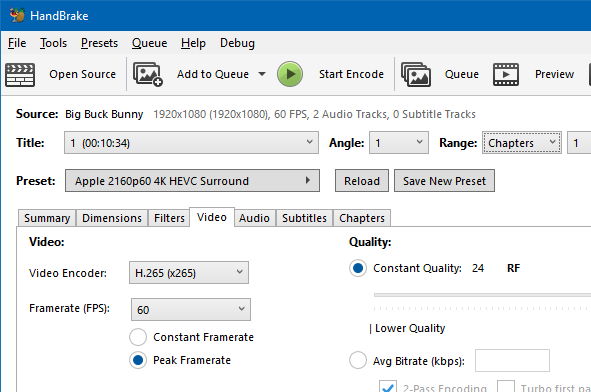
HandBrake is a long-standing favorite for video conversion, especially among people who want fine control over encoding settings. It's powerful but has a steeper learning curve, with a settings panel that can overwhelm first-time users.
VLC Media Player is best known as a media player, but it can also convert files, including MKV to MP4. It's a handy option if you already have VLC installed, though the conversion feature is buried a few menus deep and isn't its primary purpose.

FFmpeg is a command-line tool that can convert virtually any format to any other. It's incredibly powerful and completely free, but it requires typing out commands — not something most casual users want to deal with.
Mobile Apps (iOS & Android)
There are several MKV to MP4 converter apps for phones, but mobile hardware and storage limits make them a poor fit for large or long video files. They tend to work best for short clips.
Built-In OS Methods (Windows/Mac Limitations)
Neither Windows nor macOS has a truly native MKV to MP4 converter. Windows' built-in Photos app and Mac's QuickTime Player have inconsistent MKV support at best, and neither offers a reliable, built-in export-to-MP4 workflow for MKV files. You'll generally need third-party software regardless of your OS.
Comparison Table: Linraw doVideo vs Other MKV to MP4 Converters
| Tool | Speed | Output Quality | Batch Support | Ease of Use | Price | Platforms |
|---|---|---|---|---|---|---|
| Linraw doVideo | Fast (local processing) | High, consistent | Yes | Very easy | Paid, one-time | Windows & Mac |
| CloudConvert | Slower (upload-dependent) | High | Limited on free tier | Easy | Free tier + paid plans | Browser-based |
| Convertio | Slower (upload-dependent) | Good | Limited on free tier | Easy | Free tier + paid plans | Browser-based |
| FreeConvert | Slower (upload-dependent) | Good | Limited on free tier | Easy | Free tier + paid plans | Browser-based |
| HandBrake | Fast (local processing) | High, highly configurable | Yes | Moderate learning curve | Free | Windows, Mac, Linux |
| VLC | Fast (local processing) | Moderate | No | Moderate (feature is hidden) | Free | Windows, Mac, Linux |
| FFmpeg | Fast (local processing) | High, fully configurable | Yes | Difficult (command-line) | Free | Windows, Mac, Linux |
The pattern here is pretty clear: local desktop tools are faster and more private than browser-based converters, but most of the free desktop options trade off ease of use. Linraw doVideo is built to close that gap — local speed and privacy, without the learning curve.
How to Choose the Right MKV to MP4 Converter
For Beginners
If you just want to drag a file in, click convert, and be done with it, Linraw doVideo or an online converter like Convertio will feel the most comfortable. Between the two, Linraw doVideo has the edge on speed and privacy since nothing leaves your computer.
For Bulk/Batch Conversion Needs
If you're converting dozens of files regularly, batch support is non-negotiable. Linraw doVideo, HandBrake, and FFmpeg all handle batches well; most free online converters restrict this on their free tiers.
For Preserving Audio/Subtitle Tracks
MKV files often carry multiple audio tracks or embedded subtitles. Linraw doVideo and HandBrake both do a solid job of preserving these during conversion, whereas VLC's conversion feature is more limited in this area.
For Offline vs Online Use
If you need to work without an internet connection, or you'd rather not upload personal videos to a third-party server, a desktop tool like Linraw doVideo, HandBrake, or FFmpeg is the way to go. Online converters simply aren't an option offline.
Common Issues When Converting MKV to MP4 (and Fixes)
Audio Out of Sync
This usually happens when the original MKV file has a variable frame rate that doesn't translate cleanly to MP4's structure. Using a converter with proper re-encoding — rather than a straight "copy" of the stream — like Linraw doVideo or HandBrake, generally resolves this.
Missing Subtitles
MP4 doesn't support all subtitle formats that MKV can hold. If your subtitles disappear after conversion, look for a "burn in" or "hardcode subtitles" option, which embeds them directly into the video image rather than as a separate track.
Quality Loss After Conversion
Some quality loss is normal any time you re-encode video, but it should be barely noticeable with the right settings. If you're seeing visible blurriness or artifacts, try a higher bitrate setting or check that the converter isn't defaulting to an aggressive compression preset.
Large File Sizes
If your converted MP4 ends up bigger than expected, check the bitrate settings — a converter defaulting to a high bitrate for "maximum quality" can bloat file size unnecessarily. Tools like Linraw doVideo that offer sensible default presets tend to avoid this problem out of the box.
Frequently Asked Questions (FAQ)
Is MKV to MP4 conversion lossless?
Not perfectly lossless, since re-encoding video typically introduces a very small amount of quality loss. With good encoding settings, though, the difference is generally not noticeable to the eye.
Can I convert MKV to MP4 without losing subtitles?
Yes, as long as your converter supports either soft subtitles (as a separate track) or hardcoded subtitles (burned into the video). Linraw doVideo supports carrying subtitle tracks through the conversion process where the format allows it.
Is it safe to use free online MKV converters?
Generally yes for non-sensitive content, but keep in mind your file is uploaded to a third-party server, which raises privacy considerations for personal videos. Desktop tools that process files locally avoid this concern entirely.
Does Linraw doVideo work on both Windows and Mac?
Yes, Linraw doVideo is built to run natively on both Windows and macOS, with the same Convert Video tool and features available on each platform.
How long does it take to convert a large MKV file?
It depends on the file's length, resolution, and your computer's hardware, but most standard-length videos convert in just a few minutes with a local tool like Linraw doVideo. Online converters usually take longer due to upload and download time.
Can I convert multiple MKV files at once?
Yes, Linraw doVideo supports batch conversion, so you can queue up an entire folder of MKV files and convert them all in a single session instead of doing it one at a time.
Is Linraw doVideo free to use?
Linraw doVideo is a paid desktop application with a one-time cost, which includes the Convert Video tool along with the rest of its video utilities in one package.
Conclusion
MKV files are great for storing high-quality video, but MP4 is what actually gets you compatibility across phones, TVs, and social platforms. Whether you go with an online converter for a quick one-off job, HandBrake or FFmpeg if you want deep control, or VLC because it's already installed — you've got options.
That said, if you want a tool that's fast, keeps your files private by processing everything locally, handles batches without a fuss, and doesn't require learning a command-line interface, Linraw doVideo's Convert Video tool is hard to beat. It's built for exactly this kind of everyday conversion task, and it comes as part of a broader toolkit that covers plenty of other formats and file types you'll probably need down the line too.
If you're converting MKV files regularly, on either Windows or Mac, it's worth giving Linraw doVideo a try.
However, if your workflow involves multiple types—such as images, audio, video, PDFs, or eBooks—then Linraw doUltra is a more powerful all-in-one option.
Related Chapters
