How to Convert PNG to PDF (Offline, No Upload, Windows & Mac)
Introduction
At some point, almost everyone needs to turn a PNG into a PDF. Maybe you're submitting a scanned form, sending a set of screenshots to a client, or archiving receipts before tax season. Whatever the reason, PDF is just the format people expect — it's easier to share, easier to print, and it looks the same no matter who opens it.
The catch is that most "PNG to PDF" tools you'll find online ask you to upload your images to their servers first. For a random meme, that's not a big deal. For a passport scan, a signed contract, or private business documents, it's a different story — you're trusting a stranger's server with files you may never get to fully delete.
This guide walks through several ways to convert PNG to PDF on Windows and Mac, starting with methods that never leave your computer. We'll also cover the popular online converters, so you can decide for yourself when they're fine to use and when it's worth sticking to something offline.
Why Convert PNG to PDF in the First Place?
A single PNG is just one image. The moment you have more than one — say, five pages of a scanned contract — sending separate image files gets messy fast. Converting them into a single PDF solves that problem in one step: one file, in the right order, ready to send or print.
PDFs also travel better. Open one on a phone, a laptop, or a different operating system, and it looks exactly the same. Images can render differently depending on the app or device; a PDF doesn't have that problem.
Some of the most common reasons people convert PNG to PDF:
Scanned documents — IDs, signed forms, handwritten notes
Screenshots — bug reports, tutorials, proof of a transaction
Portfolios — combining design work or photography into one shareable file
Receipts and invoices — for expense reports or bookkeeping
ID or certificate photos — for applications that require a single PDF upload
If any of that sounds familiar, you've probably already run into the next question: which tool should you actually use?
Is It Safe to Use Online PNG to PDF Converters?
Online converters are convenient — no download, no install, just drag your file into a browser tab. But it helps to understand what's actually happening behind the scenes.
How they work: you upload your PNG to the converter's server, their system converts it, and you download the result. That upload step is the part worth thinking about. Your image physically leaves your device and sits on someone else's infrastructure, even if only briefly.
What happens after: most services say they delete files after a set period, often anywhere from one hour to a few days. That's a reasonable policy, but it still means your file existed on a third-party server for a while, and you're relying on their word that it was actually deleted. For a birthday invite, that's a non-issue. For anything with personal or financial information, it's worth pausing on.
When online tools are fine: casual, non-sensitive files — a flyer, a wallpaper, a public image. Speed matters more than privacy here, and uploading takes seconds.
When offline is the better call: anything with personal data (IDs, medical documents, financial records), confidential work files, or anything under an NDA. In those cases, an offline tool that never sends your files anywhere is the safer default.
With that distinction in mind, let's start with the offline options.
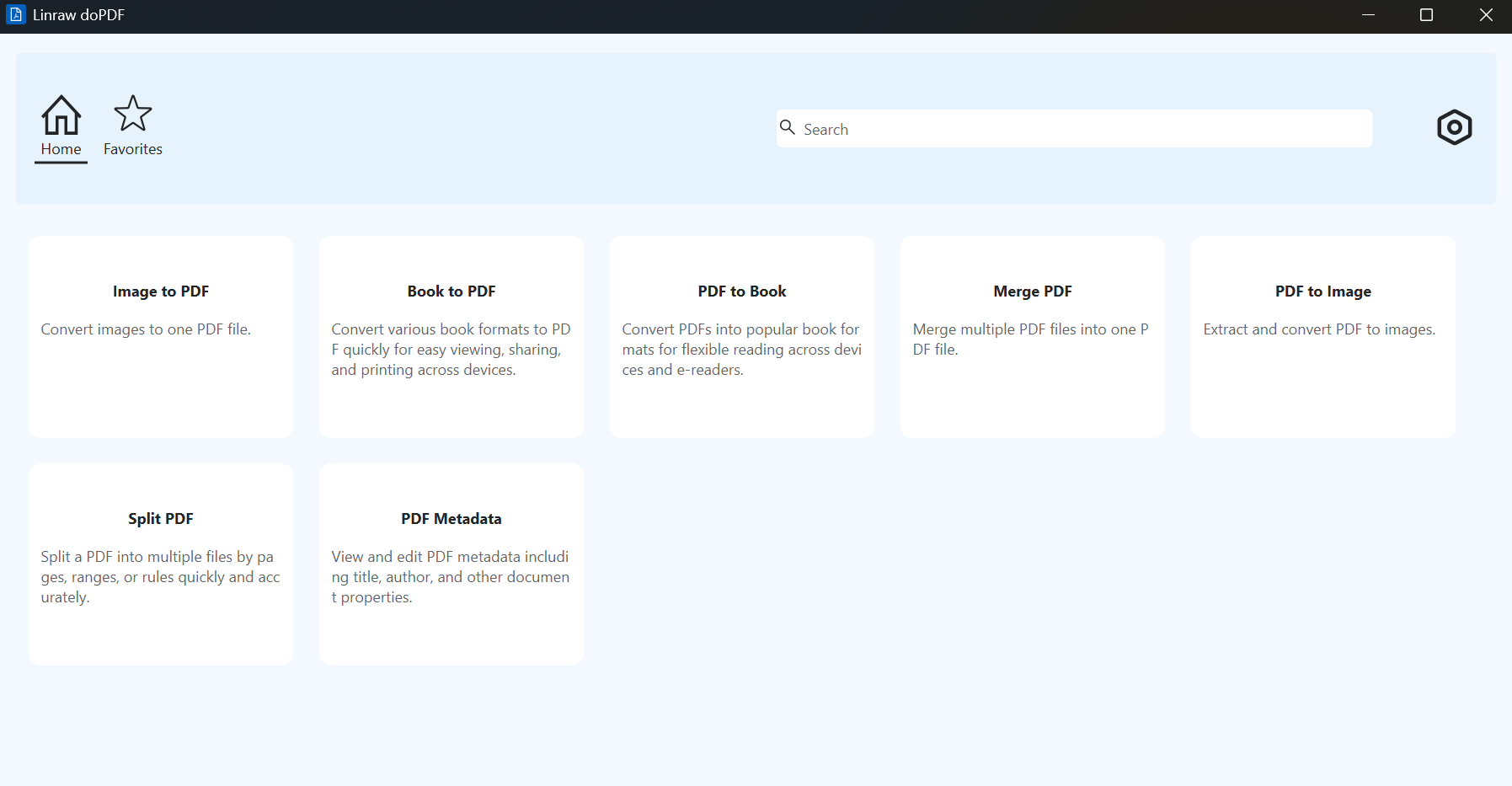
Method 1: Convert PNG to PDF with Linraw doPDF (Recommended)
Linraw doPDF is a desktop app for Windows and Mac with a dedicated Image to PDF tool. It runs entirely on your computer — your PNGs never touch the internet, and there's no file size limit or daily conversion cap to work around.
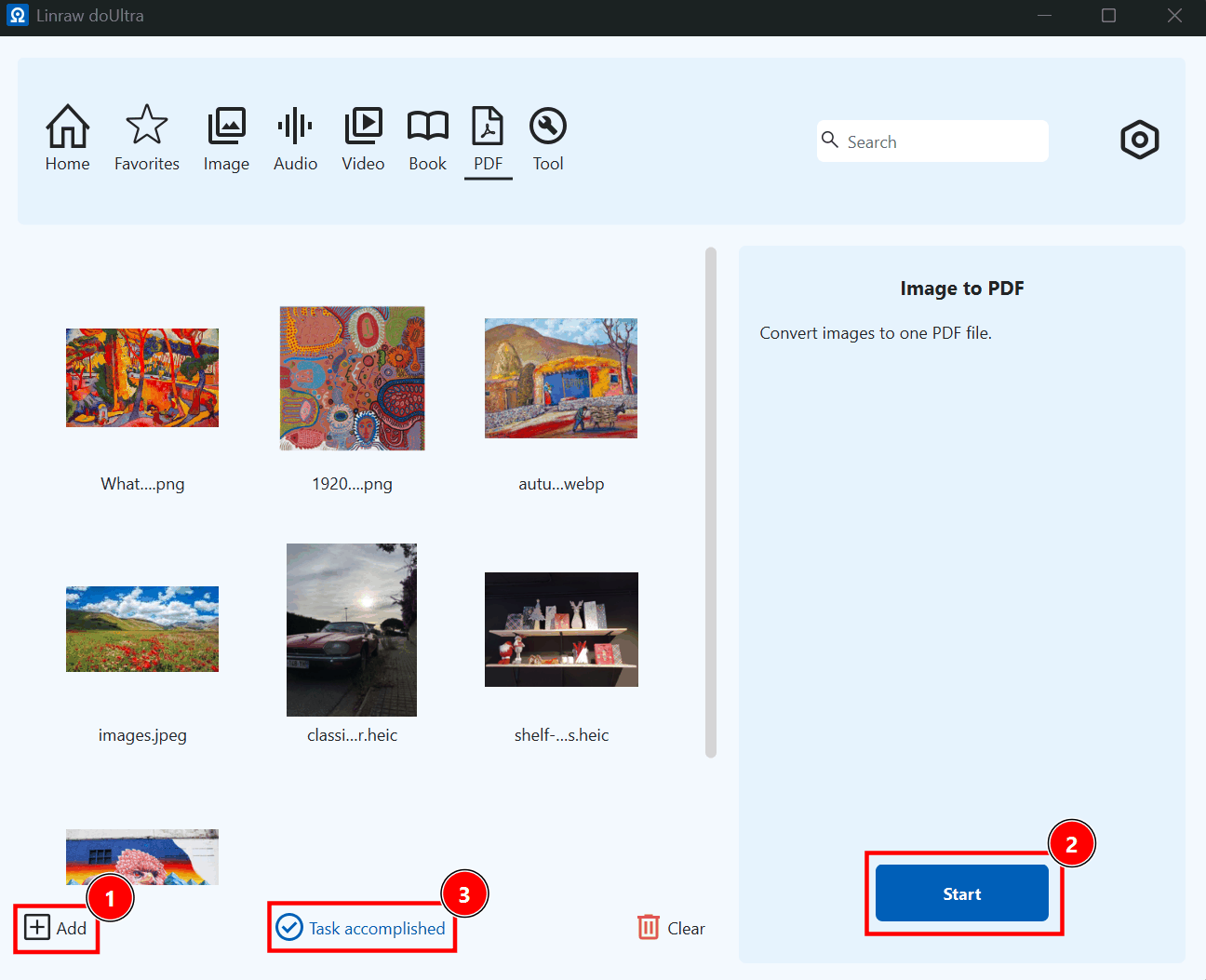
Step-by-step: batch converting multiple PNGs into one PDF
Open Linraw doPDF and select the Image to PDF tool from the Image category.
Drag in your PNG files, or click Add Files to browse for them. You can select as many as you need at once.
Reorder the images by dragging them into the sequence you want them to appear in the final PDF.
Click Start, and choose whether you want one combined PDF or a separate PDF per image.
Pick a save location and you're done — no upload, no wait time on someone else's server.
Why this method keeps your files fully offline
Because Linraw doPDF runs locally, there's no upload step to worry about — nothing to intercept, nothing sitting on a server, nothing to "trust" a privacy policy about. It's also just faster for batch jobs: converting twenty scanned pages takes seconds locally, versus waiting on upload and download speeds with a browser-based tool.
Method 2: Using Preview on Mac
If you're on a Mac and only need to convert one image, Preview — which comes built into macOS — can handle it without installing anything extra.
Step-by-step
Open the PNG file in Preview.
Go to File > Export as PDF.
Choose a save location and click Save.
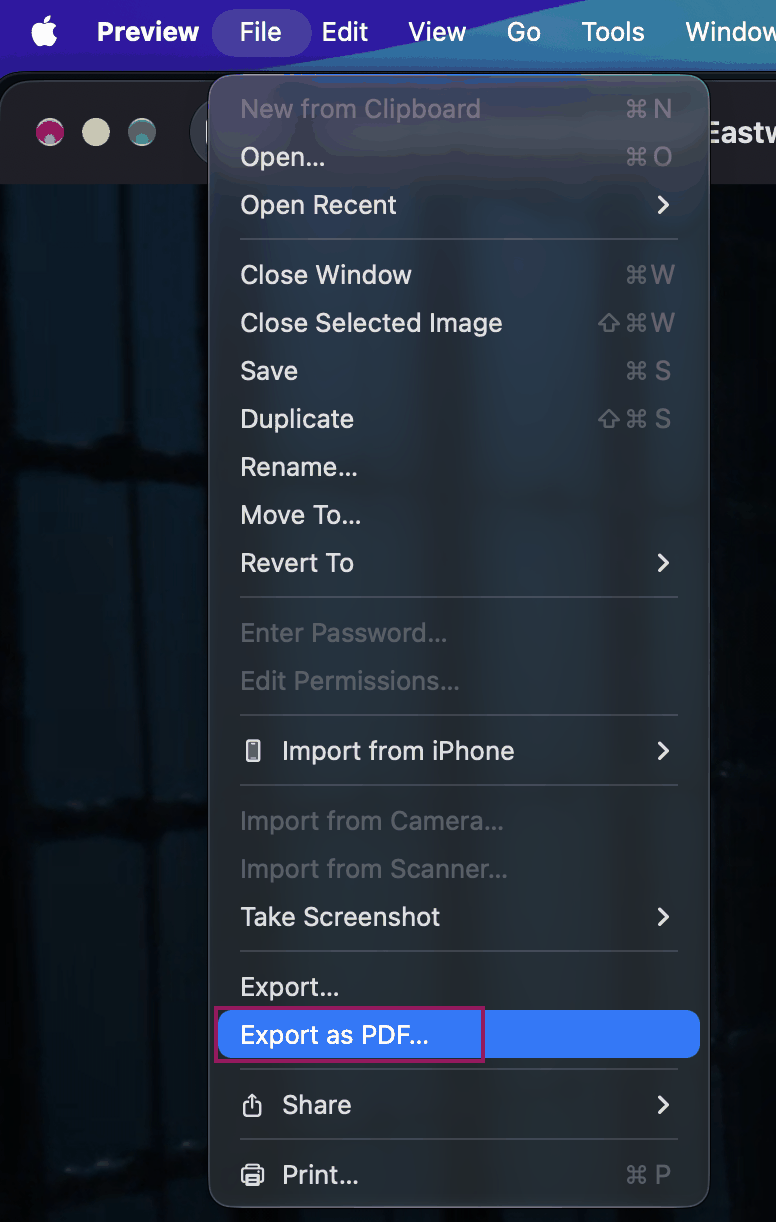
That's it — no dialogue about page size or margins, just a straightforward export.
Limitations
Preview only exports one image at a time. If you have ten PNGs to combine into a single PDF, you'd need to either merge them manually first (Preview can do this through its thumbnail sidebar, but it's fiddly) or convert each one separately and merge the PDFs afterward. It also doesn't give you control over margins or page sizing — what you see is what you get.
Method 3: Using Microsoft Word or Print to PDF on Windows
Windows doesn't have a direct "export image as PDF" feature built in, but there are two reasonable workarounds using tools you already have.
Inserting PNGs into a Word doc and saving as PDF
Open a blank Word document.
Go to Insert > Pictures and add your PNG files, one per page (insert a page break between each).
Go to File > Save As, and choose PDF from the file type dropdown.
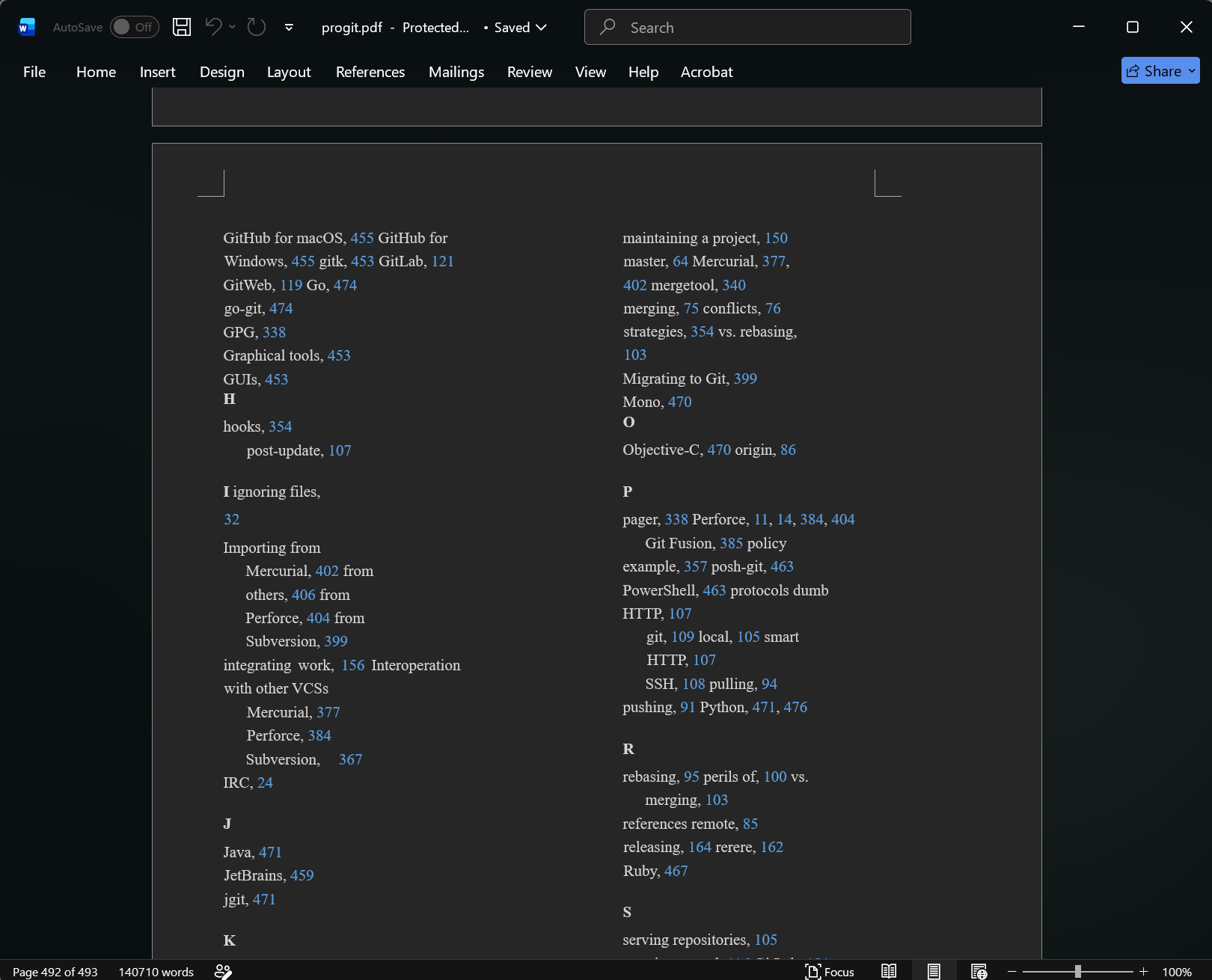
This works, but it's really a workaround — Word wasn't built for this, and you'll likely need to manually resize images so they don't get distorted or centered oddly on the page.
Using the Windows "Print to PDF" virtual printer
Open the PNG in any image viewer (Windows Photos works fine).
Press Ctrl+P to print.
Under printer options, select Microsoft Print to PDF.
Click Print, then choose where to save the file.
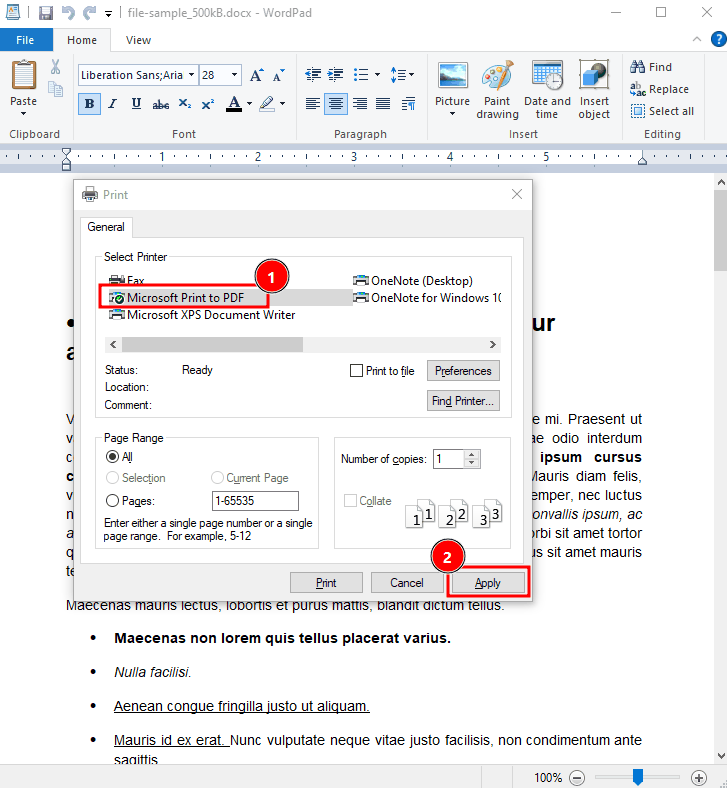
This is quicker for a single image, but it's still one-at-a-time.
Limitations
Neither method supports true batch conversion — you're inserting or printing images individually, which gets old fast if you have more than two or three files. Formatting can also be inconsistent: Word sometimes adds unwanted margins or resizes images to fit its default layout, and Print to PDF depends on your printer settings behaving.
Method 4: Using Google Drive or Google Photos
If your PNGs are already in Google Drive, you can convert them without installing anything:
Right-click the PNG in Drive and choose Open with > Google Docs. This inserts the image into a new Doc.
Go to File > Download > PDF Document.
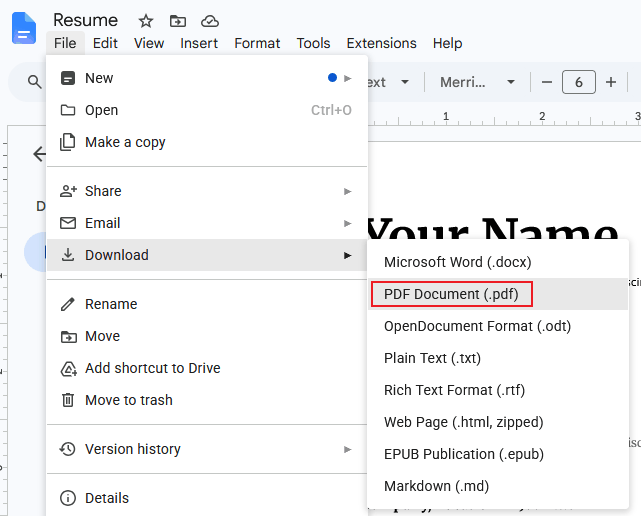
Google Photos has a similar option through its print/order features, though it's less direct and mainly meant for physical prints.
The trade-off
This method is convenient if you're already living in Google's ecosystem, but it comes with the same privacy consideration as any cloud tool — your file is being processed on Google's servers, not your device. If the image is already stored in Drive, that ship has sailed anyway; but it's not a fit if you're trying to avoid cloud processing altogether.
Method 5: Free Online Converters (Canva, Smallpdf, iLovePDF)
These are the tools most people find first when they search for a PNG to PDF converter, and for good reason — they're fast, free for basic use, and require zero installation.
What they're good for
Quick, one-off conversions of non-sensitive images
No software to install, works from any device with a browser
Often include basic editing (crop, rotate, add text) before converting
Why they're not ideal for batch or private conversions
Free tiers usually cap how many files you can convert per day, or add a watermark unless you upgrade to a paid plan. And as covered earlier, every one of these tools requires uploading your image first — fine for a flyer, less fine for a signed contract or a scan of your ID. If you're converting more than a handful of files regularly, the daily limits also get annoying quickly.
Comparison Table: Linraw doPDF vs. Preview vs. Word vs. Online Tools
| Tool | Offline | Batch Support | Cost | Speed | Best For |
|---|---|---|---|---|---|
| Linraw doPDF | Yes | Yes, unlimited | Free | Fast (local processing) | Batch conversions, private/sensitive files |
| Preview (Mac) | Yes | No (one at a time) | Free (built-in) | Fast for single files | Quick, single-image conversions on Mac |
| Word / Print to PDF (Windows) | Yes | No (manual, one at a time) | Free (built-in) | Moderate, manual steps | Occasional single conversions on Windows |
| Google Drive/Docs | No | No | Free | Depends on connection | Files already stored in Google Drive |
| Canva / Smallpdf / iLovePDF | No | Limited on free tier | Free with limits | Depends on connection | One-off, non-sensitive conversions |
If privacy and batch conversion both matter to you, Linraw doPDF is the only option in this list that checks both boxes. If you just need to convert one non-sensitive screenshot and you're already in a browser, an online tool is perfectly fine.
Frequently Asked Questions
Can I convert PNG to PDF without installing any software?
Yes. Preview on Mac and Print to PDF on Windows are both built in. Online converters like Smallpdf or Canva also require no installation, but they do require uploading your file.
Can I combine multiple PNGs into one PDF?
Yes — Linraw doPDF supports batch conversion, letting you combine as many PNGs as you want into a single multi-page PDF in one step. Preview and Print to PDF only handle one image at a time, so you'd need to merge them afterward.
Does converting PNG to PDF reduce image quality?
Not if you use a tool that preserves the original resolution. Linraw doPDF keeps your images at their original quality by default. Some online tools compress images to save server space, which can slightly reduce clarity.
Is my image safe when using an online converter?
Reputable services do delete files after a set period, but your image is still uploaded to their servers during the process. For non-sensitive files, that's generally fine. For personal documents, an offline tool avoids the question entirely.
Can I convert PDF back to PNG later?
Yes. Linraw doPDF also includes a PDF-to-image tool that can export PDF pages back to PNG or other image formats if you need to reverse the process.
Does this work on both Windows and Mac?
Yes. Linraw doPDF is available on both Windows and Mac, and the steps in this guide are the same on either platform. Preview is Mac-only, and Print to PDF is Windows-only, so those two methods only apply to their respective operating systems.
Conclusion
There's no single "best" way to convert PNG to PDF — it depends on what you're converting and how much you care about where the file goes. For a quick, one-off, non-sensitive image, an online converter or your operating system's built-in tool will do the job in a couple of clicks. But for anything private, or for batches of files, those same tools start to show their limits — upload requirements, daily caps, and no real batch support.
Linraw doPDF's Image to PDF tool covers the gap: it works offline on both Windows and Mac, and handles batch conversions without touching a server at any point. If you're converting scanned documents, receipts, or anything else you'd rather keep off the internet, it's worth downloading and trying on your next file.
However, if your workflow involves multiple types—such as images, audio, video, PDFs, or eBooks—then Linraw doUltra is a more powerful all-in-one option.
Related Chapters
