PDF to PNG: How to Convert PDF to High-Quality PNG Offline (Windows & Mac)
You have a PDF, and you need a PNG. Maybe it's a chart for a slide deck, a page for your website, or a contract page you want to mark up. It sounds like a two-click job, but the results are often disappointing: blurry text, tiny images, or a "free" online converter that wants you to upload a private document first.
This guide covers seven ways to convert PDF to PNG on Windows and Mac, with a focus on offline methods. You'll also learn which resolution to pick, how to keep text sharp, and how to fix the most common problems.
Why Convert a PDF to PNG?
PDFs are made for reading and printing. Images are easier to reuse. You can drop a PNG into a document, upload it to a website, send it in a chat, or edit it in any image editor.
When PNG is the better choice
PNG is a good fit when you're working with:
Text-heavy pages, such as reports, invoices, and forms
Charts, tables, and diagrams where sharp lines matter
Slides and screenshots saved as PDF
Logos and graphics that may need a transparent background
Pages you want to edit or annotate in an image editor
PNG is lossless, so it doesn't blur edges or add compression artifacts, no matter how many times you save it.
PNG vs. JPG for PDF pages: a quick look
| PNG | JPG | |
|---|---|---|
| Compression | Lossless | Lossy |
| Text and line art | Sharp | Can look fuzzy |
| Photos | Large files | Smaller files |
| Transparency | Yes | No |
| Best for | Text, charts, graphics | Photo-heavy pages |
As a rule of thumb, use PNG for pages with text and graphics. Use JPG when a page is mostly photos and file size matters more than perfect sharpness.
The Quick Answer: Fastest Way to Convert PDF to PNG Offline
The quickest route is a desktop tool. Open your PDF, choose PNG as the format, pick a resolution, and convert. With Linraw doPDF's PDF to Image tool, that takes about a minute, and it works the same way on Windows and Mac.
A few shortcuts for specific cases:
Mac, one page only: Use the built-in Preview app (Method 2).
Comfortable with the terminal: Use pdftoppm (Method 5).
Need to edit the page afterward: Open it in GIMP or Photoshop (Method 4).
Details for each method are below.
Why Go Offline? (Privacy, Quality, and No Limits)
Online converters are convenient, but offline tools have real advantages.
Your files stay on your computer
When you use an online converter, your PDF is uploaded to someone else's server. That's a poor idea for contracts, ID scans, financial statements, or anything confidential. An offline tool does the work on your own machine, and nothing leaves it.
No page caps, file-size limits, or daily quotas
Many free online tools limit how many files you can convert per day, how many pages each file can have, or how large the file can be. Offline tools usually have none of these limits. A 300-page PDF is just a longer job.
Better control over resolution
Online tools often decide the output quality for you, and the default is frequently low. With a desktop tool, you choose the DPI yourself. That's what separates a crisp PNG from a blurry one.
Method 1: Convert PDF to PNG with Linraw doPDF (Windows & Mac)
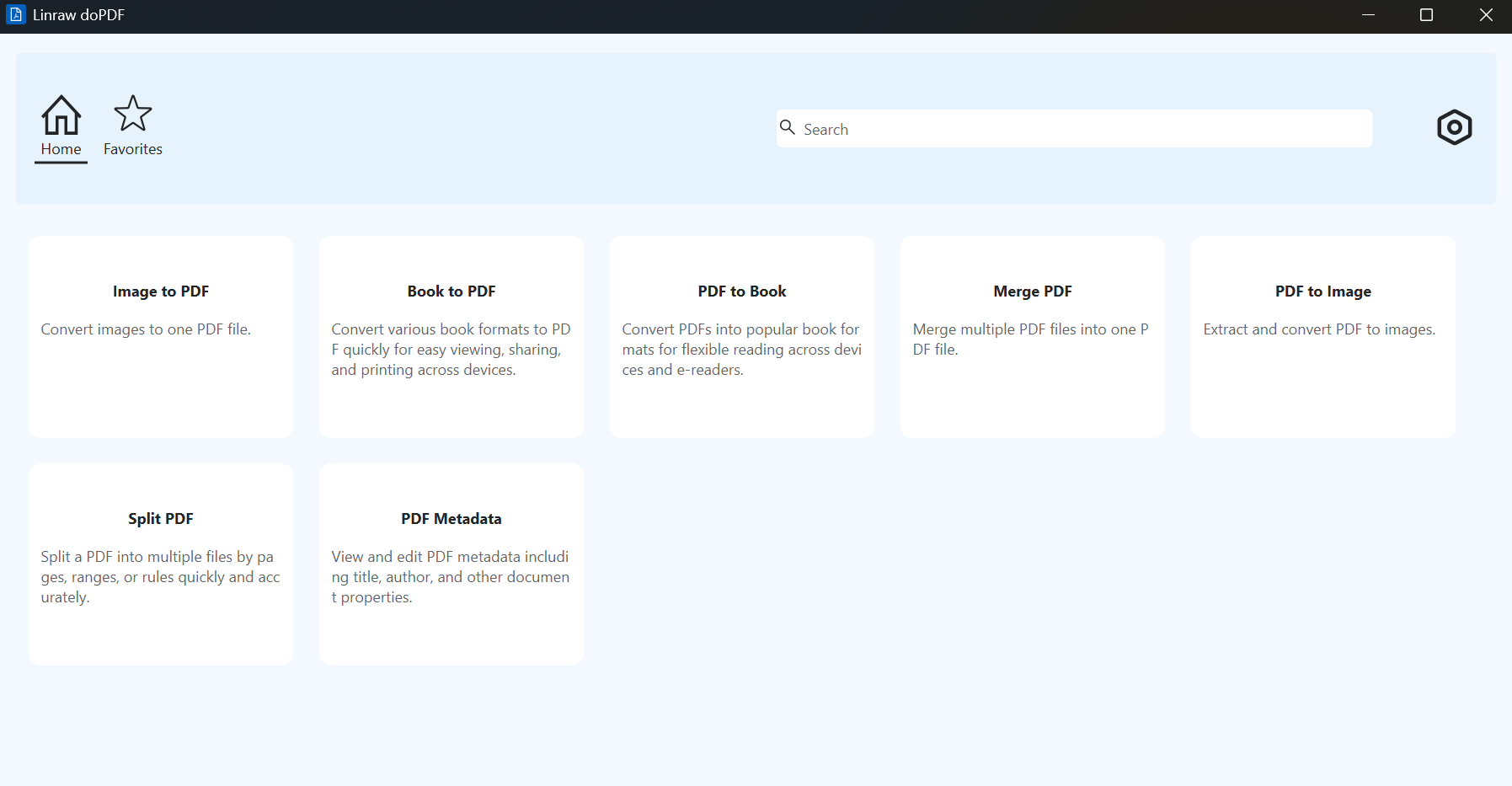
Linraw doPDF is a desktop toolkit with a set of PDF tools, including PDF to Image. It runs offline on both Windows and Mac and converts PDF pages to PNG with a few settings.
What you need
Linraw doPDF installed on your Windows PC or Mac
The PDF you want to convert
Step-by-step: using the PDF to Image tool
Open Linraw doPDF and go to the PDF tools.
Select PDF to Image.
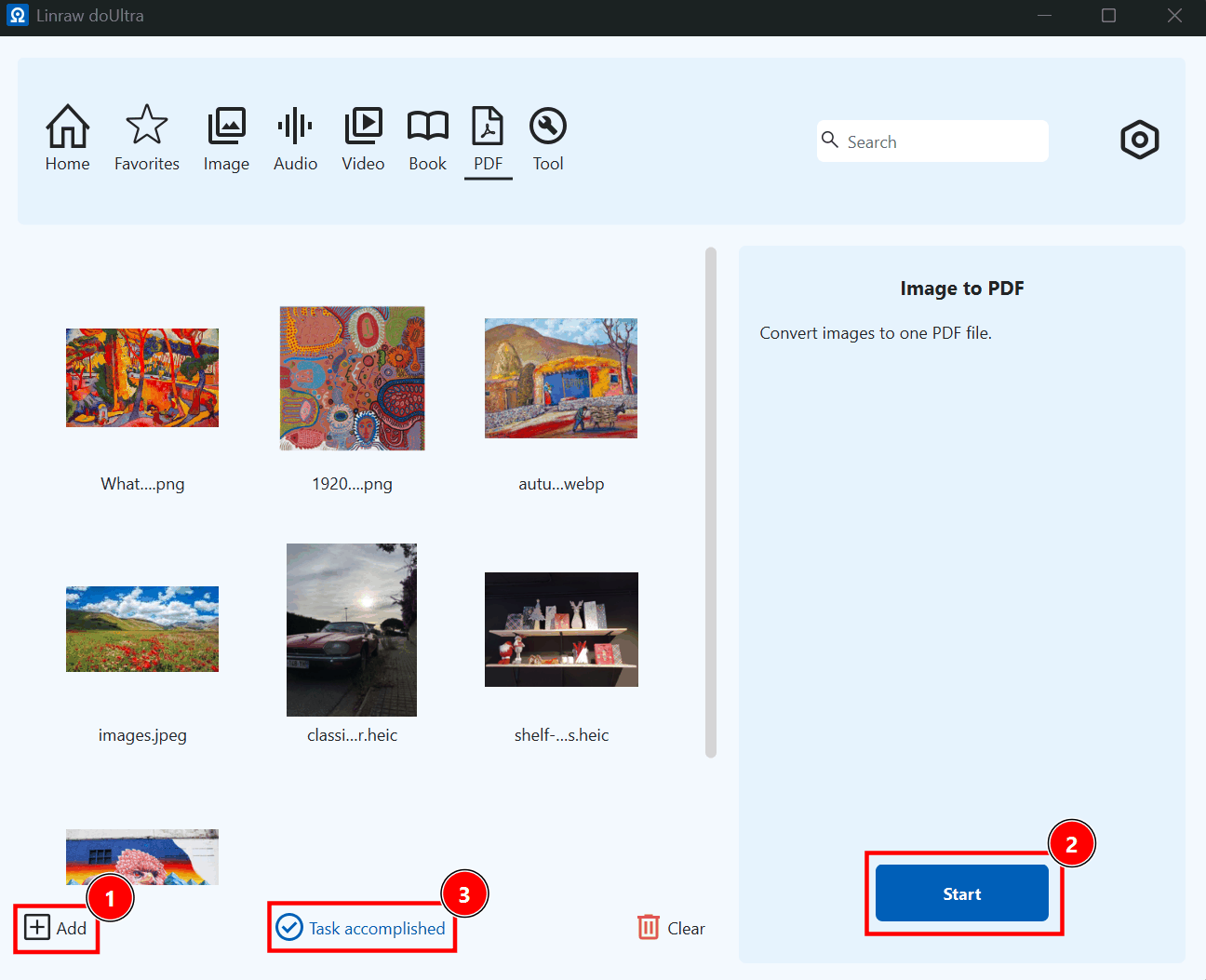
Add your PDF by dragging it into the window or using the add button.
Set the output format to PNG.
Choose your resolution and page range (more on that below).
Click Start, then open the folder to check your images.
Choosing resolution and page range
For everyday use, such as slides, web pages, and chat, 150 DPI is a good balance of sharpness and file size. For print or small text, go to 300 DPI. If you only need part of the document, enter a page range (for example, pages 3 to 7) instead of converting everything.
Converting multiple pages or files at once
A multi-page PDF is converted into one PNG per page, saved in your output folder. You can also add several PDFs at the same time and convert them in one run, which saves a lot of clicking when you have a stack of documents.
Method 2: Use Preview on Mac
If you're on a Mac and only need a page or two, Preview is already installed and works well.
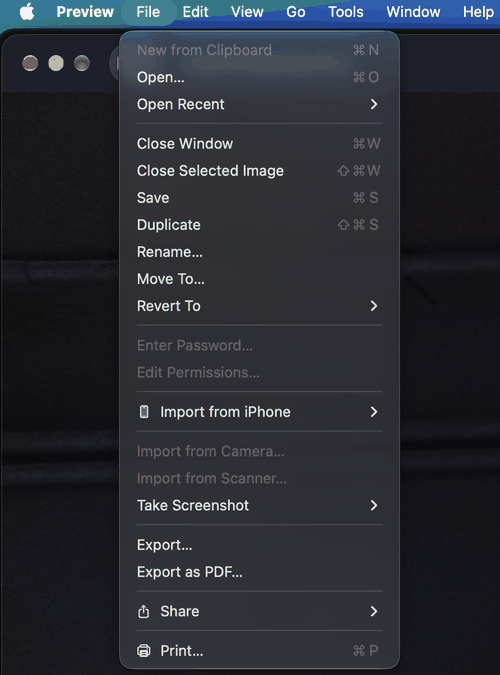
How to export a page as PNG
Open the PDF in Preview.
Go to the page you want in the sidebar.
Click File > Export.
Set Format to PNG.
Adjust the resolution if the option is shown, then click Save.
Exporting several pages (and where it falls short)
In recent versions of macOS, you can select multiple page thumbnails in the sidebar and use File > Export Selected Images. It works, but it's more manual than a dedicated tool, and you get limited control over output settings. For long documents or many files, it gets tedious.
Method 3: Use Adobe Acrobat
Adobe Acrobat can export a PDF straight to image formats. It's reliable, but it needs a paid subscription for this feature.
Export a PDF to PNG step by step
Open the PDF in Acrobat.
Click File > Export a PDF (or use the Export tool in the right-hand panel).
Choose Image, then PNG.
Open the settings if you want to change the resolution.
Click Export and choose where to save the files.
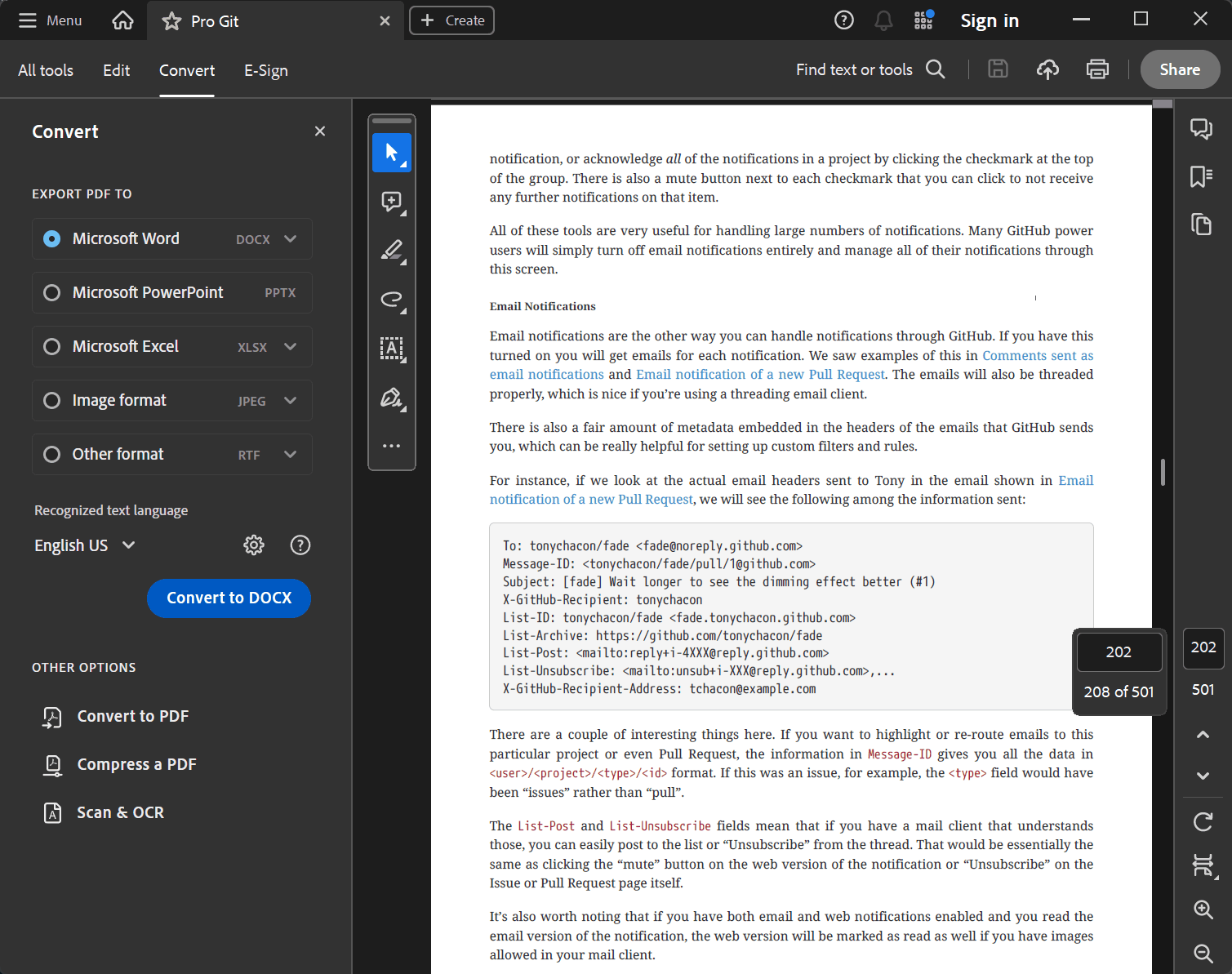
Acrobat exports each page as a separate PNG file.
Is it worth paying for?
If you already have Acrobat for other work, it's a solid choice. If you only need to convert PDFs to images now and then, a subscription is hard to justify when lighter tools do the same job.
Method 4: Use GIMP or Photoshop
Image editors can open PDFs directly, which is handy when you plan to edit the page after converting.
Importing a PDF as an image
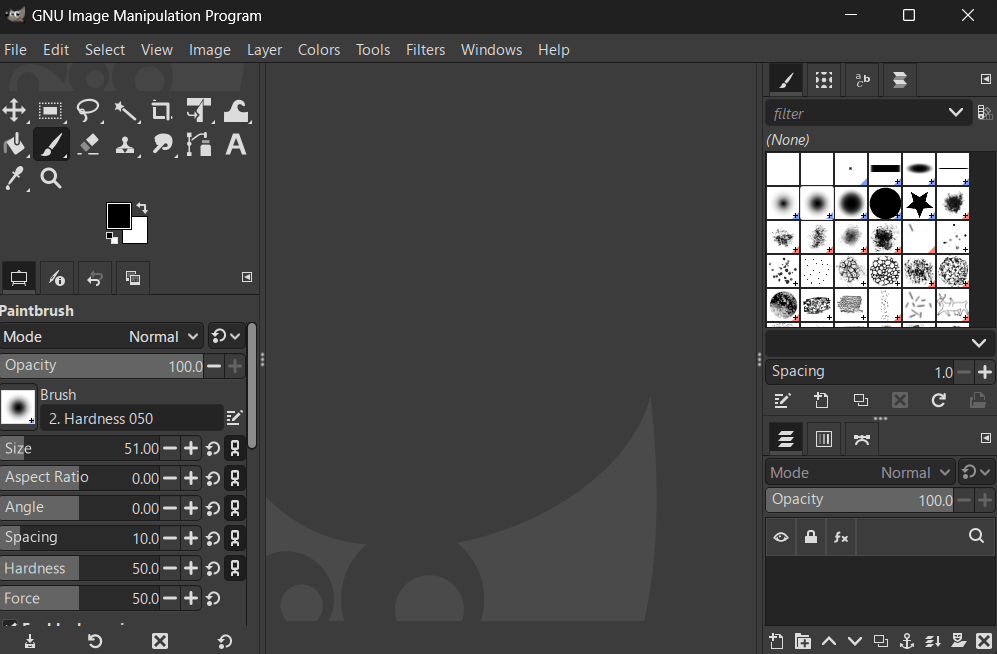
In GIMP (free):
Click File > Open and select your PDF.
In the import dialog, choose the pages you want and set the resolution.
Click Import.
Click File > Export As, name the file with a
.pngending, and export.
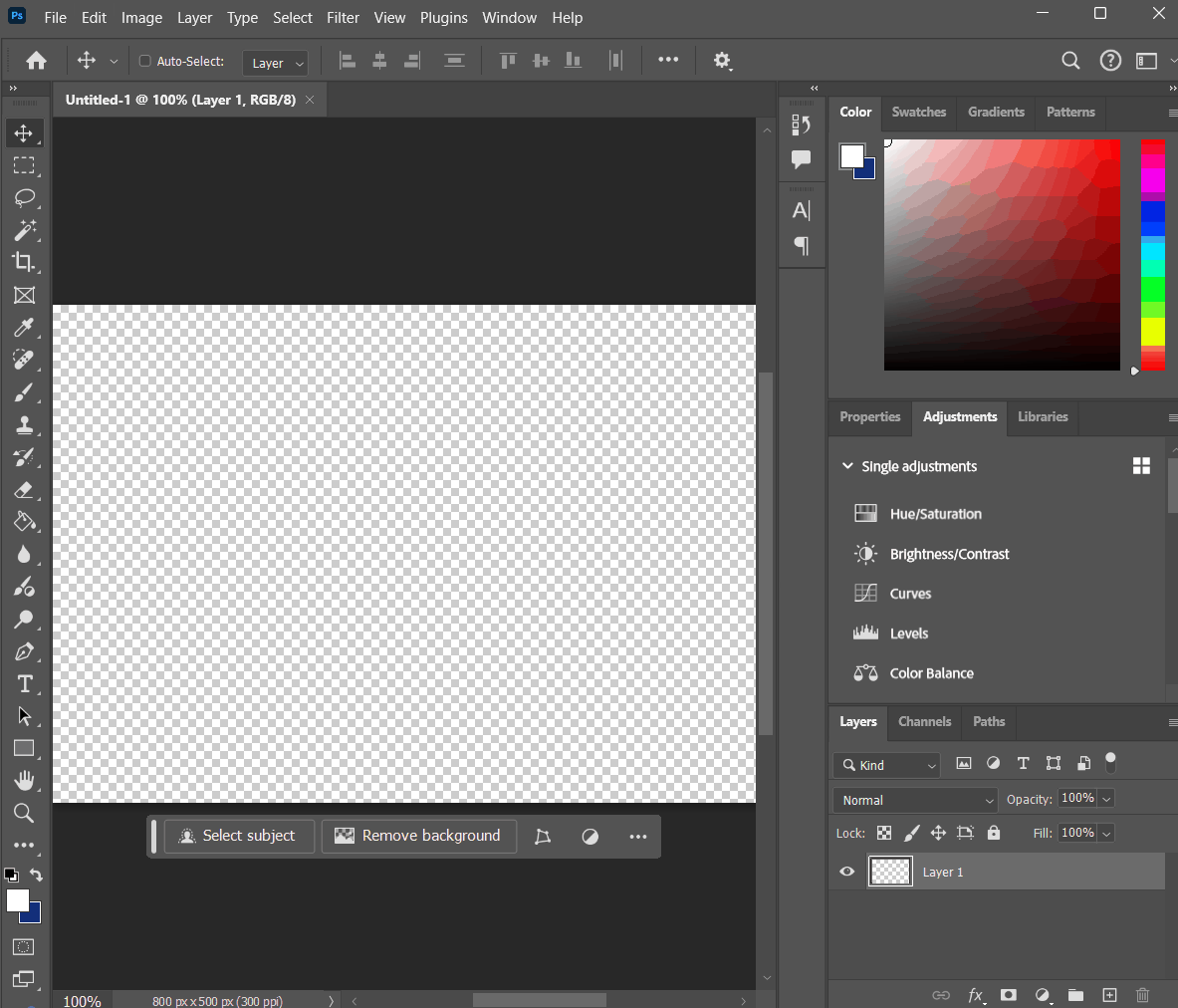
In Photoshop:
Click File > Open and select your PDF.
In the import dialog, choose Pages, select the page, and set the resolution.
Click OK, then save the file as PNG.
Best for editing, not for batch jobs
Both programs are great when you need to retouch, crop, or annotate a page. But they handle one page at a time, so they're slow for anything beyond a few pages.
Method 5: Use the Command Line (pdftoppm or ImageMagick)
If you're comfortable with a terminal, the command line is fast and scriptable.
A simple command to get started
pdftoppm is part of the Poppler tools. On a Mac, you can install it with Homebrew (brew install poppler). On Windows, you can download a Poppler build and add it to your PATH.
pdftoppm -png input.pdf page
This creates one PNG per page, named page-1.png, page-2.png, and so on.
Setting DPI from the command line
Add the -r option to set the resolution:
pdftoppm -png -r 300 input.pdf page
ImageMagick can do the same job, but it needs Ghostscript installed to read PDFs. Put the density option before the input file:
magick -density 300 input.pdf page.png
Who this method is really for
Developers, sysadmins, and anyone converting files in bulk with scripts. It's powerful, but the setup and commands put it out of reach for most people who just want to convert a PDF.
Method 6: Take a Screenshot (and Why It's Usually a Bad Idea)
A screenshot is the lowest-effort option. On Windows, press Win + Shift + S. On Mac, press Command + Shift + 4.
When it's good enough
For a quick share, such as pasting a chart into a chat, a screenshot works fine. It's also the only option when you can't open the file in any other tool.
Why the quality suffers
A screenshot captures what's on your screen, so the image can't be sharper than your display at the current zoom level. Text often looks soft, and you can end up with window edges, scrollbars, or uneven margins. For anything you plan to print, publish, or reuse, use a proper conversion method.
Method 7: Online PDF to PNG Converters
Online converters are the most common option, and they do work for simple jobs.
How they work
You upload your PDF to a website, the server converts it, and you download the PNG files. There's nothing to install, so they work on any device with a browser.
The upload problem: what happens to your files
Your document leaves your computer and sits on a server you don't control. Privacy policies vary, and some sites keep files for a period of time. Many also cap the number of pages, the file size, or the number of conversions per day, and they may lower the output quality on free plans.
When an online tool is fine
If the PDF is public or harmless, such as a flyer or a menu, and you only need one quick conversion, an online tool is fine. For anything private or anything you convert regularly, stay offline.
Comparison: Which PDF to PNG Method Should You Use?
Side-by-side table
| Method | Price | Works offline | Batch conversion | Quality control | Ease of use |
|---|---|---|---|---|---|
| Linraw doPDF PDF to Image | See pricing page | Yes | Yes | Resolution and page range | Easy |
| Mac Preview | Free (Mac only) | Yes | Limited | Basic | Easy |
| Adobe Acrobat | Paid | Yes | Yes | Good | Medium |
| GIMP / Photoshop | Free / Paid | Yes | No | Good | Medium |
| Command line | Free | Yes | Yes | Excellent | Hard |
| Screenshot | Free | Yes | No | Poor | Very easy |
| Online converters | Free / Paid | No | Varies | Often limited | Easy |
Quick recommendations by situation
You want sharp results with little effort: Linraw doPDF PDF to Image.
One page on a Mac: Preview.
You need to edit the page afterward: GIMP or Photoshop.
You convert hundreds of files with scripts: pdftoppm.
The file is private: any offline method.
A quick share where quality doesn't matter: a screenshot.
How to Get the Best Quality from Your PNG Files
What DPI should you pick? (72, 150, 300, 600)
DPI (dots per inch) sets how many pixels the converter creates for each inch of the page. Higher DPI means a sharper image and a bigger file.
| DPI | Best for | Approx. size of a Letter page |
|---|---|---|
| 72 | Tiny previews and thumbnails | 612 × 792 px |
| 150 | Web, slides, everyday use | 1275 × 1650 px |
| 300 | Print, small text, detailed pages | 2550 × 3300 px |
| 600 | Very fine detail, archiving | 5100 × 6600 px |
If you're not sure, start with 150. If the text looks soft when you zoom in, convert again at 300.
Text-heavy pages vs. images and scans
Pages with real text and vector graphics get sharper as you raise the DPI, because the converter redraws them at the new size. Scanned pages and embedded photos are different: they're already images with a fixed resolution. A 150 DPI scan won't get any sharper at 600 DPI. It will only give you a bigger file.
Keeping file size under control
PNGs can get big, especially at 300 DPI or higher. To keep them manageable:
Use the lowest DPI that still looks sharp.
Convert only the pages you need.
Run the finished PNGs through an image optimizer.
Use JPG for photo-heavy pages.
Getting a transparent background
PNG supports transparency, but most PDF converters render pages on a white background. If you need a transparent PNG, such as for a logo, check whether your tool has a transparent background option. If it doesn't, convert the page normally and remove the white background in an image editor.
Common Problems and How to Fix Them
Blurry or pixelated text
The most likely cause is a DPI that's too low. Convert again at 300 DPI. If the page is a low-quality scan, the blur is in the original, and a higher DPI won't fix it.
Missing fonts or broken layout
This is uncommon, but it can happen when a PDF doesn't embed its fonts. Try a different converter or a different PDF viewer. If you have the original document, exporting a fresh PDF from it is the cleanest fix.
Huge PNG file sizes
Lower the DPI, or run the files through a PNG optimizer. If a page is mostly a photo, JPG may be the better format.
Password-protected PDFs
Most tools can't open an encrypted PDF without the password. Enter the password when prompted, or unlock the file in your PDF viewer first, then convert it.
Only the first page was converted
Check your page range setting first. Some tools, including Preview's basic export and many free online converters, export only the current page by default.
FAQ
Can I convert a PDF to PNG for free?
Yes. Preview on Mac, GIMP, and command-line tools like pdftoppm are all free. Many online converters are free too, though they often come with limits on pages, file size, or quality.
Can I convert PDF to PNG without losing quality?
Yes. PNG itself is lossless, so the format doesn't reduce quality. What matters is the resolution. Convert at 300 DPI or higher to keep text and fine lines sharp.
What is the best DPI for converting PDF to PNG?
Use 150 DPI for screens and everyday sharing, and 300 DPI for print or pages with small text. Only go to 600 DPI when you need very fine detail, since the files get large.
How do I convert a multi-page PDF to PNG?
Use a tool that exports every page at once, such as Linraw doPDF PDF to Image, Acrobat, or pdftoppm. Each page becomes its own PNG file. Preview and image editors work too, but you have to handle pages more manually.
Can I convert PDF to PNG without uploading it online?
Yes. Any desktop method in this guide works offline: Linraw doPDF, Preview, Acrobat, GIMP, Photoshop, or the command line.
Does PDF to PNG work on both Windows and Mac?
Yes. Linraw doPDF, Acrobat, GIMP, Photoshop, and the command-line tools run on both systems. Preview is Mac only.
What's the difference between PNG and JPG?
PNG is lossless, which keeps text and graphics sharp, and it supports transparency. JPG is lossy and makes smaller files, which works well for photos. For most PDF pages, PNG is the better choice.
Can I convert just one page of a PDF?
Yes. Set a page range in Linraw doPDF or Acrobat, pick the page in GIMP or Photoshop, or export the current page in Preview.
Can I convert a scanned PDF to PNG?
Yes. A scanned PDF is already made of images, so each page converts to a PNG like any other. Just remember the text in the PNG won't be selectable. If you need editable text, run OCR on the file first.
Is it safe to use online PDF converters?
It depends on the file. For public or low-risk documents, it's usually fine. For anything private or sensitive, an offline tool is the safer choice, because your file never leaves your computer.
Conclusion
Converting a PDF to PNG doesn't have to mean blurry text or uploading private files. For a quick single page on a Mac, Preview does the job. For editing, GIMP or Photoshop are good picks. For scripts and automation, pdftoppm is hard to beat. And for everyday work, a dedicated offline tool is the simplest option.
If you want sharp results with minimal effort, download Linraw doPDF and try the PDF to Image tool. Pick PNG, set your DPI, and convert, with no uploads and no page limits. Your files stay on your computer from start to finish.
However, if your workflow involves multiple types—such as images, audio, video, PDFs, or eBooks—then Linraw doUltra is a more powerful all-in-one option.
Related Chapters
