How to Convert HTML to PDF on Windows & Mac (Free & Offline)
HTML files aren't exactly built for sharing. Open one on someone else's computer and the fonts might shift, the layout might break, or it might not open at all without the right program. PDF fixes that — it locks in the formatting so a document looks the same everywhere, on any device, in any app.
That's why HTML to PDF conversion comes up so often in ordinary work: saving an invoice generated by a web app, archiving a page before it changes or disappears, turning an HTML report into something you can email or print, or just keeping a clean copy of a web page for reference. None of these need to be complicated, but the method you pick matters more than most people realize — especially if the file contains anything private.
The Fastest Free Way: Use Your Browser
If you just need one page turned into a PDF right now, your browser can already do it. No downloads, no accounts, no cost.
On Windows (Chrome, Edge, or Firefox)
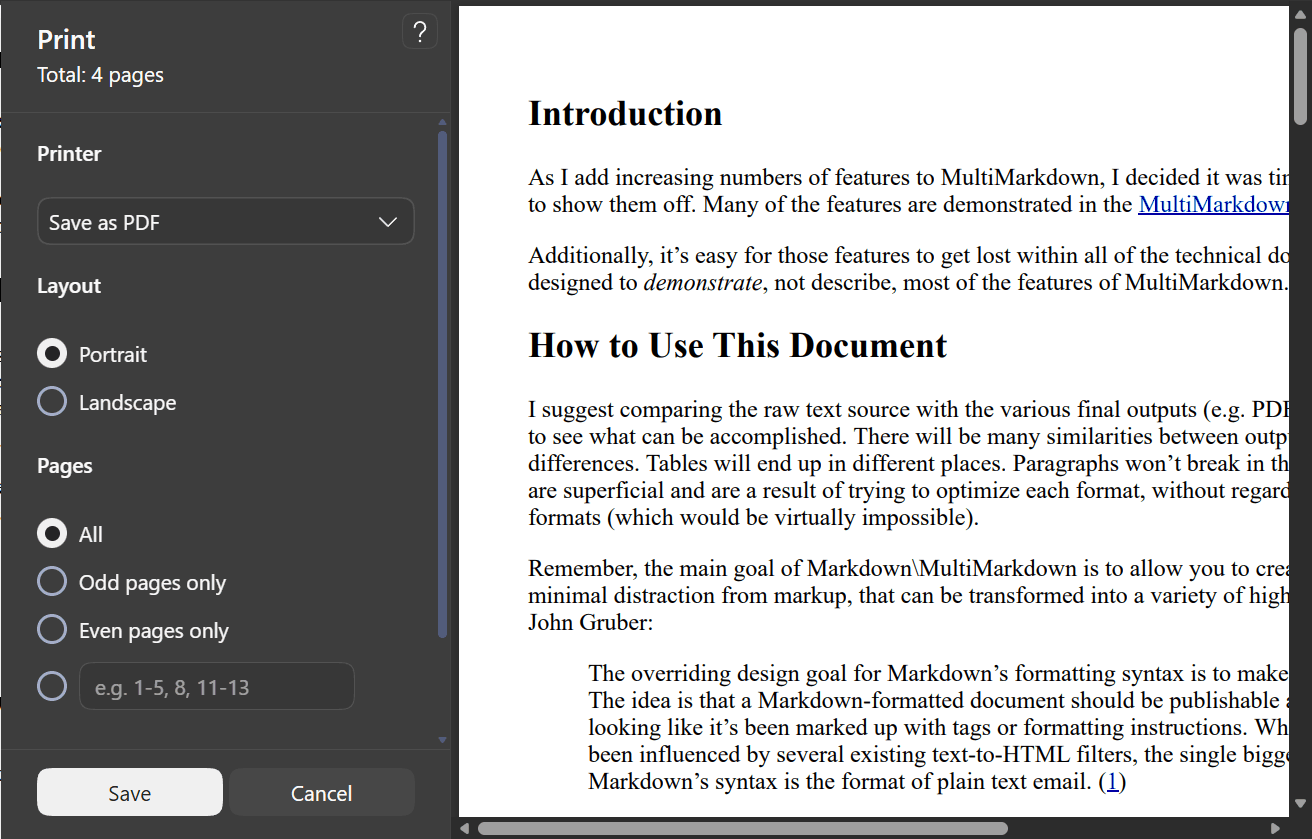
Open the HTML file or web page in your browser.
Press
Ctrl + Pto open the print dialog.Under "Destination" (or "Printer"), choose Save as PDF.
Adjust margins and layout if needed, then click Save.
On Mac (Safari, Chrome, or Edge)
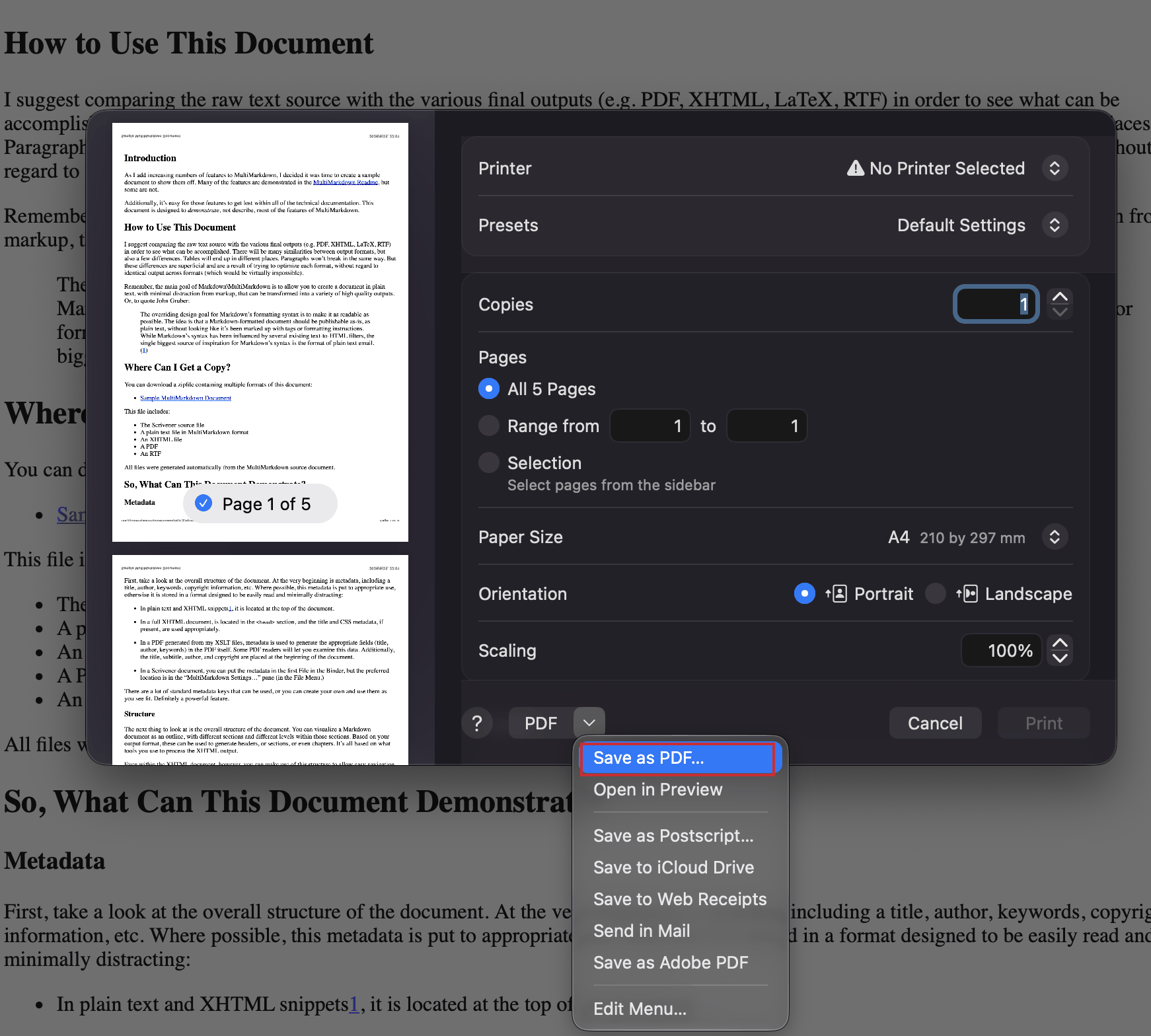
Open the file or page you want to convert.
Press
Cmd + P.Click the PDF dropdown in the bottom-left of the print dialog.
Select Save as PDF, choose a location, and save.
What works well — and what doesn't
This method is genuinely fine for simple pages — articles, receipts, basic reports. It's fast, free, and entirely offline, since the conversion happens on your machine.
Where it falls short: complex layouts, custom fonts, and CSS-heavy designs don't always survive the trip. You'll sometimes see broken grids, missing background colors, or elements that print correctly on-screen but not on paper. And there's no way to batch-convert 20 files at once — you're doing this one page at a time.
Free Online HTML to PDF Converters
Search "html to pdf converter" and you'll find plenty of options — Sejda, PDFCrowd, CloudConvert, SodaPDF, and similar sites all offer the same basic flow: paste a URL or upload a file, click convert, download the result.
Popular tools worth trying
These sites are genuinely useful for quick, one-off jobs, particularly when you're converting a public web page rather than a private document.
Limitations you should know about
The catch is right there in how they work: your file has to leave your computer. It gets uploaded to someone else's server, processed, and (hopefully) deleted afterward. For a public blog post, that's a non-issue. For a client contract, an internal report, or anything with personal data in it, it's a real concern.
On top of that, most free tiers cap your file size, limit how many conversions you get per day, or slap a watermark on the output unless you upgrade. Some also strip out interactive elements or mangle complex CSS in ways you won't notice until you open the PDF.
When an online tool is (and isn't) a good idea
Good fit: converting a public webpage, testing what a layout looks like as a PDF, or a single quick file with nothing sensitive in it.
Not a good fit: anything confidential, anything you need to convert in bulk, or anything where a watermark or size cap would be a problem.
Offline Desktop Software: Better Quality and Privacy
Why offline conversion often wins
Desktop tools flip the equation. The file never leaves your device, so there's nothing to upload and nothing to worry about from a privacy standpoint. Most also handle batch conversion — dozens or hundreds of files in one run — which no browser or free online tool will do. And because the software runs locally, you're not fighting daily limits or watermarks.
The trade-off is minor: you install something once, instead of just visiting a website. For anyone converting HTML files regularly, that's a small price for a lot fewer headaches.
Recommended tools for Windows and Mac
There are a handful of desktop options in this space, ranging from single-purpose converters to broader document utilities.
How Linraw doPDF's eBook to PDF Handles HTML Files
Linraw doPDF's eBook to PDF tool, part of its PDF toolset, is built to take HTML (along with formats like EPUB and TXT) and turn it into a properly formatted PDF — entirely on your own computer. It runs on both Windows and Mac, supports converting multiple files in a single batch, and doesn't send anything over the internet. For HTML files with real formatting — tables, images, custom styles — it renders the layout locally rather than relying on a remote server's interpretation of your CSS.
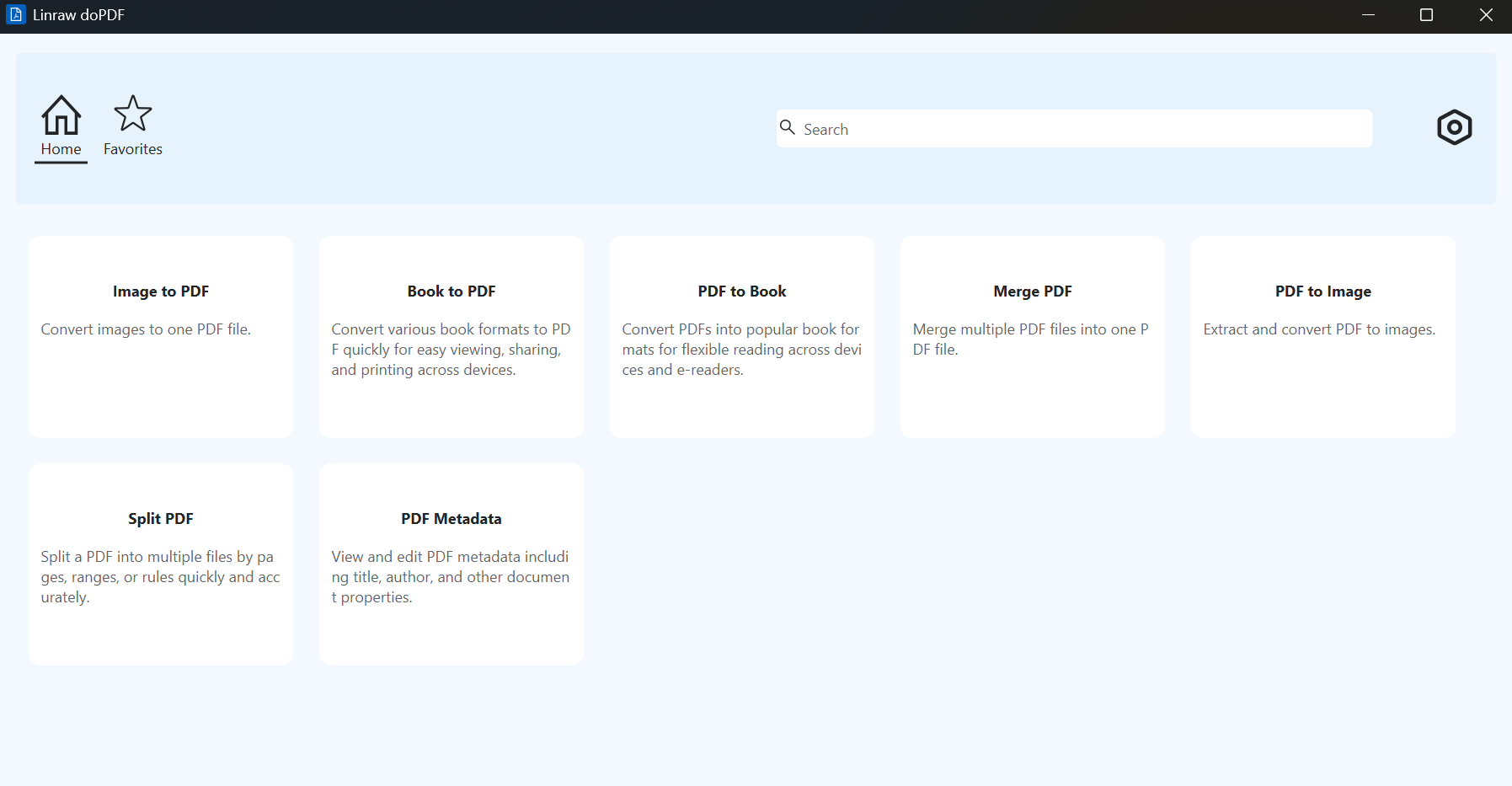
Step-by-Step: Convert HTML to PDF with Linraw doPDF
Step 1: Open the eBook to PDF Tool
Launch Linraw doPDF and select eBook to PDF from the tool categories.
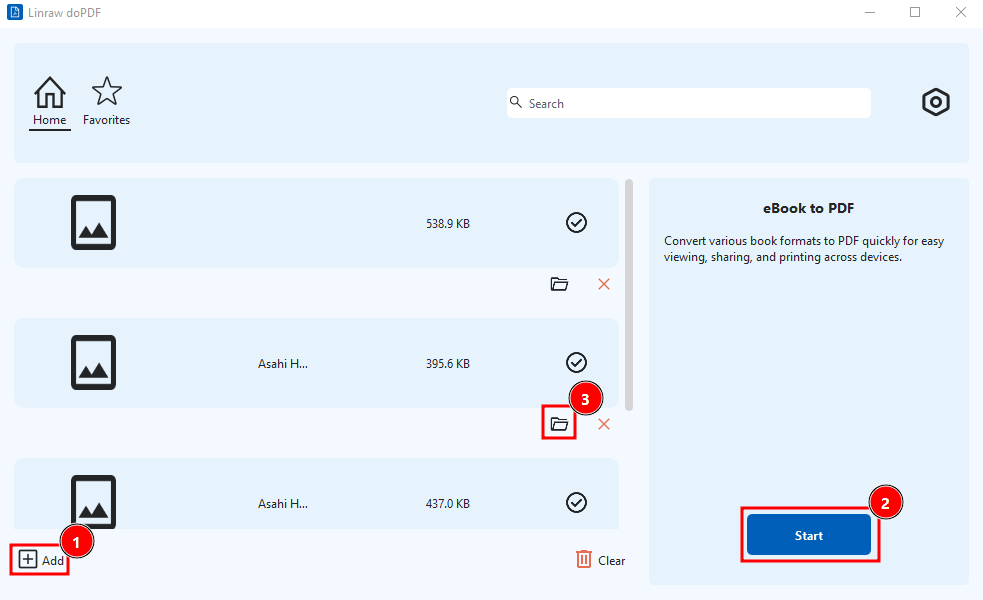
Step 2: Add Your HTML Files
Drag and drop your HTML file (or a whole folder of them) into the window, or use the Add Files button to browse and select them manually. You can queue up multiple files at once if you're converting in batch.
Step 3: Convert HTML to PDF
Click Start. Since everything runs locally, the process starts immediately — no upload, no waiting on a server.
Step 4: Check the Converted PDF Files
Once conversion finishes, open the output folder and review the PDFs. Check that images loaded, text formatting held up, and page breaks landed where you'd expect. If a file was particularly complex, it's worth a quick scroll-through before you send it anywhere.
Other Desktop Options Worth Considering
Built-in tools and free alternatives
Microsoft Word and LibreOffice Writer can both open an HTML file and export it as a PDF through File > Save As or Export. It works reasonably well for text-heavy pages, but layouts with a lot of CSS styling often don't translate cleanly — Word and Writer weren't really designed to render web pages.
Paid software comparison
There's also a tier of paid, more feature-heavy document suites — Adobe Acrobat being the best-known — that handle HTML to PDF conversion alongside a much larger set of editing and OCR tools. They're solid if you already own a license for other reasons, but overkill if HTML-to-PDF conversion is really all you need.
Side-by-Side Comparison: Browser vs Online vs Desktop
| Browser Print to PDF | Online Converter | Desktop Software (Linraw doPDF) | |
|---|---|---|---|
| Cost | Free | Free (with limits) / paid tiers | Free / one-time or low-cost |
| Speed & convenience | Instant, no install | Fast, but upload time adds up | Fast after a one-time install |
| File quality & layout accuracy | Good for simple pages | Varies by tool | Consistently strong, even for complex CSS |
| Privacy | Fully local | File uploaded to a server | Fully local, nothing uploaded |
| Batch conversion | No — one page at a time | Rarely, or paywalled | Yes |
| Best for | A single simple page, right now | Quick, non-sensitive public pages | Regular use, private files, bulk jobs |
Tips for Cleaner, More Professional PDFs
Preserving links, images, and CSS. Make sure image paths in your HTML are correct (relative paths can break if files move) and that any external stylesheets are properly linked — a converter can only preserve styling it can actually see.
Handling multi-page HTML or complex layouts. For long documents, keep an eye on how tables and images behave across page breaks. Adding simple page-break CSS rules to your HTML before converting can prevent awkward splits mid-table or mid-image.
Frequently Asked Questions
Can I convert HTML to PDF completely offline?
Yes. Desktop tools like Linraw doPDF's eBook to PDF, along with your browser's built-in Print to PDF, both run locally and don't require an internet connection once the software or browser is already installed.
What's the best free way on Windows and Mac?
For a single simple page, your browser's Print to PDF is the quickest option. For anything with complex formatting, multiple files, or private content, a dedicated offline tool gives better and more consistent results.
Will the PDF keep the original formatting?
It depends on the converter's rendering quality. Browsers handle basic pages well but can stumble on advanced CSS. Dedicated desktop converters, including Linraw doPDF, are generally built to render layouts more faithfully to the original.
How do I convert multiple HTML files at once?
Batch conversion isn't available in most browsers or free online tools. Desktop software like Linraw doPDF supports adding several files (or a whole folder) and converting them in one run.
Is there a difference between HTML files and live web pages?
Not fundamentally — a live web page is just HTML being served over the internet rather than sitting on your hard drive. Most converters, including Linraw doPDF's, can handle a local HTML file directly; for a live page, you'd typically save it first or provide the URL if the tool supports that.
Final Thoughts: Which Method Should You Choose?
There's no single "best" method — it depends on what you're converting and how often. For a one-off, simple page, your browser's built-in Print to PDF is hard to beat for convenience. For a quick public webpage, an online converter works fine as long as you're comfortable with the upload.
But if you're converting anything private, anything with real formatting to preserve, or more than a file or two at a time, offline desktop software is the more reliable choice — and it's the only option here that keeps your files entirely on your own machine. That's exactly what Linraw doPDF's eBook to PDF tool is built for: fast, private, batch-friendly HTML to PDF conversion on both Windows and Mac, with nothing uploaded and nothing to sign up for.
However, if your workflow involves multiple types—such as images, audio, video, PDFs, or eBooks—then Linraw doUltra is a more powerful all-in-one option.
Related Chapters
