How to Encrypt a File with a Password (Windows & Mac, Free Tools Included)
Protecting sensitive files doesn’t have to be complicated. Whether you’re dealing with tax documents, contracts, personal photos, or work reports, encrypting a file with a password is one of the simplest ways to keep the contents private. This guide walks you through practical methods that work on both Windows and Mac, including a straightforward desktop tool called Linraw doTool, plus free built-in options and other alternatives.
Introduction
What Does It Mean to Encrypt a File with a Password?
Encrypting a file means scrambling its contents so that only someone with the correct password can read it. Without the password, the file appears as unreadable data. Once you enter the right password, the original file is restored. This is different from simply hiding a file or locking a folder—true encryption protects the actual content.
Why You Should Encrypt Sensitive Files
Laptops get lost. USB drives get left behind. Emails get forwarded by mistake. Even cloud storage accounts can be compromised. Encrypting files adds a strong layer of protection so that if someone else gains access to the file itself, they still can’t open it without the password.
What You’ll Learn in This Guide
You’ll see how to encrypt and decrypt files using Linraw doTool on both Windows and Mac, plus other free methods, a clear comparison of the options, common use cases, troubleshooting tips, and answers to frequently asked questions.
Why Encrypt Files with a Password?
Risks of Leaving Files Unprotected
An unencrypted file on a lost laptop, shared drive, or email attachment can expose personal information, financial details, or confidential work data. In many cases, the person who finds the device doesn’t even need advanced skills—they can simply open the file.
Common Use Cases
People encrypt files for everyday reasons: personal tax returns and medical records, client contracts and business proposals, backup archives stored on external drives, and documents that need to be sent by email without relying solely on the email provider’s security.
Encryption vs. Simple Password Protection – What’s the Difference?
Many programs offer “password protection,” but not all of them actually encrypt the data. Older Office password features or basic ZIP encryption can sometimes be bypassed with free tools. Proper encryption (especially AES-based) makes the content unreadable without the correct password or key. That’s the level of protection most people actually want.
How to Encrypt a File with Password on Windows & Mac (Using Linraw doTool)
Linraw doTool is a lightweight desktop utility that works on both Windows and Mac. Among its small tools is a dedicated Encrypt File feature that lets you protect any file with a password. The matching Decrypt File tool restores the original file when you need it.
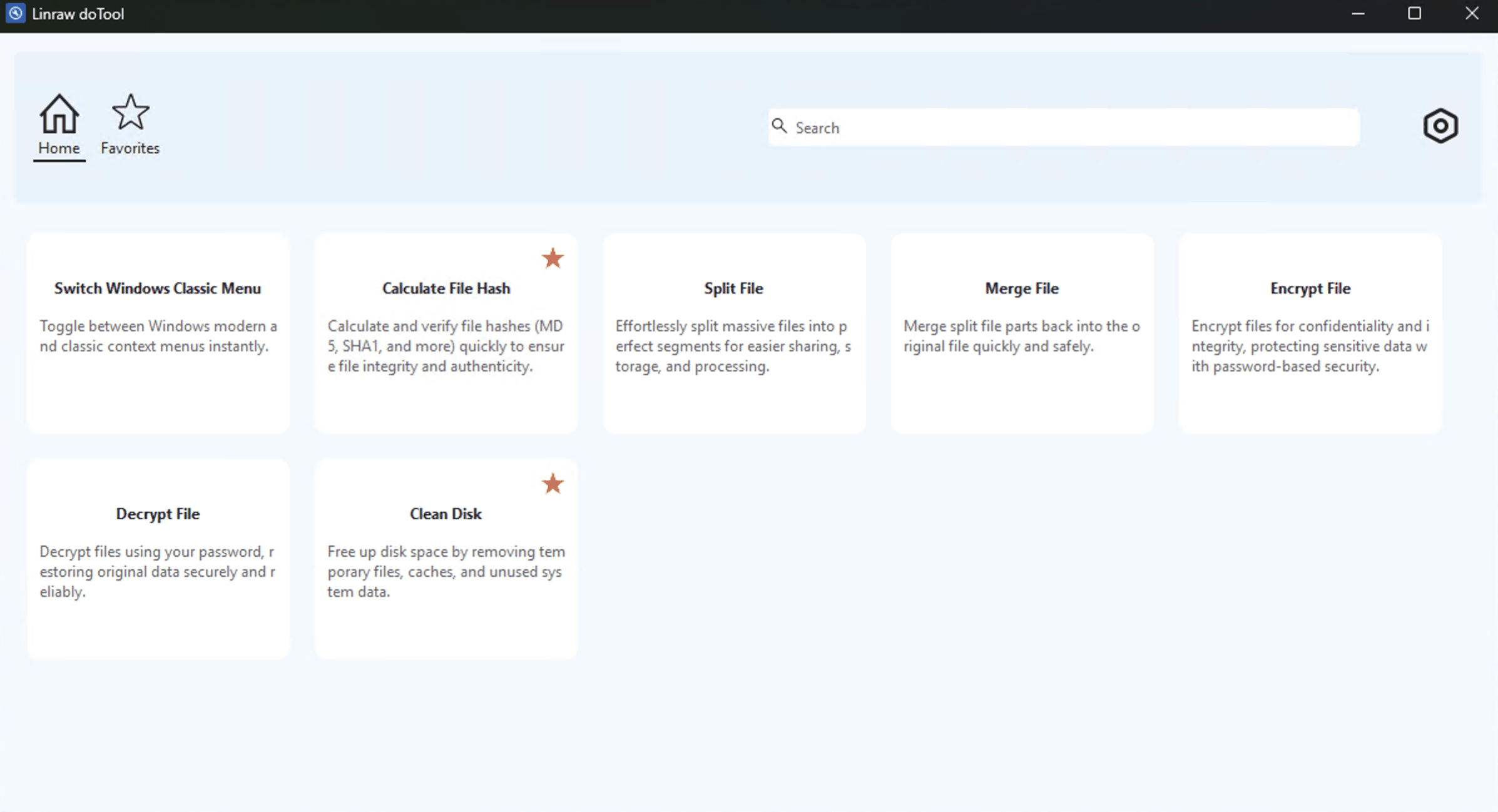
Step 1: Open the Encrypt File Tool
Launch Linraw doTool and select the Encrypt File tool from the list of utilities. The interface is simple and the same on both operating systems.
Step 2: Add Files to Encrypt
Click the option to add files (or drag and drop them). You can usually select one file or several at once, depending on the version.
Step 3: Set a Strong Password
Enter a strong password or passphrase. Longer is better—aim for a mix of words, numbers, and symbols that you can remember or store safely in a password manager. Confirm the password when prompted.
Step 4: Encrypt and Save the File
Start the encryption process. Linraw doTool creates an encrypted version of the file. Once it finishes, store the encrypted file in a safe location and, if appropriate, delete or securely erase the original unencrypted copy. Keep the password somewhere secure.
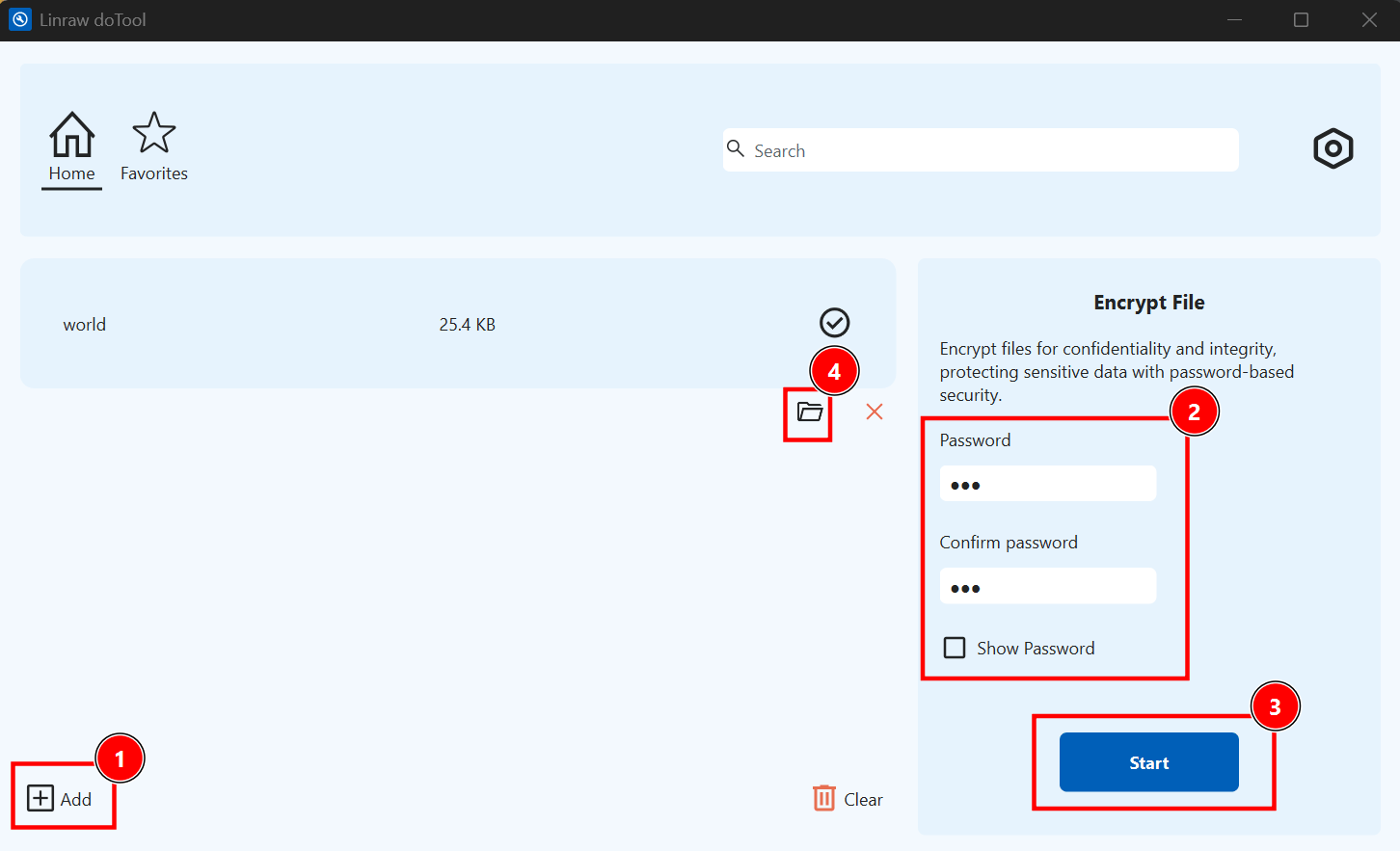
The process works the same way whether you’re on Windows or Mac, which is one of the practical advantages of using a cross-platform tool.
How to Decrypt a File Back to Its Original Form
When you need the original file again, use the Decrypt File tool in Linraw doTool.
Step 1: Open the Decrypt File Tool
Launch Linraw doTool and choose the Decrypt File utility.
Step 2: Select the Encrypted File
Browse to or drag in the encrypted file you created earlier.
Step 3: Enter the Password
Type the same password you used during encryption. If the password is correct, decryption begins.
Step 4: Recover the Original File
Linraw doTool restores the file to its original form. You can then open it with the usual application.
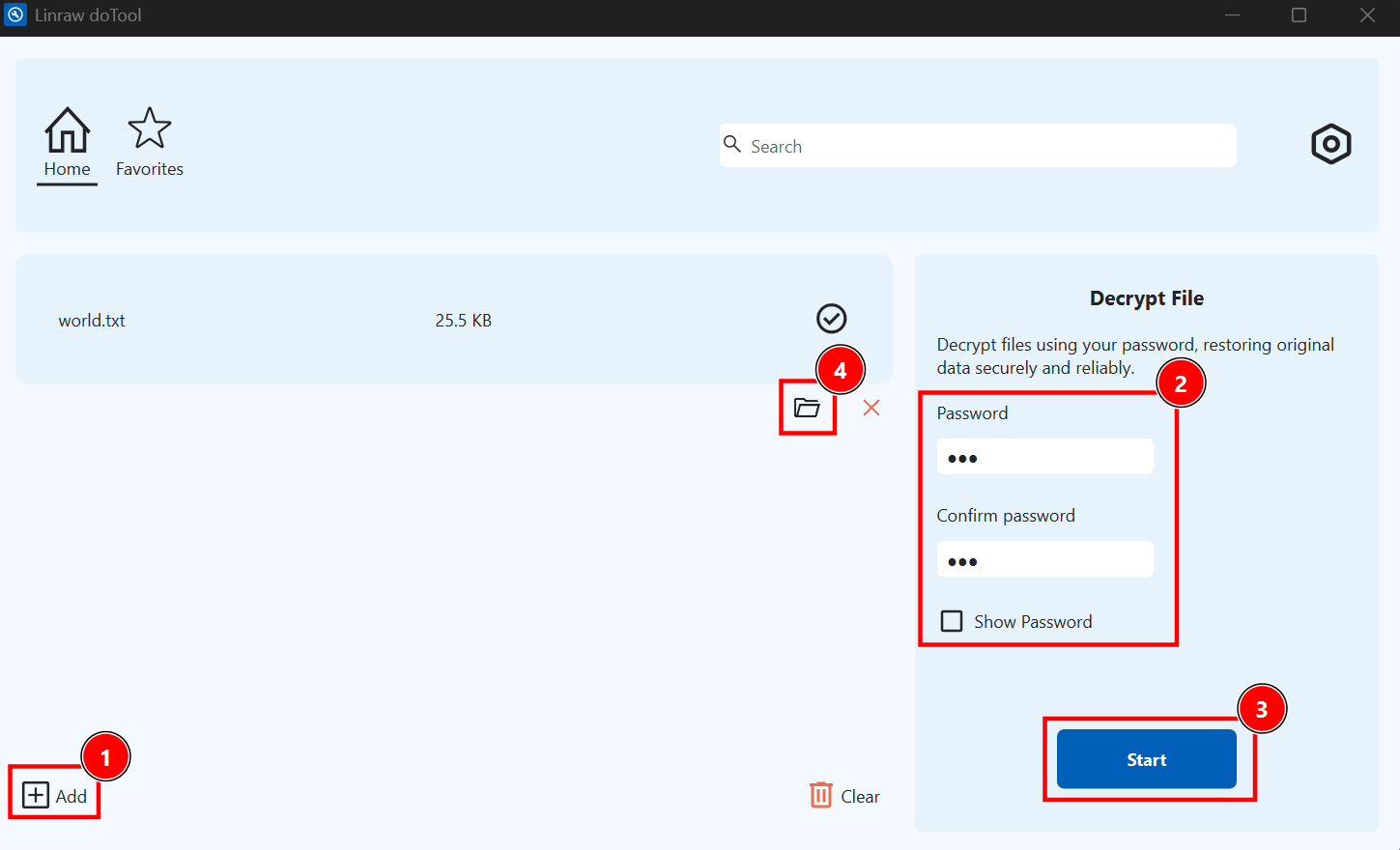
This encrypt-and-decrypt pair keeps the workflow simple: protect the file when you need privacy, restore it when you need to work with it.
Other Ways to Encrypt Files (Alternative Solutions)
1. Built-in Windows Encryption (EFS / BitLocker)
Windows Pro, Enterprise, and Education editions include Encrypting File System (EFS) for individual files and folders, plus BitLocker for full-drive encryption.
Pros and Cons
EFS is convenient because it integrates with File Explorer, but it is tied to your Windows user account. Moving the file to another computer or user often requires extra steps. BitLocker protects entire drives but is overkill if you only need to secure a few files. Home editions of Windows lack EFS.
When to Use
Use EFS when you mainly work on one Windows machine and want transparent protection. Use BitLocker for whole-disk security on laptops that travel.
2. macOS Built-in Encryption (FileVault / Disk Utility)
macOS offers FileVault for full-disk encryption and Disk Utility for creating encrypted disk images or folders.
Pros and Cons
FileVault is excellent for protecting the entire Mac, but it doesn’t help when you only want to encrypt individual files for sharing. Disk Utility can create password-protected disk images that work well for groups of files, though the process is a bit more involved than a simple “encrypt this file” button.
Limitations
These tools are Mac-only. Sharing an encrypted disk image with Windows users usually requires extra software or conversion steps.
3. Using Archive Tools (ZIP with Password)
7-Zip (Windows) and the built-in zip tools on Mac can create password-protected archives.
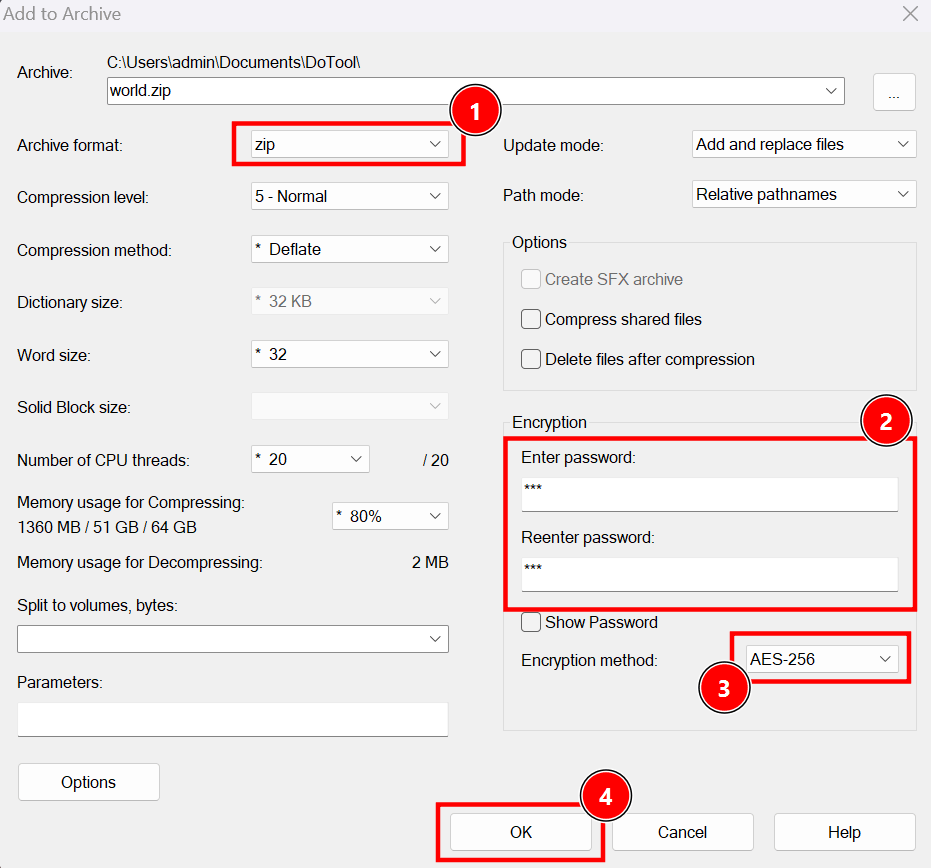
Ease of Use vs Security
Creating a password-protected ZIP is quick and familiar. However, older ZipCrypto encryption is weak. Always choose AES-256 when the tool offers it (7-Zip does). Even then, archive-based protection is generally considered lower security than dedicated file encryption for highly sensitive data.
Compatibility Considerations
Most people can open a password-protected ZIP, which makes it convenient for sharing. Just remember that recipients need the password and a tool that supports the encryption method you chose.
4. Command Line Tools (Advanced Users)
Tools such as OpenSSL and GPG let you encrypt files from the terminal.
OpenSSL / GPG Overview
Both support strong algorithms (AES-256 and others). GPG is especially useful if you also need public-key encryption for sharing with others.
Using OpenSSL to protect file
# Encrypt file with OpenSSL
openssl aes-256-cbc -salt -in document.txt -out document.enc

# Decrypt file with OpenSSL
openssl aes-256-cbc -d -in document.enc -out document_decrypted.txt
Using GPG to protect file
# Generate a GPG key first
gpg --full-generate-key

# Encrypt a file with GPG
gpg --encrypt --recipient your-email@example.com document.txt

# Decrypt a file with GPG
gpg --decrypt document.txt.gpg > document_decrypted.txt
Complexity vs Flexibility
These tools give maximum control and can be scripted, but they require comfort with the command line and careful handling of keys or passphrases. Mistakes are easy to make and hard to recover from.
5. Online File Encryption Tools
Browser-based encryptors let you drag a file into a webpage, set a password, and download the encrypted version.
Convenience vs Privacy Risks
They are fast and require no installation. The downside is that your file is processed in the browser (or sometimes uploaded). Even if the site claims everything happens locally, you are still trusting the page’s code and the network connection.
When to Avoid Online Tools
Avoid them for highly sensitive documents, large files, or anything you would not want a third party to potentially access. Offline desktop tools are safer for anything important.
Comparison: Best File Encryption Methods
| Method | Security Level | Ease of Use | Offline | Cross-Platform | Best For |
|---|---|---|---|---|---|
| Linraw doTool Encrypt File | High | Easy | Yes | Yes | Most users |
| Windows Built-in | Medium | Medium | Yes | No | Windows users |
| macOS Built-in | Medium | Medium | Yes | No | Mac users |
| ZIP Password | Low–Medium | Easy | Yes | Yes | Quick sharing |
| Command Line Tools | Very High | Hard | Yes | Yes | Advanced users |
| Online Tools | Varies | Easy | No | Yes | Temporary use |
Common Use Cases for File Encryption
Encrypting Personal Documents — Tax forms, medical records, ID scans, and private correspondence.
Protecting Business Files — Contracts, financial spreadsheets, client data, and internal reports.
Securing Backups — Encrypted copies of important folders on external drives or NAS devices.
Sending Files Safely via Email — Attach the encrypted file and send the password through a different channel (text message, phone call, or password manager share).
Frequently Asked Questions (FAQ)
Is encrypting a file the same as password protecting it?
Not always. True encryption scrambles the content. Some “password protect” features only restrict opening the file without properly encrypting the data underneath.
What is the safest way to encrypt files?
Use a reputable offline tool that supports strong encryption (AES-256 or equivalent), choose a strong unique password, and keep the original unencrypted copy only if you still need it and can store it securely.
Can encrypted files be hacked?
Strong modern encryption with a good password is extremely difficult to break. Weak passwords or outdated algorithms are the usual weak points.
What happens if I forget the password?
In almost all cases the file cannot be recovered. There is usually no backdoor. Store passwords safely.
Can I encrypt multiple files at once?
Many tools, including Linraw doTool and archive utilities, allow selecting several files or an entire folder.
Is offline encryption better than online tools?
For sensitive data, yes. Offline tools keep the file on your device and do not rely on a website’s code or servers.
How do I decrypt a file back to normal?
Use the matching decrypt function (in Linraw doTool, the Decrypt File tool), enter the correct password, and restore the original file.
Troubleshooting
Incorrect Password Issues
Double-check capitalization, keyboard layout, and whether Caps Lock is on. If you used a password manager, make sure you copied the exact entry.
File Not Opening After Encryption
Confirm you are using the correct decrypt tool or method that matches how the file was encrypted. An encrypted file will not open in the original application until it is decrypted.
Compatibility Problems
Files encrypted with Windows EFS may not open easily on another computer or operating system. Cross-platform tools like Linraw doTool or AES-encrypted archives travel more cleanly.
Lost or Corrupted Files
Always test decryption right after encrypting a file, before deleting the original. Keep backups of important encrypted files and store the password separately.
Conclusion
Key Takeaways
Encrypting a file with a password is a practical way to protect private information on both Windows and Mac. Built-in tools work well for some situations, archive methods are convenient for sharing, and dedicated desktop utilities offer a good balance of simplicity and security.
Best Method Recommendation
For most people who want a quick, offline, cross-platform solution, a dedicated tool such as Linraw doTool’s Encrypt File and Decrypt File pair is hard to beat. It avoids the limitations of OS-specific features and the privacy questions that come with online services.
Why Use Linraw doTool for File Encryption
Linraw doTool keeps the process straightforward: open the tool, add the file, set a password, and encrypt. When you need the original again, the matching decrypt tool restores it. Because it runs on both Windows and Mac, you get the same workflow no matter which computer you’re using. For everyday file protection without complicated setup, it is one of the more practical options available.
However, if your workflow involves multiple types—such as images, audio, video, PDFs, or eBooks—then Linraw doUltra is a more powerful all-in-one option.
