How to Extract Audio from Video on Windows & Mac (Free & Offline)
Introduction: Why Extract Audio from Video?
Sometimes the video itself isn't what you're after — it's the sound. Maybe you recorded a lecture and just need the audio to listen to on your commute. Maybe you're pulling a music sample from a clip, repurposing a webinar as a podcast episode, or grabbing the voiceover from an old project file. Whatever the reason, extracting audio from video is one of those small tasks that comes up more often than people expect, and there are a lot of different ways to do it — some fast and painless, others slower and more fiddly than they need to be.
This guide walks through five practical methods for both Windows and Mac: a dedicated desktop app (Linraw doAudio), the free media player VLC, the command-line tool FFmpeg, Apple's built-in QuickTime Player, and a handful of browser-based online extractors. We'll also cover how to keep your audio quality intact, common problems people run into, and which method actually makes sense for your situation — because "best" depends a lot on whether you're extracting one file or fifty.
Why Extract Audio from Video?
Save storage by removing video. Video files are big. If all you need is the audio track — for archiving a recording or freeing up space on your drive — stripping out the video portion can shrink a multi-gigabyte file down to a few megabytes.
Reuse audio for editing or sharing. Podcasters, musicians, and video editors often need to isolate a clean audio track to edit separately, layer into a new project, or send to someone who only needs to hear it, not watch it.
Improve workflow for content creators. If you're repurposing long-form video into short clips, transcripts, or audio-only content (like turning a YouTube video into a podcast episode), extracting the audio first is usually the quickest starting point.
Method 1: Extract Audio from Video Using Linraw doAudio (Recommended)
For most people, a dedicated desktop tool is the easiest way to do this — no command line, no upload wait times, and no wondering where your file just went on the internet. Linraw doAudio's Extract Audio from Video tool is built for exactly this kind of task.
A few reasons it tends to work better than the alternatives below:
Runs entirely offline. Your video never leaves your computer, which matters if you're working with anything private (client footage, internal meetings, unreleased content).
No file-size ceiling. Browser tools often cap uploads at a few hundred MB. Linraw doAudio processes files locally, so a two-hour 4K recording is handled the same as a short clip.
Batch extraction. Point it at a folder of videos and extract audio from all of them in one pass, instead of uploading files one at a time.
No watermarks, no forced sign-up. It's a straightforward desktop utility — install it, use it, done.
Works on both Windows and Mac, with the same interface on either platform.
Step-by-Step: Extracting Audio with Linraw doAudio
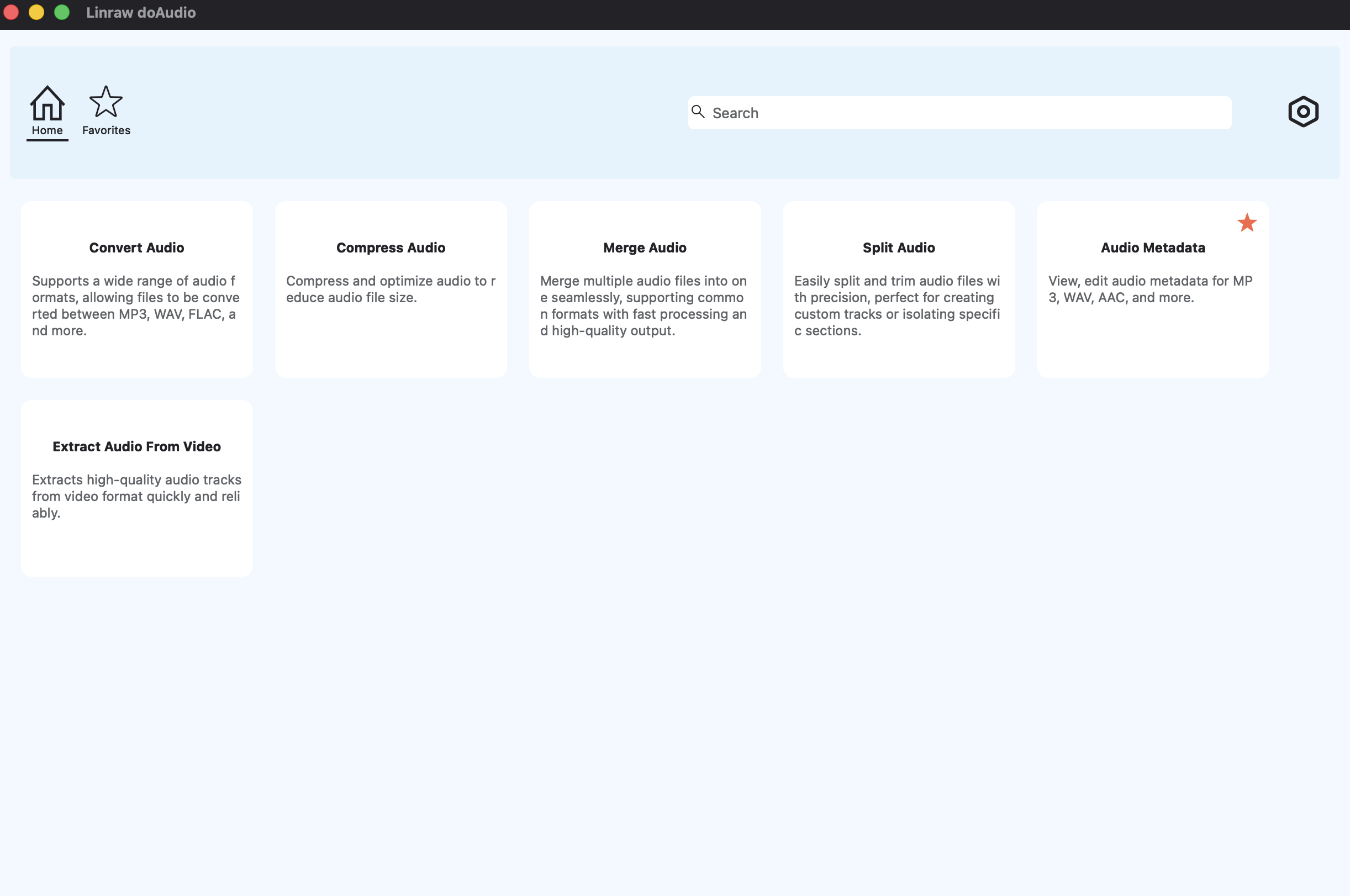
Download and install Linraw doAudio. It's available for both Windows and macOS — grab the version that matches your system and run through the installer.
Open the Extract Audio from Video tool. Open the software, locate the "Extract Audio from Video" tool among the audio tools, and click it to get started.
Import your video file, or several at once. Drag and drop a single file for a quick job, or select a whole batch if you're processing multiple videos — Linraw doAudio handles both the same way.
Start the extraction and locate your audio file. Hit start, and Linraw doAudio saves the finished audio file to your chosen folder — ready to play, edit, or share.
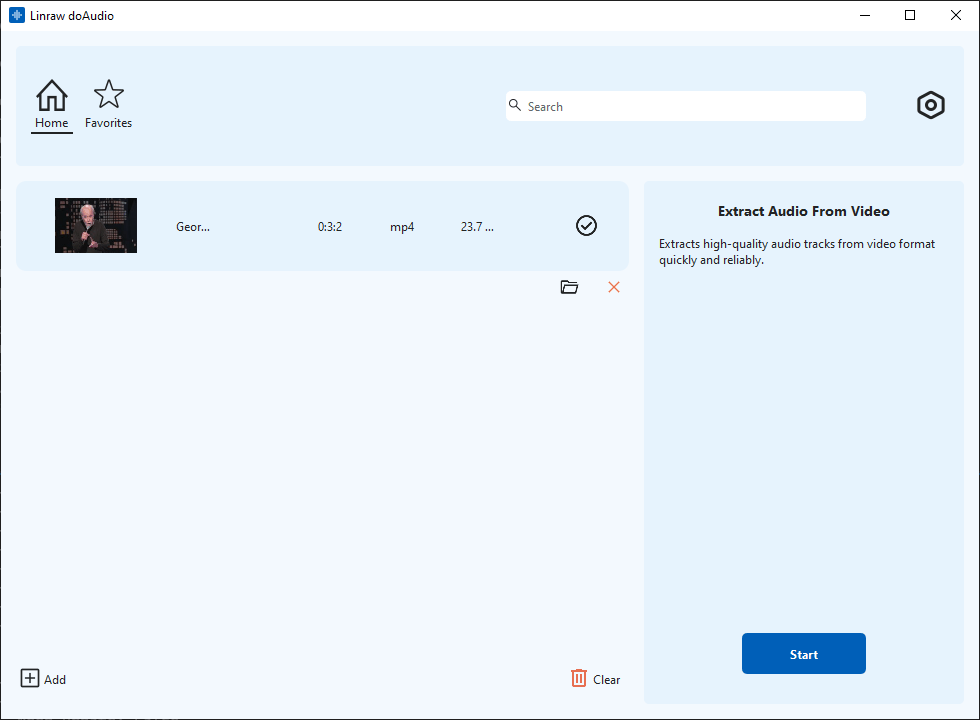
That's the whole process. For a single short clip it takes seconds; for a batch of longer files, it's still faster than uploading each one individually to a web tool.
Method 2: Extract Audio Using VLC (Free, Manual)
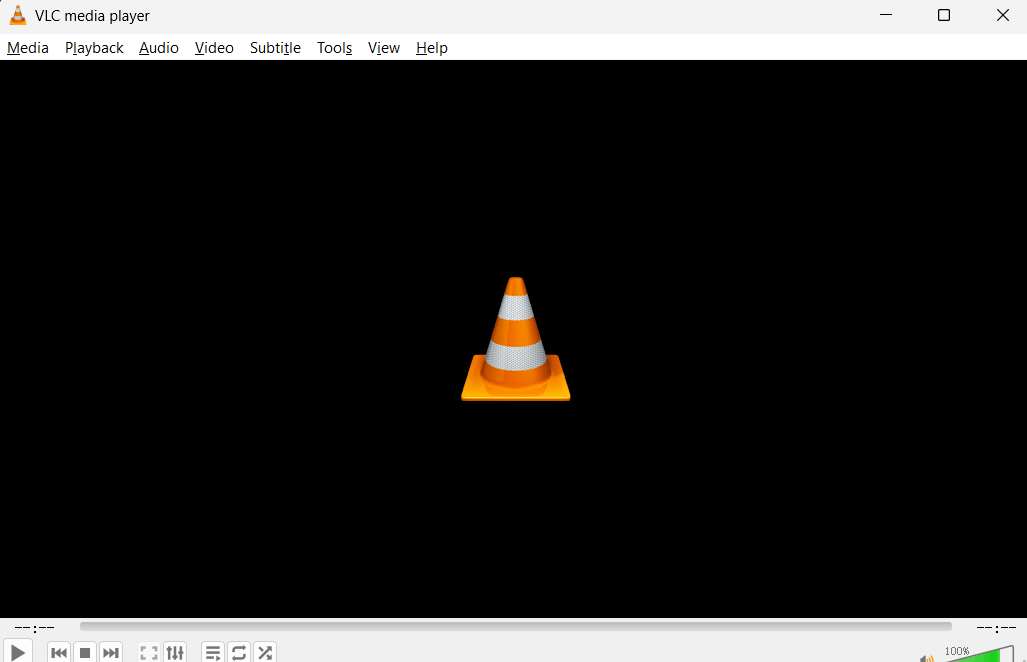
VLC Media Player isn't built specifically for audio extraction, but it can do it through its Convert/Save feature, and since most people already have VLC installed, it's a reasonable free fallback.
Open VLC and go to Media > Convert/Save.
Add your video file, then click Convert/Save.
Under Profile, choose an audio-only format (such as MP3 or WAV).
Set your output file name and location, then click Start.
Limitations: VLC's conversion menu wasn't designed with this task in mind, so it's not always obvious which profile actually strips the video and keeps only audio — a bit of trial and error is common the first time. There's also no batch mode, so you're doing this one file at a time.
Method 3: Extract Audio Using FFmpeg (Command Line)
FFmpeg is the tool a lot of other audio and video utilities are built on top of, and if you're comfortable with a terminal, it's fast and flexible. A basic extraction involves pointing FFmpeg at your video file, telling it to drop the video stream, and specifying an audio codec for the output — all in a single command line instruction.
ffmpeg -i input-video.mp4 -vn -c:a copy output-audio.m4a
Best for: developers, technical users, or anyone who wants to script or automate extraction across many files.
Limitations: There's no graphical interface, so every option has to be typed out correctly, and the learning curve is steep if you've never used a command-line tool before. One typo and the command simply fails.
Method 4: Extract Audio Using QuickTime (Mac Only)
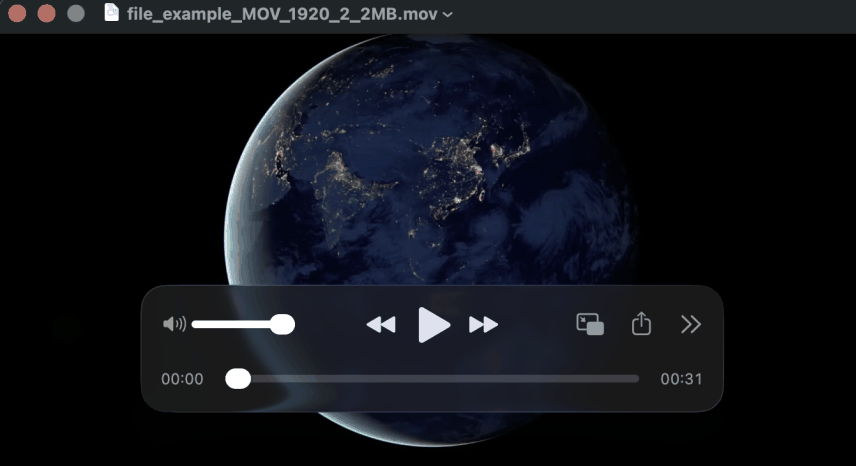
If you're on a Mac and don't want to install anything extra, QuickTime Player has a built-in export option that isolates the audio track.
Open your video file in QuickTime Player.
Go to File > Export As, and look for an audio-only option (labeled "Audio Only" in most versions).
Choose your save location and export.
Limitations: This only works on macOS, and QuickTime doesn't give you much control over format or quality — you generally get whatever default it chooses, without the option to pick between MP3, WAV, or FLAC.
Method 5: Online Audio Extractors (Restream, Flixier, and Others)
There's no shortage of browser-based tools — Restream, Flixier, and similar sites — that let you upload a video and download the extracted audio without installing anything.
How they work: upload your file, wait for it to process on their servers, then download the result.
Pros: nothing to install, works from any device with a browser, fine for a quick one-off file.
Cons: most impose file-size caps that make them impractical for longer recordings, your video has to be uploaded to a third-party server (a real concern for anything sensitive), you need a stable internet connection for the upload and download, and many push you toward creating an account or sitting through ads before you get your file. They're also noticeably slower once you're processing more than one video.
Comparison Table: Linraw doAudio vs. VLC vs. FFmpeg vs. QuickTime vs. Online Tools
| Feature | Linraw doAudio | VLC | FFmpeg | QuickTime | Online Tools |
|---|---|---|---|---|---|
| Platform | Windows & Mac | Windows & Mac | Windows & Mac | Mac only | Any (browser) |
| Batch processing | Yes | No | Yes (scripted) | No | Rarely |
| File size limit | None | None | None | None | Often capped |
| Offline / private | Yes | Yes | Yes | Yes | No (upload required) |
| Output formats | MP3, WAV, AAC, FLAC | Limited, confusing menu | Any (manual setup) | Very limited | Usually MP3/WAV only |
| Ease of use | Easy | Moderate | Hard (command line) | Easy | Easy |
| Price | Free | Free | Free | Free (Mac only) | Free / freemium |
Takeaway: if you only need one small file extracted and don't mind uploading it somewhere, an online tool will do the job. But the moment you're dealing with a large file, a batch of videos, or anything you'd rather keep off someone else's server, a desktop tool like Linraw doAudio is the more practical option — it covers everything the free alternatives do, without their limitations.
Which Method Should You Use? (Decision Guide)
Want the easiest all-in-one desktop tool? Go with Linraw doAudio — it covers single files and batches, on both Windows and Mac, without uploading anything.
Already comfortable with the command line? FFmpeg gives you the most control and scripting flexibility.
Just need one quick, one-off file and already have the software open? VLC or QuickTime will get it done without installing anything new.
Can't install software, like on a shared or work computer? An online tool is the workaround — just be mindful of file-size limits and what you're uploading.
How to Preserve Audio Quality When Extracting
Not all audio formats are equal, and picking the wrong one can leave you with a file that sounds noticeably worse than the source.
Lossless formats (WAV, FLAC) keep every bit of the original audio data intact. They're larger files, but nothing is thrown away — ideal if you plan to edit the audio further or care about archival quality.
Lossy formats (MP3, AAC) compress the audio by discarding some data, which makes for much smaller files at a small cost to quality. For most everyday listening, the difference is barely noticeable.
Rough guidelines by use case:
Podcasts: MP3 at 128–192 kbps is a solid middle ground between file size and clarity.
Music sampling or further editing: stick with WAV or FLAC so you're not compounding quality loss.
Transcription: MP3 at 128 kbps is more than sufficient — speech-to-text tools don't need studio-quality audio.
Common Problems & Fixes
No sound, or audio out of sync after extraction. This usually points to a codec mismatch. Try re-exporting with a different audio format, and make sure your source video isn't using an unusual or corrupted audio stream.
Unsupported video format. Older or more obscure video formats sometimes aren't recognized by every tool. Linraw doAudio supports a wide range of common formats, but if you hit an error, try converting the video to MP4 first, then extracting the audio.
Batch extraction fails partway through. This is often caused by one corrupted or unusually formatted file interrupting the batch. Try removing the problem file and running the rest of the batch separately, then troubleshoot that one file on its own.
FAQ
Can I extract audio from a video without losing quality?
Yes — export to a lossless format like WAV or FLAC instead of a compressed format like MP3. This keeps the original audio data fully intact.
What's the best free way to extract audio from video on Windows?
Linraw doAudio is a solid free option since it works offline, handles batches, and isn't limited by file size. VLC is another free choice if you only need to extract one file occasionally.
Can I extract audio from video on Mac without QuickTime?
Yes. Linraw doAudio, VLC, and FFmpeg all work on macOS and give you more format and quality options than QuickTime's built-in export.
Is it safe to use online audio extractors?
It depends on the tool and what you're uploading. For sensitive or private footage, an offline desktop tool is the safer choice since the file never leaves your computer.
Can I extract audio from multiple videos at once?
Yes, with a tool that supports batch processing — Linraw doAudio and FFmpeg (via scripting) both allow this. Most online tools and QuickTime process one file at a time.
What audio format should I use for podcasts?
MP3 at 128–192 kbps is standard for podcasts — it keeps file sizes manageable without a noticeable drop in quality for spoken word.
Does Linraw doAudio work offline?
Yes. All processing happens locally on your computer, so no internet connection or file upload is required.
Conclusion
There's more than one way to pull audio out of a video, and which one makes sense really comes down to how often you're doing it and what you're working with. VLC and QuickTime are fine for the occasional single file if you already have them open. FFmpeg is great if you're technical and want full control. Online tools work in a pinch, as long as you're not dealing with a large file or anything private.
For everything else — batches, large files, or just wanting a straightforward tool that works the same way every time — Linraw doAudio covers all of it in one place, entirely offline, on both Windows and Mac. If you're extracting audio from video more than once in a while, it's worth just downloading Linraw doAudio and having the tool ready to go.
However, if your workflow involves multiple types—such as images, audio, video, PDFs, or eBooks—then Linraw doUltra is a more powerful all-in-one option.
Related Chapters
