How to Convert DOCX to PDF on Windows & Mac (Free & Offline)
You finish a report, a resume, or a contract in Word. Before you send it, you need to turn it into a PDF. It sounds simple, but the results can vary a lot depending on how you convert it. Fonts change, tables shift, and sometimes the file ends up huge.
This guide covers six ways to convert DOCX to PDF on Windows and Mac. Most of them are free and work offline, so your documents never have to leave your computer. We'll also compare the methods, share tips for keeping your layout intact, and fix the most common problems.
Why Convert DOCX to PDF in the First Place?
When a PDF is the better choice
A DOCX file is made to be edited. A PDF is made to be read. That difference matters more than it seems.
It looks the same everywhere. A DOCX can change depending on the device, the Word version, or the fonts installed. A PDF keeps the layout fixed on Windows, Mac, phones, and browsers.
It's safer to share. Recipients can't accidentally change your text, and you won't send tracked changes or comments by mistake.
It's what people expect. Job applications, invoices, contracts, and school assignments are usually requested as PDFs.
It prints predictably. Page breaks stay where you put them.
Why offline conversion is worth considering
Online converters are convenient, but they mean uploading your file to someone else's server. That's fine for a flyer, but not so great for a contract, a medical form, or anything with personal data.
Offline conversion avoids the problem. Your file stays on your computer, there are no upload limits, and it works without an internet connection. It's also often faster, especially for large documents or many files at once.
The Quickest Way: Convert DOCX to PDF with Linraw doPDF
Linraw doPDF is a desktop toolkit for Windows and Mac. It bundles tools for images, audio, video, PDF, ebooks, and more. Its eBook to PDF tool can also convert DOCX files, and it runs entirely on your computer.
What you need before you start
Linraw doPDF installed on your Windows PC or Mac
One or more DOCX files
A folder where you want the PDFs saved
You don't need Microsoft Word installed. You don't need an account or an internet connection either.
Step-by-step: using the eBook to PDF tool
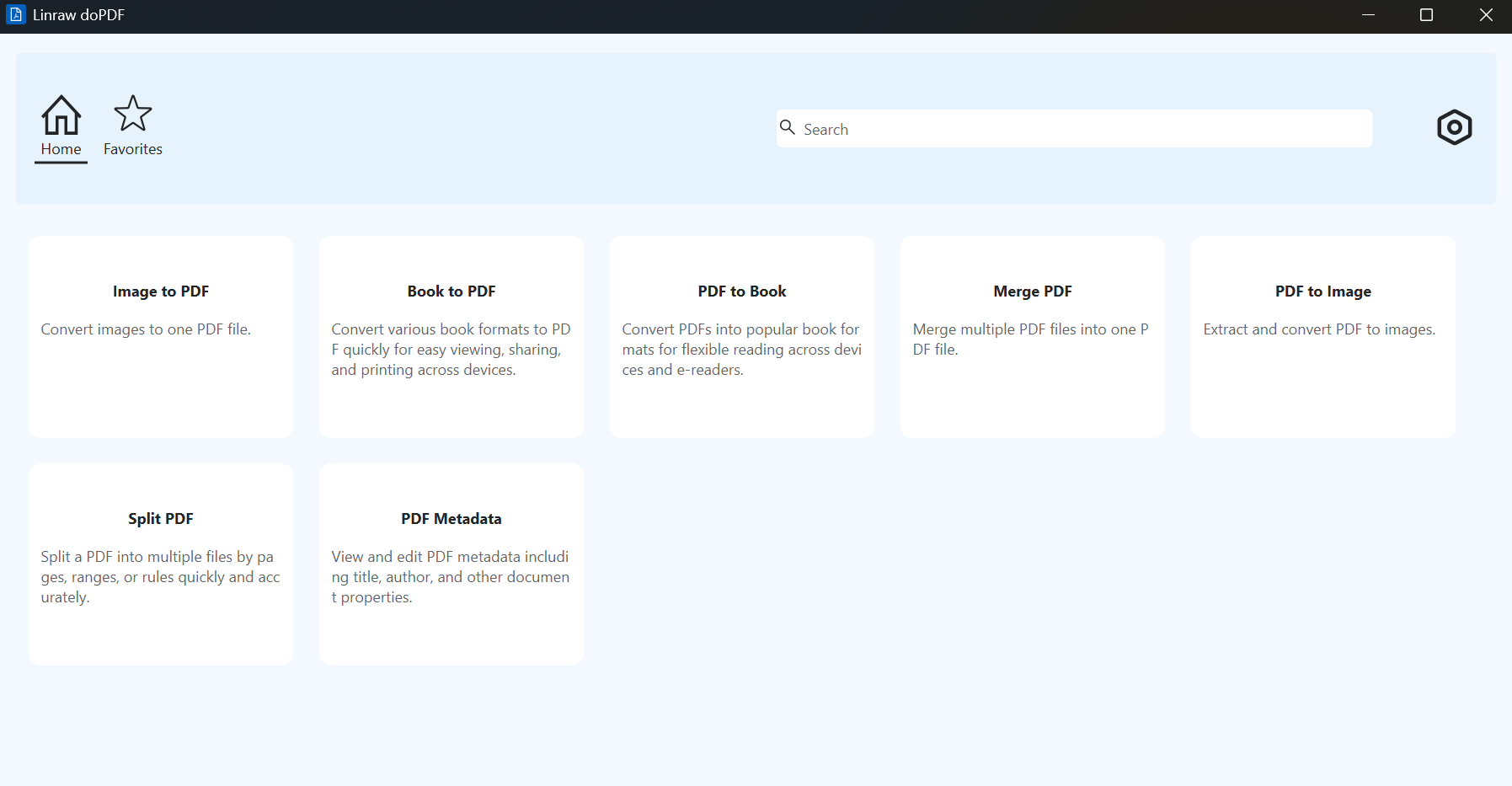
Open Linraw doPDF and go to the ebook category.
Choose "eBook to PDF" tool
Add your file. Click the add button and pick your DOCX, or just drag it into the window.
Click Start. Most documents finish in a few seconds.
Open the PDF and quickly scroll through it to check the layout.
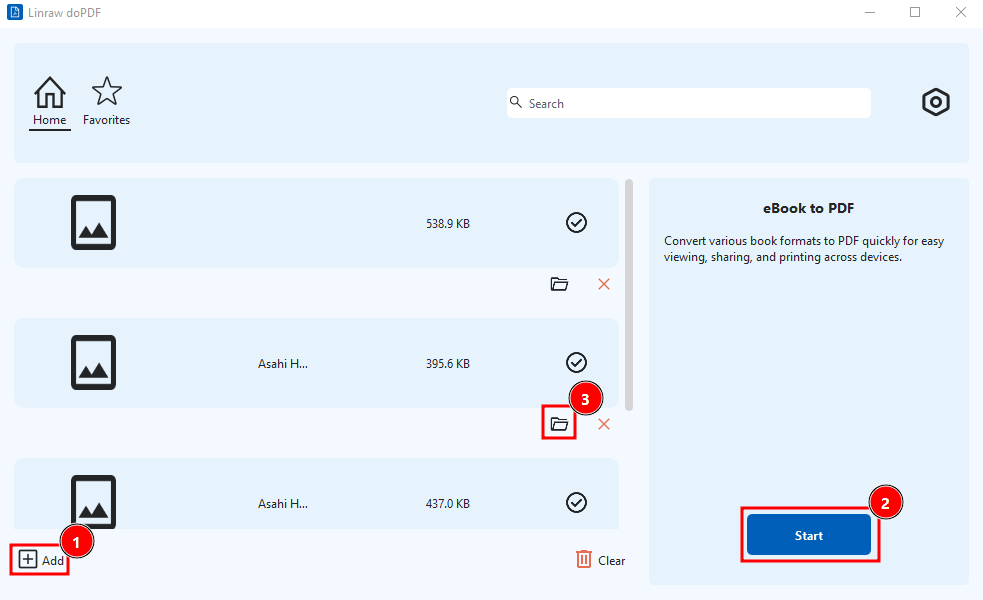
Button names may differ slightly between versions, but the flow is the same: add, choose a folder, convert.
Converting several files at once
If you have a stack of documents, you don't need to convert them one by one. Add all your DOCX files to the list together, choose one output folder, and start the conversion. Each file becomes its own PDF with the same name as the original.
This is a real time saver for things like monthly reports, batches of invoices, or a folder of class handouts.
Pros and cons
Pros
Works offline, so files stay private
Doesn't require Microsoft Word
Handles several files at once
Same workflow on Windows and Mac
Cons
You need to install a desktop app
Very complex layouts (heavy graphics, unusual fonts) should still be checked after conversion
Other Ways to Convert DOCX to PDF
You may already have the tools for one of these methods. Here's how each works, and where it falls short.
Method 1: Microsoft Word's "Save As" or "Export"
If you have Word, this is the most accurate option, since Word is the program that created the file.
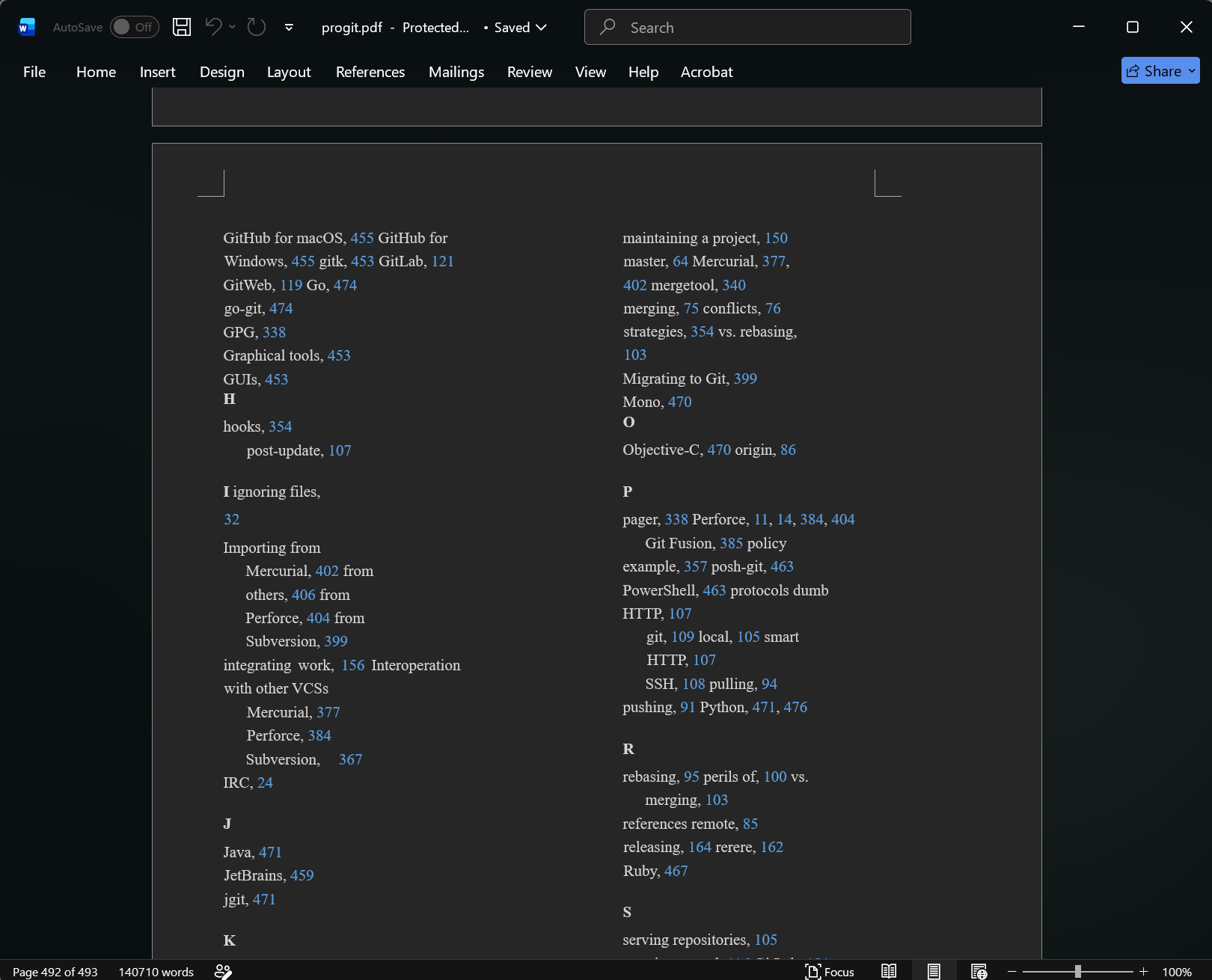
Open the document in Word.
Go to File > Save As (or File > Export > Create PDF/XPS on Windows).
Choose PDF as the file type.
Click Options if you want to set a page range or keep headings as bookmarks.
Click Save.
The catch: Word is paid software, and it converts only one file at a time.
Method 2: Print to PDF on Windows
Windows 10 and 11 have a built-in virtual printer called Microsoft Print to PDF.
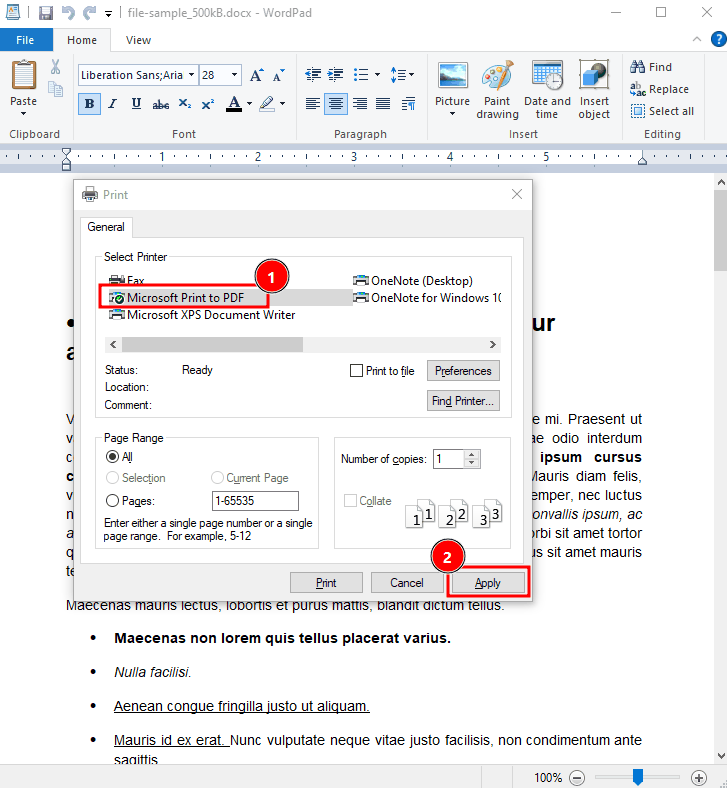
Open the DOCX in any program that can display it.
Press Ctrl + P.
Choose Microsoft Print to PDF as the printer.
Click Print and choose where to save the file.
It's quick and free, but the PDF won't include bookmarks or clickable table-of-contents links. Links inside the document may also stop working.
Method 3: Print to PDF on Mac
macOS has PDF support built into the print dialog.
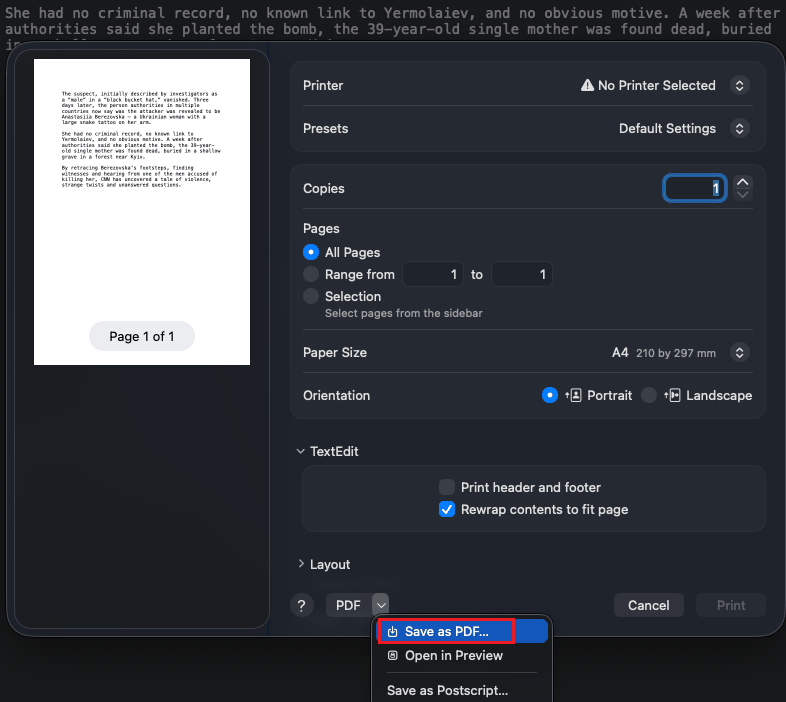
Open the document.
Press Command + P.
Click the PDF drop-down at the bottom left.
Choose Save as PDF, name the file, and save.
Like the Windows version, this works well for simple documents, but you may lose links and bookmarks. Pages Mac users who open DOCX files in Pages can also use File > Export To > PDF.
Method 4: LibreOffice (free and open source)
LibreOffice is a free office suite that opens DOCX files and exports them to PDF.
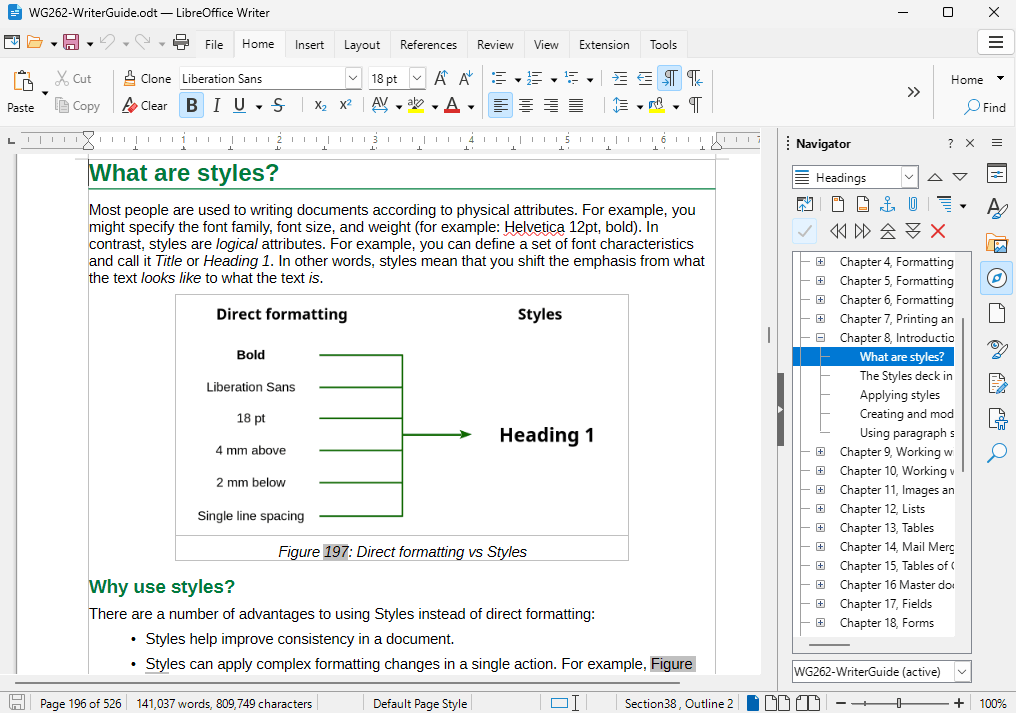
Open the file in LibreOffice Writer.
Go to File > Export as > Export as PDF.
Adjust the settings if needed and click Export.
It's a solid free option that works on both Windows and Mac. The downside is that complex Word formatting sometimes shifts slightly, and the installation is fairly large.
Method 5: Google Docs
Google Docs works if you're comfortable using the cloud.
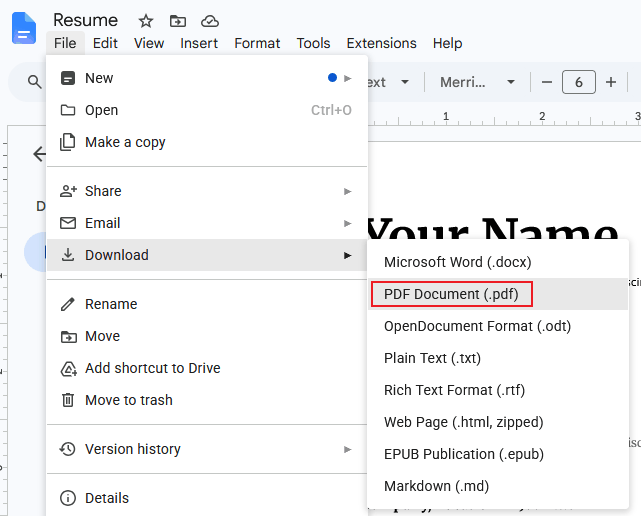
Upload the DOCX to Google Drive.
Right-click it and choose Open with > Google Docs.
Go to File > Download > PDF Document.
It's free and works on any computer, but it isn't offline. Your file is uploaded to Google, and layouts with custom fonts or complex tables can change during the process.
Method 6: Online converters (and what to watch out for)
Sites like Smallpdf, iLovePDF, and CloudConvert let you upload a DOCX and download a PDF a few seconds later.
They're handy when you're on a computer that isn't yours. But keep these points in mind:
Privacy: Your file is uploaded to a third-party server. Check the site's policy on how long files are kept.
Limits: Free plans often cap file size, daily conversions, or both.
Quality: Results depend on the service, and fonts may be swapped.
Sensitive documents: For contracts, IDs, or financial and medical files, an offline method is the safer choice.
Which Method Should You Choose? A Quick Comparison
Comparison table
| Method | Price | Works offline | Privacy | Batch conversion | Formatting accuracy |
|---|---|---|---|---|---|
| Linraw doPDF (eBook to PDF) | Free tool available | Yes | Files stay on your device | Yes | Good |
| Microsoft Word | Paid | Yes | Files stay on your device | No | Excellent |
| Print to PDF (Windows) | Free | Yes | Files stay on your device | No | Good, loses links |
| Print to PDF (Mac) | Free | Yes | Files stay on your device | No | Good, loses links |
| LibreOffice | Free | Yes | Files stay on your device | Limited | Good |
| Google Docs | Free | No | Uploaded to Google | No | Fair |
| Online converters | Free with limits | No | Uploaded to a third party | Sometimes (paid) | Varies |
Our recommendation by situation
You want a free, private tool with no Word required: use Linraw doPDF.
You already have Word and need perfect formatting: use Word's Save As.
You need a quick PDF from a simple document: use Print to PDF.
You have a lot of files: use a tool with batch support, like Linraw doPDF.
You need a free office suite anyway: LibreOffice is worth installing.
You're on a shared or borrowed computer: an online converter can work, as long as the file isn't sensitive.
How to Keep Your Formatting Intact
A conversion is only as good as the document you start with. A few small checks before you convert will save you from ugly surprises.
Fonts, images, and page breaks
Stick to common fonts. If a font isn't installed on the computer doing the conversion, it gets replaced with a different one. Fonts like Arial, Calibri, and Times New Roman are safe choices.
Use good images. Pictures should be at least 150 DPI for screen use, or 300 DPI if the PDF will be printed.
Set page breaks by hand. Don't rely on the empty lines you added to push text down. Use Insert > Page Break so the text stays put.
Tables, headers, and footers
Keep tables inside the page margins. A table that's slightly too wide is the most common cause of a shifted layout.
Check that headers and footers still show the right page numbers after conversion.
Avoid text boxes stacked on top of each other, since they tend to move.
Keeping links and bookmarks clickable
If your document has a table of contents or web links, you'll want them to work in the PDF too. Word's Save As PDF keeps them and can create bookmarks from your headings. Print to PDF usually doesn't. If links matter, use Word, LibreOffice, or a converter that supports them, then click a few links in the PDF to be sure.
Reducing the file size
PDFs with many photos get big quickly. To shrink them:
Compress the images in Word (Picture Format > Compress Pictures) before converting.
Choose Minimum size in Word's export options when quality isn't critical.
Resize very large photos to a sensible size first.
Troubleshooting Common Problems
Fonts look different in the PDF
The font used in the document probably isn't installed on the computer that did the conversion. Install the missing font, or convert the file on the computer where the document was written. Switching to a common font also solves it.
Images are blurry or missing
Blurry images usually mean low-resolution originals or heavy compression during export. Use higher-quality images and avoid the "minimum size" option. If images are missing completely, check that they're embedded in the document and not linked to a file on your computer.
The layout shifts or pages break in the wrong place
This happens when the converter reads the document differently than Word does. Try these fixes:
Use real page breaks instead of blank lines.
Make sure tables and images fit inside the margins.
Convert with Word or Linraw doPDF instead of Google Docs or a web tool.
Check the paper size (A4 vs. Letter) in the page setup.
The converted file is too large
Compress the images in your DOCX before converting, or choose a smaller size in the export options. You can also run the finished PDF through a PDF compression tool.
A password-protected DOCX won't convert
Most converters can't open a file that's locked with a password. Open it in Word using the password, remove the protection (File > Info > Protect Document > Encrypt with Password, then clear the password field), save a copy, and convert that.
Frequently Asked Questions
Can I convert DOCX to PDF without Microsoft Word?
Yes. Linraw doPDF, LibreOffice, Google Docs, and online converters can all do it without Word. On Windows and Mac, you can also open the file in another app that supports DOCX and use Print to PDF.
Is it safe to use online DOCX to PDF converters?
For casual files, usually yes. But your document is uploaded to another company's server, so it isn't the best choice for anything private. Read the site's privacy policy, and use an offline tool for contracts, financial papers, or personal data.
Will the PDF look the same on every device?
Yes, that's the main reason people use PDFs. Fonts are embedded and the layout is fixed, so the document looks the same on Windows, Mac, phones, and tablets. The only difference is how each device's PDF viewer displays it.
How do I convert DOCX to PDF on a Mac for free?
Open the file and press Command + P, then choose Save as PDF from the PDF menu. You can also use LibreOffice or Linraw doPDF, both of which are free options on Mac.
Can I convert many DOCX files at once?
Yes, with the right tool. Linraw doPDF lets you add several files and convert them in one go. Word and the built-in print options handle only one file at a time.
What's the difference between DOC and DOCX?
DOC is the older Word format, used before Word 2007. DOCX is the newer one. It's smaller, more reliable, and works with more apps. Most converters handle both, but DOCX generally converts more accurately.
Can I turn a PDF back into an editable DOCX?
Sometimes. Word can open a PDF and convert it into an editable document, and some PDF tools can export to Word. The results work best for text-heavy files. Complex layouts often need cleaning up by hand, so keep your original DOCX whenever you can.
Conclusion
Converting DOCX to PDF is easy once you know your options. Word gives the most accurate result if you own it. Print to PDF is fine for quick, simple jobs. LibreOffice is a good free alternative, and online converters are handy when privacy isn't a concern.
If you want something free, offline, and able to handle a whole folder of files, Linraw doPDF's eBook to PDF tool is the simplest option. Download Linraw doPDF for Windows or Mac, drop in your DOCX files, and you'll have PDFs in seconds. Whichever method you choose, glance through the final PDF before you send it, just to be sure everything landed where it should.
However, if your workflow involves multiple types—such as images, audio, video, PDFs, or eBooks—then Linraw doUltra is a more powerful all-in-one option.
Related Chapters
