How to Convert PDF to DOCX Offline on Windows & Mac
Turning a PDF into an editable Word document is one of those everyday tasks that still frustrates a lot of people. You receive a report, contract, or form as a PDF and suddenly need to change the text, update a table, or reuse the content. Online converters are fast, but they require uploading your file. For anything private or professional, staying offline is usually the smarter choice.
This guide walks you through the most practical ways to convert PDF to DOCX offline on both Windows and Mac. We’ll cover a dedicated desktop tool, built-in options, free software, and a few cloud methods so you can pick what fits your situation.
Why Convert PDF to DOCX?
PDFs are great for sharing and printing because the layout stays locked. The downside is that editing them is awkward. Converting to DOCX gives you a fully editable file you can open in Microsoft Word, Google Docs, LibreOffice, or almost any modern word processor.
People usually convert for three practical reasons:
Edit text, images, and other content directly in Word without fighting PDF restrictions.
Reuse material from existing PDFs in new reports, proposals, or presentations.
Make updates without rebuilding the entire document from scratch.
Once the file is in DOCX format, you can change wording, adjust formatting, add comments, track changes, and share a version that others can easily revise.
What to Know Before Converting PDF to DOCX
DOCX vs. PDF: What's the Difference?
A PDF stores content as fixed pages—text and images are placed at exact positions. A DOCX file is structured differently. It uses paragraphs, styles, tables, and flowing text that can reflow when you edit. That’s why conversion is never 100% perfect on complex layouts. The converter has to interpret the visual layout and rebuild it as editable structure.
Can You Preserve the Original PDF Layout?
Simple, text-heavy PDFs usually convert cleanly. Multi-column designs, intricate tables, custom fonts, footnotes, and overlapping elements often need some cleanup afterward. The better the converter, the less cleanup you’ll face.
What About Scanned PDFs and Image-Based Documents?
If the PDF is a scan or a photo of a page, it contains images of text rather than real text. You need OCR (optical character recognition) first. Without OCR, the converted DOCX will just contain pictures of the pages instead of editable words.
Method 1: Convert PDF to DOCX Offline with Linraw doBook
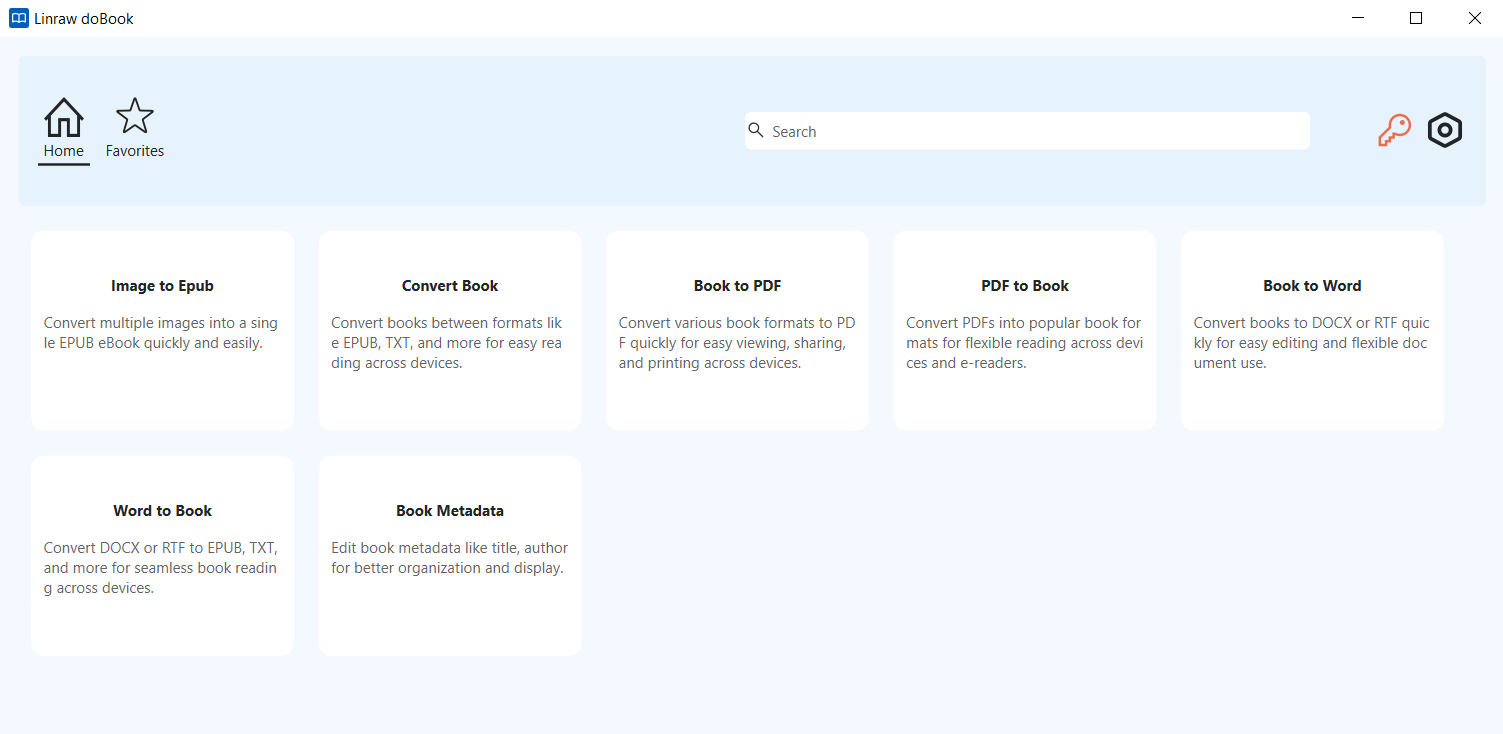
Linraw doBook is a desktop suite of PDF tools available for both Windows and Mac. Its “eBook to DOCX” tool is designed specifically for offline conversion and works well for everyday documents as well as more complex files.
Step 1: Download and Open Linraw doBook
Download the software from the official site and install it on your Windows PC or Mac. Launch the program after installation.
Step 2: Select the "eBook to DOCX" Tool
On the main interface you’ll see a collection of PDF tools. Choose the one labeled eBook to DOCX.
Step 3: Add Your PDF Files
Click the add button or drag and drop one or more PDF files into the window. Linraw doBook supports batch conversion, so you can process several files in one go.
Step 4: Start Converting
Click the start button. The process runs entirely on your computer—nothing is uploaded.
Step 5: Open and Edit Your DOCX Files
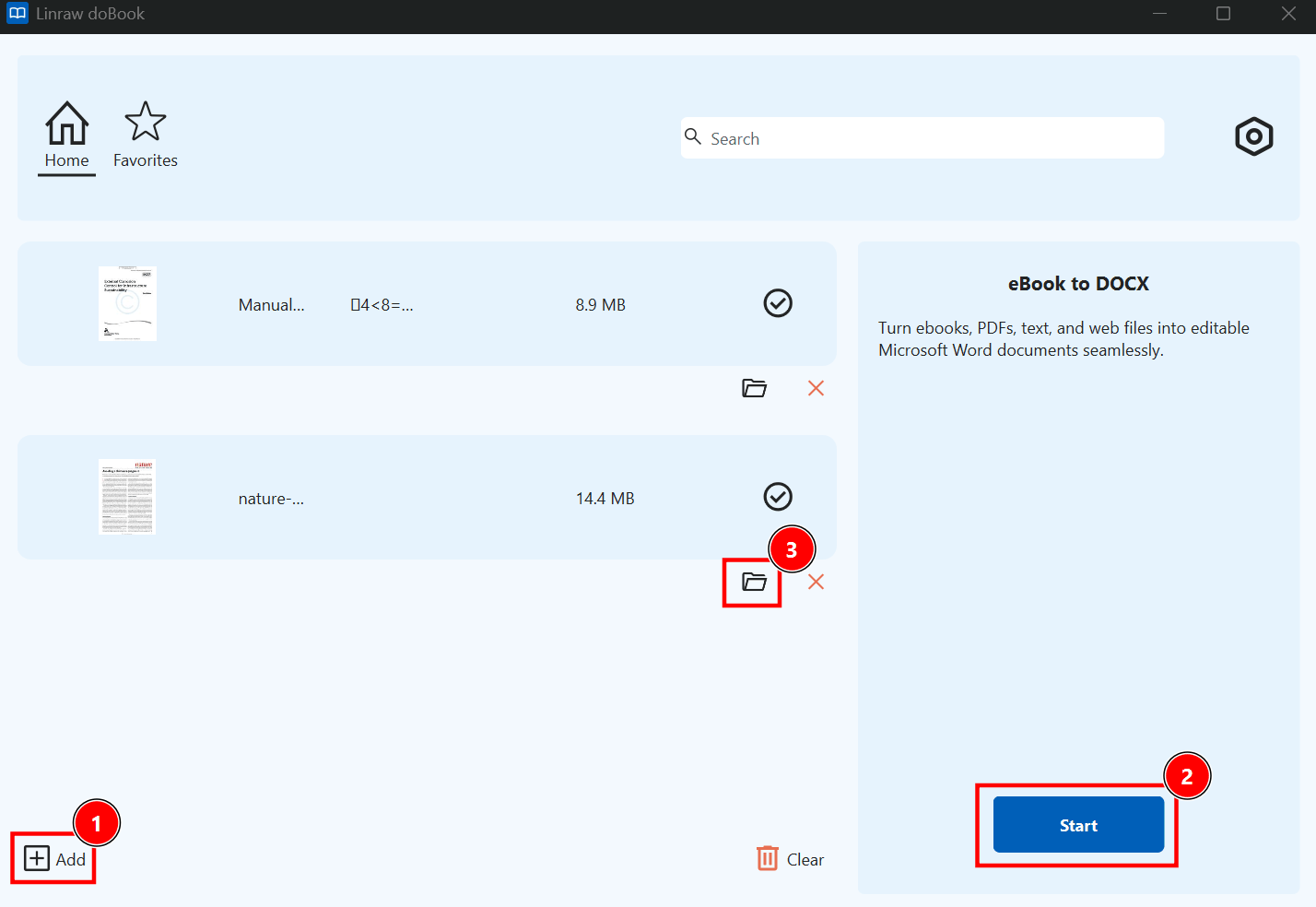
When the conversion finishes, open the resulting DOCX files in Word or any compatible program. Review the text, tables, and images, then make any adjustments you need.
Because the conversion happens locally, this method is especially useful for confidential documents, contracts, or any files you prefer not to send to a third-party server.
Method 2: Convert PDF to DOCX with Microsoft Word
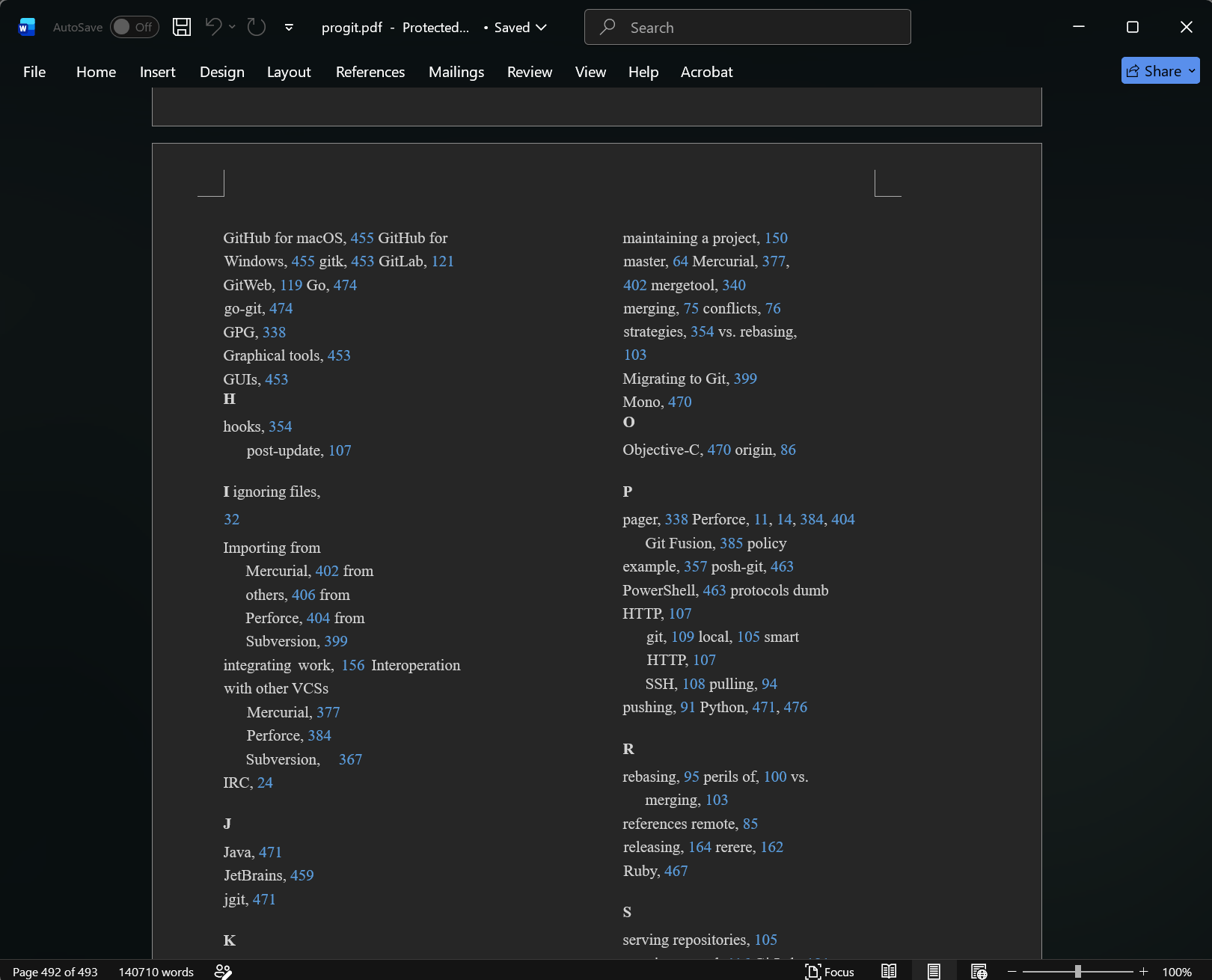
If you already have Microsoft Word installed, you can convert PDFs without extra software.
Open the PDF in Microsoft Word
In Word, go to File → Open and select the PDF. Word will warn you that it will convert the file into an editable document. Click OK.
Let Word Convert the PDF into an Editable Document
Word analyzes the PDF and rebuilds it as a Word document. The quality depends on how complex the original layout is.
Save the Document as a DOCX File
Once the conversion is done, go to File → Save As and choose the DOCX format.
Check the Formatting and Make Any Needed Adjustments
Look carefully at headings, tables, spacing, and images. Simple documents often look good right away; denser layouts may need manual fixes.
This method is convenient and completely offline, but Word’s conversion engine is not always the most accurate on complicated files.
Method 3: Convert PDF to DOCX with Adobe Acrobat
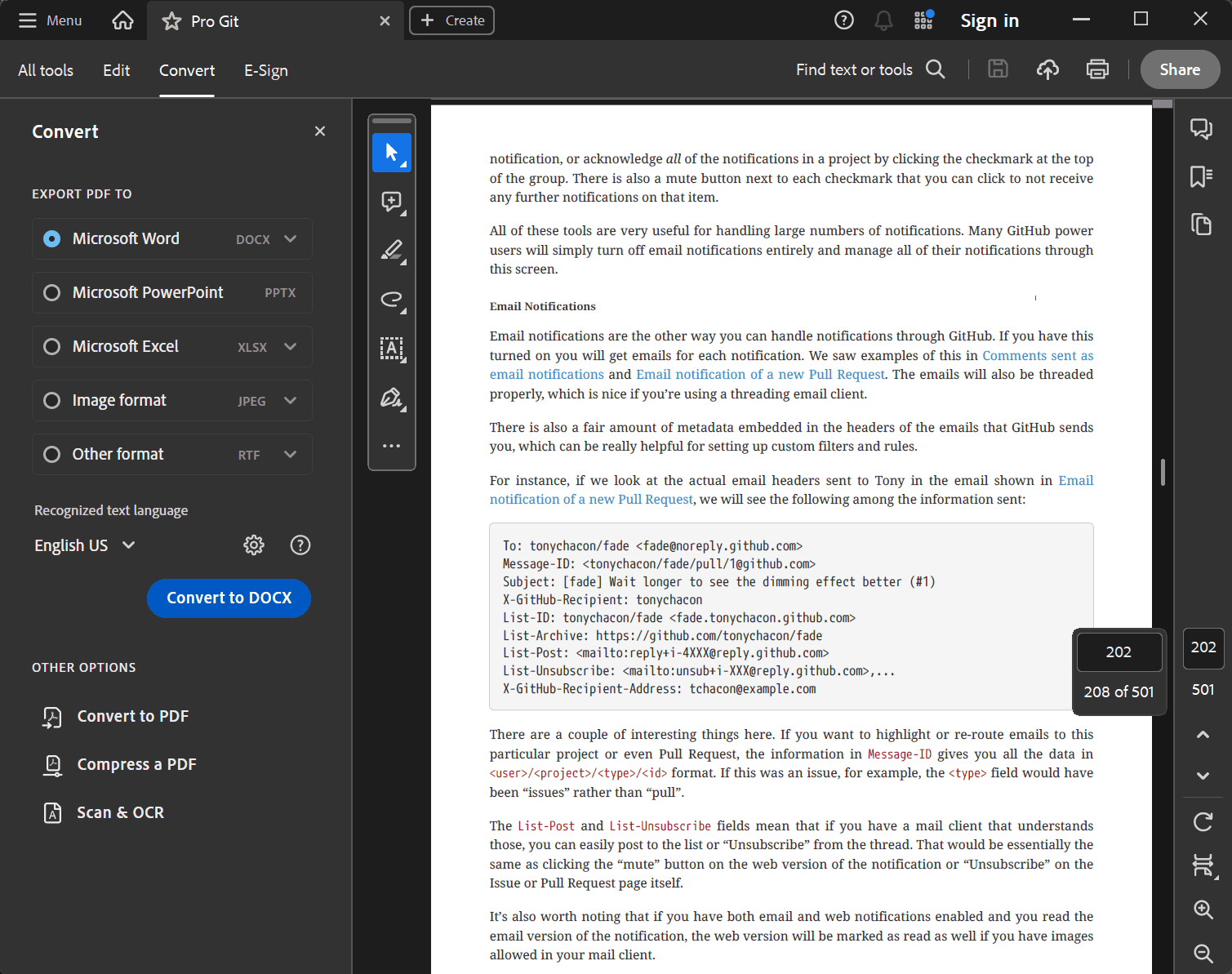
Adobe Acrobat (the full desktop version, not just the free Reader) offers one of the strongest conversion engines available.
Open the PDF in Adobe Acrobat
Launch Acrobat and open your PDF file.
Export the PDF to Microsoft Word
Go to File → Export To → Microsoft Word → Word Document. You can also use the Tools panel and choose Export PDF.
Save and Review the DOCX File
Choose a location and save. Acrobat generally does a solid job preserving layout, tables, and formatting.
Check Whether You Need a Paid Subscription
Full export functionality requires a paid Acrobat subscription or license. The free Reader cannot export to editable Word format.
If you already pay for Acrobat or need the highest possible fidelity, this is a strong option. For occasional use, the cost may not be justified.
Method 4: Use LibreOffice (Free)
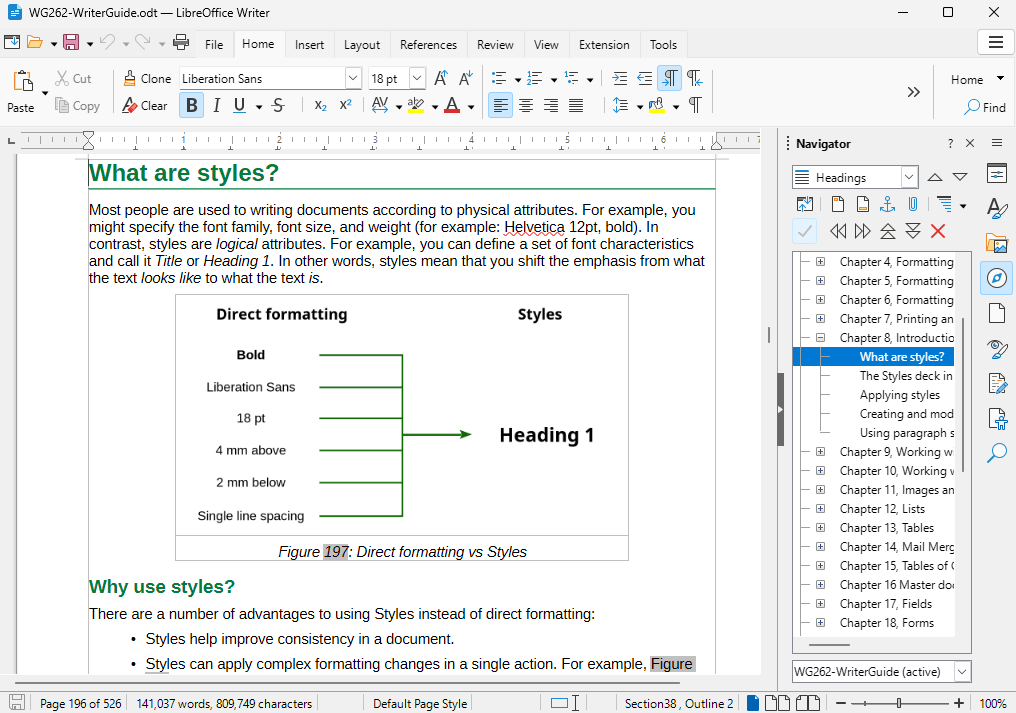
LibreOffice is a free, open-source office suite available for Windows, Mac, and Linux.
You can open many PDFs in LibreOffice Draw. From there you can export or copy content into Writer and save as DOCX. Results vary widely. Text-heavy PDFs often work acceptably, but complex layouts frequently come out messy and require significant cleanup. It’s a workable free offline solution, just not the most polished one.
Method 5: Use Google Docs
Google Docs can convert PDFs as well. Upload the PDF to Google Drive, open it with Google Docs, then download the file as a Microsoft Word (.docx) document.
The process is simple and free, but your file is uploaded to Google’s servers. That makes it unsuitable for sensitive or confidential material. It also requires an internet connection.
Method 6: Use an Online PDF to DOCX Converter
Dozens of websites let you upload a PDF and download a DOCX in seconds. They work well for small, non-sensitive files when you need something quick.
The drawbacks are familiar: file size limits, possible watermarks on free plans, and the privacy risk of uploading documents to unknown servers. For anything important, offline tools are safer.
Linraw doBook vs. Other PDF-to-DOCX Conversion Methods
Here’s a practical comparison of the main approaches:
| Method | Offline? | Cost | Batch Support | Privacy | Layout Quality | Best For |
|---|---|---|---|---|---|---|
| Linraw doBook | Yes | One-time / Free trial | Strong | Excellent | Very good | Everyday offline use, privacy |
| Microsoft Word | Yes | Requires Word | Limited | Excellent | Good | Users who already have Word |
| Adobe Acrobat | Yes | Subscription | Good | Excellent | Excellent | Highest fidelity needs |
| LibreOffice | Yes | Free | Possible | Excellent | Fair | Free offline alternative |
| Google Docs | No | Free | Limited | Cloud | Fair–Good | Quick non-sensitive files |
| Online converters | No | Free / Paid | Varies | Low | Varies | One-off, non-private files |
If privacy and offline reliability matter most, Linraw doBook or Microsoft Word are the practical choices. Acrobat leads on pure conversion quality if you already pay for it. Online tools win only on pure convenience for low-stakes files.
Tips for Getting Better PDF-to-DOCX Results
Start with the cleanest possible source PDF. Text-based PDFs convert far better than scans.
After conversion, always check tables, multi-column layouts, headers, footers, and images. These are the areas most likely to need small fixes.
For scanned documents, run OCR first (many dedicated tools include this step).
Keep fonts consistent when possible. Missing fonts on the target computer can change the look of the DOCX.
Review the entire document before sharing or publishing. A quick visual scan catches most problems.
Frequently Asked Questions
How Do I Convert PDF to DOCX for Free?
Microsoft Word (if you already have it), LibreOffice, and Google Docs all offer free conversion. Dedicated free or freemium desktop tools also exist.
Can I Convert PDF to DOCX Without an Internet Connection?
Yes. Desktop tools such as Linraw doBook, Microsoft Word, Adobe Acrobat, and LibreOffice work completely offline.
How Do I Convert PDF to DOCX on Windows?
Use Linraw doBook, open the PDF in Microsoft Word and save as DOCX, or use Adobe Acrobat’s export feature. LibreOffice is another free option.
How Do I Convert PDF to DOCX on a Mac?
The same tools work on Mac: Linraw doBook, Microsoft Word for Mac, Adobe Acrobat, and LibreOffice all support the conversion.
Can I Convert Multiple PDF Files to DOCX at Once?
Yes, if the tool supports batch conversion. Linraw doBook and many dedicated desktop converters handle multiple files in one session. Word and Google Docs are usually limited to one file at a time.
Will Converting PDF to DOCX Preserve the Original Formatting?
Simple documents often retain formatting well. Complex layouts with columns, tables, or custom graphics almost always need some manual adjustment.
Can I Convert a Scanned PDF into an Editable Word Document?
Yes, but you need OCR. Without it, the DOCX will contain images of the text instead of editable text.
Is PDF to DOCX the Same as PDF to Word?
In practice, yes. Most people use the terms interchangeably. DOCX is simply the modern Word file format.
Is It Safe to Use Online PDF-to-DOCX Converters?
For non-sensitive files, usually yes. For contracts, personal data, financial documents, or anything confidential, offline tools are the safer choice.
Conclusion: Choose the Right Way to Convert PDF to DOCX
Converting PDF to DOCX offline is straightforward once you pick the right tool for your needs. If you want a dedicated desktop solution that works on both Windows and Mac, keeps files private, and supports batch conversion, Linraw doBook’s eBook to DOCX tool is a strong everyday option. Microsoft Word is convenient if you already own it. Adobe Acrobat delivers excellent quality when you need the highest fidelity and already pay for the software. Free alternatives like LibreOffice work in a pinch, while online converters remain useful only for quick, non-sensitive jobs.
Start with the method that matches your priorities—privacy, cost, accuracy, or speed—and you’ll spend less time fighting formatting and more time actually editing the document.
However, if your workflow involves multiple types—such as images, audio, video, PDFs, or eBooks—then Linraw doUltra is a more powerful all-in-one option.
Related Chapters
