How to Convert Any Audio File to MP3 on Windows/Mac (Free & Offline)
Introduction: Why Convert Audio to MP3 Offline?
MP3 is still the most universally supported audio format out there. Car stereos play it, old iPods play it, every phone plays it, and it takes up a fraction of the space that WAV or FLAC files do. So when you've got a folder full of audio in some other format — WAV, FLAC, M4A, AAC, OGG, whatever your recorder or streaming rip spit out — converting to MP3 is usually the path of least resistance.
The question is how you convert it. Plenty of people reach for the first "MP3 converter" website that shows up in search results, upload their file, and hope for the best. That works fine for a single three-minute song. It gets messy fast when you're dealing with dozens of files, sensitive recordings, or anything larger than a typical upload cap.
That's where offline, desktop-based conversion has a real edge:
Privacy — your files never leave your computer, which matters if you're converting voice memos, interviews, or anything you'd rather not upload to a stranger's server.
Speed — no upload/download round trip, especially noticeable with large files or batches.
No file size limits — most free online converters cap you at 100MB–1GB per file. Desktop software doesn't care how big your files are.
No ads, no waiting in a queue — a lot of "free" online converters make their money by making you sit through ads or wait behind a paywall for faster processing.
In this guide, we'll walk through the best ways to convert audio to MP3 on both Windows and Mac — starting with the fastest offline method, then covering built-in OS tools, open-source options, and online converters for the cases where they still make sense.
Method 1: Convert Any Audio to MP3 with Linraw doAudio Support (Recommended)
Linraw doAudio Support is a desktop toolkit for Windows and Mac that bundles together a set of audio, video, image, PDF, and ebook tools — including a dedicated Convert Audio tool built specifically for this kind of job.
Unlike a lot of single-purpose converters, it handles conversion in both directions: you can convert other formats to MP3, or convert MP3 files into something else if you need to edit them later. It also isn't limited to one-file-at-a-time conversion, which is where most free tools start to feel painful.
What makes it worth using:
Batch conversion — drop in an entire folder and convert everything at once, instead of repeating the process file by file
Broad format support — WAV, FLAC, M4A, AAC, OGG, and more, all convertible to MP3
Runs entirely offline — nothing gets uploaded anywhere, so there's no risk to sensitive or copyrighted material
Works the same on Windows and Mac — no separate learning curve if you switch between machines
Free to start, with no forced ads interrupting the workflow
Step-by-Step: Convert Audio Files to MP3
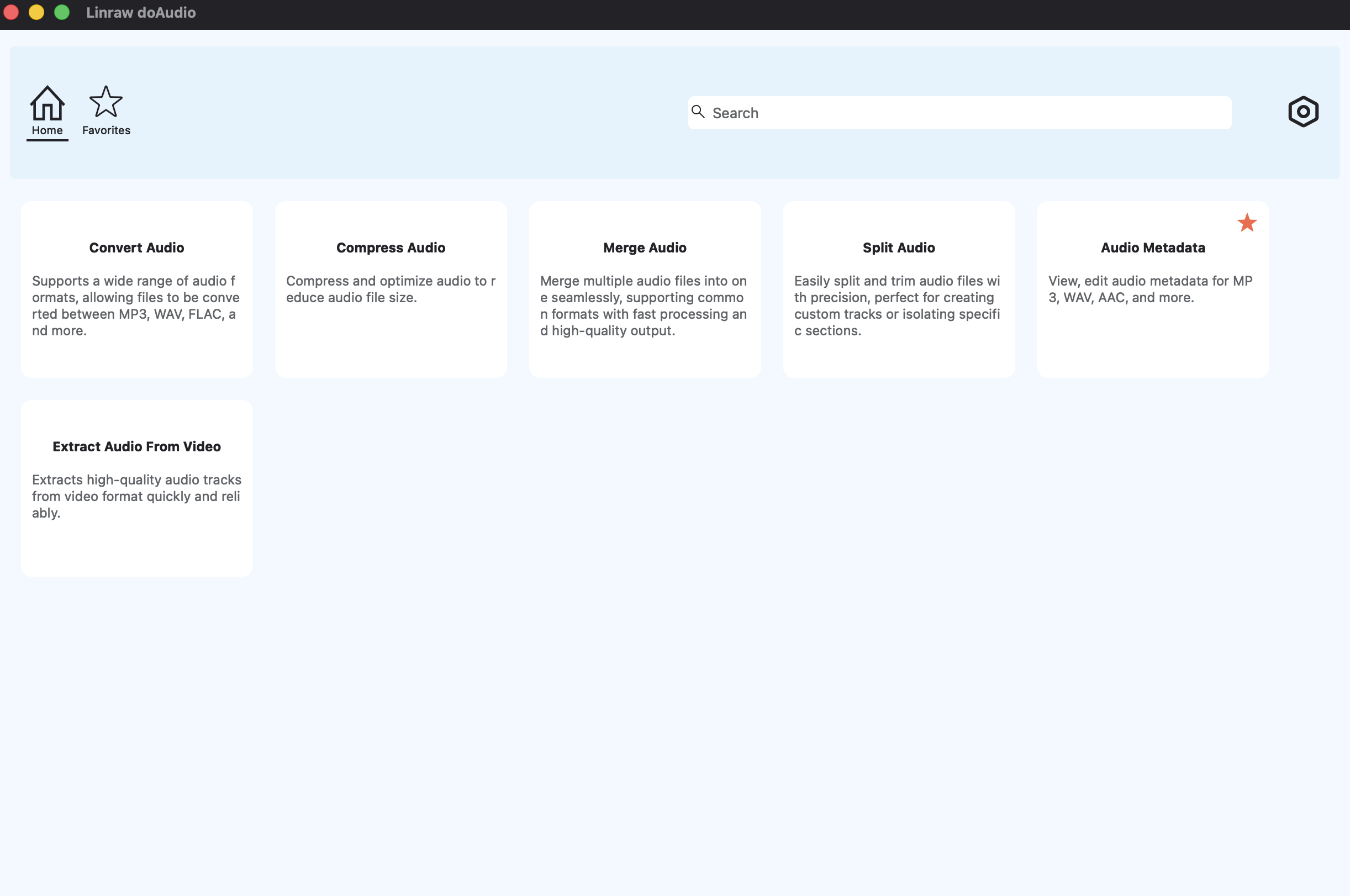
Download and install Linraw doAudio Support for your operating system (Windows or Mac).
Open the app and select the Convert Audio tool from the audio tools category.
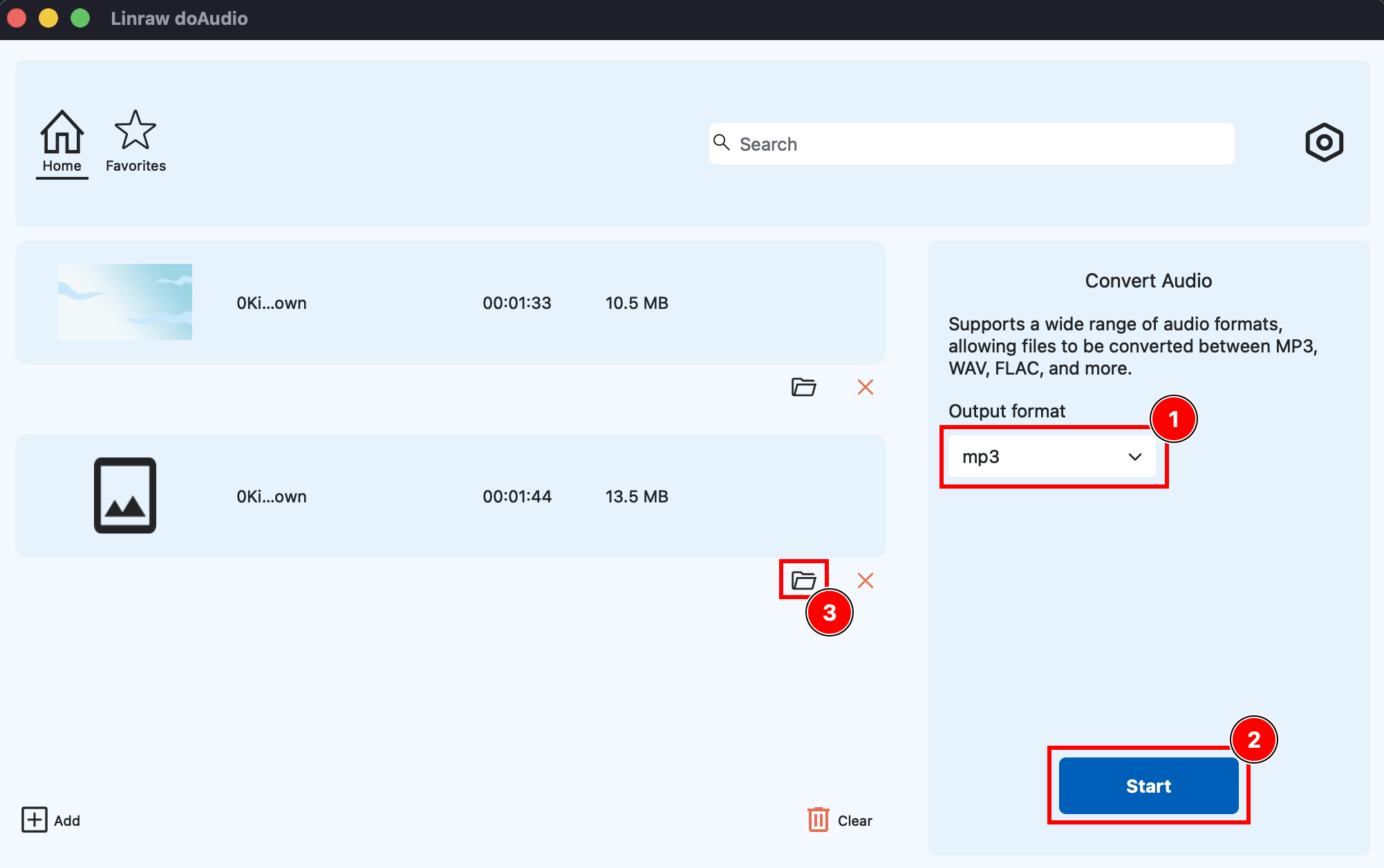
Click Add Files (or drag and drop) to load the audio file(s) you want to convert.
Choose MP3 as your output format.
Click Start, and your MP3 files will be ready in seconds to a few minutes, depending on file size and count.
Batch Convert Multiple Files at Once
This is where desktop software really separates itself from most free online tools. Instead of converting one file, waiting, downloading it, and starting over, you can:
Select an entire folder of audio files (WAV, FLAC, M4A — even a mix of formats).
Apply the same output settings to all of them at once.
Let the batch queue run in the background while you do something else.
If you've got a podcast archive, a folder of voice memos, or an old music library in FLAC that you want mirrored in MP3, this is the difference between a five-minute job and an afternoon of clicking.
Method 2: Free Built-in Options on Windows and Mac
If you only need to convert audio occasionally, your operating system's built-in tools might get the job done — with some caveats.
Windows Media Player / Groove Music
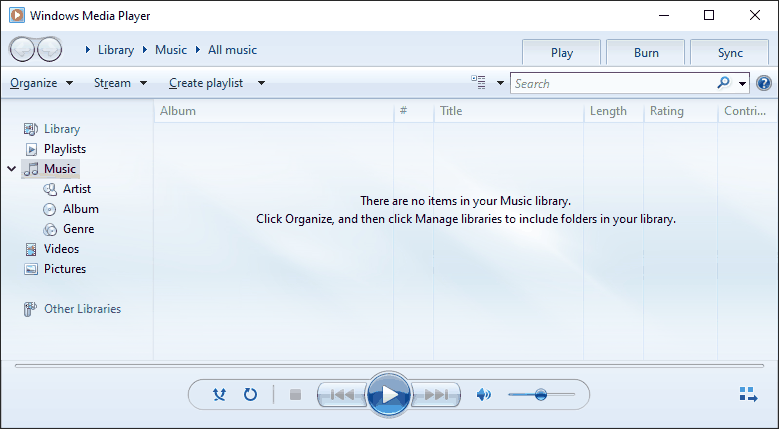
Windows Media Player can technically rip CDs directly to MP3, but it doesn't handle general file-to-file conversion (like WAV-to-MP3) without some workarounds involving its library and format settings. Groove Music, meanwhile, is really a playback app, not a converter — it won't help you here at all.
Mac: Music app or QuickTime
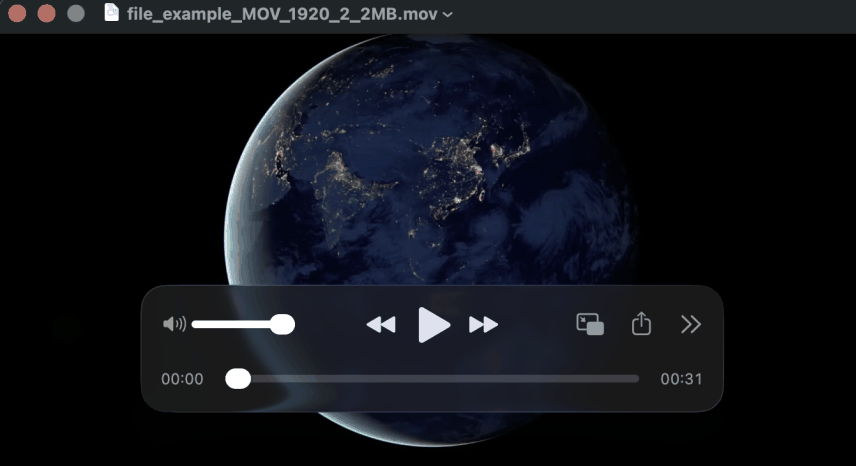
On macOS, the Music app can convert certain formats to MP3, but the option is buried in Preferences → Files → Import Settings, and it only works for files you've already imported into your library. QuickTime Player can export audio, but its format options are limited and it wasn't really designed for this job.
Pros and cons of built-in tools:
✅ Already installed, no download needed
✅ Fine for a single, occasional conversion
❌ No real batch support
❌ Buried settings, unintuitive workflow
❌ Limited format support (FLAC in particular is often a problem)
Method 3: Free Open-Source Desktop Software
Audacity (with the LAME encoder)
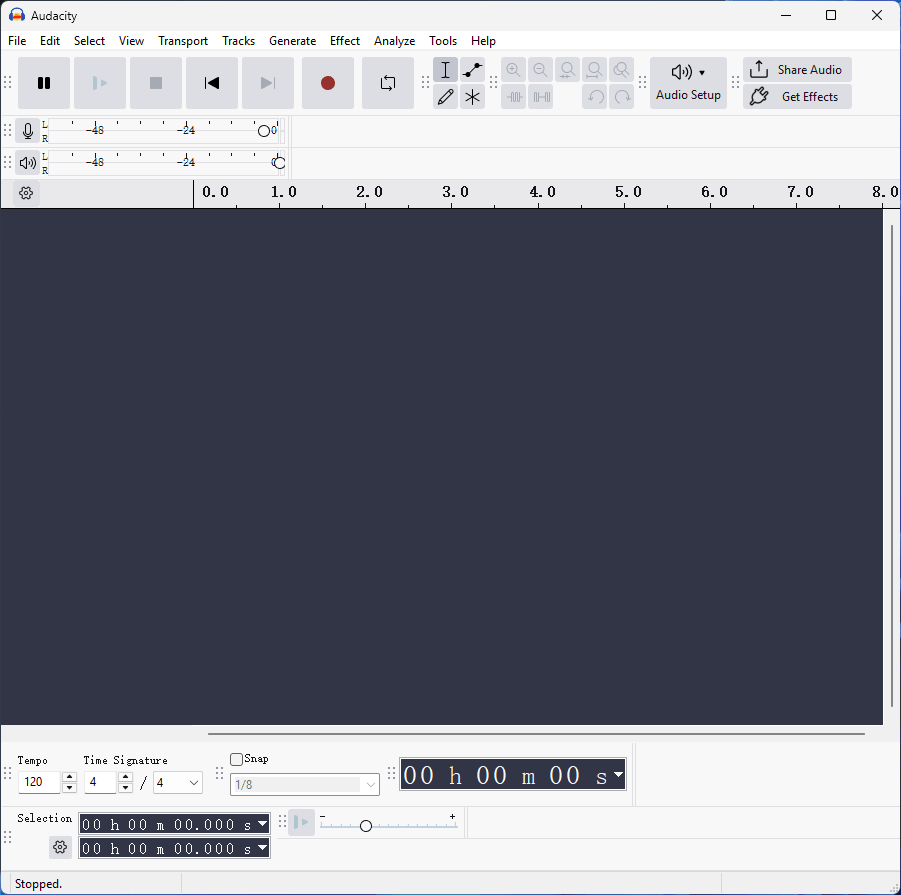
Audacity is free, open-source, and available on both Windows and Mac. It wasn't built purely as a converter — it's a full audio editor — but it handles MP3 export well once it's set up.
Step-by-step:
Download and install Audacity.
The first time you export to MP3, Audacity will prompt you to download the LAME encoder library (required due to MP3 licensing history). Follow the prompt to install it.
Open your audio file in Audacity (File → Open).
Go to File → Export → Export as MP3.
Choose your bitrate and metadata settings, then save.
It works, but it's a lot of steps for something that should be simple, and there's no real batch conversion — you're doing this one file at a time unless you script it.
FFmpeg (command line)
FFmpeg is the tool most conversion software is quietly built on top of. It's free, extremely powerful, and can convert virtually any format to any other format — including batch jobs via scripting. The tradeoff is that it's entirely command-line based, so it's really only practical if you're comfortable typing commands like:
ffmpeg -i input.wav -codec:a libmp3lame -qscale:a 2 output.mp3
Great for developers and power users. Not great for anyone who just wants to convert a folder of songs without reading documentation first.
Other free alternatives
VLC Media Player, better known for playback, also has a hidden conversion feature (Media → Convert/Save) that supports MP3 output. It's serviceable for occasional single-file conversions but clunky for anything larger.
Method 4: Online MP3 Converters (When Offline Isn't an Option)
Sometimes you're on a locked-down work computer, a Chromebook, or a phone, and installing software just isn't practical. In those cases, an online converter can be a reasonable stopgap.
There are plenty of free options that let you upload a file, choose MP3 as the output, and download the result a minute later. They're convenient for a single quick conversion.
The tradeoffs are real, though:
Privacy risk — your file is uploaded to a third-party server. For anything sensitive (interviews, personal recordings, work audio), that's a real concern.
File size caps — most free tiers max out somewhere between 100MB and 1GB.
No batch processing on the free tier of most services, or a very limited daily quota.
Ads and wait queues — free processing power costs the provider money, and that cost usually shows up as ads or a slower queue.
When online tools make sense: a single, non-sensitive file, on a device where you can't install software, and you don't mind the upload. When they don't: anything involving multiple files, large files, or content you'd rather keep private.
Detailed Comparison: Offline Desktop vs Online vs Built-in Tools
| Feature | Linraw doAudio Support (Desktop) | Online Converters | Built-in Tools (WMP/Music app) | Audacity |
|---|---|---|---|---|
| Platform | Windows & Mac | Any (browser) | OS-specific | Windows & Mac |
| Batch conversion | ✅ Yes | ⚠️ Limited/paid | ❌ No | ❌ No |
| File size limit | ❌ None | ⚠️ Usually capped | ❌ None | ❌ None |
| Privacy (offline) | ✅ Fully offline | ❌ Requires upload | ✅ Offline | ✅ Offline |
| Ease of use | ✅ Simple, guided | ✅ Simple | ⚠️ Buried settings | ⚠️ Steeper learning curve |
| Format support | ✅ Broad | ⚠️ Varies by site | ⚠️ Limited | ✅ Broad (with LAME) |
| Cost | Free to start | Free (with limits) | Free | Free |
Best tool for beginners: Linraw doAudio Support — a guided interface with no format or size guesswork.
Best tool for batch conversion: Linraw doAudio Support, hands down — built-in batch queue vs. one-file-at-a-time elsewhere.
Best tool for high-quality / lossless-to-MP3 conversion: Linraw doAudio Support or FFmpeg, both of which let you set a high bitrate (320kbps) and control the encoding directly.
Best completely free offline solution: Linraw doAudio Support for ease of use; FFmpeg if you're comfortable with the command line and want zero-cost scripting flexibility.
Pro Tips for High-Quality MP3 Conversion
Choosing the right bitrate. 128kbps is the smallest file size but noticeably compressed, especially on complex music. 192kbps is a solid middle ground for casual listening. 320kbps is effectively as good as MP3 gets and is worth the extra space for anything you care about — music libraries, mastered tracks, anything you'll listen to on decent headphones.
Preserving ID3 tags, album art, and metadata. When converting, check that your tool carries over title, artist, album, and cover art tags — losing them means a folder full of "Track 1, Track 2" files with no artwork. Linraw doAudio Support and most quality converters preserve these automatically; some command-line workflows require you to pass them explicitly.
Converting from lossless formats without quality loss. Technically, converting FLAC or WAV to MP3 always involves some quality loss, since MP3 is a lossy format by definition. What you can control is how much: sticking to 320kbps keeps the difference nearly imperceptible for most listeners. If perfect fidelity matters more than compatibility, keep the original FLAC/WAV alongside the MP3 rather than replacing it.
Batch conversion best practices. Keep your output folder organized (by album or source folder), double-check your bitrate setting before running a large batch, and do a quick test conversion on one file first if you're trying a new setting.
Handling video files. If what you actually want is the audio track from a video file (MP4, MOV, MKV), look for a converter — like Linraw doAudio Support's audio tools — that can extract audio directly rather than converting the whole video file, which saves time and disk space.
Common Conversion Scenarios and Solutions
WAV to MP3 — the most common conversion; WAV files are uncompressed and large, so converting to MP3 dramatically shrinks file size with minimal audible difference at 320kbps.
FLAC to MP3 — useful when you want a compressed copy for a phone or car stereo while keeping your original FLAC library intact.
M4A/AAC to MP3 — common for files exported from Apple devices or voice memo apps that need to play on non-Apple hardware.
OGG to MP3 — needed when converting audio from certain games, apps, or older Android recordings for broader compatibility.
Extract MP3 from video (MP4, MOV, MKV) — pull just the audio track from a video file, handy for saving a lecture, podcast recording, or music video as a standalone MP3.
Frequently Asked Questions (FAQ)
Is there a completely free offline MP3 converter for Windows and Mac?
Yes. Linraw doAudio Support's Convert Audio tool is free to start and runs entirely offline on both Windows and Mac, alongside open-source options like Audacity and FFmpeg.
Does converting to MP3 reduce audio quality?
Technically yes, since MP3 is a lossy format. At 320kbps, though, the difference from the original is negligible for the vast majority of listeners.
Can I convert multiple audio files to MP3 at once?
With batch-capable software like Linraw doAudio Support, yes — you can select an entire folder and convert everything in one pass. Built-in OS tools and most free online converters don't offer this.
What's the best bitrate for music vs. podcasts?
For music, 320kbps preserves the most detail. For podcasts and spoken word, 128–192kbps is usually more than enough, since voice recordings don't need the same dynamic range as music.
Is Linraw doAudio Support safe and ad-free?
Yes — it runs locally on your machine, doesn't require uploading files anywhere, and doesn't interrupt conversions with ads.
Do I need to install extra codecs?
Not with Linraw doAudio Support — MP3 encoding is built in. Some tools, like Audacity, require a separate LAME encoder download the first time you export to MP3.
Can I convert protected or DRM audio files?
No. Files with digital rights management (DRM) protection — such as some older iTunes purchases or protected streaming downloads — can't be converted by any standard tool, offline or online, without removing the protection first, which may violate the platform's terms of service.
How do I keep album artwork and tags after conversion?
Use a converter that explicitly supports metadata preservation, like Linraw doAudio Support. Check your output files after conversion to confirm tags and artwork carried over correctly, especially with batch jobs.
Conclusion: Choose the Best Free & Offline MP3 Converter for Your Needs
If you're converting a single file on a device where you can't install anything, an online converter will get the job done. If you're comfortable with the command line and want total control at zero cost, FFmpeg is hard to beat. But for most people — converting WAV, FLAC, M4A, or OGG files to MP3 on a regular basis, especially in batches — a dedicated desktop tool is simply the better fit.
Linraw doAudio Support's Convert Audio tool covers that middle ground well: it's free to start, works offline on both Windows and Mac, handles batch conversion without the one-file-at-a-time grind, and doesn't ask you to upload anything to convert it. For anyone who wants a fast, private, no-nonsense way to get their audio into MP3, it's worth downloading and trying on your next batch of files.
However, if your workflow involves multiple types—such as images, audio, video, PDFs, or eBooks—then Linraw doUltra is a more powerful all-in-one option.
Related Chapters
