Best PDF Converter for Windows & Mac (Free, Offline, No Upload) — Convert PDF to Word, EPUB, TXT & More
PDF is one of the most convenient formats for sharing and reading documents, but it is not always easy to edit, reuse, or read on every device. A PDF may need to be converted to Word for editing, EPUB for eBook reading, or TXT for simple text extraction.
A PDF converter makes these tasks easier by changing PDF files into more practical formats. The challenge is choosing a converter that supports the formats you need while keeping your files private and the conversion process simple.
For Windows and Mac users looking for an offline solution, Linraw doBook provides several book and PDF conversion tools, including PDF to Word, PDF to EPUB, PDF to TXT, and eBook to PDF.
Why You Might Need a PDF Converter
PDF files are designed to preserve a document's appearance across different devices. That is useful for sharing, but it can make the content difficult to edit or reuse.
For example, you may want to:
Edit the content of a PDF in Microsoft Word.
Read a PDF as an EPUB eBook.
Extract text from a PDF for use in another application.
Convert an eBook to PDF for printing or easier sharing.
Convert multiple files without repeatedly uploading them to a website.
Keep private documents on your own computer during conversion.
Instead of looking for a separate application for every task, a desktop PDF converter can provide several conversion options in one place.
What to Look for in a PDF Converter
Not every PDF converter works the same way. Before choosing one, consider the formats it supports, privacy features, conversion quality, and ease of use.
Supported File Formats
The most useful PDF converter is not necessarily the one with the longest list of formats. It should support the formats you actually need.
Common PDF conversion tasks include:
PDF to Word (DOCX): Make PDF content editable.
PDF to EPUB: Convert documents into an eBook-friendly format.
PDF to TXT: Extract plain text.
eBook to PDF: Create PDF versions of supported eBook files.
If you regularly work with both PDFs and eBooks, having these tools together can be more convenient than installing several separate applications.
Offline Conversion and File Privacy
Privacy is an important consideration when converting documents.
Many online PDF converters require you to upload your files to a remote server. That may be convenient, but it is not always appropriate for private documents, work files, manuscripts, or other sensitive content.
An offline PDF converter processes files directly on your computer. You can convert documents without sending them to an online service, which can provide a more private workflow.
Batch Conversion
If you have several PDFs to convert, processing them one at a time can quickly become tedious.
A PDF converter with batch processing can save time by allowing multiple files to be added and converted in one operation, depending on the tool and format.
Conversion Quality and Formatting
Conversion is more than simply changing a file extension. A good PDF converter should extract text and other document elements as accurately as possible.
PDFs with complex layouts, multiple columns, tables, images, unusual fonts, or scanned pages can be more difficult to convert. Always check the output after conversion, particularly when the original PDF has complicated formatting.
Ease of Use
A conversion tool should make the process straightforward:
Select the conversion tool.
Add your files.
Choose the output format.
Start the conversion.
Open the converted files.
A simple workflow is especially useful when you frequently switch between different document formats.
Linraw doBook: An Offline PDF Converter for Windows & Mac
Linraw doBook is a desktop application for Windows and Mac that brings multiple small file and document tools together. Its PDF and eBook tools cover several common conversion tasks without requiring an online upload.
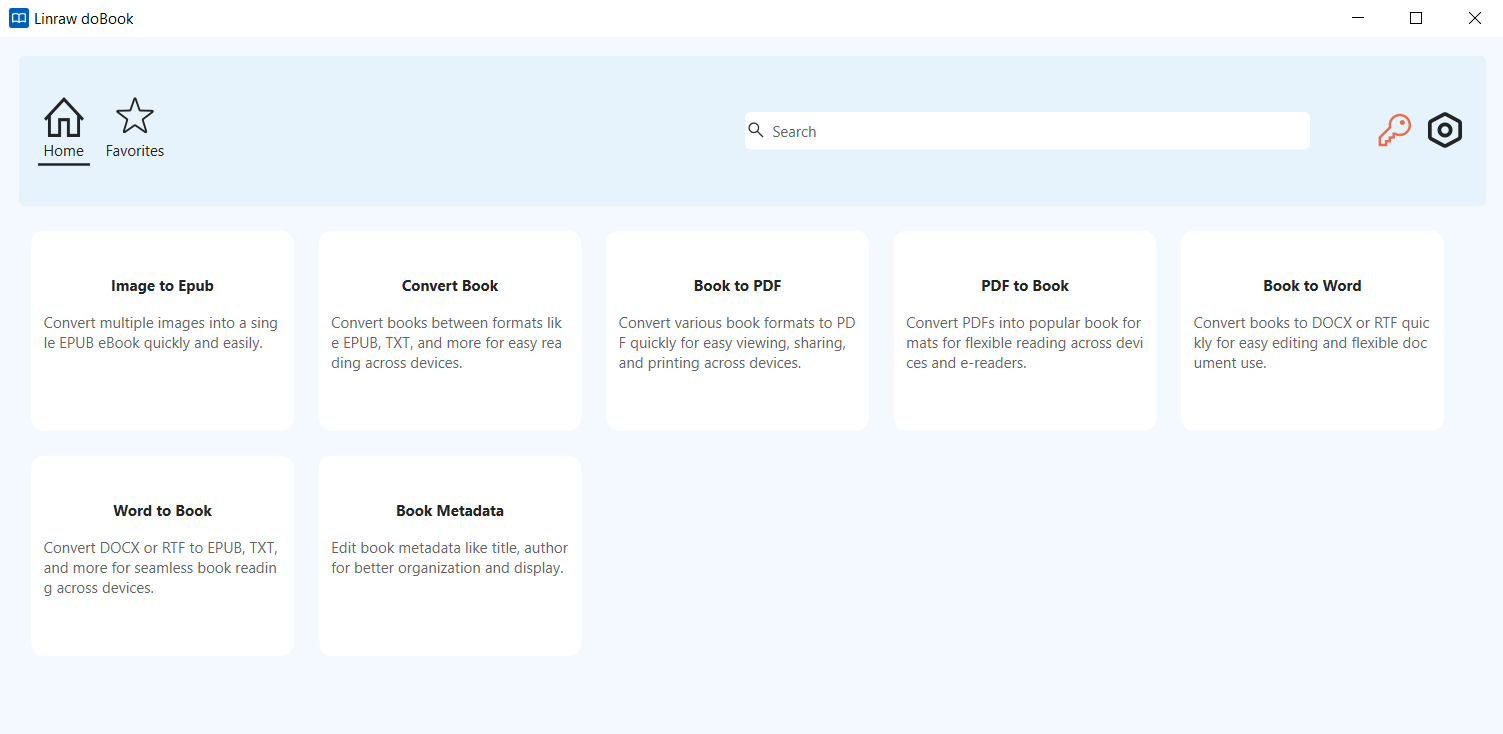
What You Can Convert with Linraw doBook
Depending on the conversion you need, Linraw doBook can be used for:
PDF to Word (DOCX)
PDF to EPUB
PDF to TXT
eBook to PDF
Image to PDF
PDF to Image
And more
This makes Linraw doBook useful when you work with PDFs as well as eBooks and need different output formats for editing, reading, or text extraction.
PDF to Word (DOCX)
The PDF to Word conversion tool converts PDF documents into editable DOCX files.
This is useful when you need to make changes to the original content instead of working with a fixed PDF layout.
PDF to EPUB
PDF to EPUB conversion turns supported PDF documents into EPUB eBooks. EPUB is designed for electronic reading and can work better than PDF on some eBook readers and reading applications.
PDF to TXT
PDF to TXT conversion extracts text into a simple plain-text file. TXT is useful when you only need the words from a document and do not need its original layout.
eBook to PDF
Linraw doBook can also convert supported eBook formats to PDF. This can be useful when you want a fixed-layout document that is easier to print, share, or open in standard PDF applications.
Why Use Linraw doBook for Offline PDF Conversion
Linraw doBook is particularly useful if you prefer a desktop workflow rather than uploading documents to a website.
Its main advantages include:
Works on Windows and Mac
Offline conversion
No need to upload files
Multiple PDF and eBook conversion tools
Batch processing for supported tools
One application for several small conversion tasks
PDF to Word: Convert PDF to Editable DOCX
When PDF to Word Conversion Is Useful
PDF is excellent for distributing finished documents, but it is not ideal when you need to make substantial edits.
Converting a PDF to DOCX can be useful for:
Editing reports and documents
Reusing content in a new document
Correcting text
Updating older documents
Working with PDF content in Microsoft Word
Keep in mind that complicated PDFs may require some manual formatting after conversion.
How to Convert PDF to Word on Windows and Mac
With Linraw doBook, the general workflow is simple:
Open the eBook to DOCX conversion tool.
Add one or more PDF files.
Choose the output location if required.
Start the conversion.
Open the resulting DOCX file and check its formatting.
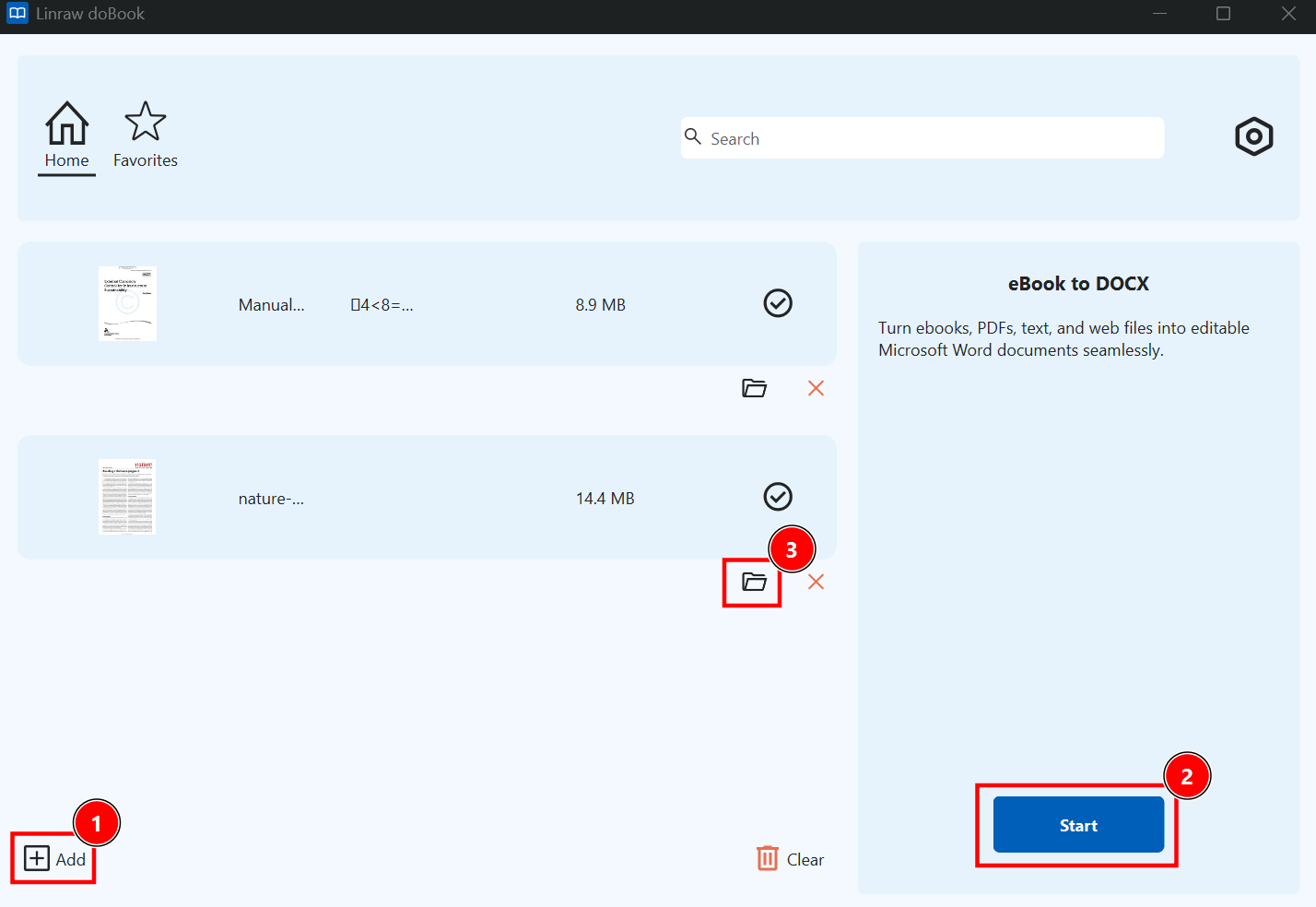
For documents with complex layouts, review headings, tables, images, and page breaks after conversion.
PDF to EPUB: Turn PDFs into eBooks
When to Convert PDF to EPUB
EPUB is designed specifically for digital reading. Unlike a fixed PDF page, EPUB content can adapt more easily to different screen sizes and reading environments.
PDF to EPUB conversion can be useful for:
Reading documents on eBook readers
Creating a more flexible digital reading experience
Converting books and long-form documents
Managing documents in an eBook library
How to Convert PDF to EPUB
Using Linraw doBook:
Open the eBook to EPUB tool.
Add the PDF you want to convert.
Select the output location.
Start the conversion.
Open the EPUB in your preferred eBook reader and review the result.
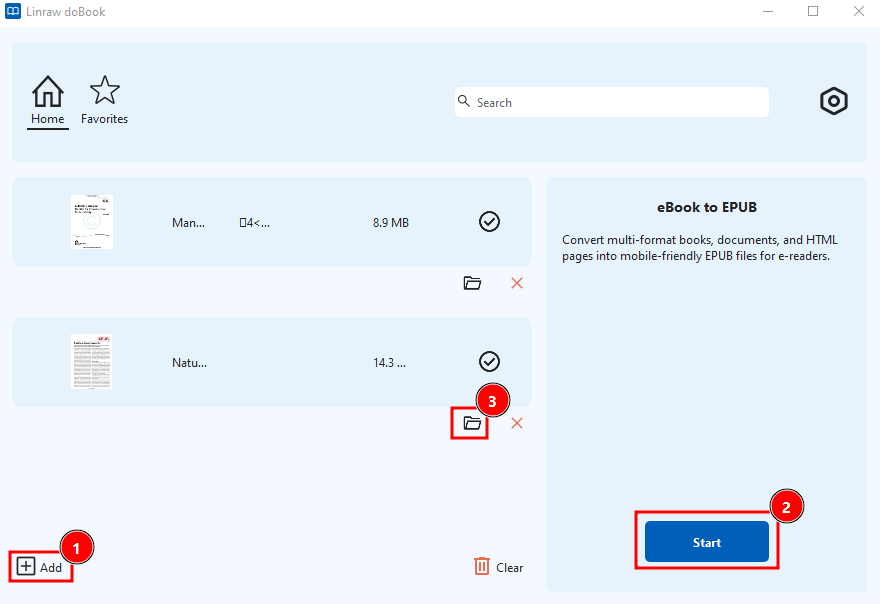
Complex PDF layouts may not translate perfectly to EPUB because the two formats handle page layout differently.
PDF to TXT: Extract Text from PDF Files
When TXT Is a Better Choice
If you do not need images, page layouts, or formatting, a plain-text file can be much easier to work with.
PDF to TXT is useful for:
Extracting text for editing
Searching or processing document content
Reusing text in other applications
Creating lightweight text files
Working with content programmatically
How to Convert PDF to TXT
The basic process is:
Open the eBook to TXT tool.
Add the PDF file.
Select an output location.
Start the conversion.
Open the TXT file and check the extracted text.
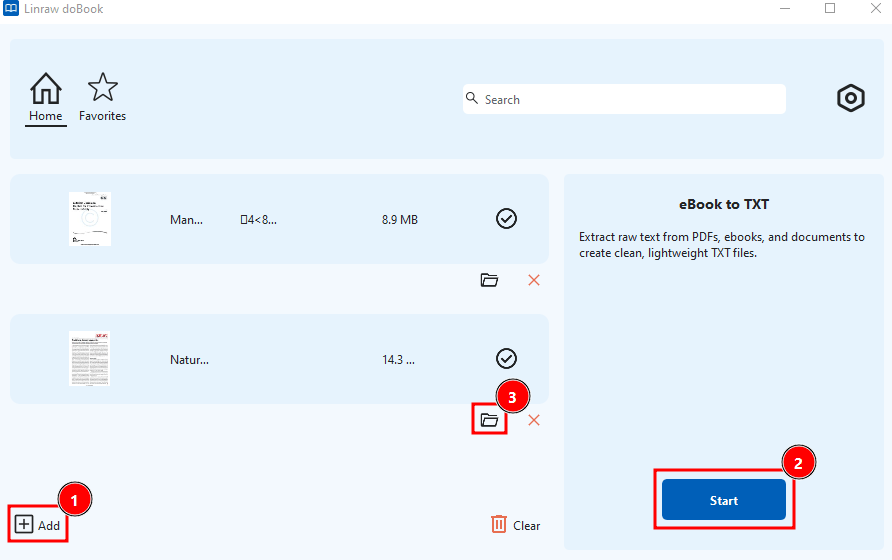
Because TXT does not preserve the original PDF layout, elements such as images, fonts, and complex formatting will not be retained.
Convert eBooks to PDF for Easier Reading and Sharing
Supported eBook Formats
eBooks can come in many different formats, and compatibility varies between applications and devices. Before converting an eBook to PDF, check that its format is supported by the conversion tool.
How to Convert an eBook to PDF
With Linraw doBook, the process is straightforward:
Open the eBook to PDF tool.
Add the eBook file.
Choose the output location.
Start the conversion.
Open the resulting PDF to verify the content and layout.
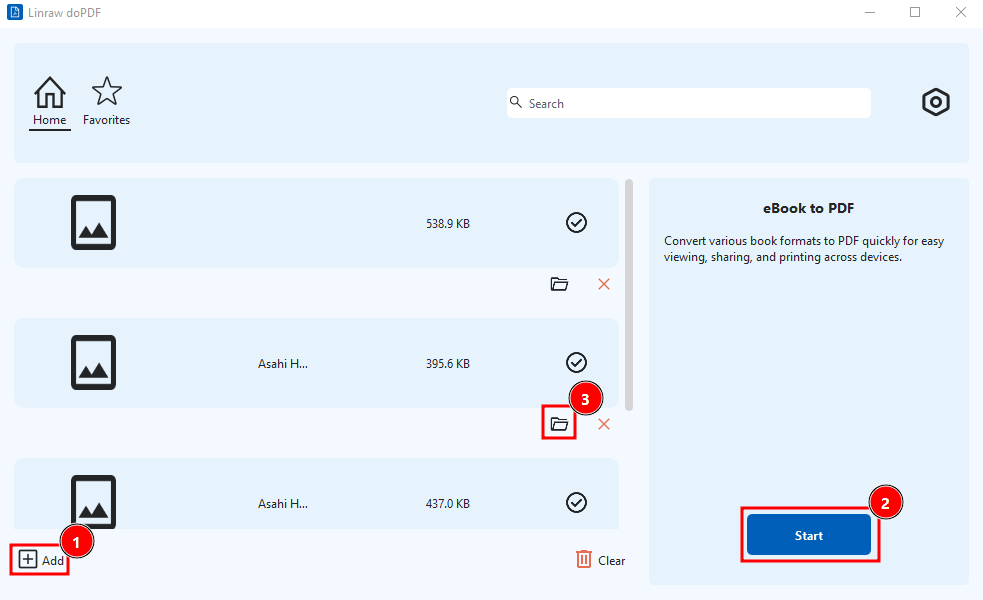
PDF can be a convenient choice when you need a fixed document layout or want to print the converted eBook.
Other Ways to Convert PDF Files
A desktop application is not the only option. The right choice depends on your files, workflow, and privacy requirements.
Online PDF Converters
Services such as Smallpdf, iLovePDF, and similar sites are convenient for one-off jobs. You upload the file, choose the format, and download the result. They work from any browser but require an internet connection and involve uploading your document.
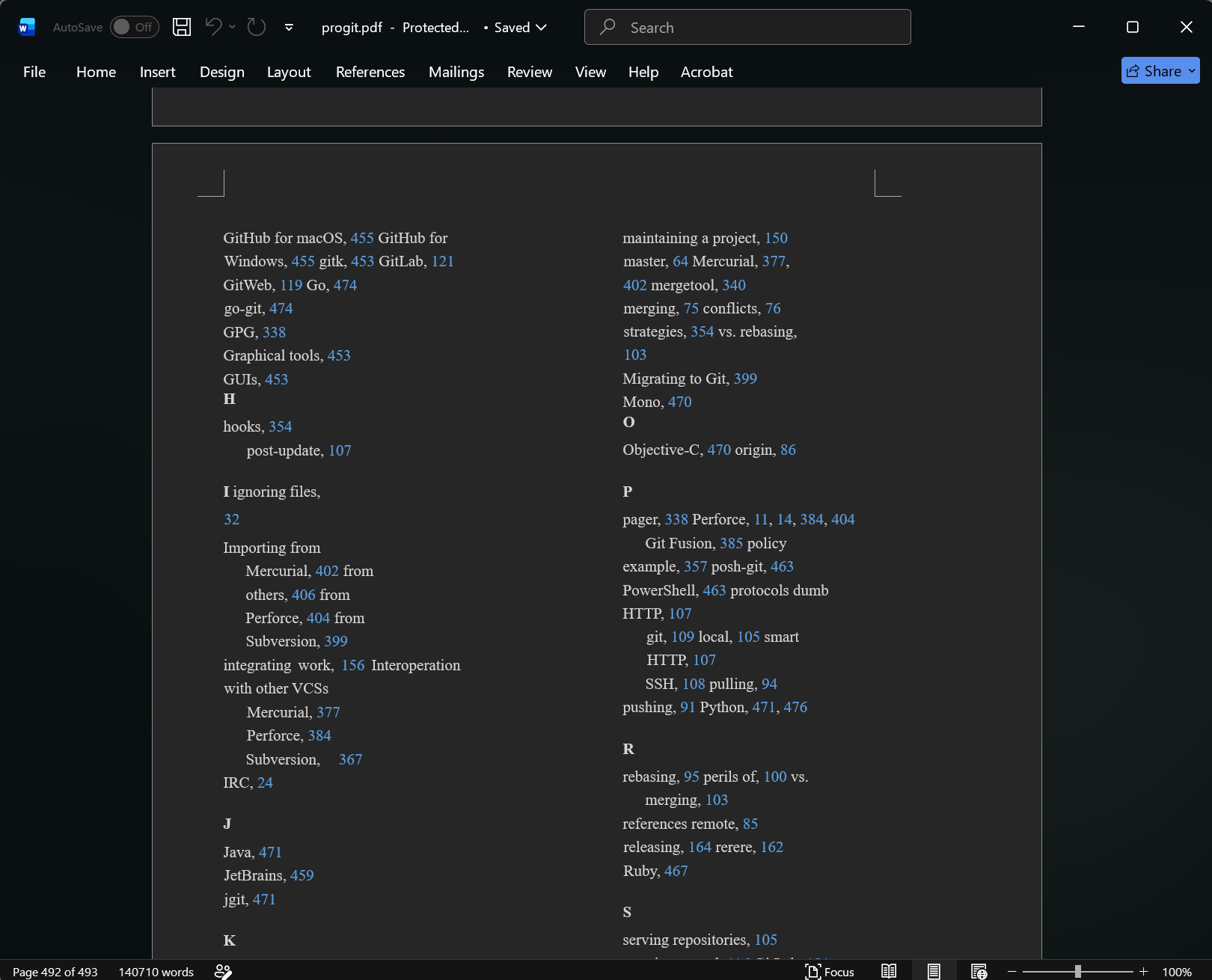
Microsoft Word
Microsoft Word can open many PDF files and convert their content into editable documents. It can be useful when your main requirement is PDF to Word conversion.
However, it is not primarily an eBook conversion tool and may not cover PDF to EPUB or PDF to TXT workflows as conveniently.
Adobe Acrobat
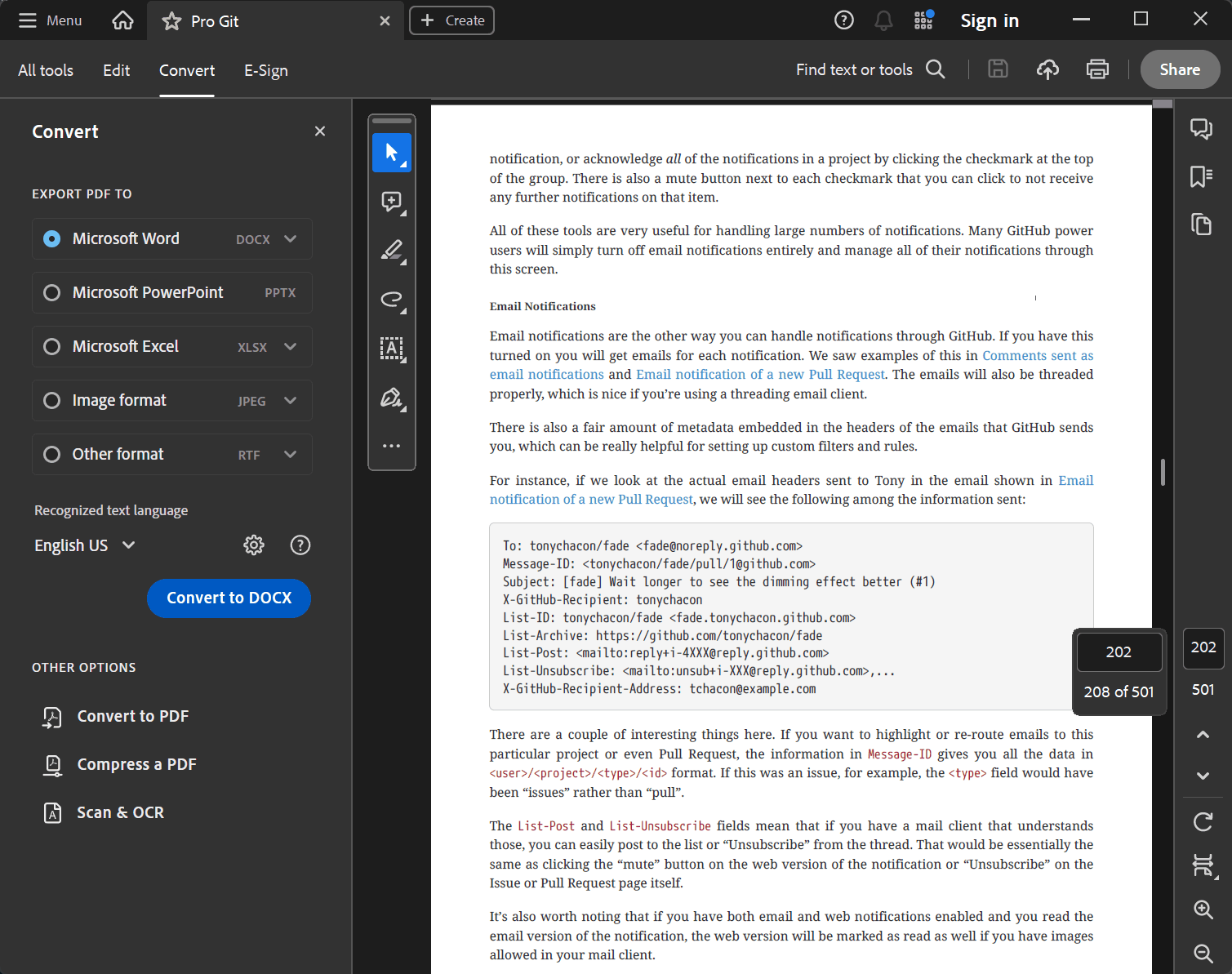
Adobe Acrobat provides extensive PDF features, including conversion and editing. It is a powerful option for users who need a comprehensive PDF application.
For users who only need occasional conversions, however, a smaller desktop utility may be simpler and more cost-effective.
Calibre
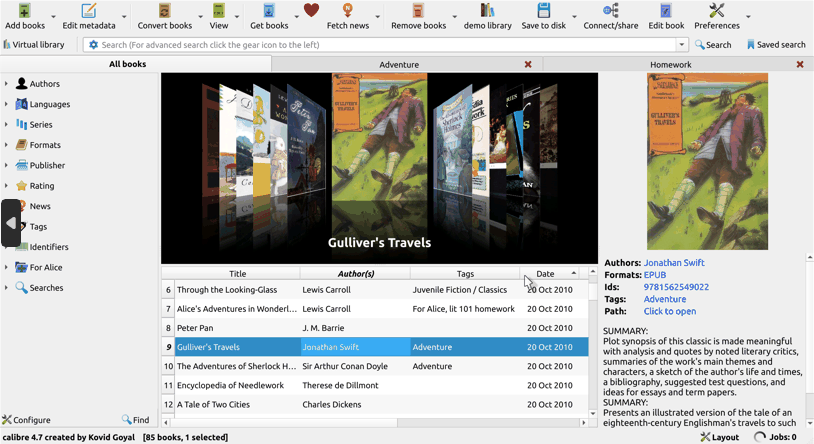
Calibre is widely used for managing and converting eBooks. It is particularly useful when your workflow focuses on eBook formats.
For users who primarily need PDF conversions such as PDF to Word or PDF to TXT, a PDF-focused tool may be more convenient.
Command-Line PDF Conversion Tools
Developers often rely on command-line utilities like pdftotext or Pandoc. These offer extreme speed and scripting power, but they require technical knowledge and lack a user-friendly graphical interface.
pdftotext -layout input.pdf output.txt

pandoc input.md -o output.pdf
Offline vs. Online PDF Converters: Which Is Better?
Both approaches have their place. An online service can be convenient for a quick conversion, while desktop software is often preferable when privacy, repeated conversions, or offline access matters.
| Feature | Linraw doBook | Online Converters | Desktop PDF Software |
|---|---|---|---|
| Works offline | ✓ | — | ✓ |
| No file upload | ✓ | — | ✓ |
| PDF to Word | ✓ | ✓ | ✓ |
| PDF to EPUB | ✓ | Some | Some |
| PDF to TXT | ✓ | ✓ | ✓ |
| eBook to PDF | ✓ | Some | Some |
| Batch conversion | ✓ | Some | ✓ |
| Windows | ✓ | ✓ | ✓ |
| Mac | ✓ | ✓ | ✓ |
If you regularly convert private documents or work without a reliable internet connection, an offline PDF converter has a clear advantage.
Linraw doBook vs. Other PDF Conversion Solutions
Linraw doBook vs. Online PDF Converters
Online converters are convenient and require no installation, but they generally require files to be uploaded.
Linraw doBook takes the opposite approach: conversion happens on the desktop, so you can keep your documents on your own computer.
Linraw doBook vs. Microsoft Word
Microsoft Word is a strong choice when your main goal is converting or editing PDF content in Word. Linraw doBook is more focused on providing multiple small conversion tools, including PDF to Word, EPUB, and TXT.
Linraw doBook vs. Adobe Acrobat
Adobe Acrobat offers a much broader collection of PDF features and is suitable for users who need advanced PDF editing and document management.
Linraw doBook is a simpler alternative when your main requirement is file conversion rather than a full-featured PDF editing suite.
Linraw doBook vs. Calibre
Calibre is particularly well suited to eBook management and conversion. Linraw doBook is broader for users who need both eBook and PDF conversion tools, including PDF to DOCX and PDF to TXT.
Which PDF Converter Should You Choose?
Choose based on your actual workflow:
Need a quick one-time conversion? An online converter may be convenient.
Need advanced PDF editing? A full PDF application may be more appropriate.
Primarily manage eBooks? An eBook-focused tool such as Calibre may be useful.
Need multiple PDF and eBook conversions offline? Linraw doBook is a practical option.
Tips for Getting Better PDF Conversion Results
Check the PDF Before Converting
Make sure the PDF opens correctly before starting the conversion. If the source file is damaged or incomplete, the converted file may have similar problems.
Choose the Right Output Format
Use DOCX when you need to edit the document, EPUB for digital reading, and TXT when you only need plain text.
Choosing the appropriate format from the beginning can save you from unnecessary conversions.
Keep the Original PDF
Do not delete the source file immediately after conversion. Keeping the original makes it easy to try another format or redo the conversion if the result needs improvement.
Check the Converted File After Conversion
Always open the output file and check important elements such as:
Text
Headings
Images
Tables
Page breaks
Special characters
This is particularly important for PDFs with complex layouts.
Common PDF Conversion Problems and How to Fix Them
Formatting Changes After PDF to Word Conversion
PDF and DOCX use different approaches to document layout. Text positioning, fonts, tables, and page breaks may change during conversion.
If formatting is important, review the DOCX file and make any necessary adjustments.
Missing or Incorrect Text
Some PDFs contain unusual fonts, encoding, or text structures that can make extraction difficult. Try opening the original PDF to determine whether the text is selectable.
Scanned PDFs Cannot Be Converted Properly
A scanned PDF may contain page images rather than actual text. A standard text extraction process cannot always recognize text inside those images.
If you need editable text from a scanned document, look for a converter with OCR (Optical Character Recognition) support.
Images or Tables Are Not Preserved
Not every output format supports the same layout features as PDF. TXT, for example, is plain text and cannot preserve the visual structure of tables or images.
For complex documents, choose an output format that better matches your needs.
EPUB Files Look Different on Different Devices
EPUB is reflowable, so its appearance can change depending on the screen size, reading application, fonts, and device settings.
This is normal and one of the main differences between EPUB and fixed-layout PDF files.
Frequently Asked Questions About PDF Converters
What is a PDF converter?
A PDF converter is software that changes PDF files into other formats, such as Word, EPUB, TXT, or image files. Some converters can also create PDFs from other document or eBook formats.
What is the best PDF converter for Windows and Mac?
The best PDF converter depends on what you need to convert. If you want a desktop solution for Windows and Mac that supports multiple PDF and eBook conversions and works offline, Linraw doBook is one option to consider.
Is there a free PDF converter that works offline?
Yes. Desktop PDF conversion software can process files without an internet connection. Linraw doBook is designed as a desktop application for Windows and Mac and supports offline PDF and eBook conversion.
Can I convert PDF to Word without uploading it?
Yes. An offline desktop converter can convert PDF to Word directly on your computer, so you do not need to upload the document to an online service.
Can I convert PDF to EPUB?
Yes. A PDF to EPUB converter can transform supported PDF documents into EPUB eBooks. Linraw doBook includes a PDF to EPUB conversion tool.
Can I convert PDF to TXT?
Yes. PDF to TXT conversion extracts text from a PDF into a plain-text file. This is useful when you do not need the original formatting.
Can I convert multiple PDF files at once?
Some desktop PDF converters support batch conversion. Linraw doBook supports batch processing for its supported conversion workflows, making it more convenient when you have multiple files to process.
Can I convert scanned PDFs to editable documents?
It depends on whether the converter supports OCR. A scanned PDF is usually made up of images rather than selectable text, so OCR may be required to recognize and extract the text.
Is an online PDF converter safe for private files?
Uploading a private document to an online service introduces a different privacy consideration because the file must leave your computer. If you want to avoid uploading confidential documents, an offline PDF converter is a better approach.
What is the difference between an online and offline PDF converter?
An online PDF converter processes your files through a web service, while an offline converter processes them locally on your computer. Online tools are convenient, while offline tools can offer advantages for privacy, offline access, and repeated use.
Which PDF Converter Is Right for You?
There is no single PDF converter that is best for every situation.
Online tools can be convenient for occasional conversions, while comprehensive PDF applications are useful when you need advanced editing features. eBook-focused software can be a better choice for users who primarily manage digital books.
If you want a PDF converter for Windows and Mac that works offline and supports multiple conversion formats, Linraw doBook offers a straightforward alternative. Its PDF and eBook tools let you convert PDF to Word, EPUB, and TXT, as well as convert supported eBooks to PDF, without relying on an online upload.
Conclusion: Convert PDFs Privately with Linraw doBook
The right PDF converter should make file conversion easier without adding unnecessary complexity. For different tasks, you may need PDF to Word for editing, PDF to EPUB for reading, PDF to TXT for text extraction, or eBook to PDF for sharing and printing.
Online converters can be useful for quick jobs, but an offline PDF converter is worth considering when you want to keep your files on your computer.
With support for Windows and Mac and several PDF and eBook conversion tools in one application, Linraw doBook provides a convenient way to handle common PDF conversion tasks locally and without uploading your files.
However, if your workflow involves multiple types—such as images, audio, video, PDFs, or eBooks—then Linraw doUltra is a more powerful all-in-one option.
Related Chapters
