WebP to PNG: Convert Single or Bulk Images Offline (Windows & Mac)
Introduction
What Is WebP and Why It’s Widely Used?
WebP is a modern image format developed by Google that offers smaller file sizes than JPG and PNG while maintaining good visual quality. It is widely used on websites to improve loading speed and reduce bandwidth usage. Many browsers and modern platforms support WebP by default, making it a popular choice for web delivery.
Why Convert WebP to PNG (Quality, Transparency & Compatibility)?
Despite its efficiency, WebP is not universally supported across all applications, design tools, and workflows. Converting WebP to PNG is often necessary when you need:
Lossless image quality.
Reliable transparency and alpha channels.
Maximum compatibility with older software, editors, and operating systems.
Consistent image handling in print, design, or archiving workflows.
When PNG Is a Better Choice Than WebP
PNG is the better option when image fidelity and compatibility matter more than file size. It is ideal for logos, UI assets, screenshots, and images that require transparent backgrounds or repeated editing without quality loss.
WebP vs PNG: Key Differences
Before we dive into the "how-to," it is important to understand why you are converting. Here is a breakdown of how these two formats compare.
Compression Methods & Image Quality
WebP supports both lossy and lossless compression, optimized for web delivery. PNG uses strictly lossless compression, preserving every pixel of the original image. This makes PNG more suitable for professional image editing and long-term storage.
Transparency and Alpha Channel Support
Both formats support transparency, but PNG’s alpha channel handling is more consistent across image editors, operating systems, and publishing tools. This is especially important for design assets and overlays.
Compatibility Across Browsers, Apps & Operating Systems
WebP: Supported by all modern browsers (Chrome, Safari, Edge). However, native support in older OS versions (like Windows 7 or older macOS) and desktop applications is hit-or-miss.
PNG: Universally supported. Every image viewer, editor, and operating system created in the last 30 years can open a PNG file without issues.
| Feature | WebP | PNG |
|---|---|---|
| Primary Use | Web Performance (Loading Speed) | Editing, Archiving, Compatibility |
| Compression | Lossy & Lossless | Lossless Only |
| Transparency | Yes | Yes (Universal Support) |
| File Size | Smaller | Larger |
File Size Comparison: WebP vs PNG
WebP files are usually smaller than PNG files. However, when quality, transparency accuracy, and compatibility are priorities, the larger PNG file size is often an acceptable trade-off.
How to Batch Convert WebP to PNG with Linraw doImage (Windows & Mac)
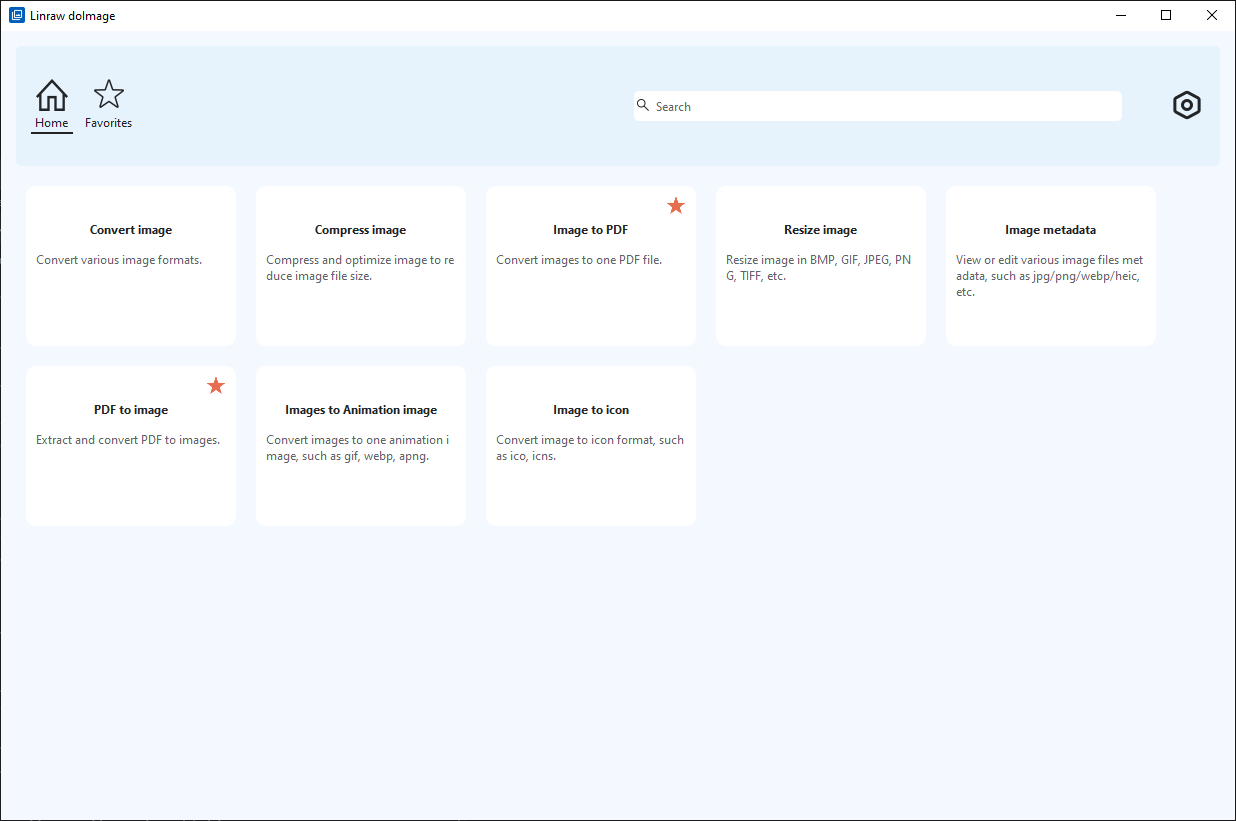
Linraw doImage provides a fast, offline solution for converting WebP images to PNG on both Windows and macOS, with full support for single and bulk processing.
Step 1: Import Single or Multiple WebP Images
Launch Linraw doImage on your Windows or Mac computer. You can drag and drop a single image, a selection of files.
Step 2: Select PNG as the Output Format
Choose PNG as the output format to ensure lossless quality and accurate transparency. Conversion settings are applied consistently across all images.
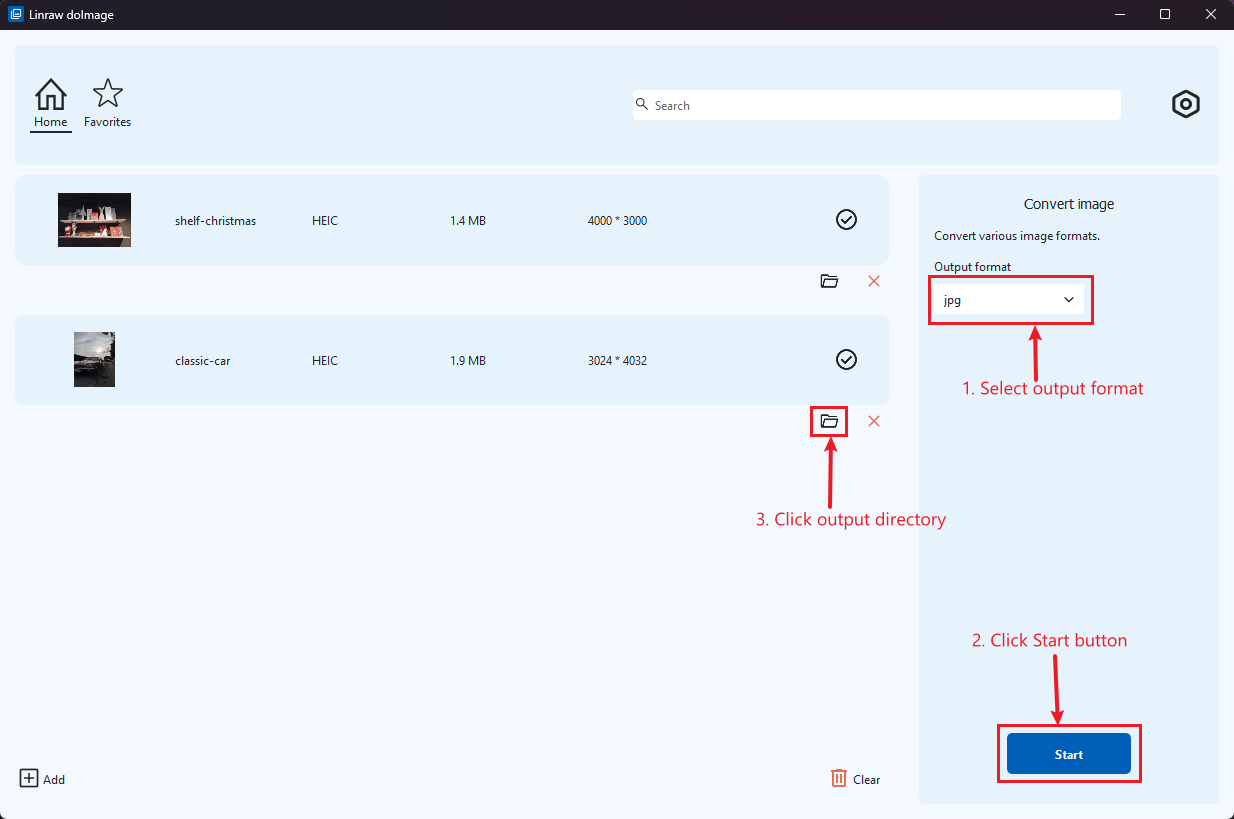
Step 3: One-Click Bulk Processing
Click the "Start" button. Unlike online converters that queue your files, Linraw doImage utilizes your computer’s local CPU/GPU to process images in parallel. You can convert 1,000 images in the time it takes an online tool to upload just ten.
Beyond Conversion: Linraw doImage’s Image Toolkit
Linraw doImage is not just a converter; it is a complete workflow optimizer. Once your images are converted to PNG, you can immediately apply other bulk actions:
Metadata Editor: WebP files often strip metadata. After converting to PNG, use Linraw doImage to bulk-edit or restore EXIF, IPTC, and XMP data (Copyright, Author, Date Created).
GIF & PDF Export: Need to combine your new PNGs into a document or animation? Linraw doImage allows you to merge multiple images into a single PDF or create an animated GIF instantly.
Image Compression: Since PNG files are larger than WebP, you might want to optimize them. Linraw doImage’s "Compress Image" tool can shrink your PNGs significantly without visible quality loss, giving you the best of both worlds: compatibility and storage efficiency.
WebP to PNG Online vs Desktop Software
Why download software when there are free websites? The answer lies in performance and privacy.
Speed & Limits: Online converters often cap you at 50MB per upload or 20 files at a time. Linraw doImage has no file size limits and no batch quantity limits.
Privacy & Security: When you use an online tool, you are uploading your photos to a remote server. For personal photos, legal documents, or unreleased product designs, this is a security risk. With Linraw doImage, your files never leave your computer.
Quality Control: Online tools often apply aggressive hidden compression to save their own bandwidth. Linraw doImage gives you full control over the output quality.
Other Ways to Convert WebP to PNG (And Their Limitations)
Online WebP to PNG Converters: Good for a quick, one-off conversion of a meme or low-stakes image. Limitation: Slow, privacy risks, and annoying ads.
Command Line Tools (ImageMagick, FFmpeg): Powerful and free. Limitation: Requires technical coding knowledge. A single typo can ruin a batch process.
Built-In Windows/Mac Tools:
macOS Preview: Can export to PNG but is tedious for bulk tasks.
Windows Paint: Only opens one file at a time.
Frequently Asked Questions (FAQ)
Q: Is WebP better than PNG?
A: For websites, yes (because it loads faster). For editing, printing, and compatibility with other software, PNG is better.
Q: Can I convert WebP to PNG without an internet connection?
A: Yes! Linraw doImage works 100% offline. You can convert files on a plane, in a remote location, or simply to save data bandwidth.
Q: Is there a limit to the number of images I can convert at once?
A: No. Linraw doImage is built for bulk processing. Whether it's 10 or 10,000 images, the software handles the queue efficiently.
Q: Does Linraw doImage support the latest macOS and Windows 11 updates?
A: Yes, Linraw doImage is regularly updated to ensure full compatibility with the latest macOS (Silicon/Intel) and Windows 10/11 architectures.
Conclusion
While WebP is the future of the web, PNG remains the king of compatibility. Don't let file format issues slow down your creative workflow. Whether you need to convert a single logo or archive a massive library of images, Linraw doImage offers the speed, privacy, and power that online tools simply cannot match.
