Video Converter: How to Convert Video Formats on Windows & Mac
Video files come in all shapes and sizes, and dealing with compatibility issues is a common frustration. Whether you are trying to edit a smartphone video on your PC, upload a high-quality clip to a website, or play a movie on your smart TV, having the right format is essential.
This comprehensive guide explains everything you need to know about changing video formats and shows you how to seamlessly batch convert videos on Windows and macOS using Linraw doVideo.
What Is a Video Format Converter?
A video format converter is a software tool designed to change a video file from one format to another.
What "converting a video format" actually means
When you convert a video, the software is essentially taking the raw video and audio data out of its original "box" (the container) and putting it into a new one, sometimes translating the data into a new language (the codec) so that different devices can understand it.
Why video formats matter
Video formats—such as MP4, MKV, MOV, AVI, WMV, and WebM—dictate where and how a video can be played.
MP4 is universally supported by almost all devices and web platforms.
MOV is the standard for Apple devices.
WebM is highly optimized for fast web streaming.
MKV is preferred for high-quality movies because it can hold multiple audio tracks and subtitles.
When do you need to convert a video format?
You will typically need to convert a video when:
Your media player or TV displays an "unsupported format" error.
Your video editing software refuses to import the file.
You need to shrink a massive file for email or web upload without losing quality.
You are moving files between different ecosystems (like Apple to Windows).
Why Choose a Desktop Video Converter Over Online Tools?
While a quick web search reveals dozens of free online converters, professional users and anyone handling personal files should opt for a dedicated desktop application like Linraw doVideo. Here is why:
No file size limits: Online tools often restrict you to 100MB or 200MB. Desktop software handles massive 4K or 8K files with ease.
No watermark on output: Free web tools frequently stamp their logo over your video. Linraw doVideo provides clean, professional exports.
Works offline – no upload, no privacy risk: Uploading sensitive family videos or unreleased business content to a random server is a massive privacy risk. Desktop tools process everything locally on your hard drive.
Faster conversion with local hardware: Desktop converters utilize your computer’s CPU and GPU (graphics card) to accelerate the conversion process, finishing tasks in a fraction of the time it takes to upload, convert, and download a file online.
Batch convert hundreds of files at once: Instead of converting one file at a time in a browser, you can load an entire folder of videos and process them simultaneously.
How to Convert Video Format on Windows & Mac (Step-by-Step)
Converting videos with Linraw doVideo is designed to be incredibly straightforward.
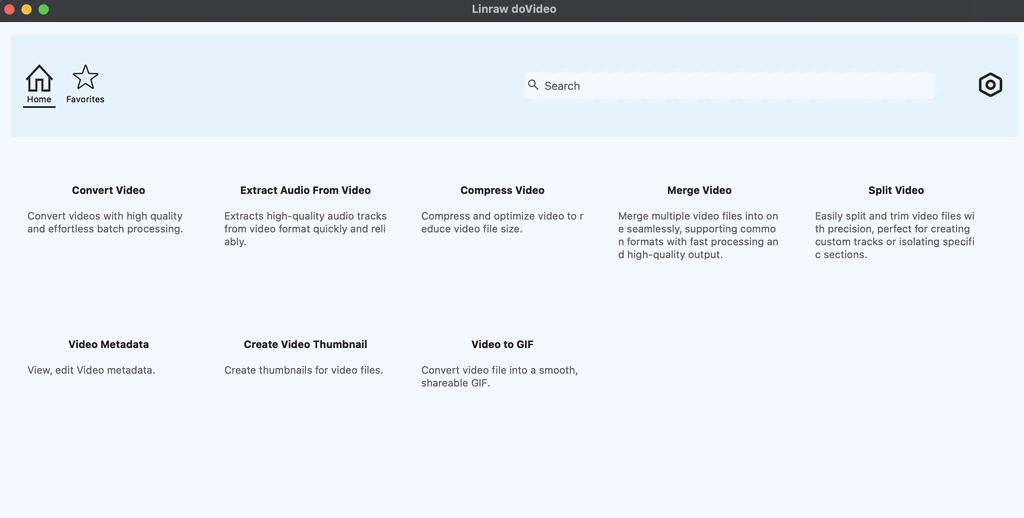
Step 1: Download and install Linraw doVideo
Grab the latest version for your operating system (Windows or macOS) and follow the standard installation prompts.Step 2: Add or drag your video file(s)
Open the application and drag your video files directly into the workspace. You can add a single file to queue up a batch conversion.Step 3: Choose your output format
Select your desired format (e.g., MP4) from the output menu.Step 4: Start conversion and save the file
Click the start button. Linraw doVideo will process the files locally at high speed and save them to your chosen destination folder.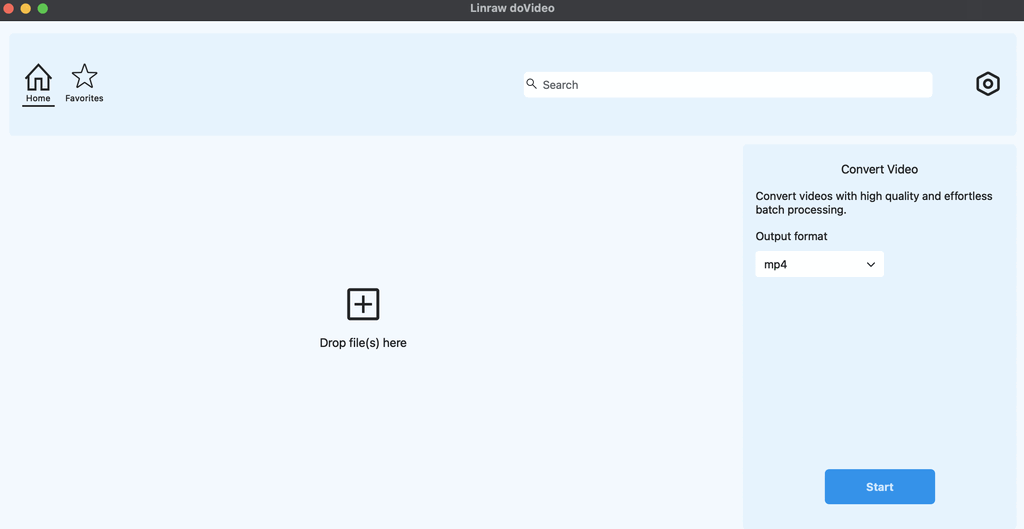
Supported Input & Output Video Formats
To be truly useful, a video converter needs to handle almost anything you throw at it.
Full list of supported formats: Linraw doVideo supports all major containers, including MP4, MKV, MOV, AVI, WebM, and more.
Supported video codecs: You can encode using highly efficient modern codecs like H.264, H.265/HEVC, AV1, and VP9.
Best output formats by use case:
Streaming/Web: WebM or MP4 (H.264)
Editing workflows: MOV or MP4 (ProRes or high-bitrate H.265)
Mobile playback: MP4 or MOV
Archiving high-quality movies: MKV
Most Popular Video Format Conversions
Here are the most common conversion tasks Linraw doVideo handles daily:
Convert MP4 to MKV (and MKV to MP4): Easily switch between the universal compatibility of MP4 and the advanced subtitle/audio track capabilities of MKV.
Convert MOV to MP4: Transform videos shot on an iPhone into a universal format that plays perfectly on Windows PCs, Androids, and older smart TVs.
Convert AVI to MP4: Modernize older, bulky AVI files into highly compressed, widely supported MP4s.
Convert video to WebM: Prepare high-quality, lightweight videos specifically for embedding on websites.
Convert 4K video without quality loss: Change the container format of Ultra HD files without degrading the visual crispness.
Other Video Tools in Linraw doVideo
Linraw doVideo is more than just a converter; it is a complete offline media processing suite.
Compress Video: Reduce file sizes drastically without a noticeable drop in visual quality—perfect for Discord or email attachments.
Merge Video: Join multiple clips from a trip or project into one seamless continuous file.
Split Video: Cut a long, heavy video into smaller, bite-sized segments or chapters.
Video to GIF: Create high-quality, looping animated GIFs from your favorite video clips.
Extract Audio from Video: Pull the soundtrack, podcast audio, or voiceover from a video and save it as an MP3 or WAV.
💡 All tools work offline, with no file size limit and no watermark
Linraw doVideo vs. Other Video Converters
How does Linraw doVideo stack up against the competition?
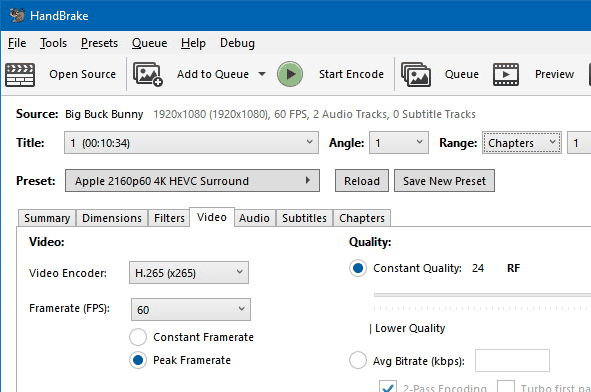
Linraw doVideo vs. HandBrake: HandBrake is powerful but has a steep learning curve and a complex interface. Linraw doVideo offers similar power but wraps it in a modern, intuitive, one-click interface.
Linraw doVideo vs. VLC Media Player: VLC is an amazing player, but its conversion feature is notoriously clunky and prone to errors. Linraw doVideo is built specifically for smooth, bulk conversions.

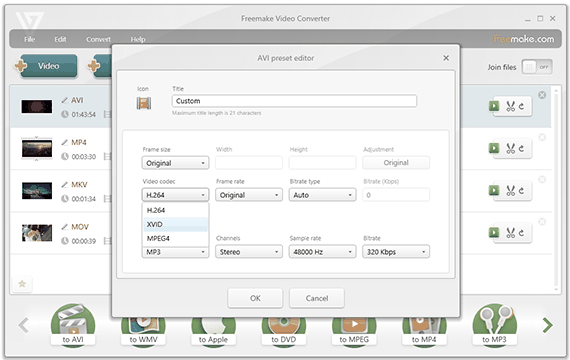
Linraw doVideo vs. Freemake Video Converter: Freemake often pushes heavy upsells and adds watermarks to free outputs. Linraw doVideo offers clean, watermark-free processing.
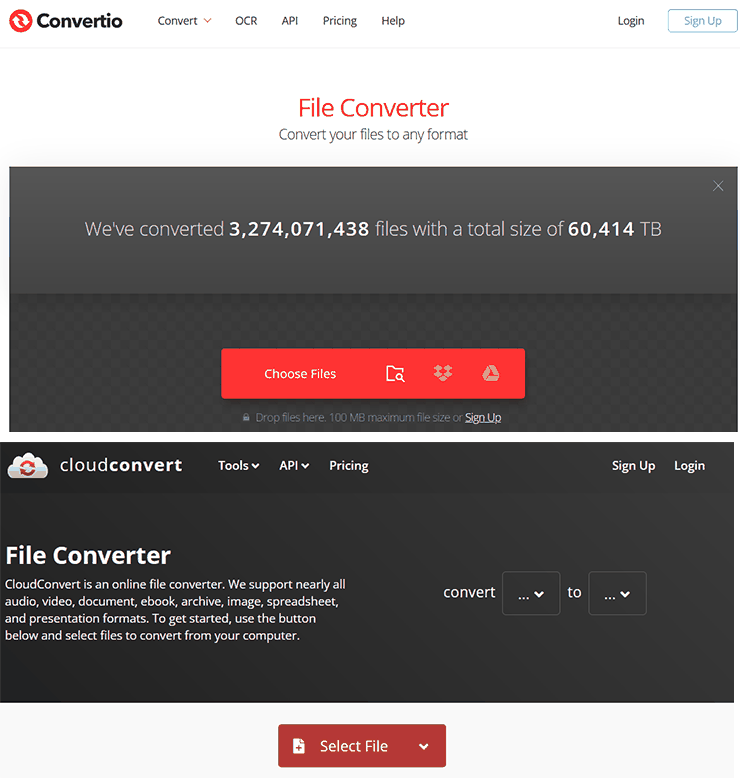
Linraw doVideo vs. Online tools (CloudConvert, Convertio): Online tools fail when you have a slow internet connection, massive files, or privacy concerns. Linraw doVideo handles all of this locally.
Comparison Table
| Feature | Linraw doVideo | HandBrake | VLC | Online Tools |
|---|---|---|---|---|
| Batch Processing | Yes (Fast) | Yes | No | Limited |
| Ease of Use | High | Low | Low | High |
| Offline Privacy | 100% | 100% | 100% | None |
| Watermark | None | None | None | Frequent |
| File Size Limits | Unlimited | Unlimited | Unlimited | Strict Limits |
Tips for Converting Video Without Losing Quality
Always match or exceed the original resolution: If your original video is 1080p, converting it to 4K won't make it look better; it just wastes space. Always keep the resolution the same.
Use H.264 or H.265: These codecs offer the best quality-to-size ratio. H.265 (HEVC) is especially great for keeping high-quality 4K files at manageable sizes.
Avoid generation loss: Re-converting a file multiple times degrades the quality, much like making a photocopy of a photocopy. Try to always convert from the original source file.
Keep the original bitrate when possible: Bitrate determines how much data is in your video. Matching the source bitrate preserves the original look.
Use lossless formats for editing: If you are moving a file into Premiere Pro or Final Cut, use high-bitrate or lossless settings so you have the best data to work with.
Frequently Asked Questions (FAQ)
Q: What is the best video format to convert to?
For general use, MP4 using the H.264 codec is the best format. It balances great quality with small file sizes and is supported by virtually every device and platform.
Q: How do I convert a video format for free on Windows/Mac?
You can use a reliable desktop tool like Linraw doVideo to handle your conversions locally without dealing with web-based subscription limits.
Q: Can I convert multiple videos at once (batch conversion)?
Yes, Linraw doVideo excels at batch conversion. You can load hundreds of videos at once and let the software process them all sequentially.
Q: Does converting video reduce quality?
It can, but it doesn't have to. If you keep the resolution and bitrate the same as the original, the quality loss is practically invisible to the human eye.
Q: How long does it take to convert a video?
This depends on your computer's hardware, the length of the video, and the chosen format. However, using software with GPU hardware acceleration drastically reduces the time.
Q: What is the difference between MP4 and MKV?
Both are container formats. MP4 is widely compatible across all devices, while MKV is an open-source container favored by cinephiles because it supports unlimited audio, picture, and subtitle tracks in one file.
Q: Can I convert 4K video on my PC?
Yes. Desktop software handles 4K video perfectly, provided you have the hard drive space and a relatively modern computer.
Q: Is Linraw doVideo safe to download and use?
Absolutely. Because it operates entirely offline, your files are never uploaded to the cloud, guaranteeing complete privacy and security.
Conclusion
Converting video formats is a necessary step for ensuring your media plays back perfectly on any device, website, or editing software. While online tools are tempting, they lack the privacy, speed, and heavy-duty capabilities required for serious tasks.
Linraw doVideo stands out as the premier desktop video converter because it respects your privacy, harnesses your computer's hardware for rapid conversions, and handles massive batch jobs with zero watermarks or file size limits.
Stop wrestling with unsupported formats and slow web uploads.
