The Quickest and Best Free Methods for Converting JPG to PDF
There are various methods to convert JPG to PDF both for free and non-free. If you search free solution and don't want expensive software like Adobe Acrobat Pro to convert a high-resolution JPG to a PDF, then let's introduce free solution to achieve the goal.
Use operating system's built-in print function on Windows
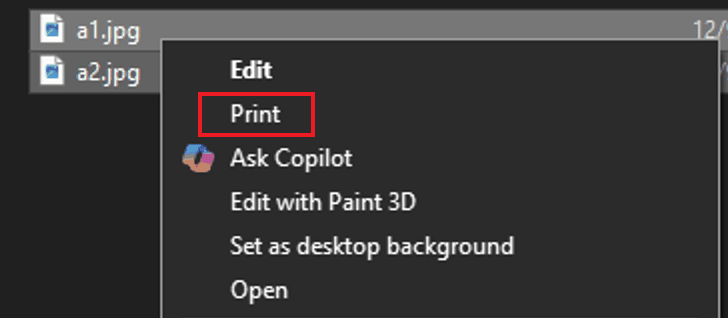
Windows 10/11 supplies the simple way to print JPG to PDF directly, please follow the steps to generate a PDF below.
- Select one JPG file or more first, then right-click the mouse, click the "print" menu after the menu pops up.
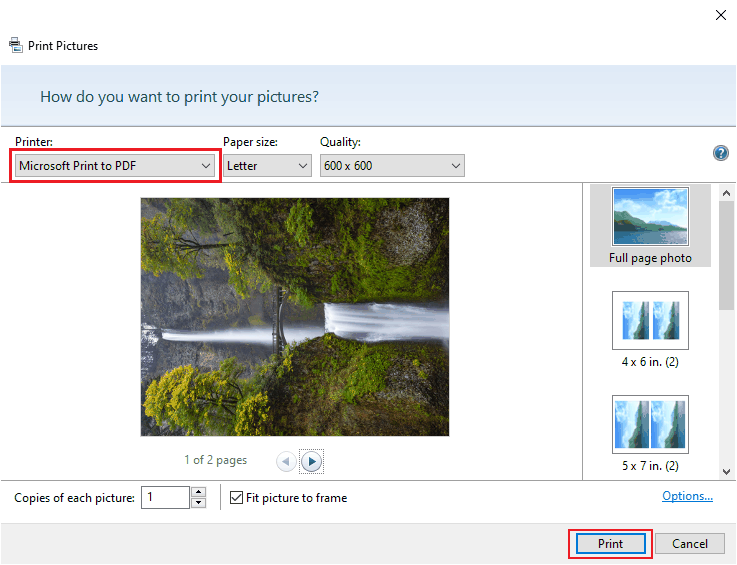
- On the "print Pictures" window, you can set the relative options, then click the "Print" button to print to PDF.
- Finally you get a converted PDF file that contains all your JPG images.
Use operating system's built-in print function on Mac
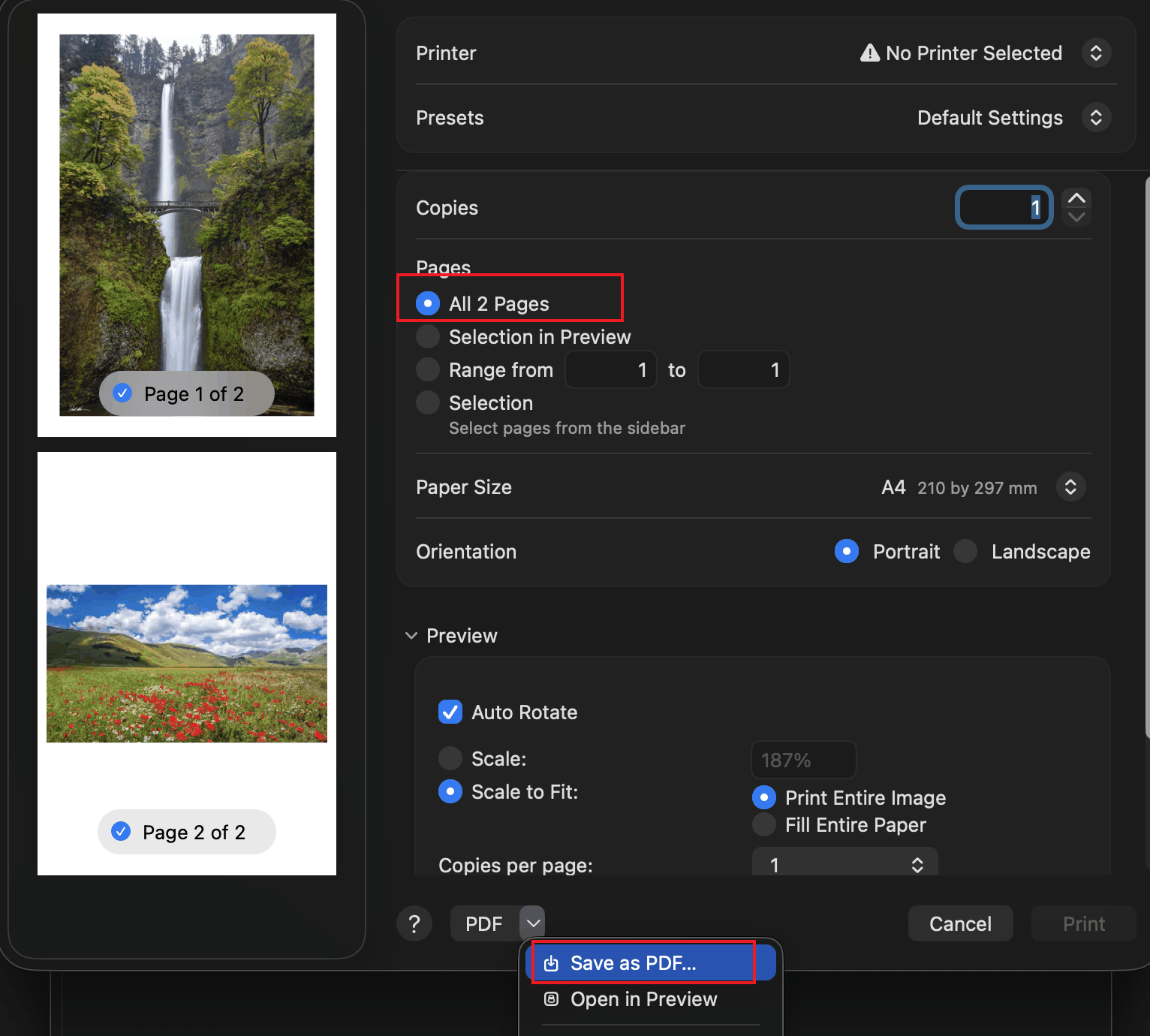
Mac also has a built-in print function to print JPG to PDF easily, here are the steps.
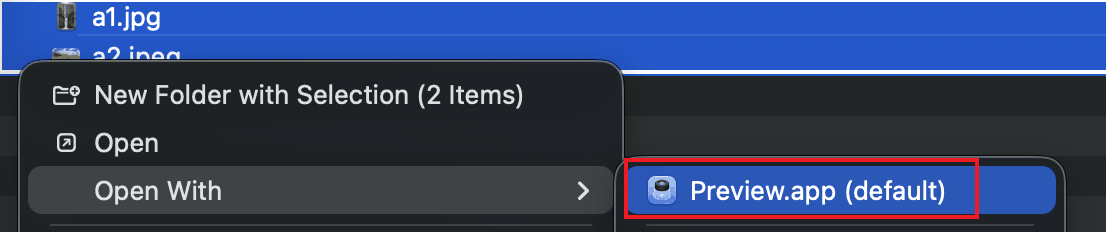
- As the same on Windows, first select JPG file(s) and right-click the mouse, then click "Open With" -> "Preview.app".
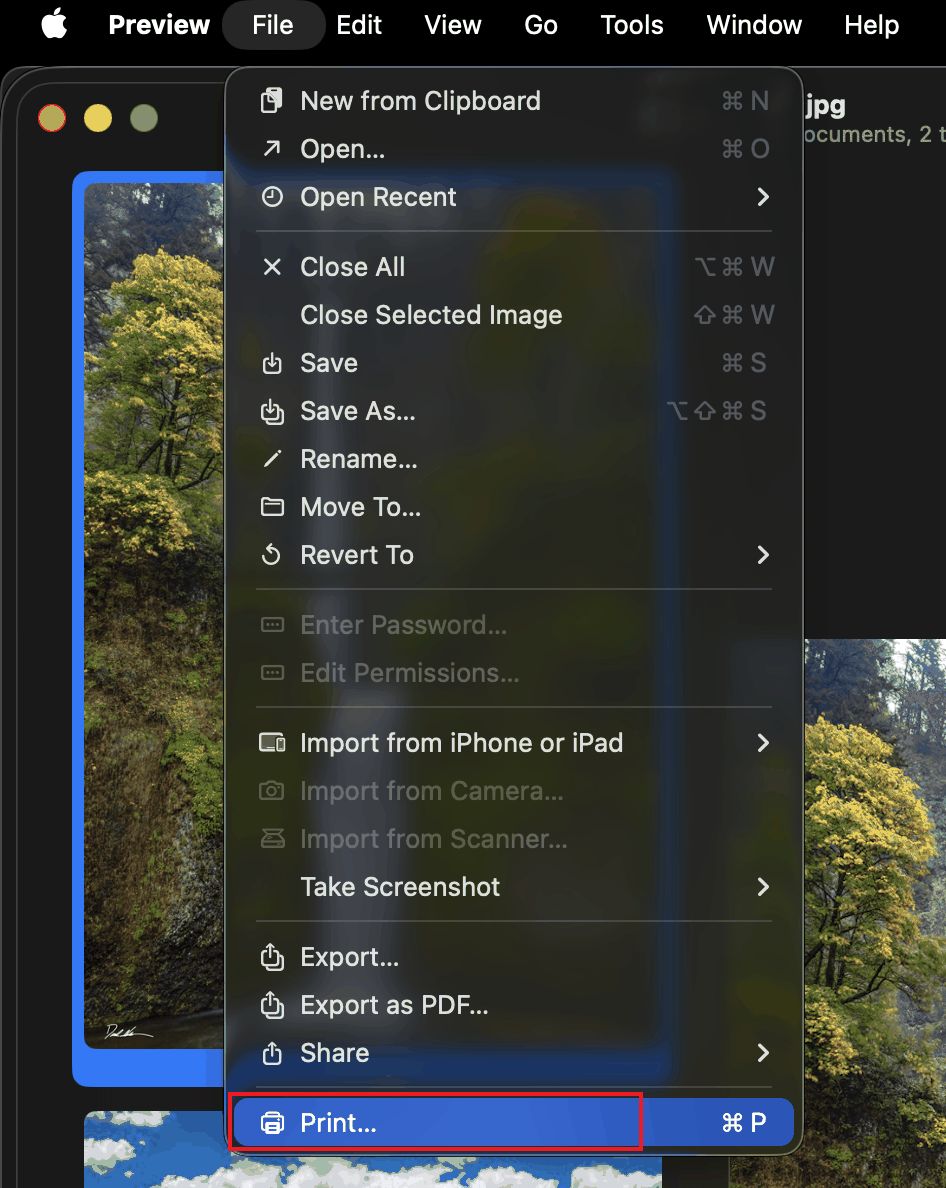
- On the preview window, click the menu "File" -> "Print..."(Or use shortcut: command + p).
- Click the menu "Save as PDF..." after setting the option.
- Well down, you get the PDF file that you expect.
Use online JPG to PDF tools
There are many online tools to convert JPG to PDF on the internet nowadays, some of them allow you to drag and drop your JPG files then start to convert, it's easy and simple, maybe you don't even have to signup. The popular tools are ilovepdf and smallpdf
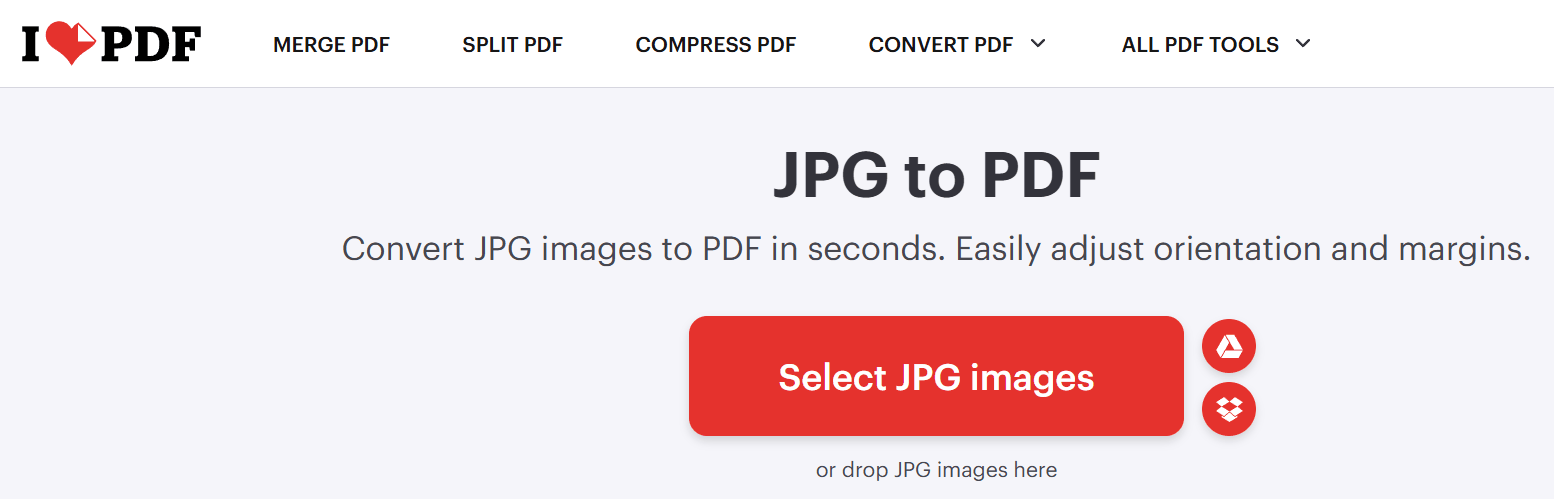
You can try these online tools if you want, but you should consider some things before trying them, these tools would have File size and quantity restrictions. Otherwise, if you are concerned about your JPG file privacy please don't upload them.
Use online JPG to PDF tools
ImageMagick is a free and open-source cross-platform software suite for displaying, creating, converting, modifying, and editing raster images. It can read and write over 200 image file formats and is widely used in lots of applications. Also it has the ability to convert JPG to PDF via command line.
>magick a1.jpg a2.jpg out.pdf
There are a great many functions and features in ImageMagick. ImageMagick not only can convert JPG to PDF, it has a great many functions and features. It's worth a try with this great tool.
Use Linraw doImage - The Best Method for Converting JPG to PDF
It not only converts jpg to pdf, also it has various other image tools, such image compression, image to gif, pdf to image, etc.
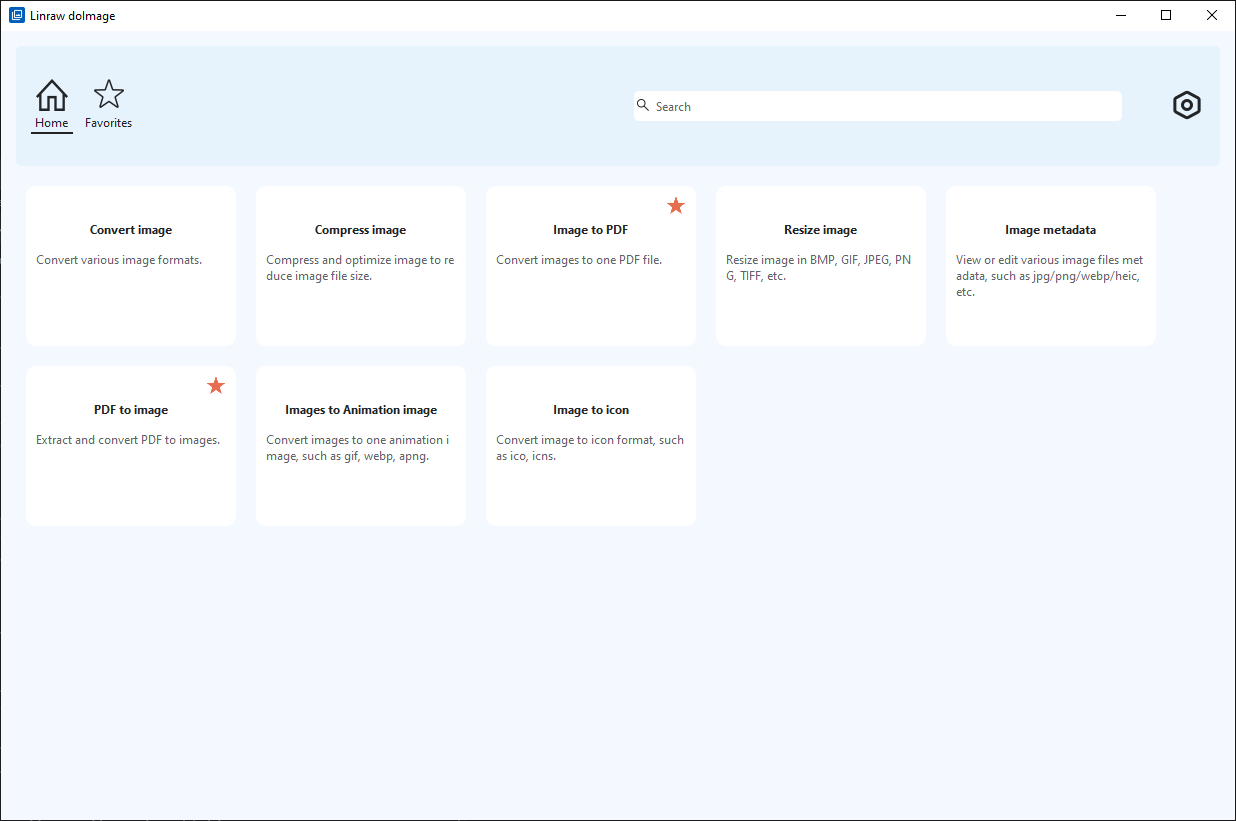
It's easy-to-use to convert JPG to PDF using Linraw doImage. You can follow the steps below.
- First download and install Linraw doImage.
- On the preview window, click the menu "File" -> "Print..."(Or use shortcut: command + p).
- Open the software, click to open the tool "Image to PDF".
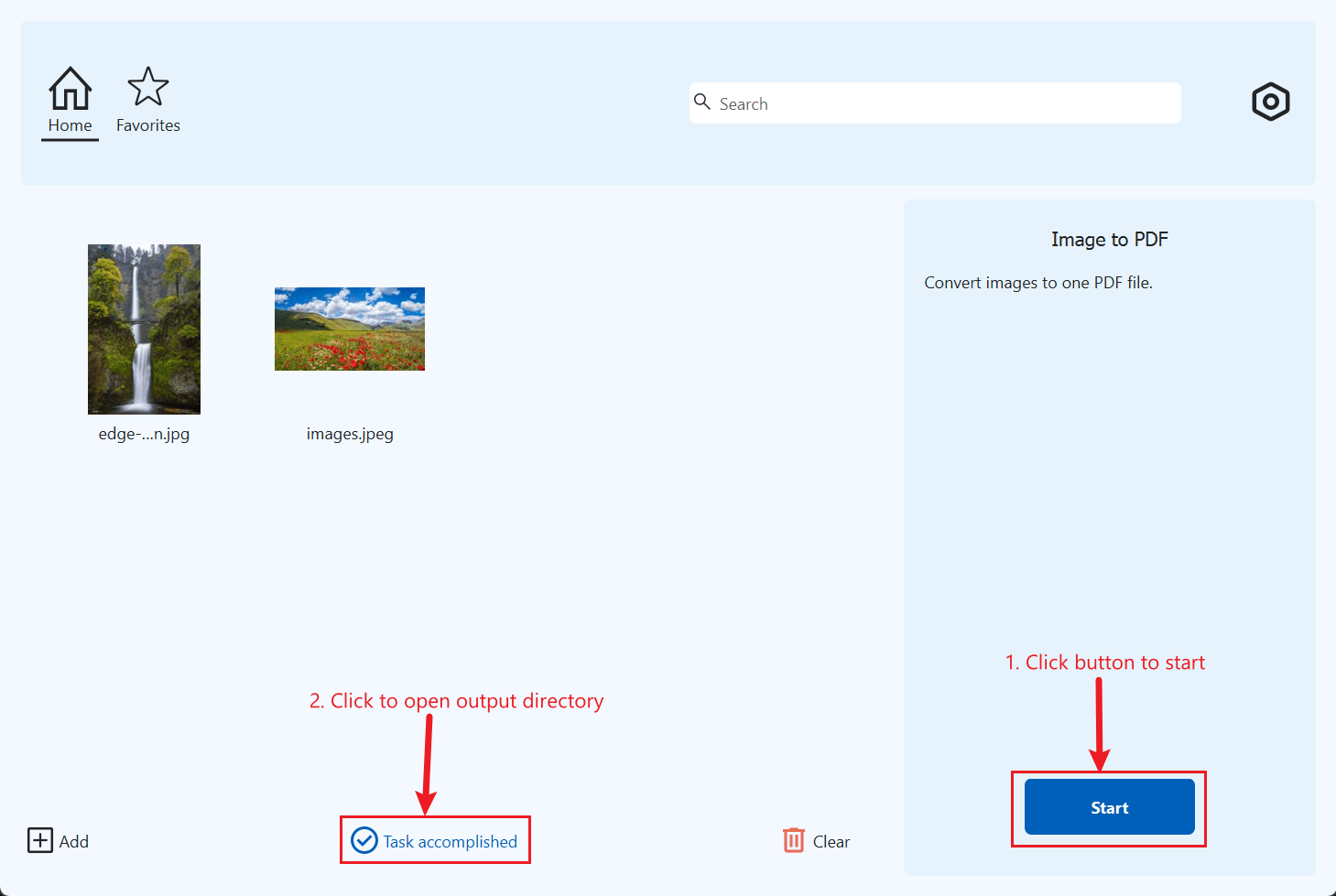
- Drag & drop JPG files to the software or via "Add" button. You can adjust the JPG files order via dragging & dropping or pop menu before starting to convert.
- Click the button "Start" to start, wait for a while, there will be a message "Task accomplished" displaying on the bottom, click it to open the output directory, then you will see the converted PDF file that contains JPG files.
Conclusion
The most effective method for converting a high-quality JPG to PDF for free depends on your need: use your operating system for single files, and a reputable free online batch converter for merging multiple images, and pure command line tool. Also have a try with Linraw doImage, it can do more than just convert JPG to PDF, it can also do other useful things about image.
Try Linraw doImage Free