How to Split Audio Files on Windows & Mac
Splitting audio files is a common task when working with recordings, podcasts, music tracks, or long audio files. Whether you want to cut a large audio file into smaller segments or extract a specific part from a recording, using the right tool can make the process quick and efficient.
This guide explains what it means to split audio files, when you may need to do it, and how to easily split audio files on both Windows and Mac.
Introduction
What It Means to Split Audio Files
Splitting audio files means dividing a single audio file into multiple smaller files. Instead of keeping a long recording as one continuous track, you can separate it into several segments based on time, duration, or number of parts.
For example, you might split a 60-minute recording into three 20-minute files or extract only a specific section from the middle of the audio.
Common audio formats that can be split include MP3, WAV, M4A, FLAC, and many others.
Common Situations Where You Need to Split Audio
There are many scenarios where splitting audio files becomes useful:
Breaking a long podcast into separate episodes
Dividing a large audio recording into manageable segments
Extracting highlights from interviews or lectures
Preparing clips for editing, sharing, or uploading
Instead of manually editing audio in complicated software, a dedicated audio splitter can perform the task quickly and accurately.
Why Splitting Audio Files Is Useful
Break Large Audio Files Into Smaller Parts
Large audio recordings can be difficult to manage, store, or upload. Splitting them into smaller parts makes them easier to organize and distribute.
For example, long meeting recordings or lecture audio files can be divided into multiple sections for easier listening.
Extract Specific Segments From Recordings
Sometimes you only need a specific portion of an audio file. Splitting allows you to extract the exact segment you need without affecting the rest of the recording.
This is useful for creating clips from podcasts, interviews, or music tracks.
Prepare Audio Clips for Editing or Sharing
Short audio clips are easier to edit, share, and publish online. Splitting a long track into multiple pieces lets you work on each section individually and improves workflow efficiency.
Common Audio Formats You Can Split
Most modern audio tools support multiple audio formats. This makes it possible to split different types of audio files without converting them first.
Split MP3 Files
MP3 is one of the most widely used audio formats. Splitting MP3 files allows you to divide music tracks, podcasts, or voice recordings into smaller segments without changing the original quality.
Split WAV Audio Files
WAV files are uncompressed audio files often used for professional recording and editing. Because they are typically large in size, splitting WAV files into smaller parts can make them easier to manage.
Split M4A and AAC Files
M4A and AAC formats are commonly used for music and mobile devices. Splitting these files helps create smaller audio clips for sharing or editing.
Split FLAC and Other Lossless Audio Formats
FLAC and other lossless formats preserve the original sound quality. Splitting these files allows you to keep high-quality audio while organizing recordings into separate sections.
How to Split Audio Files on Windows & Mac Using Linraw doAudio
A convenient way to split audio files is by using a desktop tool such as Linraw doAudio, which provides multiple audio processing features for both Windows and Mac. It supports splitting audio files quickly and efficiently while preserving the original audio quality.
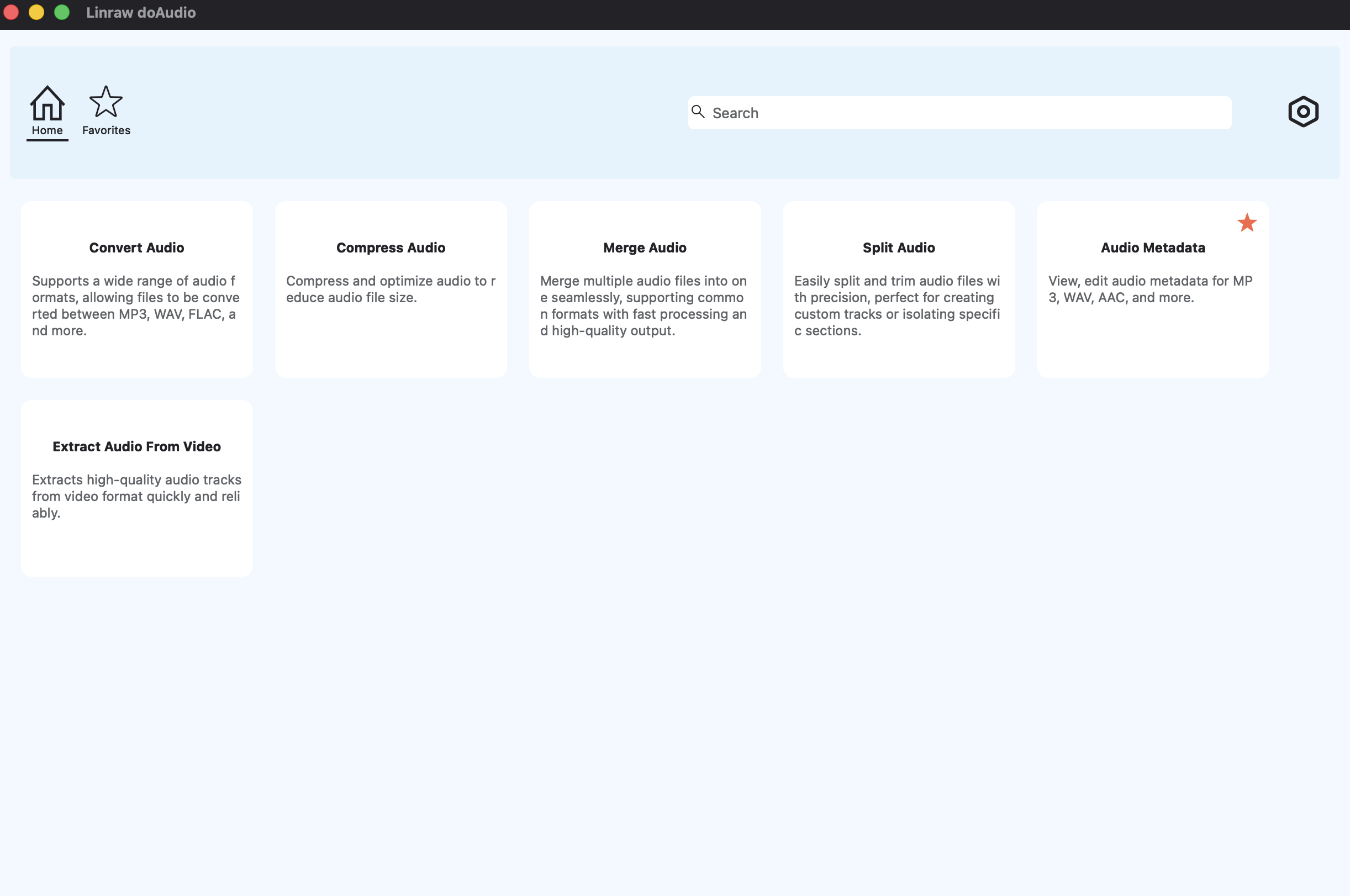
Step 1: Add Audio Files
Open the software and add the audio file you want to split. Most tools support drag-and-drop, making it easy to import your files.
Step 2: Choose Split Mode (Time / Duration / Number of Parts)
Next, select how you want to split the audio file. Common options include:
Split by time range
Split by duration
Split into equal parts
This flexibility allows you to divide the audio exactly the way you need.
Step 3: Start Splitting Audio File
After choosing your preferred settings, start the splitting process. The software will automatically generate separate audio files based on the selected split mode.

Within seconds, your audio file will be divided into multiple smaller files ready for editing, sharing, or storage.
Other Tools That Can Split Audio Files
Besides desktop tools, there are other ways to split audio files.
Online Audio Splitters
Online audio splitters allow you to upload a file through a web browser and split it without installing software.
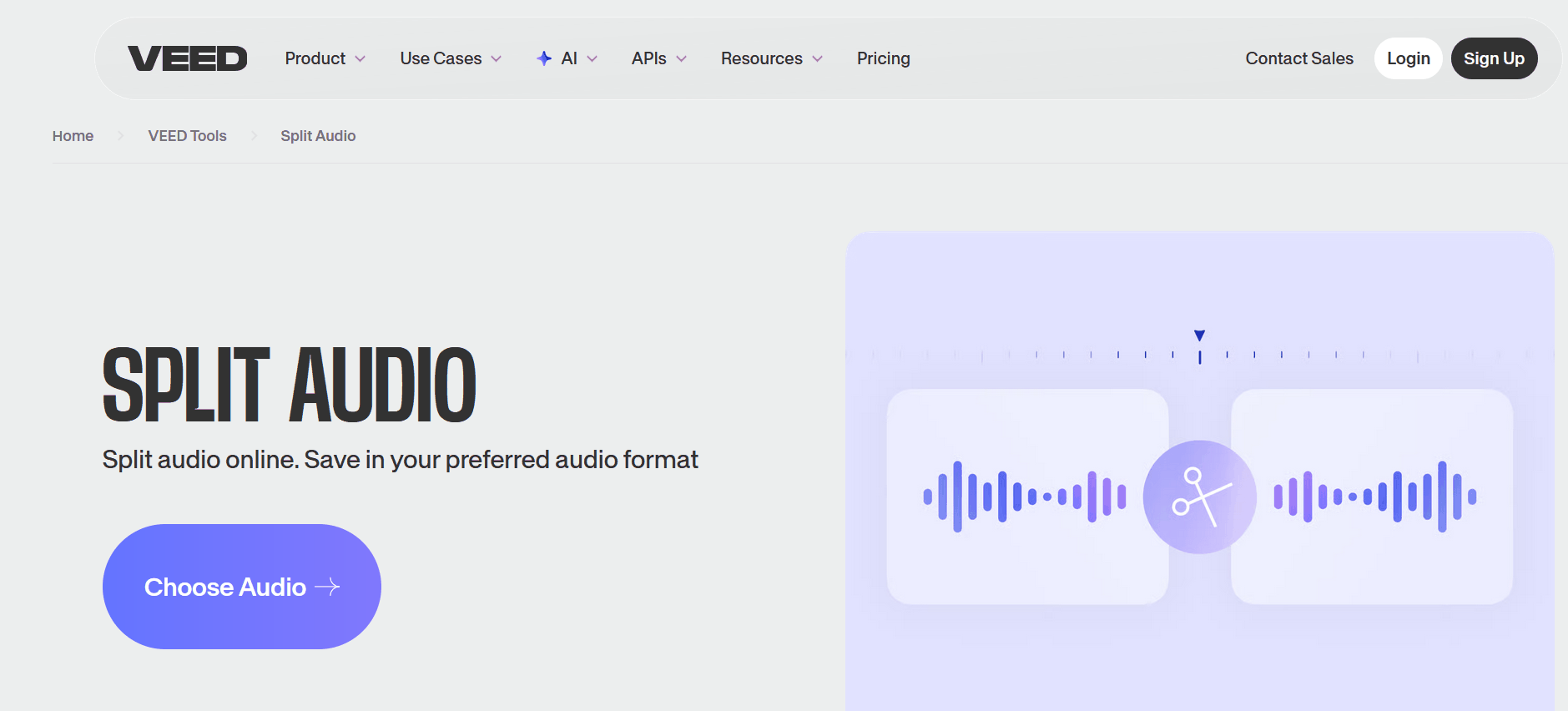
Advantages:
No installation required
Easy to use
However, they often have file size limits and slower processing speeds.
Audio Editing Software
Digital Audio Workstations (DAWs) like Audacity or Adobe Audition offer granular, waveform-level splitting. While highly precise, these tools have a steep learning curve and can be overkill if you just need to make quick, clean cuts.
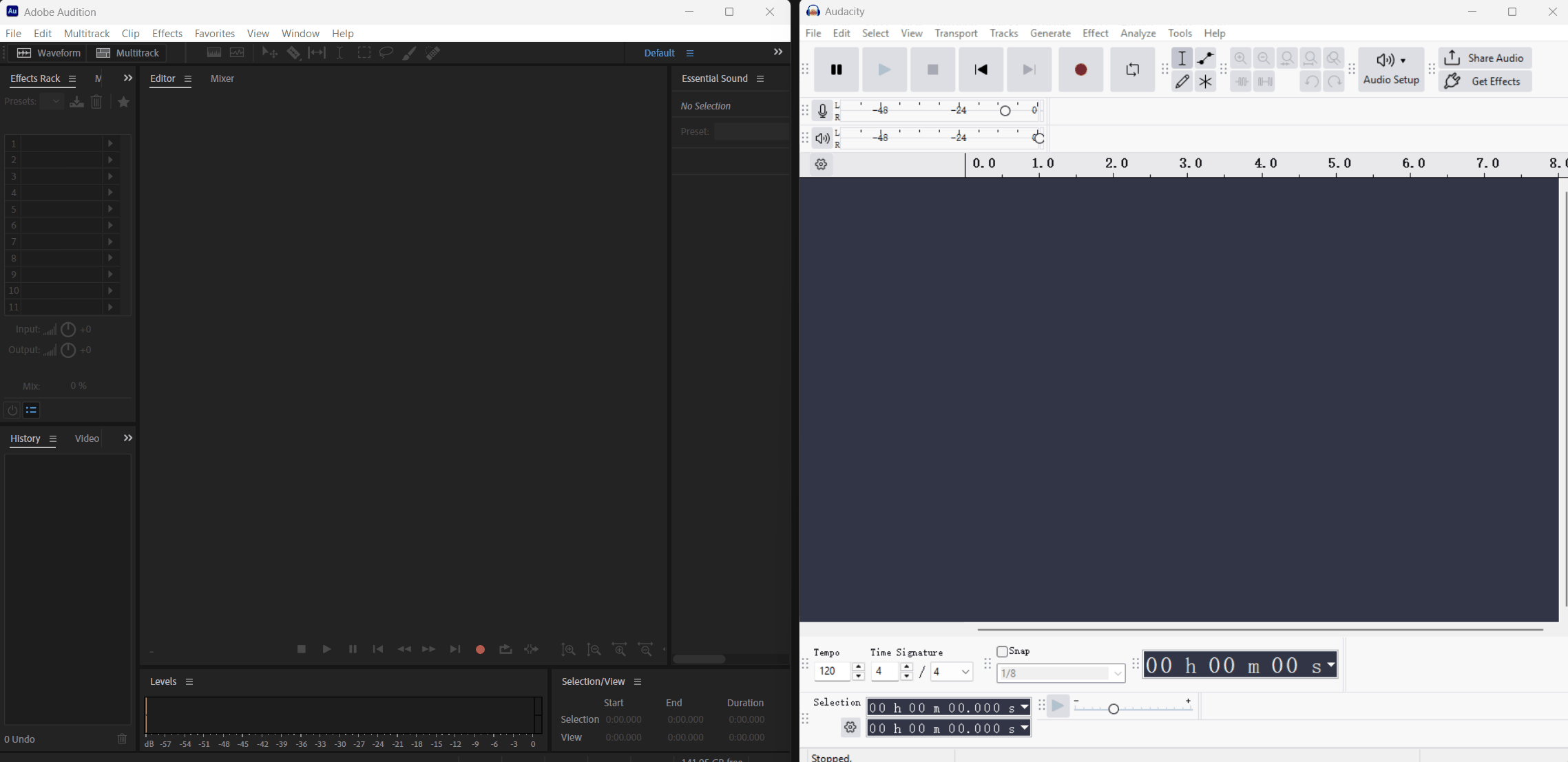
They are commonly used in professional audio production environments.
Command-Line Tools
For technical users, command-line utilities like FFmpeg are incredibly powerful for splitting audio and video. They allow for heavy automation, though they lack a graphical user interface and require familiarity with specific code syntax.
ffmpeg -i input.mp3 -f segment -segment_time 30 -c copy output_%03d.mp3
Comparison: Desktop vs Online Audio Splitters
Choosing the right type of tool depends on your needs.
Speed and Performance
Desktop software typically processes audio files faster because the processing is done locally on your computer.
Online tools may take longer because files must be uploaded and processed on remote servers.
File Size Limitations
Many online tools limit the size of uploaded files. Desktop tools usually have no such limitations and can handle very large recordings.
Privacy and Security
Uploading audio files to online services may raise privacy concerns, especially for sensitive recordings. Desktop software keeps your files on your own computer.
Frequently Asked Questions (FAQ)
Q: How Do I Split an MP3 File Into Multiple Parts?
You can split an MP3 file using audio editing tools or dedicated audio splitters. Simply load the file, choose how you want to divide it, and export the resulting segments.
Q: Can I Split Audio Files Without Losing Quality?
Yes. Many tools can split audio files without re-encoding them, which preserves the original audio quality.
Q: What Is the Best Way to Split Large Audio Files?
Using desktop software is usually the best option because it handles large files efficiently and avoids upload limits.
Q: Is there a limit to how many parts I can split an audio file into?
Most tools allow you to split audio into as many parts as needed, depending on your chosen split mode and the length of the original file.
Conclusion
Splitting audio files is a simple but powerful way to manage long recordings, extract specific segments, and prepare audio clips for editing or sharing. Whether you need to divide a large podcast recording or extract highlights from an interview, the process can be completed in just a few steps.
With the help of a reliable desktop tool like Linraw doAudio, you can easily split audio files on both Windows and Mac while maintaining high audio quality and fast processing speed.
