How to Merge Audio Files on Windows & Mac
Introduction
What Does It Mean to Merge Audio Files?
Merging audio files means combining multiple audio tracks into a single continuous file. Instead of keeping separate recordings, songs, or segments, an audio merger stitches them together in the desired order to produce one final audio track.
This process is commonly used when editing playlists, podcast episodes, interviews, lectures, or audiobooks. With the right tool, you can merge audio files in seconds without affecting sound quality.
Why You May Need to Combine Audio Files
There are several reasons why users merge audio files:
Combine multiple recordings into a single track
Merge podcast segments into a full episode
Join audiobook chapters into one file
Combine music tracks for continuous playback
Merge voice recordings from different sessions
Using a dedicated audio merging tool can significantly simplify this process and avoid complicated editing steps.
Common Use Cases (Music, Podcasts, Recordings, Audiobooks)
Music Collections
Users often combine songs into a single track for DJ mixes, workout playlists, or continuous playback.
Podcast Production
Podcasters may record segments separately (intro, interview, outro) and merge them into one final episode.
Voice Recordings
Interviews, meetings, or lectures recorded in segments can be merged for easier listening and distribution.
Audiobooks
Audiobook chapters can be combined into a single audio file for convenient playback.
Common Audio Formats That Can Be Merged
Popular Formats: MP3, WAV, AAC, FLAC, M4A, OGG
Most modern audio tools support merging a wide range of audio formats, including:
MP3 – the most widely used compressed audio format
WAV – high-quality uncompressed audio
AAC – efficient compression used by many streaming platforms
FLAC – lossless audio format with high fidelity
M4A – commonly used by Apple devices
OGG – open-source audio format
Choosing the right output format depends on your needs for file size, compatibility, and audio quality.
Compatibility Considerations
When merging audio files, it's best to ensure the files share similar settings such as:
Bitrate
Sample rate
Channel configuration (mono or stereo)
Matching these properties helps avoid unexpected playback issues.
Maintaining Audio Quality When Merging
To maintain the best sound quality:
Avoid repeated compression
Use the same output bitrate as the original files
Export to a lossless format if editing further
Good audio tools preserve original quality while combining tracks efficiently.
How to Merge Audio Files with Linraw doAudio (Step-by-Step)
A convenient way to merge audio files on Windows and Mac is using Linraw doAudio, a desktop toolkit designed for batch audio processing.
It includes multiple features such as audio conversion, compression, metadata editing, splitting, and merging.
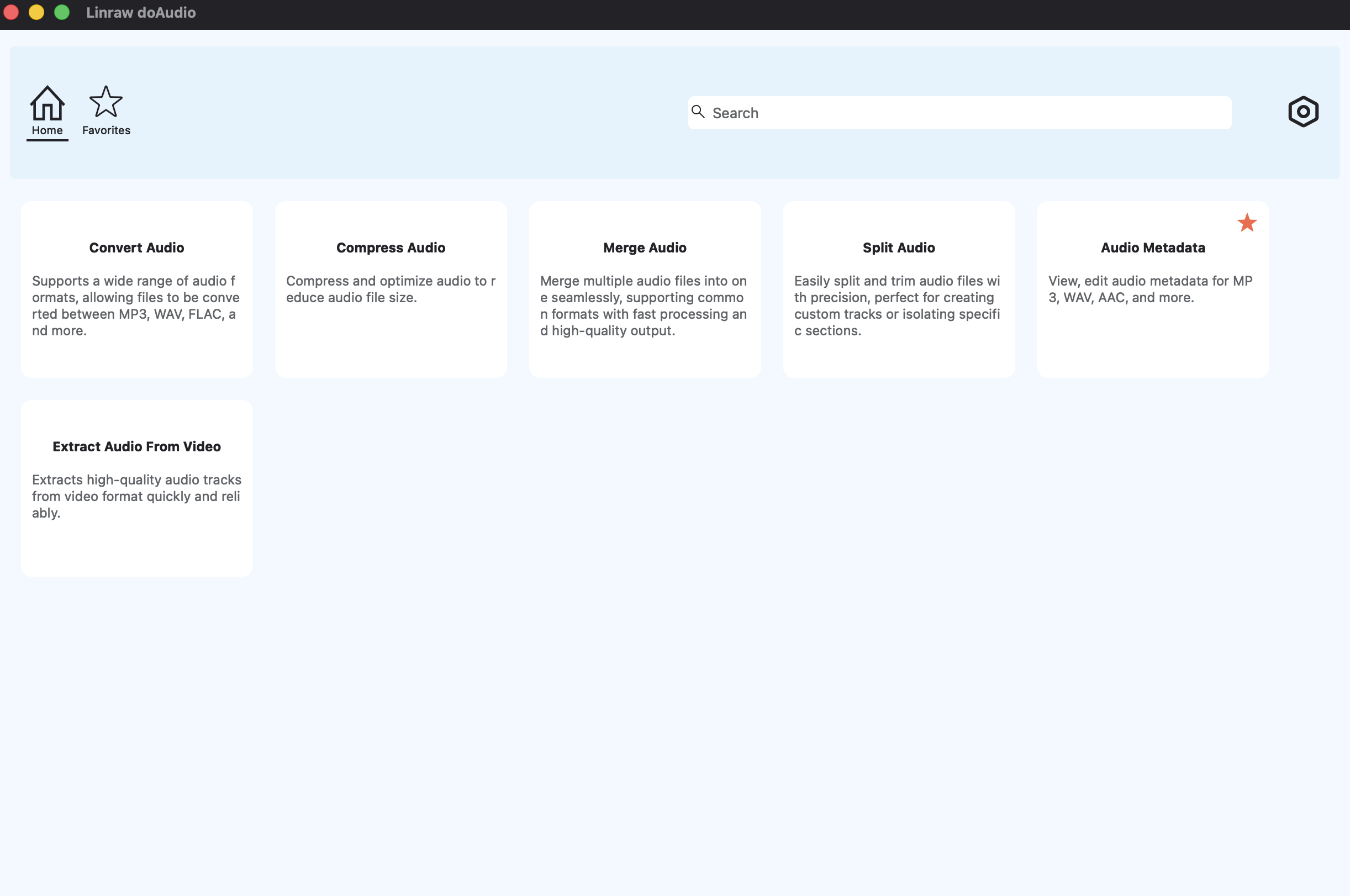
Step 1: Download & Install Linraw doAudio on Windows or Mac
First, download and install Linraw doAudio on your computer. The software supports both Windows and macOS systems and works entirely offline.
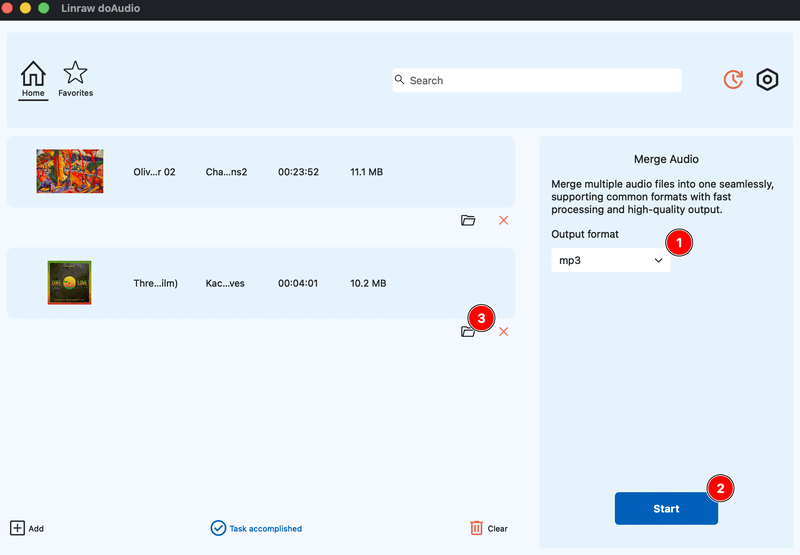
Step 2: Open the Audio Merger Tool
Launch the program and select the Merge Audio feature from the available tools.
This module is specifically designed to combine multiple audio files quickly.
Step 3: Import Your Audio Files
Click Add Files to import the audio tracks you want to merge.
You can add multiple files at once and arrange them in the correct order before merging.
Step 4: Choose Output Format
Select your preferred output format such as:
MP3
WAV
FLAC
Step 5: Start Merging and Save the Output File
Click Start to start the process.
Within seconds, the software will combine the selected files into one final audio file that you can save and share.
Benefits of Using Desktop Software for Audio Merging
Faster Processing for Large Files
Desktop software generally processes files faster than online tools, especially when merging large audio recordings or many files.
Offline and Secure
Since everything runs locally on your computer, your audio files remain private and secure.
This is especially important when handling confidential recordings or professional projects.
Batch Processing Capabilities
Many desktop tools allow batch merging, meaning you can combine multiple groups of files in one operation.
This saves time for users working with large audio libraries.
Better Format Compatibility
Desktop tools often support more audio formats and advanced export settings compared to browser-based services.
Other Tools to Merge Audio Files
Several other tools can also combine audio tracks. Here are some popular options:
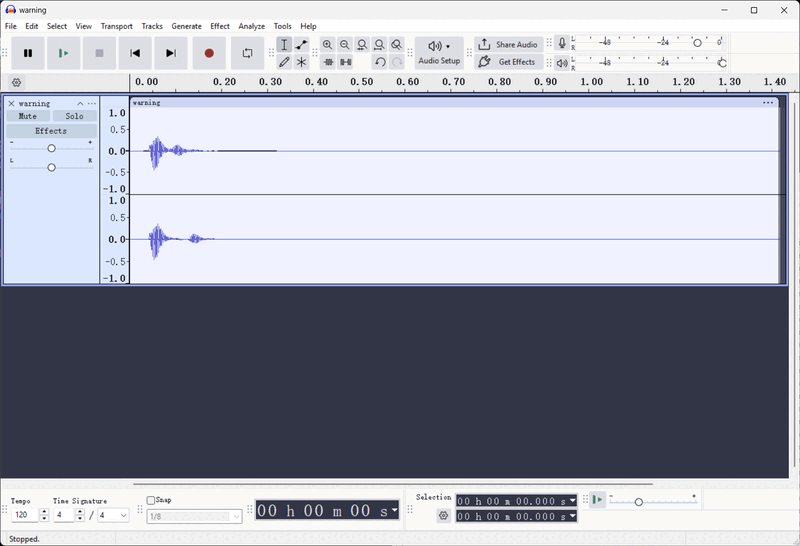
Audacity
Audacity is a free and open-source audio editor. Users can import multiple audio tracks, arrange them on the timeline, and export them as a single file.
FFmpeg
FFmpeg is a powerful command-line multimedia framework that can merge audio files using scripting and automation.
ffmpeg -y -i 1.mp3 -i 2.wav -filter_complex "[0:a][1:a]concat=n=2:v=0:a=1" out.mp3
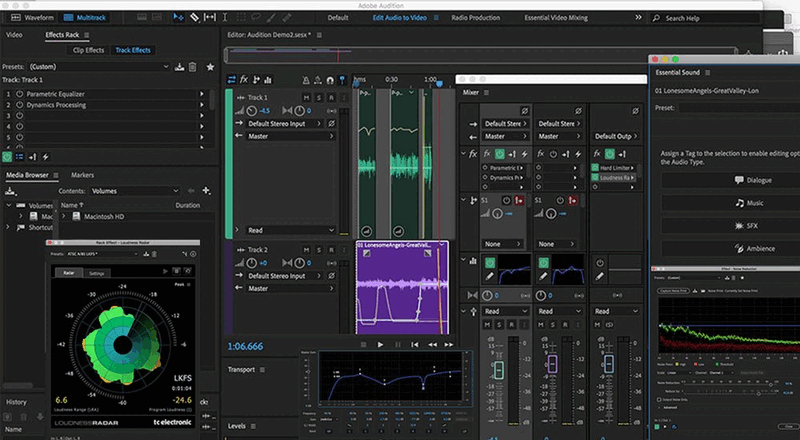
Adobe Audition
Adobe Audition is a professional audio editing tool widely used in broadcasting and music production.
Clideo
Clideo provides an online audio merger that works directly in a web browser without installing software.

Comparison of Popular Audio Merging Tools
Feature Comparison Table
| Feature | Linraw doAudio | Audacity | Adobe Audition | Clideo (Online) | FFmpeg |
|---|---|---|---|---|---|
| Ease of Use | ⭐⭐⭐⭐⭐ | ⭐⭐⭐ | ⭐⭐ | ⭐⭐⭐⭐ | ⭐ |
| Bulk/Batch Mode | ✅ Yes | ❌ No | ✅ Yes | ❌ No | ✅ Yes |
| Processing Speed | Ultra-Fast | Medium | Fast | Slow (Upload dependent) | Fast |
| Offline Use | ✅ Yes | ✅ Yes | ✅ Yes | ❌ No | ✅ Yes |
| Price | Affordable/One-time | Free | Subscription | Free/Subscription | Free |
Desktop Software vs Online Tools
Desktop software typically offers:
faster performance
more export options
better privacy
Online tools are convenient but often have file size limits or slower upload times.
Batch Processing Support
Batch merging is essential for users working with large audio collections. Tools like Linraw doAudio and FFmpeg allow efficient processing of multiple files.
Ease of Use and Performance
For beginners, graphical tools with simple interfaces are usually the easiest option, while command-line utilities are better suited for advanced users.
Frequently Asked Questions (FAQ)
How do I merge multiple audio files into one?
You can merge multiple audio files using audio editing software or dedicated audio merger tools. Simply import the files, arrange them in order, and export them as a single track.
Can I merge MP3 files without losing quality?
Yes. If the files are merged without re-encoding or using the same bitrate settings, quality loss can be minimized or avoided.
Can I merge different file formats (e.g., MP3 and WAV) together?
Yes. Most audio merging tools automatically convert the files to a common output format during the merging process.
Is it possible to merge audio files in batch?
Yes. Many desktop audio tools support batch processing so multiple files can be merged simultaneously.
Is there a limit to how many files I can merge in bulk?
The limit usually depends on the software and your computer's memory. Desktop tools typically allow merging large numbers of files.
What is the best free audio merger for Windows and Mac?
Popular options include Audacity, FFmpeg, and various desktop or online tools.
Can I merge audio files with different formats?
Yes. Many tools automatically convert different formats into a single output format when merging.
Conclusion
Best Method to Merge Audio Files on Windows & Mac
Merging audio files is a simple process with the right tools. Whether you're combining music tracks, podcast segments, or voice recordings, modern audio software makes it easy to create a single, seamless file.
Why Linraw doAudio Is a Convenient Solution for Bulk Audio Processing
For users who frequently work with audio files, Linraw doAudio offers an efficient all-in-one solution. In addition to merging audio, it also supports:
audio conversion
audio compression
audio splitting
metadata editing
extracting audio from video
With support for multiple formats and batch processing, it provides a practical way to manage and process audio files on both Windows and Mac systems.
