6 Best Free & Fast Ways to Convert PNG to JPG
Introduction
High-quality images are essential for the web, but file formats matter. While PNGs are great for graphics requiring transparency, they often result in massive file sizes that slow down websites and eat up hard drive space. This is where converting to JPG (or JPEG) becomes necessary.
Why Convert PNG to JPG? (Size vs. Quality)
PNG images are great for lossless quality and transparency, but they usually come with large file sizes. JPG, on the other hand, uses compression to significantly reduce file size while keeping acceptable visual quality.
Converting PNG to JPG helps when you need:
Faster image loading on websites.
Smaller file sizes for email or storage.
Better compatibility with older software or platforms.
When to Use Each Format
Keep as PNG: If you need a transparent background (logos, icons) or require 100% pixel-perfect quality for editing.
Convert to JPG: For photographs, website banners, blog images, and sending files via email where speed and smaller size are priorities.
Method 1: The Best Way to Batch Convert PNG to JPG (Windows & Mac)
If you have hundreds of images to process, doing it one by one is a nightmare. For users who need speed, privacy, and bulk capabilities, a dedicated desktop tool is the gold standard.
Why use Linraw doImage? (Speed, Privacy & Bulk Processing)
Linraw doImage is a desktop image-processing software designed for both Windows and macOS. Unlike online tools, it works completely offline, keeping your files private while delivering much faster results.
Key advantages:
Bulk Processing: Batch convert hundreds or thousands of PNGs at once.
Privacy: Your files never leave your machine.
configurability: Adjustable JPG quality and output settings.
All-in-One: Includes many extra tools, image compression, image to GIF, image to PDF, PDF to image, and more.
Step-by-Step Guide: Converting 100+ Images in Seconds
Launch Linraw doImage on Windows or Mac.
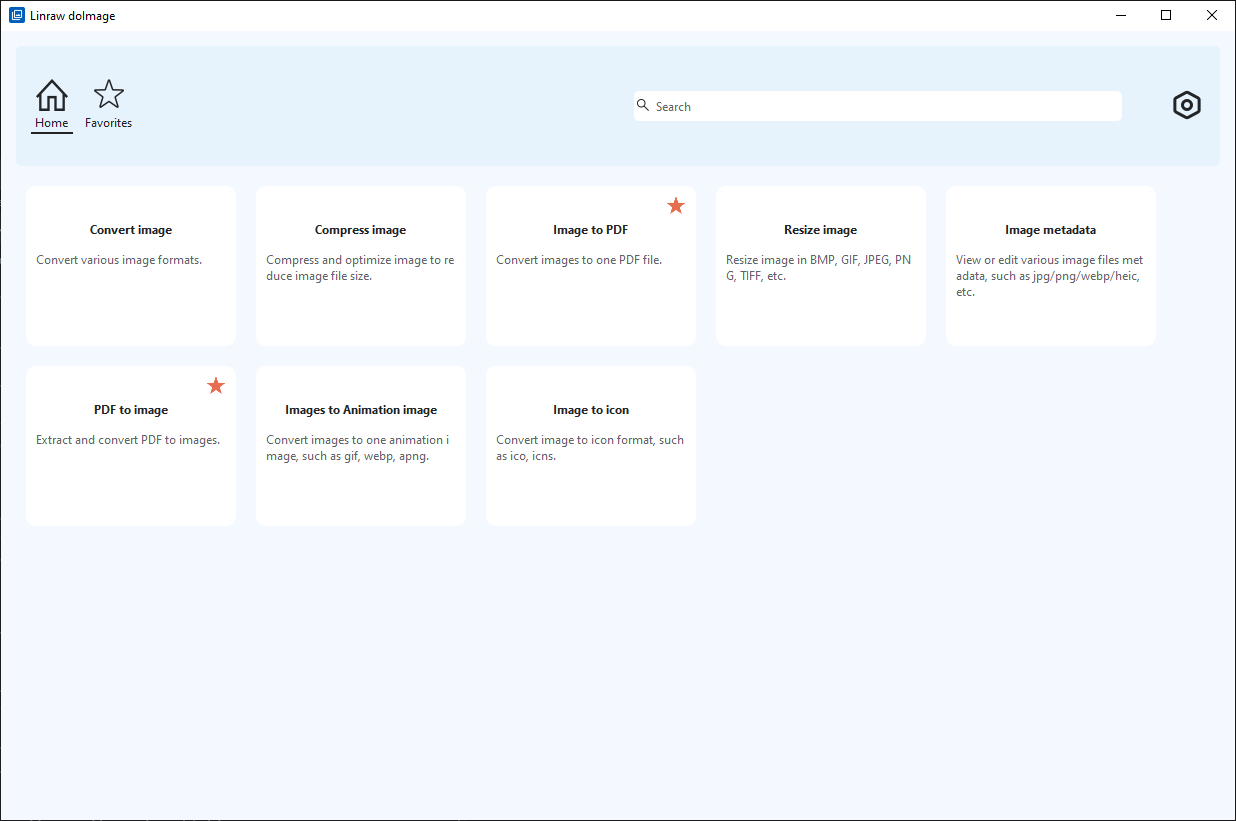
Select Convert Image tool.
Add multiple PNG files into the interface.
Choose JPG as the output format.
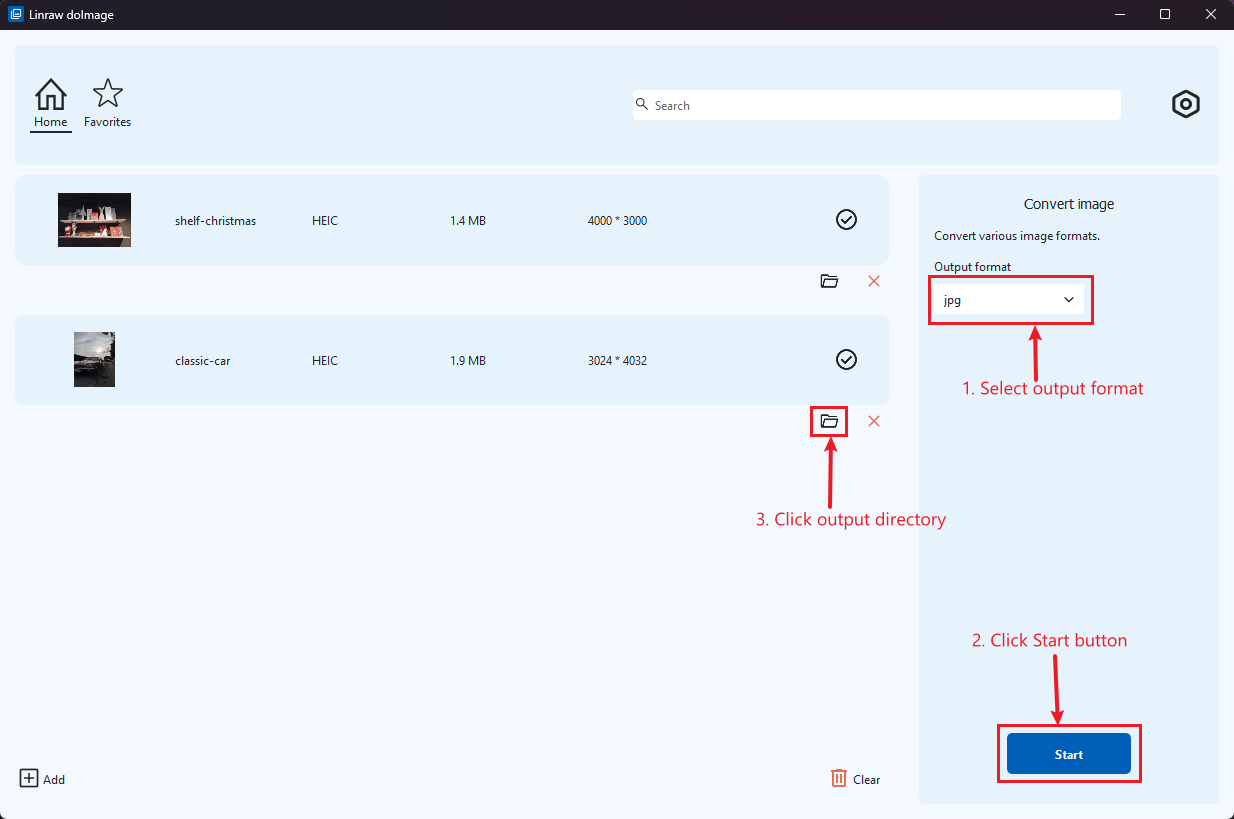
Click Start.
In just seconds, all PNG images are converted to JPG—perfect for bulk workflows.
Method 2: How to Change PNG to JPG for Free Using Built-in Tools
If you only need to convert a single image and don't want to install new software, your computer's operating system has native tools that can help.
On Windows: Microsoft Paint & Photos App
Windows includes basic tools that can convert PNG to JPG:
Open the PNG in Paint.
Click Save As → JPEG.
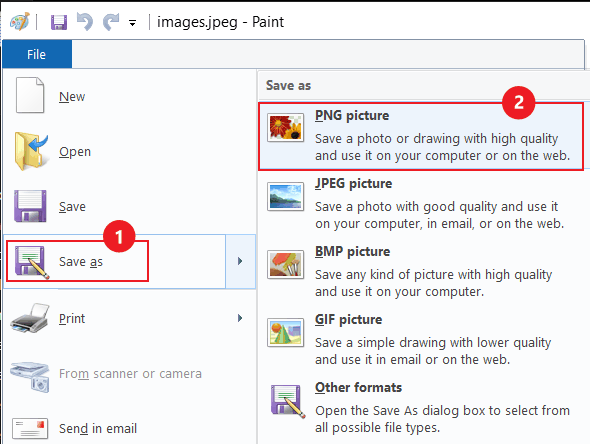
Choose output location and save.
Pros: Free, no installation.
Cons: One image at a time, no batch support.
On Mac: Apple Preview & Quick Actions
macOS offers a slightly better native workflow:
Open your image(s) in Preview.
Click File > Export (or "Export Selected Images" for bulk).
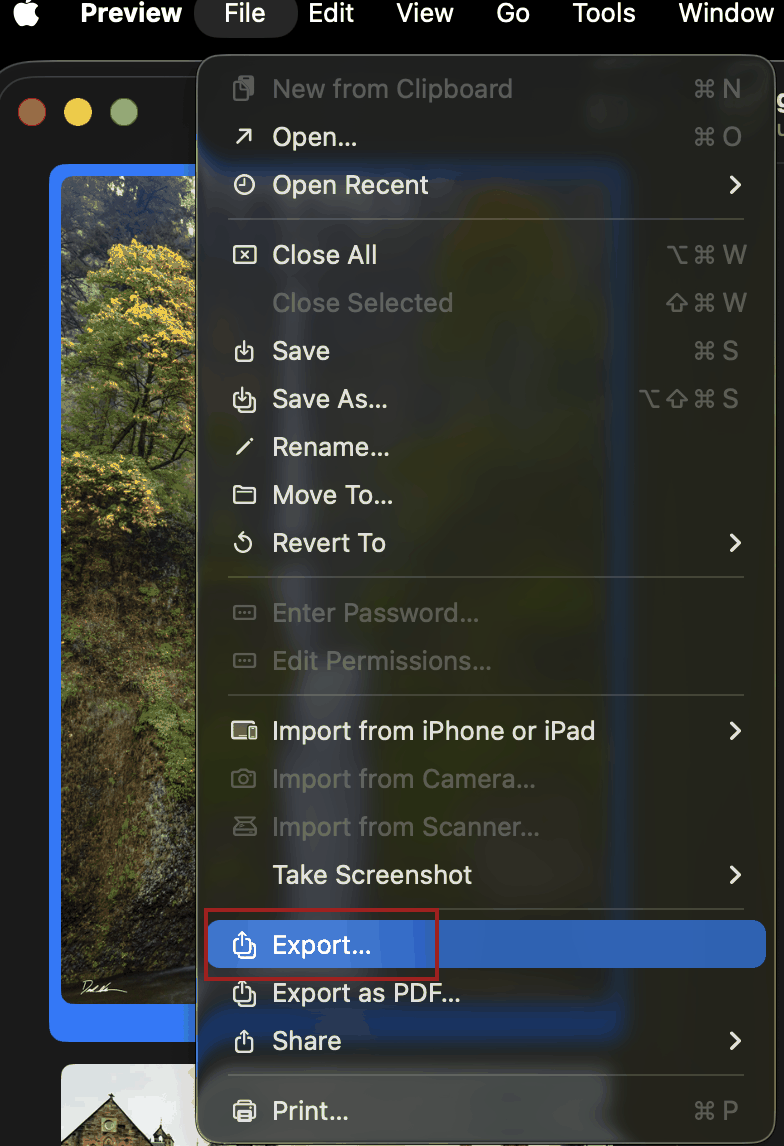
Change the format to JPEG and adjust the quality slider.
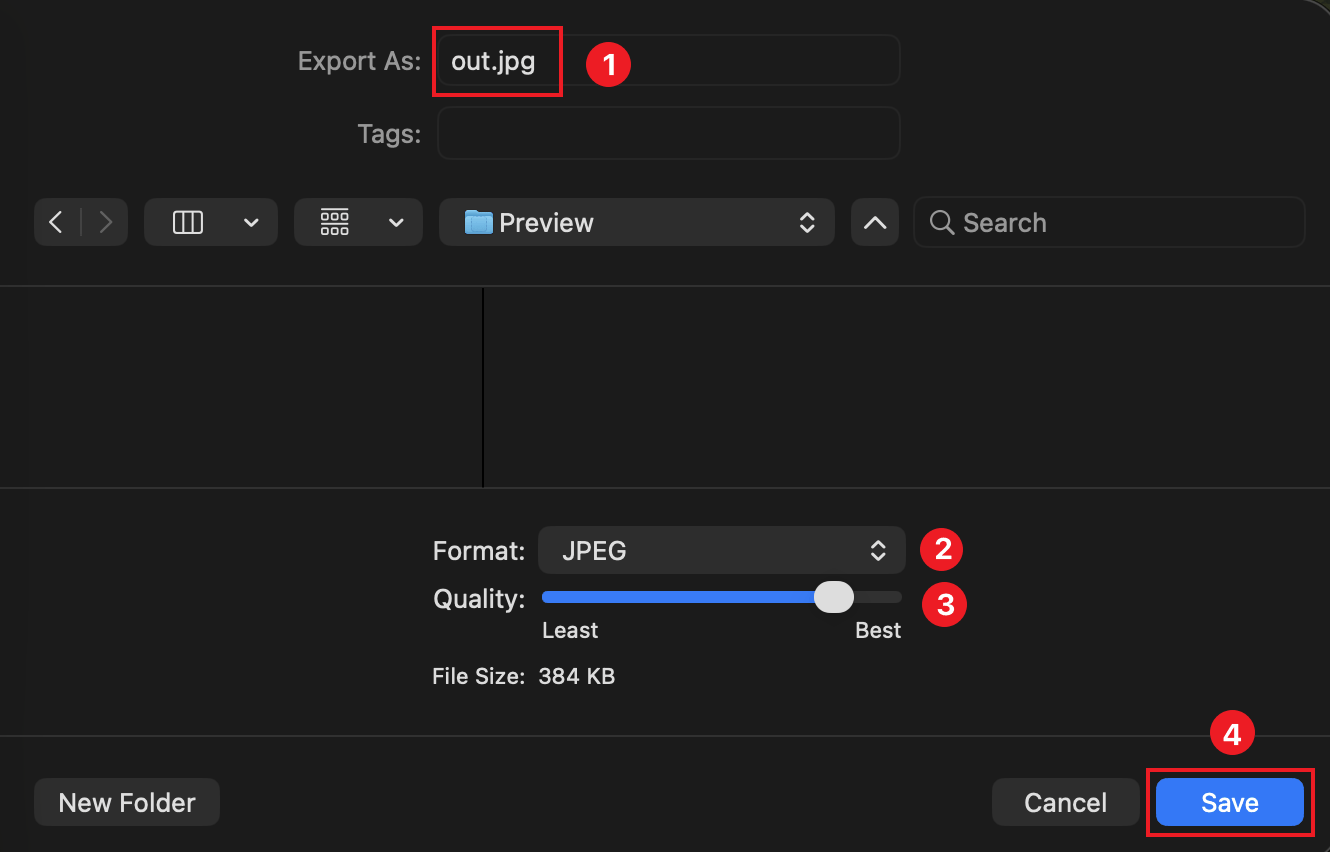
Click Save.
Method 3: Best Free Online PNG to JPG Converters (No Installation)
For users on a public computer, browser-based tools are a convenient fallback.
Top Browser-Based Tools
Sites like CloudConvert, Zamzar, and TinyPNG allow you to upload files and download the converted versions. They are platform-independent and generally free for a limited number of daily tasks.
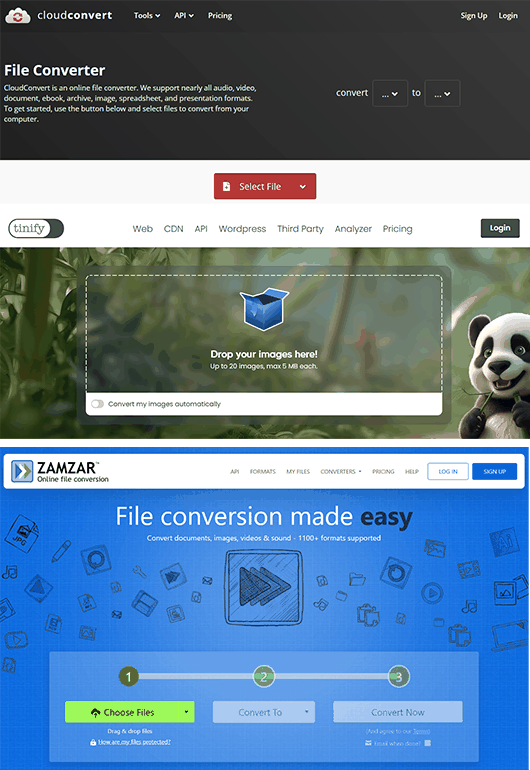
Online converters work directly in your browser:
Upload PNG.
Convert to JPG.
Download result.
They’re convenient for quick, occasional tasks.
The Hidden Risks of Online Converters (Privacy & Limits)
However, online tools often:
Upload your images to external servers.
Limit batch size or file count.
Compress images aggressively.
Show ads or require sign-ups.
For sensitive or large-scale conversions, desktop software like Linraw doImage is safer and faster.
Method 4: For Tech-Savvy Users: Convert PNG to JPG via Command Line
Developers and sysadmins often prefer using the Command Line Interface (CLI) for scriptable automation.
ImageMagick or Similar CLI Tools
Command-line tools like ImageMagick allow advanced users to batch convert images:
magick input.png output.jpg
They’re powerful and flexible but require:
Technical knowledge.
Terminal usage.
Manual setup.
Best for Advanced or Bulk Conversions
This method is incredibly powerful for server-side processing or automating daily workflows, but it lacks a visual interface, making it difficult for average users to check image quality previews before converting.
Method 5: How to Convert PNG to JPG on iPhone (iOS) & Android
Mobile photography often defaults to HEIC or PNG (for screenshots).
Using Files app on iOS (built-in, no apps)
This is the easiest and works on iOS 15+.
Steps:
Open Files
Long press the PNG image
Tap Quick Actions
Tap Convert Image
Choose JPEG
It creates a JPG copy in the same folder.
Using built-in Gallery / Photos app on Android (no extra apps)
Most Android phones support this natively.
Steps (may vary slightly by brand):
Open Gallery or Google Photos.
Open the PNG image.
Tap Edit → Save copy / Export.
Choose JPEG / JPG.
When Mobile Conversion is Convenient
Mobile conversion is useful when:
You only have a few images.
You’re away from a computer.
Speed matters more than control.
For large batches, desktop tools remain far superior.
Method 6: Using Professional Design Software (Photoshop & GIMP)
If you are already editing an image, you can export it as a JPG directly from your editor.
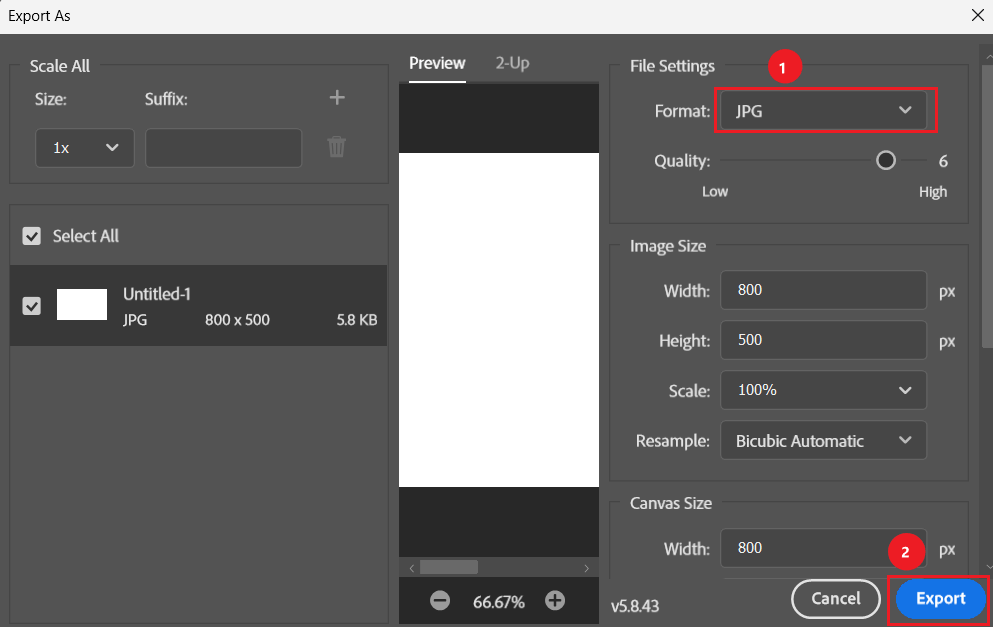
Photoshop: Go to File > Export > Export As... and select JPG.
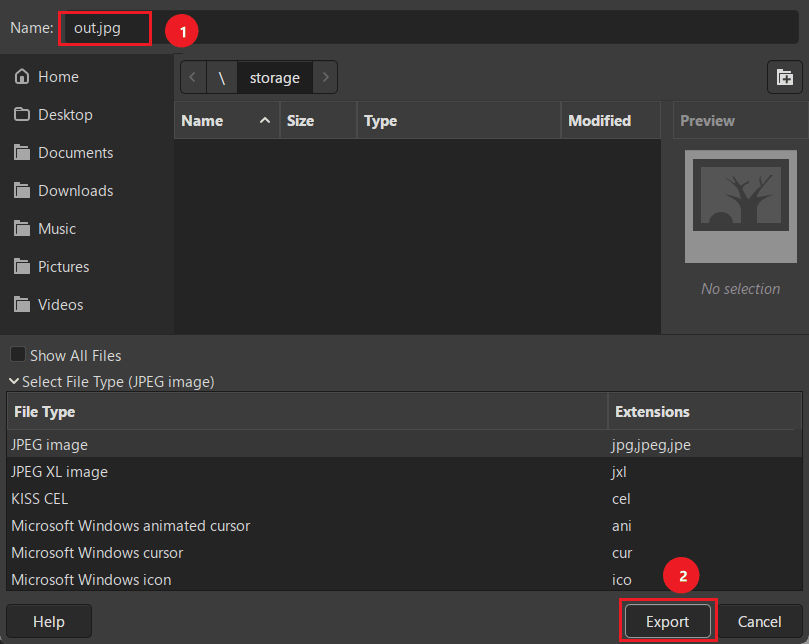
GIMP: Go to File > Export As... and type the extension .jpg.
Pros: Maximum control over compression algorithms and color profiles.
Cons: These programs are resource-heavy, expensive (Photoshop), and overkill for simple file conversion tasks.
Comparison of All Methods
Which method should you choose? Here is a quick breakdown.
| Method | Speed | Batch Support | Privacy | Ease of Use |
|---|---|---|---|---|
| Linraw doImage (Desktop) | ⭐⭐⭐⭐⭐ | ⭐⭐⭐⭐⭐ | ⭐⭐⭐⭐⭐ | ⭐⭐⭐⭐⭐ |
| Built-in Tools | ⭐⭐ | ❌ | ⭐⭐⭐⭐ | ⭐⭐⭐ |
| Online Tools | ⭐⭐⭐ | ⭐⭐ | ⭐ | ⭐⭐⭐⭐ |
| Command Line | ⭐⭐⭐⭐ | ⭐⭐⭐⭐ | ⭐⭐⭐⭐⭐ | ⭐ |
| iOS / Android | ⭐⭐ | ⭐ | ⭐⭐ | ⭐⭐⭐ |
| Photoshop / GIMP | ⭐⭐ | ⭐⭐ | ⭐⭐⭐⭐ | ⭐⭐ |
FAQs
Does converting PNG to JPG reduce quality?
Yes, technically. JPG is a "lossy" format, meaning it discards some data to save space. However, if you use a high-quality setting (like 80-90%), the visual difference is usually unnoticeable to the human eye.
How to convert PNG to JPG without losing transparency?
You cannot. The JPG format does not support transparency. Any transparent areas in your PNG will be turned white (or black) upon conversion. If you need transparency, you must stick with PNG, GIF, or WebP.
Which method is best for bulk images?
A desktop batch tool like Linraw doImage is the fastest and most efficient. It processes files locally using your CPU power, which is significantly faster than uploading files to the internet.
How do I convert multiple PNGs to JPG at once?
Use batch-enabled software such as Linraw doImage or command-line tools.
Is it safe to convert private photos online
It is generally safer to use offline tools. While reputable online converters delete files after a few hours, there is always a risk when uploading data to a server you do not control.
Conclusion
If you only need to convert one or two images, built-in or online tools may be enough. But for fast, free, and large-scale PNG to JPG conversion, Linraw doImage is the best all-around solution for both Windows and Mac.
With offline processing, batch support, and multiple image-processing tools in one place, it’s ideal for photographers, designers, and everyday users alike.
Tip: If you frequently work with images, choose a tool that does more than just conversion—saving time across your entire workflow.
