Convert PNG/JPG to ICO & ICNS Offline on Your Computer
If you need to create custom icons for desktop shortcuts, applications, folders, or software projects, converting your images into ICO (Windows icons) or ICNS (macOS icons) is essential. Many online converters require internet access, upload limits, or privacy concerns—but with our Linraw doImage, you can convert PNG and JPG images to ICO or ICNS quickly, securely, and completely offline on both Windows and Mac.
Try Linraw doImage FreeWhy Convert Images to ICO & ICNS?
Different operating systems use different icon formats:
- ICO: Used for Windows app icons, desktop shortcuts, and favicons
- ICNS: Used for macOS applications, dock icons, and system icons
By converting your PNG or JPG images to these icon formats, you can:
- Create custom desktop icons
- Design app icons for Windows and macOS
- Personalize folders and shortcuts
- Prepare icons for development projects
- Maintain high-resolution quality
The Benefits of Using an Offline Desktop Icon Converter
Web-based tools often compress images to save bandwidth, leading to blurry icons or "jagged" edges around transparent backgrounds.
- Works Offline — No Internet Required
- Convert icons anytime without uploading files. Safe for confidential or proprietary images.
- Supports Windows & Mac
- One tool that works seamlessly on:
- Windows PC
- macOS
High-Quality Icon Output
Keep sharp details and colors with high-resolution conversion support.
- Fast and Easy to Use
- Supports PNG & JPG
- powerful Batch Processing
Just import your image, choose output format, and convert—no technical skills needed.
Open common image formats and turn them into ready-to-use icons.
Need to convert 50 app icons at once? Don't waste time uploading them one by one. Drag and drop entire folders of images and convert them to your target format in seconds.
How to Convert PNG/JPG to ICO or ICNS Offline
Stop wrestling with complex settings. Here is how to create your first icon in four steps:
- Download and install Linraw doImage
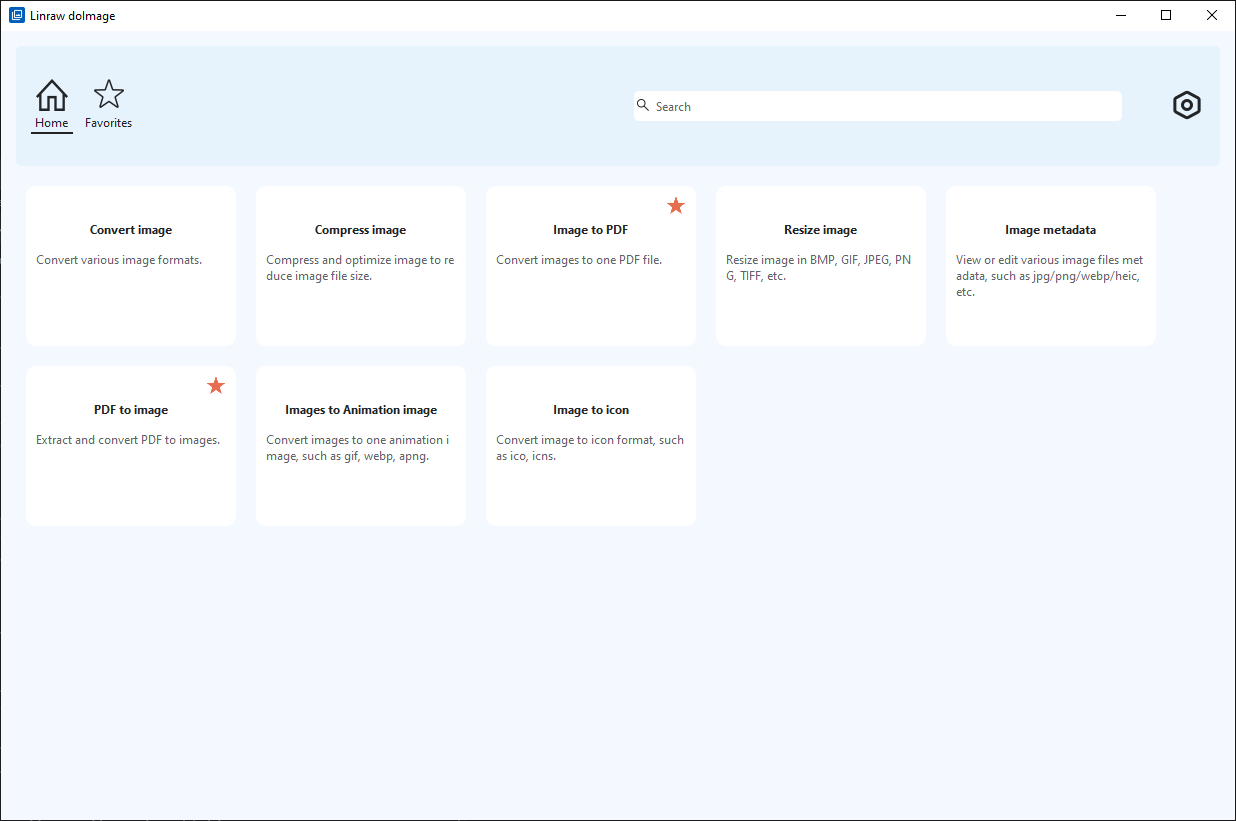
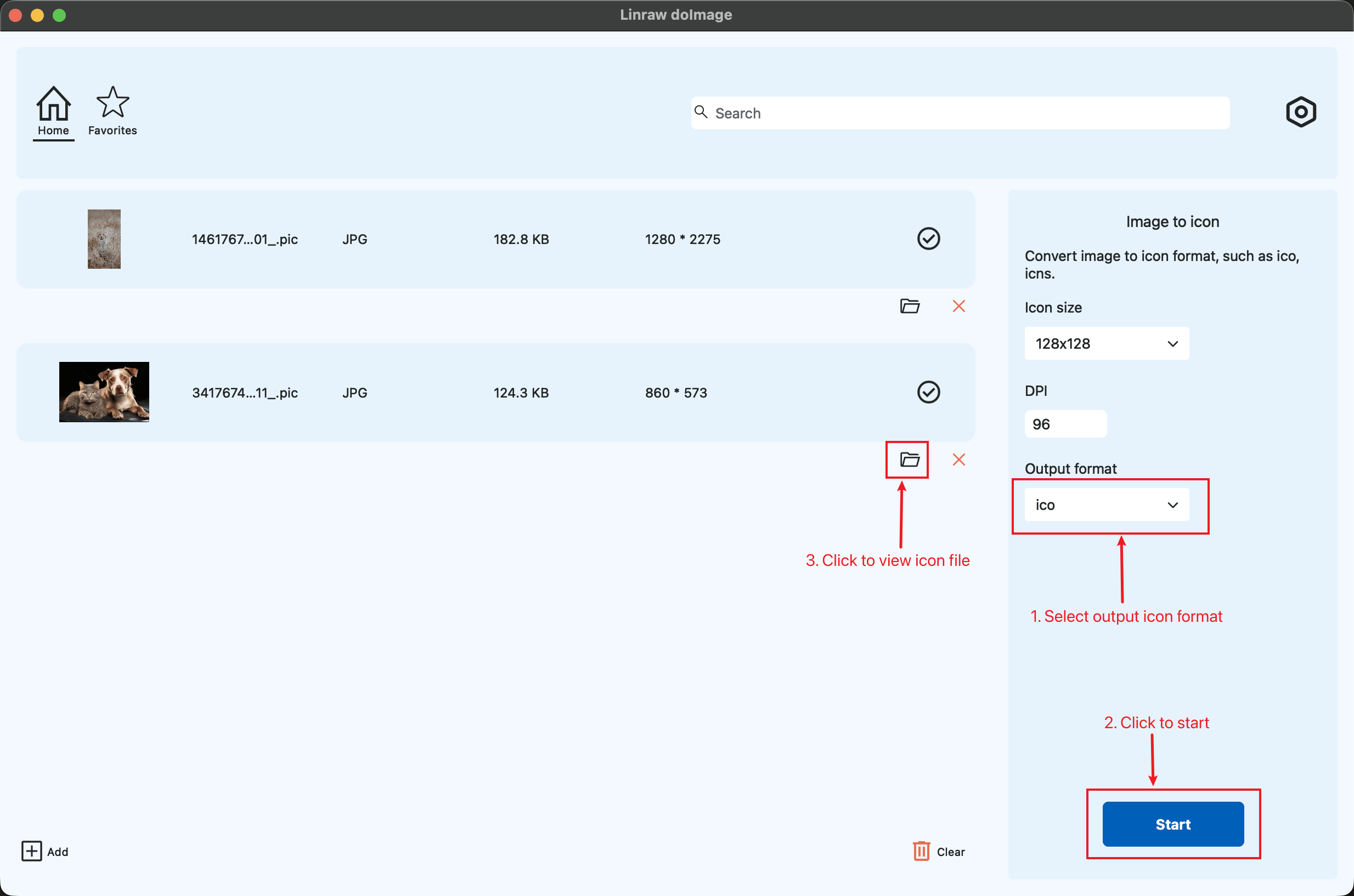
- Drag & Drop: Launch Linraw doImage and drag your source images (PNG or JPG) into the main window.
- Select Output Format: Choose ICO for Windows use or ICNS for Mac apps. You can also select specific output sizes if you don't need the full set.
- Export: Click "Start." Your new icons are saved instantly to your chosen destination folder.
> Pro Tip: For the best results, always start with a square PNG image (e.g., 512x512 or 1024x1024) with a transparent background.
Who Is This Tool For?
This offline image-to-icon converter is perfect for:
- Software developers
- Designers
- Content creators
- Office users
- Anyone who wants to customize their computer
Whether you're creating app icons, personalizing your desktop, or preparing assets for a project, it makes the process simple and fast.
Start Converting Images to Icons Today
If you're looking for a reliable way to convert PNG or JPG to ICO or ICNS without worrying about privacy, speed, or internet access, Linraw doImage is the ideal solution. Install it on your Windows or Mac computer and enjoy fast, offline, and high-quality icon conversion anytime.
Frequently Asked Questions (FAQ)
Can I convert PNG to ICO with a transparent background?
Yes. As long as your source PNG has a transparent background, our software preserves it perfectly in the resulting ICO or ICNS file.
Does this run on Apple Silicon (M1/M2/M3)?
Yes, our Mac version is optimized for both Intel and Apple Silicon chips.
Is there a file size limit?
No. Unlike online converters, Linraw doImage engine processes images of any file size or resolution without restriction.
Try Linraw doImage Free