Best Way to Reduce Audio File Size on Windows & Mac
Introduction
Why Reducing Audio File Size Matters
Every audio file you create, share, or store has a cost — in storage space, in bandwidth, in loading time, and in listener patience. Those costs grow fast.
A single uncompressed WAV recording of a one-hour podcast episode can weigh in at 600MB or more. A music library of 500 tracks in FLAC format can occupy 50GB of storage. A background audio clip embedded on a webpage, if left unoptimized, can add hundreds of milliseconds to your page load time and drag down your Core Web Vitals score.
Reducing audio file size is not a niche concern for audio engineers. It's a practical necessity for anyone who creates, distributes, or works with audio content. Whether you're a podcaster trying to keep episode file sizes manageable for listeners on mobile data, a web developer ensuring your pages load fast, a musician distributing your work online, or a business managing a growing library of recorded meetings and training materials — audio file size matters to you.
The challenge is doing it right. Compressing audio the wrong way means audible quality loss, compatibility issues, or a tedious file-by-file workflow that doesn't scale. Compressing it the right way means files that are dramatically smaller, sound just as good to every listener, and can be processed in bulk — so that a library of 500 files takes no more time than processing one.
This guide covers everything you need to know: what audio compression actually is, how to choose the right settings, and how to use Linraw doAudio — a dedicated audio processing tool for Windows and Mac — to reduce audio file size efficiently, accurately, and at scale.
Common Scenarios for Compressing Audio
Understanding when and why to reduce audio file size helps you choose the right approach every time. Here are the most common situations where compression matters:
Podcast production and distribution. Podcast episodes recorded as WAV or high-bitrate MP3 files need to be compressed before upload. Podcast hosting platforms have storage quotas, and listeners on mobile data notice when downloads are slow. A properly compressed episode — 96 kbps mono MP3 — is approximately 43MB per hour, compared to 600MB for the equivalent uncompressed WAV.
Website audio and media. Audio embedded directly on webpages — background music, audio players, sound effects — contributes directly to page weight. Unoptimized audio is one of the most common causes of slow-loading pages, poor Core Web Vitals scores, and lower search engine rankings.
Email and messaging attachments. Most email providers cap attachments at 10–25MB. An uncompressed audio file for even a 3-minute recording can exceed this limit easily. Compression makes files shareable without resorting to external file transfer services.
Storage management. Audio libraries grow fast. Recording studios, content teams, educators, and developers who accumulate audio files over months and years face storage costs that compound. Compressing a library to a fraction of its original size can extend storage capacity dramatically and reduce cloud storage costs.
Video to audio extraction. Content creators who repurpose video content — converting YouTube videos to podcast episodes, or extracting voiceovers from recorded presentations — need to compress the extracted audio to a web-appropriate format as part of their workflow.
Cross-platform sharing and compatibility. Certain audio formats aren't universally supported. Converting and compressing to widely compatible formats like MP3 or AAC ensures your audio plays correctly on every device, browser, and platform your audience uses.
Benefits of Using Linraw doAudio for Audio Compression
Linraw doAudio is a desktop audio processing application built specifically for Windows and Mac users who need professional-grade control over their audio files without the complexity of a full digital audio workstation.
Where most solutions ask you to choose between ease of use and capability, Linraw doAudio offers both. Here's what sets it apart:
All-in-one workflow. Linraw doAudio handles compression, format conversion, merging, splitting, metadata editing, and audio extraction from video — all within a single application. There is no need to juggle multiple tools for different steps of the same workflow.
True batch processing. Linraw doAudio can process hundreds of files in a single job, applying consistent compression settings across all of them simultaneously. This is the single most important capability for anyone working with more than a handful of files.
No upload required. Linraw doAudio works entirely on your local machine. Your audio files never leave your computer — there are no file size limits imposed by server infrastructure, no upload wait times, and no privacy concerns about sensitive recordings reaching third-party servers.
Platform parity. Linraw doAudio runs natively on Windows 10, Windows 11, and macOS — including Apple Silicon (M1, M2, M3) — with the same full feature set on both platforms.
Preset-based workflows. Save your preferred compression settings as named presets and recall them instantly for future jobs. Once you've configured your ideal podcast compression settings, you're one click away from applying them to every future episode.
What Does It Mean to Reduce Audio File Size?
Understanding Audio Compression
When most people hear "audio compression," they think of dynamic range compression — the effect used in music production to even out loud and quiet passages. That's a different kind of compression entirely.
File size compression — the kind this guide covers — is the process of encoding audio data more efficiently so that the resulting file occupies less storage space. The audio content is the same; only the encoding changes.
Audio files are large in their raw form because they store extremely detailed representations of sound waves. A standard CD-quality audio file captures 44,100 samples of audio data every second, with each sample encoded at 16 bits. For stereo audio, that's 44,100 × 16 × 2 = 1,411,200 bits per second — about 1.4 megabits per second. Over an hour, that's approximately 635MB.
Audio compression reduces this by applying algorithms that represent the same audio data more compactly. Depending on the compression method and settings, the same one-hour recording can be reduced to as little as 25–50MB while sounding virtually identical to the original.
Lossy vs. Lossless Compression
The two fundamental categories of audio compression work in very different ways and are suited to different use cases.
Lossless compression removes redundant data from the audio file without discarding any audio information. Every sample from the original recording is preserved and can be perfectly reconstructed. The tradeoff is a more modest size reduction — typically 30–60% compared to uncompressed formats. FLAC (Free Lossless Audio Codec) is the most widely used lossless audio format. WAV files can also be wrapped in lossless compression containers.
Lossless compression is the right choice for master recordings, professional archival workflows, and any situation where audio needs to be re-edited or reprocessed later. Since no data is discarded, there is no quality penalty for repeated decoding and re-encoding.
Lossy compression discards audio data that psychoacoustic models predict the human ear is unlikely to notice. This is based on decades of research into how humans perceive sound — our ears are less sensitive to very high and very low frequencies, cannot hear sounds that are masked by louder sounds occurring simultaneously, and can't resolve very short audio events. Lossy codecs exploit these perceptual limitations to achieve file size reductions of 80–95% while maintaining subjective audio quality.
MP3, AAC, OGG Vorbis, and Opus are all lossy formats. At appropriate bitrates, most listeners cannot distinguish well-compressed lossy audio from the uncompressed original. The key word is "appropriate" — compress too aggressively, and artifacts become audible.
The practical rule: use lossless for archiving and production masters; use lossy for distribution, web delivery, podcasting, and any situation where file size matters to the end user.
Key Factors That Affect File Size (Bitrate, Sample Rate, Format)
Three variables determine audio file size for any given recording. Understanding each gives you precise, predictable control over your output.
Format (Codec)
The format is the compression algorithm used to encode the audio. It is the single largest determinant of file size for a given length and quality of audio. The same 60-minute recording encoded at equivalent perceived quality will produce vastly different file sizes depending on the format:
| Format | Type | Approximate Size (60 min audio) |
|---|---|---|
| WAV | Uncompressed | ~635 MB |
| FLAC | Lossless | ~200–380 MB |
| MP3 (128 kbps) | Lossy | ~56 MB |
| AAC (96 kbps) | Lossy | ~43 MB |
| Opus (64 kbps) | Lossy | ~29 MB |
Choosing the right format is step one of any compression workflow. For web delivery and podcasting, MP3 and AAC are the standard. For archival, FLAC. Never distribute WAV or AIFF for public consumption.
Bitrate
Bitrate determines how much audio data is stored per second, expressed in kilobits per second (kbps). Higher bitrate equals better quality and larger files. Lower bitrate equals smaller files and, at some point, audible compression artifacts.
The relationship between bitrate and perceived quality follows a diminishing returns curve. The difference between 320 kbps and 192 kbps MP3 is inaudible to most people. The difference between 96 kbps and 32 kbps is immediately obvious. There is a threshold — different for voice vs. music — below which quality loss becomes unacceptable, and above which additional bitrate adds file size without improving the listening experience.
Recommended bitrates:
| Content Type | Format | Recommended Bitrate |
|---|---|---|
| Podcast / Voice (mono) | MP3 | 96 kbps |
| Podcast / Voice (mono) | AAC | 64–80 kbps |
| Music (stereo) | MP3 | 192–256 kbps |
| Music (stereo) | AAC | 128–192 kbps |
| Audiobook (mono) | MP3 or AAC | 64–96 kbps |
| Background web audio | MP3 | 96–128 kbps |
Sample Rate
Sample rate measures how many times per second the audio waveform is sampled. CD-quality audio uses 44,100 samples per second (44.1 kHz). Higher sample rates (48 kHz, 96 kHz) are used in professional video and studio recording contexts.
For web delivery and podcast distribution, 44.1 kHz is the standard and is entirely sufficient. Reducing from 48 kHz to 44.1 kHz trims a small amount of file size without any practical effect on perceived quality. Reducing below 22 kHz begins to remove audible high-frequency content.
Bonus factor — Channels (Mono vs. Stereo)
Stereo audio stores two independent channels; mono stores one. For voice content — podcasts, audiobooks, voiceovers, interviews — the human voice has no stereo imaging. A stereo podcast sounds identical to its mono counterpart through earphones or speakers. Switching from stereo to mono reduces file size by approximately 50%. For a 60-minute podcast episode at 96 kbps stereo MP3 (~86MB), converting to mono produces a file of approximately 43MB — half the size, zero perceptible quality difference for the listener.
This is one of the most impactful and most frequently overlooked optimizations available.
How to Compress Audio Using Linraw doAudio: A Step-by-Step Guide
Step 1: Download and Install Linraw doAudio on Windows & Mac
Getting Linraw doAudio running on your system takes under five minutes.
On Windows (10 or 11):
Visit the official Linraw doAudio website and click "Download for Windows."
Run the downloaded
.exeinstaller.If prompted by Windows Defender or User Account Control, click "Allow" or "Run Anyway." Linraw doAudio is a verified application.
Follow the setup wizard: accept the license agreement, choose your installation directory (the default location is fine for most users), and click Install.
Once installation completes, Linraw doAudio creates a desktop shortcut and a Start Menu entry. Launch Linraw doAudio from either.
On macOS (Intel and Apple Silicon):
Visit the official Linraw doAudio website and click "Download for Mac."
Run the downloaded
.pkginstaller.On first launch, macOS may display a security dialog: "Linraw doAudio cannot be opened because it is from an unidentified developer." Go to System Settings → Privacy & Security → scroll to Security and click "Open Anyway." This is a standard macOS behavior for apps distributed outside the Mac App Store.
Linraw doAudio runs natively on Intel Macs and Apple Silicon (M1, M2, M3). No Rosetta translation is required on M-series chips.
No account creation or initial configuration is required. Linraw doAudio is ready to use immediately after installation.
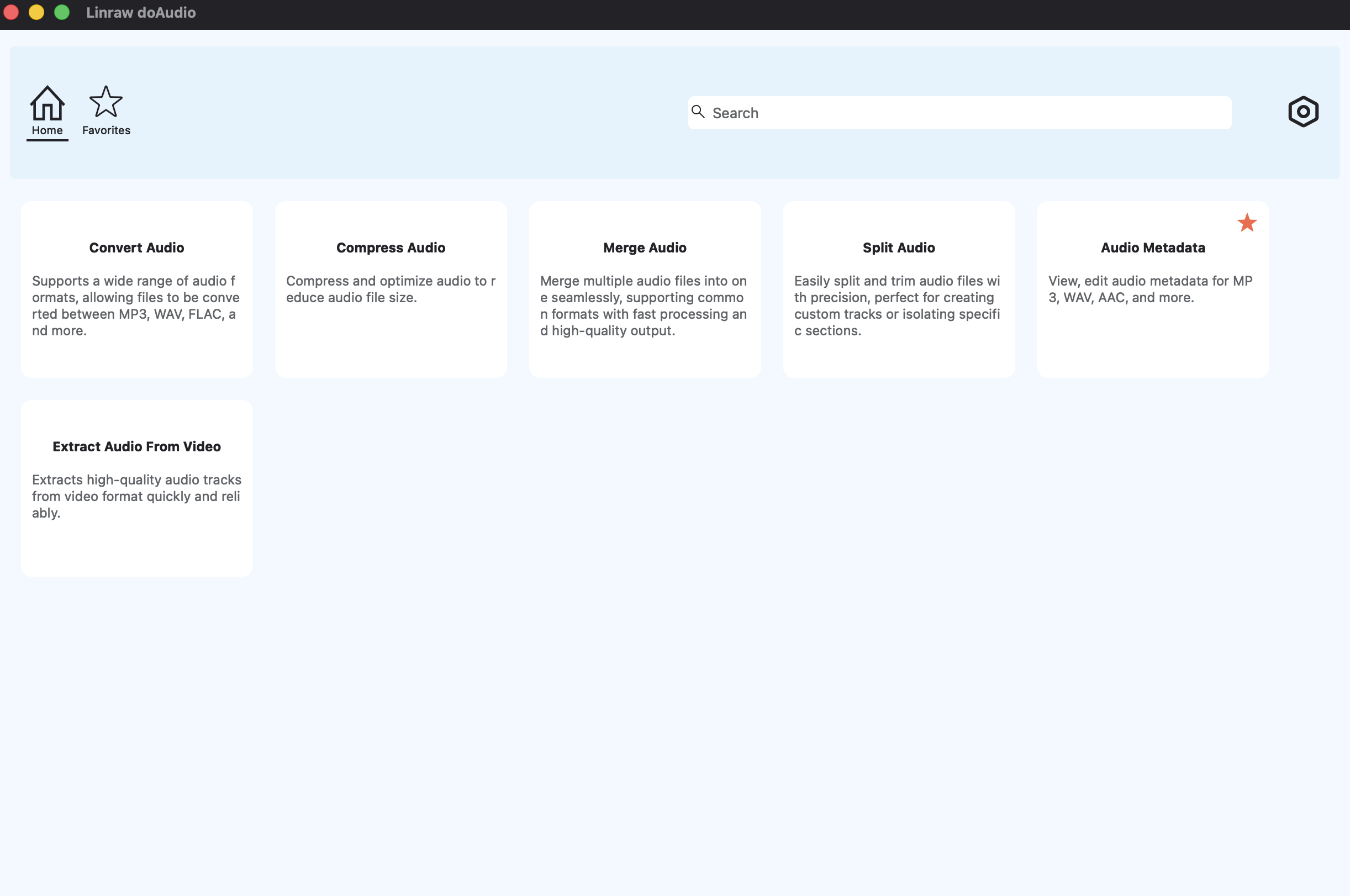
Step 2: Import Audio Files for Compression
Linraw doAudio gives you multiple ways to bring audio files into the compression queue, accommodating everything from a single file to an entire nested folder structure.
Single file import: Click the "Add Files" button and use the file browser to navigate to your audio file. Select it and click Open. The file appears in the queue with its filename, format, duration, and current file size displayed.
Multi-file import: Hold Ctrl (Windows) or Command (Mac) while clicking in the file browser to select multiple individual files, then click Open. All selected files are added to the queue simultaneously.
Drag and drop: Drag audio files directly from Windows Explorer or macOS Finder into the Linraw doAudio window. Files are added to the queue instantly.
Linraw doAudio accepts all common audio input formats: MP3, WAV, FLAC, AAC, M4A, OGG, and more. Mixed-format batches are handled automatically — you can import audio files from a folder containing WAV, FLAC, and MP3 files simultaneously, and Linraw doAudio will process each according to the output format you specify.
Step 3: Choose Compression Settings
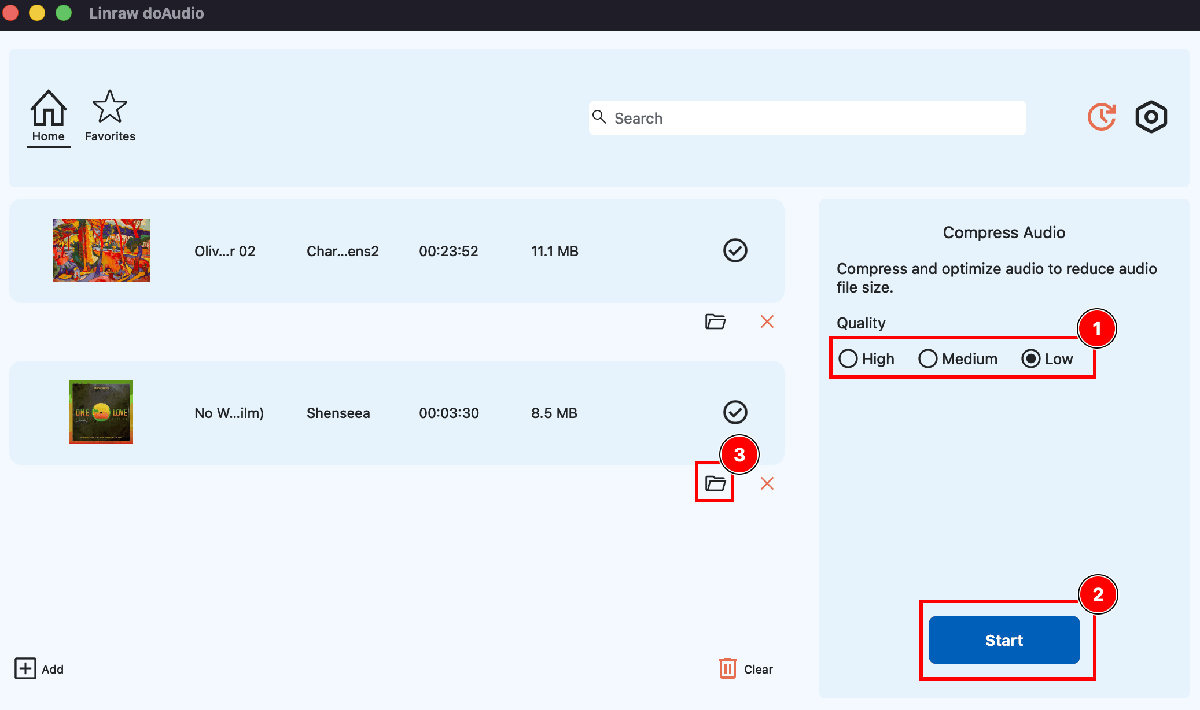
This is where you define the output quality and file size of your compressed audio. Linraw doAudio's settings panel is designed to guide you to the right choices without requiring technical expertise.
Step 4: Start Compression and Save Output Files
With your files imported and settings configured, you're ready to run.
Start the compression job
Click "Start". Linraw doAudio begins processing all files in the queue simultaneously using multi-threaded processing, taking full advantage of your CPU's available cores.
A live progress display shows: current file being processed, percentage complete for each file, overall batch progress, estimated time remaining, and current processing speed (files/min).
Review the results
When processing completes, Linraw doAudio displays a summary panel showing: original file size, compressed file size, and percentage reduction for every file in the batch. You can sort this list by size reduction, format, or filename to quickly identify files that may benefit from further optimization.
Click "Open Output Folder" to navigate directly to your compressed files in Windows Explorer or macOS Finder.
Advanced Ways to Shrink Audio Files Further
Convert WAV to MP3 for Maximum Size Reduction
Converting from WAV (uncompressed) to MP3 or AAC (lossy) is the single most impactful optimization available and typically produces 85–92% file size reduction in one step.
WAV files have no compression at all. They store audio waveform data in its raw, unencoded form, which is why they're so large. MP3 and AAC apply psychoacoustic encoding — discarding audio data that human perception doesn't register — to store the same content far more compactly.
With Linraw doAudio, the conversion is direct. Import your WAV files, select MP3 or AAC as the output format, configure your bitrate, and click Start. Linraw doAudio converts and compresses in a single pass. There is no intermediate step, no temporary uncompressed file created, and no quality loss from processing through multiple conversion stages.
Batch WAV-to-MP3 conversion is one of Linraw doAudio's most commonly used workflows. A folder of 50 WAV recordings that totals 25GB can typically be converted to a folder of compressed MP3s totaling under 2GB — while sounding indistinguishable from the originals in everyday listening.
Trim Unwanted Parts Before Compression
Compression reduces the data density of your audio; trimming reduces the actual duration. Both reduce file size, and they work best together.
Most audio recordings contain material that doesn't need to be in the final file: several seconds of silence or room noise before the recording starts, a long pause at the end after the microphone cut off, false starts that were edited around but not removed, or internal silences that add length without adding content.
Removing these sections before compressing accomplishes two things. First, it reduces the raw duration of the file, which proportionally reduces the output file size regardless of bitrate. Second, it removes silence and near-silence sections that can actually compress less efficiently in some codecs (particularly VBR encoders, which sometimes allocate more bits to complex silence than expected).
Linraw doAudio includes an audio trimming tool that allows you to set precise start and end points for each file, or to detect and automatically remove silence above a configurable threshold. For batch workflows, you can apply silence removal globally — stripping leading and trailing silence from every file in the queue — without specifying exact timestamps per file.
The combination of silence trimming and bitrate compression is the fastest path to the smallest possible output file at acceptable quality.
Merge Multiple Audio Files into One
When your content consists of multiple short audio clips — a podcast intro, main recording, mid-roll, and outro as separate files; multiple interview segments recorded in separate takes; individual chapter recordings for an audiobook — merging them into a single file before final compression has clear advantages.
A single merged file is simpler to distribute and upload than a collection of parts. It eliminates gaps or glitches that can occur when media players sequence separate files. And merging before compressing (rather than compressing separately and assembling later) ensures the entire merged output is encoded consistently at the same settings — no mismatched bitrates or formats between segments.
How to merge audio files in Linraw doAudio:
Switch to the Merge Audio tool in Linraw doAudio.
Import all audio clips that will form the final file.
Drag to reorder clips into your desired sequence.
Click Start. Linraw doAudio joins all clips and compresses the result in a single operation.
Linraw doAudio also supports batch merging: if you have multiple sets of clips that each need to be assembled into separate output files (for example, 10 podcast episodes each made up of 3 segments), you can configure all groups in one batch and process them simultaneously.
Extract Audio from Video and Compress in One Workflow
Recording audio through video tools — recording a podcast via Zoom, capturing a webinar, filming an interview — is standard practice. The video file contains the audio you need, but it's wrapped in a video container (MP4, MOV, MKV) that's far larger than the audio alone would be.
Extracting the audio track from a video file and compressing it to an appropriate audio format in a single workflow eliminates the need for intermediate files and reduces total processing time.
How to extract and compress audio from video in Linraw doAudio:
Open the Extract Audio tool in Linraw doAudio.
Import your video file(s). Linraw doAudio supports MP4, MOV, AVI, MKV, and other major video containers.
Click Start.
Linraw doAudio extracts the audio track and compresses it to your specified settings in a single processing pass. The output is a compressed audio file of the size you specified — there is no large intermediate audio file created and discarded. This saves both temporary storage space and time compared to a two-step workflow (extract, then compress separately).
Common use cases:
Podcast production from Zoom or Teams recordings
Converting recorded webinars to downloadable podcast episodes
Extracting voiceover tracks from video projects for standalone distribution
Pulling lecture audio from recorded educational video for transcription or audio-only access
Edit Metadata (Tags, Artwork) Without Inflating Sizes
Audio metadata — the embedded tags that identify a file's title, artist, album, genre, year, track number, and cover artwork — is invisible to most listeners but essential for professional distribution.
On podcast platforms like Apple Podcasts, Spotify, and Pocket Casts, your episode title, show name, and cover art come directly from the metadata embedded in your audio file. Missing or incorrect metadata means episodes appear unnamed, unbranded, and unprofessional. For music distribution, metadata drives streaming platform attribution, royalty calculations, and playlist categorization.
The concern many users have is that adding metadata — particularly cover artwork — inflates file size. This concern is legitimate: an unmanaged embedded image in audio metadata can add 1–5MB to a file that should be 40MB. Proper metadata management means embedding appropriately sized artwork (under 500KB as a JPEG at 300×300 to 500×500 pixels) and keeping other metadata fields clean.
How to edit metadata with Linraw doAudio:
Import a audio file into Linraw doAudio's Metadata Editor.
Apply changes to any combination of fields: title, artist, album artist, album, genre, year, track number, comment, and cover art.
Click Start. Linraw doAudio writes the metadata directly into the file without re-encoding the audio. Compression quality is preserved; only the tag data changes.
Online Audio Compressor vs Desktop Software
Speed Comparison
Online audio compressors require you to upload your file to a remote server, wait for the server to process it, then download the result. For a single small file on a fast internet connection, this cycle might take 30–60 seconds. For larger files (50MB+) or multiple files, upload time alone can take minutes per file.
Desktop software processes files locally on your CPU. There is no upload or download step. A Linraw doAudio batch job compressing 50 files begins processing the moment you click Start, and completes in a fraction of the time it would take to upload and download those same files through a browser.
For single occasional files, the speed difference is negligible. For regular workflows with multiple or large files, the difference is measured in hours saved per week.
File Size Limits
Online compression tools universally impose file size limits on free tiers — commonly 100MB to 500MB per file. Some also limit the number of files processed per day or per session.
These limits are determined by server infrastructure costs. Every file you upload is processed on the service's servers, and that costs them money — so they cap it.
WAV files, FLAC files, and long recordings routinely exceed these limits. A one-hour WAV podcast recording is 600MB — above the cap of virtually every free online compressor. Long music recordings, multi-hour interview files, and batch jobs of many smaller files all run into these constraints quickly.
Linraw doAudio has no file size limits and no file count limits. Processing is bounded only by your local storage and system memory, which for practical purposes means no meaningful restriction.
Privacy & Security Considerations
When you upload a file to an online service, it leaves your computer. It travels to a third-party server, is processed there, stored temporarily, and returned to you. Most services have privacy policies describing how uploaded files are handled and when they're deleted — but "deleted from servers within 24 hours" is the common assurance, not an immediate deletion.
For most audio content, this is an acceptable tradeoff. For sensitive recordings — client interviews, confidential meeting recordings, proprietary music before release, healthcare-related audio — uploading to a third-party server creates real risk. Even well-intentioned services can experience data breaches, and most online compression tools are not built to enterprise security standards.
Linraw doAudio processes everything locally. Your files never leave your machine. There is no upload, no third-party server, and no privacy policy governing what happens to your audio content after processing. For sensitive recordings, this is not a preference — it's a requirement.
Quality Control Differences
Online compressors typically offer limited control over output quality. Most present a simplified interface — a quality slider, a format selector, sometimes a bitrate dropdown — without exposing the full range of parameters that affect output quality: variable vs. constant bitrate, sample rate, channel configuration, codec variant.
For casual use, this simplicity is fine. For professional output — a podcast that goes to thousands of listeners, music that will be distributed across streaming platforms, audio that needs to meet specific technical specifications — limited control over output quality is a genuine limitation.
Linraw doAudio exposes the full range of compression parameters: format, codec, bitrate mode (CBR/VBR), bitrate value, sample rate, and channel configuration. The result is predictable, technically specified output rather than a black-box quality slider.
Why Offline Compression Is Better for Large Files
The case for desktop software consolidates around one reality: for large files and batch workflows, online tools simply aren't designed for the task.
Upload a 600MB WAV file on a typical broadband connection, and you're waiting 5–10 minutes just for the upload. Then wait for processing. Then download the result. For one file. For 50 files, this workflow is not realistic.
Desktop software like Linraw doAudio is the appropriate tool for this scale of work. Local processing is faster, file size is unconstrained, batch jobs run unattended while you do something else, and quality control is in your hands rather than a server-side algorithm you can't inspect or configure.
Linraw doAudio vs Other Audio Compression Tools
Linraw doAudio vs Online Audio Compressors
Online compressors are convenient for occasional, small, non-sensitive files. For everything else — large files, batch jobs, sensitive content, precise quality control — they fall short in ways that matter.
Linraw doAudio addresses every limitation of online tools: no file size caps, no upload required, full quality control, privacy by default, and batch processing without restriction. The tradeoff is that Linraw doAudio requires a one-time installation — a 2-minute process that most users make back in time savings within their first batch job.
Linraw doAudio vs Free Open-Source Tools
The two most capable free open-source tools for audio compression are Audacity and FFmpeg.
Audacity is an excellent audio editor with compression and export capabilities. Its compression workflow is built around an editing paradigm — import a file, work in a waveform editor, export. For single files with editing needs, Audacity is a strong choice. Its critical limitation is batch processing: native batch compression in Audacity requires configuring macros or using command-line interfaces, which puts it out of reach for most non-technical users.
FFmpeg is the most powerful audio (and video) processing tool available, bar none. It can do everything Linraw doAudio can do, plus more. But FFmpeg is a command-line tool with no graphical interface. Every operation is written as a text command. For developers and technical users comfortable in a terminal, it is unbeatable. For everyone else, the learning curve is prohibitive.
ffmpeg -i input.mp4 -vcodec libx264 -crf 23 output.mp4
Linraw doAudio occupies the space between these two tools: the batch processing capability of FFmpeg with the accessible graphical interface of Audacity, plus additional features (metadata editor, video extraction, merge/split tools) that neither offers natively.
Linraw doAudio vs Built-In System Tools (Windows & Mac)
Both Windows and macOS include limited built-in audio conversion functionality.
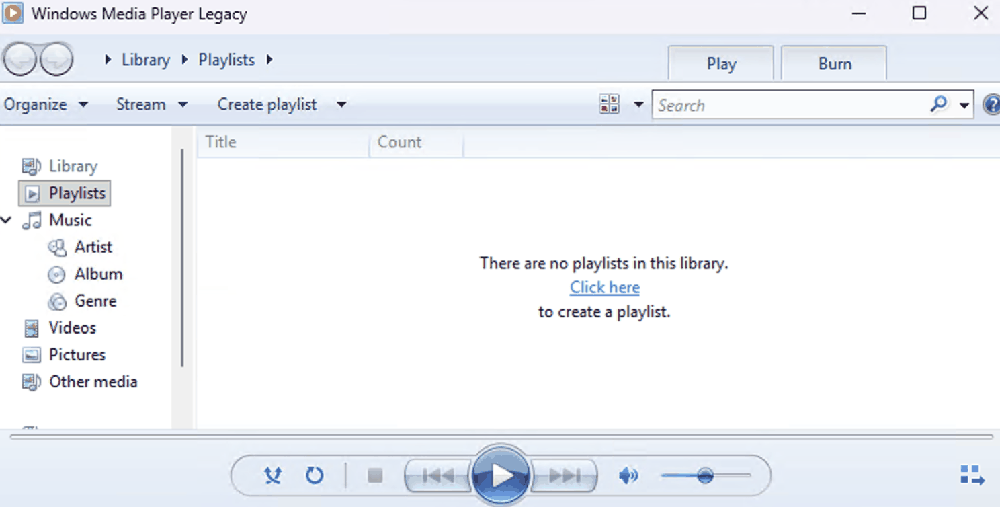
On Windows: Windows Media Player can convert WMA files and handle some basic audio tasks. Windows 11 includes no dedicated audio compression tool. Beyond WMA, Windows users are dependent on third-party software for any real compression workflow.
On macOS: Apple Music (formerly iTunes) can convert files in your library to AAC or MP3 by right-clicking a track and selecting "Convert → Create AAC/MP3 Version." This works only for files added to your Apple Music library and provides minimal control over bitrate — you configure it once in Preferences, not per-file or per-batch. There is no folder import, no batch processing, and no metadata editor.
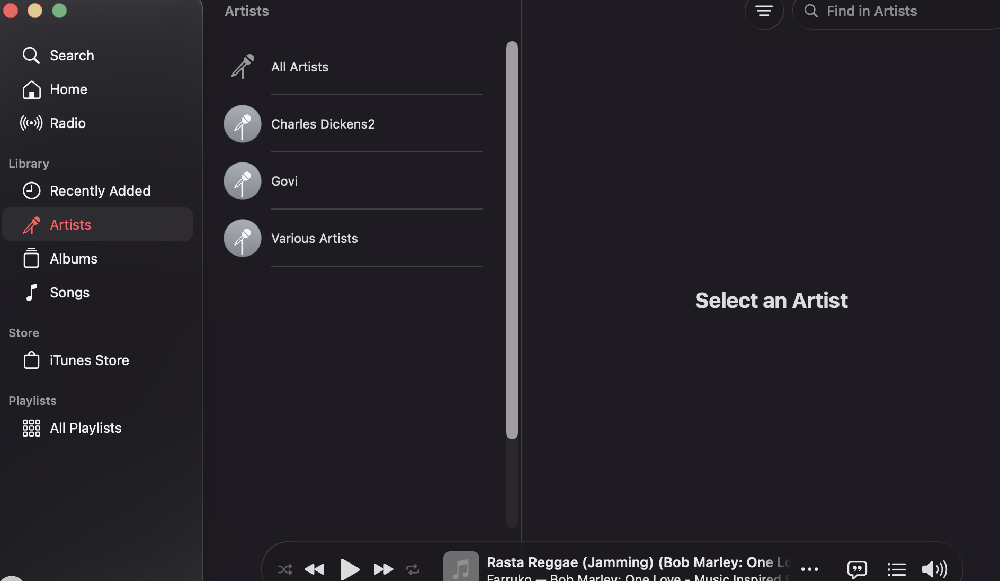
For more than the most basic single-file conversions, both platforms' built-in tools are insufficient. Linraw doAudio provides the full feature set that built-in tools lack.
Feature Comparison Table
| Feature | Linraw doAudio | Online Compressors | Audacity | FFmpeg | Windows Built-in | Mac Built-in |
|---|---|---|---|---|---|---|
| Batch Processing | ✅ Unlimited | ❌ / ⚠️ Very limited | ⚠️ Via macros | ✅ Via scripting | ❌ | ❌ |
| Format Support | ✅ All major formats | ⚠️ Limited | ✅ With FFmpeg plugin | ✅ All formats | ⚠️ WMA only | ⚠️ AAC/MP3 only |
| Compression Control | ✅ Full parameters | ⚠️ Basic slider/dropdown | ✅ Full parameters | ✅ Full parameters | ❌ | ⚠️ Bitrate preset only |
| Metadata Editing | ✅ editor | ❌ | ❌ | ⚠️ Command-line only | ❌ | ❌ |
| Ease of Use | ✅ GUI, beginner-friendly | ✅ Very easy | ⚠️ Moderate | ❌ Technical/CLI | ✅ Simple | ✅ Simple |
| File Size Limits | ✅ None | ⚠️ 100–500 MB | ✅ None | ✅ None | N/A | N/A |
| Privacy (local) | ✅ | ❌ Uploads to server | ✅ | ✅ | ✅ | ✅ |
| Offline Use | ✅ | ❌ | ✅ | ✅ | ✅ | ✅ |
| Extract Audio from Video | ✅ | ⚠️ Some tools | ❌ | ✅ | ❌ | ⚠️ Basic |
| Merge Audio | ✅ | ⚠️ Some tools | ✅ | ✅ | ❌ | ❌ |
| Split Audio | ✅ | ⚠️ Some tools | ✅ | ✅ | ❌ | ❌ |
| Windows Support | ✅ | ✅ | ✅ | ✅ | ✅ | ❌ |
| Mac Support | ✅ | ✅ | ✅ | ✅ | ❌ | ✅ |
| Apple Silicon Native | ✅ | ✅ | ✅ | ✅ | N/A | ✅ |
| Cost | Low / Free tier | Free / Subscription | Free | Free | Free | Free |
Why Choose Linraw doAudio for Audio Compression?
Speed, Ease of Use, and Compatibility
Linraw doAudio is built around the principle that professional-quality audio compression should not require professional technical knowledge.
Installation takes under 5 minutes. The compression workflow — import, configure, export — is visible in a single window with no detours through complex editing timelines or command-line interfaces. Every setting includes a plain-language description of what it does and which value is appropriate for common use cases. New users can produce correctly compressed output on their first use without consulting a manual.
Speed is a function of local processing. Without the upload-process-download cycle of online tools, Linraw doAudio begins processing the moment you click Start. Multi-threaded processing takes full advantage of your CPU's available cores, meaning a modern multi-core processor compresses multiple files simultaneously. A batch of 100 podcast episodes — files that would take hours to process through an online tool's one-file-at-a-time workflow — completes in minutes.
Compatibility is built in. Linraw doAudio outputs files in formats that play on every device and platform your audience uses. MP3 plays on everything. AAC plays on everything modern. Output files work natively in Apple Podcasts, Spotify, Google Podcasts, web browsers, mobile apps, desktop media players, and every podcast hosting platform — no conversion or format checking required by the listener or the platform.
Features that Make Linraw doAudio Stand Out (Batch Processing, Editing, Metadata Management)
Batch processing is Linraw doAudio's most important differentiator. No practical limit on file count. Mixed-format batches handled automatically. Preset-based configuration means the second batch job is even faster than the first. And batch processing applies not just to compression, but to every Linraw doAudio tool — conversion, merging, splitting, metadata editing, and video extraction all support batch workflows with identical convenience.
The complete workflow in one application. Most users who need to compress audio also need to do at least one other thing with those files: convert the format, extract audio from video, add metadata, split a long recording into chapters. Doing this across multiple single-purpose tools means multiple import/export steps, multiple interfaces to learn, and multiple points of potential error. Linraw doAudio handles every step of the workflow within a single application, with files moving through each stage without intermediate exports.
Metadata management at scale. Adding or correcting metadata across a large audio library is one of the most tedious tasks in audio production when done file by file. Linraw doAudio's metadata editor applies title, artist, album, genre, year, and artwork changes across any number of selected files in seconds. For podcast producers maintaining consistent show branding across hundreds of episodes, this alone saves hours per quarter.
Preset-based repeatability. Production workflows are repetitive by nature. Every podcast episode gets the same compression settings. Every music track for the same album gets the same output configuration. Linraw doAudio's preset system means "configure once, use forever" — your settings are saved with a name, recalled instantly, and applied uniformly to every future job of that type.
Windows vs. Mac: Key Differences in Linraw doAudio Performance
Linraw doAudio is designed to deliver identical functionality on Windows and macOS, and for the most part, it does. There are a few platform-specific considerations worth knowing.
Processing performance. On Windows, Linraw doAudio leverages multi-threaded processing across all available CPU cores, including hyperthreaded cores. Performance scales with CPU tier — a modern Intel Core i7 or AMD Ryzen 7 will process large batches significantly faster than an entry-level processor. On Mac, Linraw doAudio is compiled natively for Apple Silicon (M1, M2, M3 chips), taking full advantage of these chips' unified memory architecture and efficiency cores for sustained batch processing performance that in many cases exceeds equivalent Intel-based Windows systems.
File system behavior. On macOS, system-level security requires Linraw doAudio to request explicit permission to access folders outside the default application sandbox — Desktop, Documents, Downloads, and external drives. These permission prompts appear only once per folder location. After granting access, Linraw doAudio remembers the permissions for future sessions.
Installation. Windows and Mac installations follow a standard executable wizard. Both take under 5 minutes.
Feature parity. Every feature described in this guide — compression, conversion, merging, splitting, video extraction, metadata editing, presets — is available on both platforms in the same form. There are no Windows-exclusive or Mac-exclusive features.
Frequently Asked Questions (FAQ)
How much can I reduce an audio file size?
The reduction depends on your starting format and target settings. Converting from uncompressed WAV to MP3 at 96 kbps mono typically produces a 90–92% file size reduction. A 600MB WAV file becomes approximately 43MB. Converting a high-bitrate MP3 (320 kbps) to a lower-bitrate MP3 (128 kbps) produces approximately a 60% reduction. The more compressed your starting file, the less additional reduction is possible — and re-encoding an already-compressed file always results in some quality loss.
What is the best format to compress audio?
For maximum compatibility with the smallest file size, MP3 at 96–128 kbps is the industry standard. If you're optimizing for Apple platforms or streaming services, AAC produces equivalent or better quality at lower bitrates — making files slightly smaller for the same perceived quality. For voice content specifically (podcasts, audiobooks), Opus at 64 kbps is technically superior to both MP3 and AAC at equivalent bitrates, though its compatibility is slightly more limited on older devices.
Does compressing audio reduce quality?
Lossy compression does reduce technical quality — it discards audio data. But at appropriate bitrates, this reduction is imperceptible to most listeners. A podcast compressed to 96 kbps mono MP3 sounds identical to its uncompressed original for the vast majority of listeners in typical listening conditions. Quality loss becomes audible only when bitrates are set too low for the content type, or when a compressed file is re-encoded multiple times (each generation compounding quality loss). The practical rule: compress once from the highest-quality source, at a bitrate appropriate for your content type, and quality loss will not be a concern.
What bitrate should I choose for MP3 compression?
Match your bitrate to your content type:
Voice / Podcasts (mono): 96 kbps — the industry standard, indistinguishable from higher bitrates for speech.
Music (stereo): 192–256 kbps — transparent quality for most listeners at these rates.
High-fidelity music: 320 kbps — the MP3 ceiling, for discerning listeners with quality playback equipment.
Audiobooks: 64–96 kbps mono — sufficient for clear spoken-word reproduction.
Background web audio: 96–128 kbps — balances file size with adequate quality for casual listening.
When in doubt, 128 kbps stereo MP3 is a safe default that produces acceptable quality for nearly any content type with a meaningfully smaller file than a higher-bitrate encoding.
Can I compress audio files in bulk?
Yes — with the right tool. Linraw doAudio supports batch compression across unlimited files in a single job. Import a folder (or multiple folders, including nested subdirectory structures), configure your compression settings once, and click Start. Linraw doAudio processes all files simultaneously using multi-threaded processing. There is no per-file configuration required, and presets let you save and reapply your settings for recurring workflow types.
Online tools, built-in system tools, and most free editors do not support meaningful batch processing. If batch compression is a requirement, a dedicated desktop tool like Linraw doAudio is the only practical solution.
Is it safe to use online audio compressors?
For non-sensitive content, online compressors are generally safe in the sense that your files are processed and returned without obvious misuse. However, "safe" depends on your definition. Online tools upload your file to a third-party server. Most services store uploaded files temporarily (typically deleted within 24–72 hours) and process them with varying levels of security infrastructure.
For sensitive recordings — client conversations, unreleased music, proprietary corporate audio, healthcare-related content, or any recording where confidentiality matters — uploading to an online service represents a real risk. Data breaches, ambiguous retention policies, and third-party subprocessors all expand the surface area of risk. For sensitive content, local desktop processing (Linraw doAudio) is the appropriate choice.
How do I compress WAV files to a smaller size?
The most effective approach is converting WAV to MP3 or AAC using Linraw doAudio:
Open Linraw doAudio and import your WAV file(s).
Select MP3 or AAC as the output format.
Click Start.
The resulting MP3 or AAC file will be 85–92% smaller than the original WAV, with no perceptible quality difference for most listening scenarios. If you need to stay in WAV format, you can apply lossless compression (converting to FLAC) for a 40–60% size reduction without any quality loss.
Can I reduce audio file size without converting format?
Meaningfully reducing file size without changing the format is limited. Within the same format:
Reduce bitrate on re-encode: Re-encoding an MP3 at a lower bitrate reduces file size but compounds quality loss (you're re-compressing already-compressed audio). This approach is acceptable if the source quality is already much higher than you need, but it's always preferable to start from the highest-quality original.
Convert stereo to mono: Removing a stereo channel halves file size within the same format and bitrate, with no quality loss for voice content.
Trim silence: Removing silent or near-silent sections reduces duration and therefore file size proportionally.
Strip metadata/artwork: Removing large embedded artwork can recover several megabytes without touching the audio data itself.
For the most significant size reduction, format conversion from WAV to MP3 or AAC remains the most effective single step.
Conclusion
Recap: The Best Way to Reduce Audio File Size Using Linraw doAudio
The best way to reduce audio file size is not a single trick — it's a combination of the right format, the right bitrate, the right channel configuration, and the right tool to apply those settings efficiently.
Choose a lossy format (MP3 or AAC) for web delivery and distribution. Match your bitrate to your content type — 96 kbps mono for voice, 192 kbps stereo for music. Convert voice recordings to mono. Trim silence before compressing. And use a tool that handles the entire workflow in one place, in bulk, with the precision and repeatability a professional production workflow requires.
Linraw doAudio brings all of this together on both Windows and Mac. Import any audio format, configure your output once, run a batch of hundreds of files, and retrieve a library of properly compressed, correctly tagged audio files — all without uploading a single byte to an external server.
Optimizing Audio for Storage and Sharing
Audio optimization is an ongoing practice, not a one-time task. As your audio library grows, the cumulative effect of proper compression becomes more significant: more available storage, lower hosting and CDN costs, faster page loads, better podcast listener experience, and more manageable file sizes for sharing and collaboration.
Build compression into your production workflow from the beginning. Record at the highest quality your equipment supports, edit from that high-quality source, and compress to your distribution format as the final step before publishing. Keep your original, uncompressed files archived. And use Linraw doAudio's preset system to ensure every file in your library meets the same consistent quality standard.
Consistent compression habits, built around the right settings for your content type, are the difference between a library of manageable, professional audio files and a sprawling collection of oversized, inconsistently formatted recordings.
Get Started with Linraw doAudio Today: Download & Trial Information
Linraw doAudio is available as a free download for Windows (Windows 10 and 11) and macOS (Intel and Apple Silicon). The free tier includes core compression and conversion features, giving you everything you need to get started immediately.
The full Linraw doAudio version unlocks unlimited batch processing, all file processing tools (merge, split, metadata editor, video extraction), and preset management — the complete workflow described in this guide.
Download Linraw doAudio from the official Linraw doAudio website. Installation takes under five minutes. Your first batch compression job takes less time than processing a single file manually through any other method.
Smaller files. Faster pages. Happier listeners. Start compressing today.
