Batch MP4 to MP3 Converter for Windows & Mac
Converting MP4 to MP3 is one of the most common audio tasks today — whether you're extracting music from videos, saving lectures, or repurposing content. If you need to convert dozens or even hundreds of files at once, an offline desktop solution is the most reliable approach.
This guide explains how to batch convert MP4 to MP3 on Windows and Mac using Linraw doAudio, and compares it with other available methods.
Introduction: Why Use a Desktop MP4 to MP3 Converter?
The Limitations of Online Converters (File Size, Privacy, and Speed)
Free online converters work well for a single small file. The moment you need anything more, the cracks start to show:
File size caps. Most free online tools limit uploads to 100 MB or 500 MB. A typical 1080p MP4 can easily exceed that in minutes.
No batch support. You convert one file at a time. Ten files means ten uploads, ten waits, ten downloads.
Speed bottlenecks. Your conversion speed is capped by your internet connection, the tool's server load, and the download queue — not by your computer's actual processing power.
Privacy risks. Every file you upload passes through a third-party server. For personal videos, business recordings, or confidential audio, that's an unacceptable tradeoff.
Unreliable output quality. Many free online tools use aggressive compression settings to minimize server costs, stripping quality without warning.
Why Linraw doAudio is the preferred choice for Windows and macOS users
Linraw doAudio is a desktop audio toolkit designed for high-speed, bulk media processing. Because everything runs locally:
No file size limits.
No internet required.
Faster processing.
Complete privacy.
Stable performance on both Windows and macOS.
High-Speed Batch Processing: Convert Hundreds of Files at Once
The defining feature that separates Linraw doAudio from both online tools and many desktop alternatives is its batch engine. Instead of converting files one by one, Linraw doAudio processes your entire queue in parallel.
How Linraw doAudio handles multi-core processing
Linraw doAudio utilizes multi-core CPU acceleration to process multiple MP4 files simultaneously. This significantly reduces conversion time when working with large batches.
Instead of converting files one by one, the software builds a queue and processes them efficiently in parallel.
Managing your conversion queue: Drag, drop, and done
Simplicity is key in Linraw doAudio's design. Users can drag and drop entire folders of MP4 files into the queue, reorder them as needed, and preview details before starting. The software automatically detects audio tracks. Once set, hit "Start," and watch the progress bar fly—perfect for batch MP4 to MP3 conversion on Windows or Mac.
Step-by-Step Guide: How to Convert MP4 to MP3 in Bulk
Here is a complete walkthrough for converting MP4 files to MP3 using Linraw doAudio on both Windows and macOS.
Download and Install Linraw doAudio: Get the version compatible with your OS (Windows or Mac).
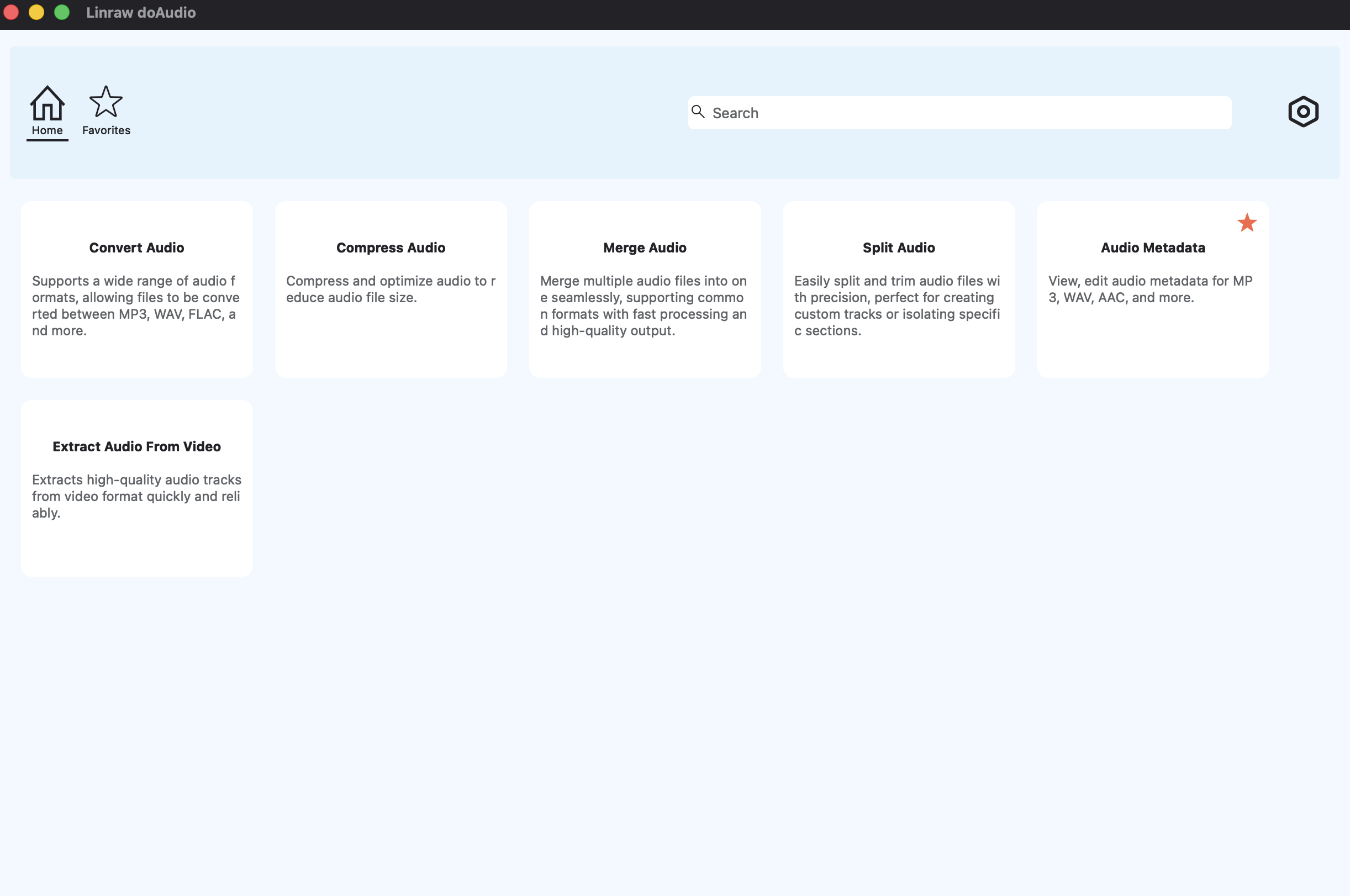
Add Your MP4 Files: Open the tool "Convert Audio", use the "Add Files" button or simply drag and drop your video files into the workspace.
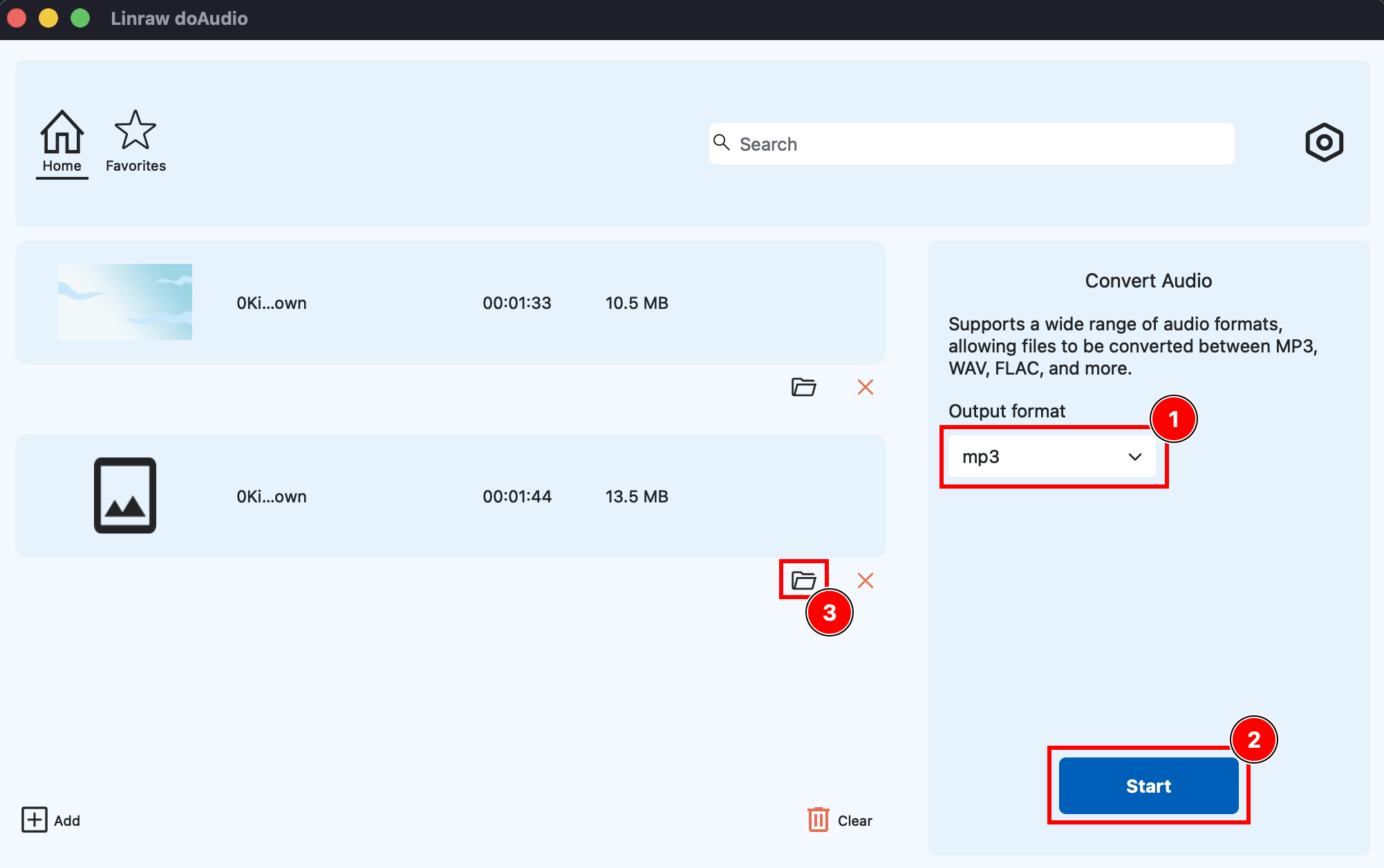
Choose MP3 as Output Format: Navigate to the format settings.
Start Batch Conversion: Click the "Start" button. Linraw doAudio will process the entire list and notify you when your new MP3 library is ready.
Beyond Conversion: Pro Audio Features in Linraw doAudio
MP4 to MP3 conversion is just one of the tasks Linraw doAudio handles. The same application includes a full suite of audio processing tools that cover the complete audio workflow.
Lossless Extraction: If your MP4 already contains high-quality audio (like AAC), Linraw doAudio can "extract" the stream without re-encoding it, ensuring zero quality loss.
Reduce File Size: Use our compression algorithms to shrink bulky audio files while maintaining crystal-clear vocal clarity—perfect for voice notes and lectures.
Audio Trimming & Merging: Need to cut out the intro music or combine five short clips into one long podcast? Use the built-in editor to trim and merge your audio before you hit export.
Alternative Methods: Other Tools to Achieve the Task
Linraw doAudio is not the only way to convert MP4 to MP3. Depending on your technical comfort level and specific needs, several other tools are worth knowing about.
The Command Line Powerhouse: FFmpeg
FFmpeg is a free, open-source multimedia framework that can handle virtually any audio or video conversion task imaginable. It is widely used by developers, system administrators, and technically inclined users.
To convert a single MP4 file to MP3 using FFmpeg:
ffmpeg -i input.mp4 -vn -acodec libmp3lame -q:a 2 output.mp3
To batch convert all MP4 files in a folder on macOS or Linux:
for f in *.mp4; do ffmpeg -i "$f" -vn -acodec libmp3lame -q:a 2 "${f%.mp4}.mp3"; done
On Windows (Command Prompt):
for %f in (*.mp4) do ffmpeg -i "%f" -vn -acodec libmp3lame -q:a 2 "%~nf.mp3"
FFmpeg is extremely powerful but requires manual installation, familiarity with terminal commands, and careful attention to syntax — a single typo can cause an error or produce unexpected output.
Open-Source VLC Media Player
VLC is best known as a media player, but it also includes a basic audio conversion feature accessible through the Media > Convert/Save menu. It supports MP3 output and handles most common video formats as input.
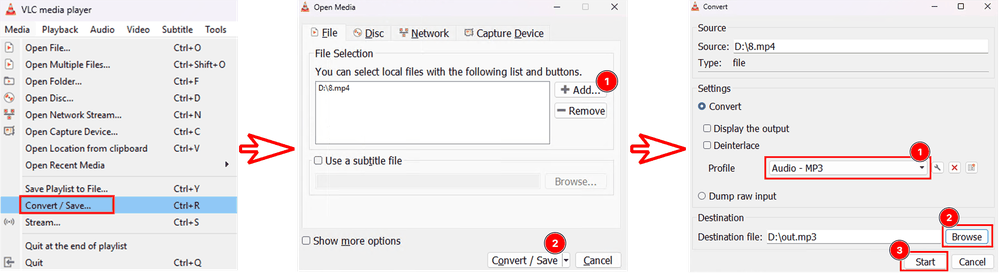
The limitations are significant for batch work: VLC does not support true batch conversion through its GUI, the audio settings are less granular than dedicated converters, and the conversion workflow was clearly designed as a secondary feature rather than a primary use case.
Online Converters (Cloud-Based)
Popular online tools such as CloudConvert, Convertio, and OnlineVideoConverter offer quick, browser-based conversion with no software installation required. They are best suited for one-off conversions of small, non-sensitive files.
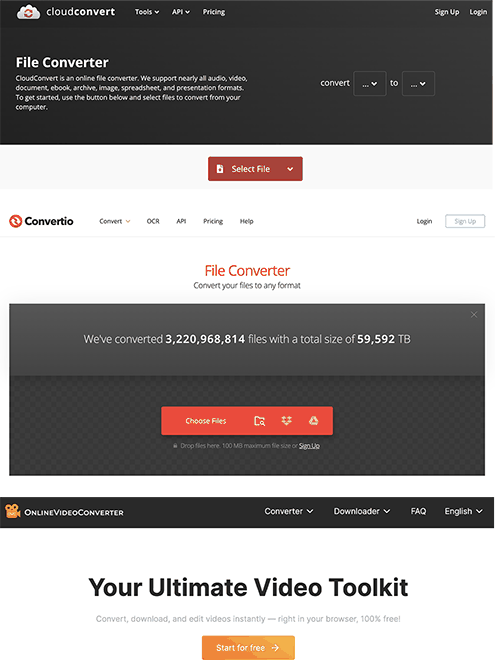
As outlined in the introduction, they are a poor fit for batch processing, large files, or any content that should not leave your local machine.
MP4 to MP3 Conversion Methods Compared
Comparison Table
| Feature | Linraw doAudio Desktop | FFmpeg | VLC | Online Tools |
|---|---|---|---|---|
| Batch Processing | ✅ Yes | ✅ Yes (Script) | ⚠ Limited | ❌ Usually No |
| Ease of Use | ⭐⭐⭐⭐⭐ | ⭐⭐ | ⭐⭐⭐ | ⭐⭐⭐ |
| Offline Use | ✅ Yes | ✅ Yes | ✅ Yes | ❌ No |
| File Size Limits | ❌ None | ❌ None | ❌ None | ⚠ Yes |
| Privacy | 🔒 Local Only | 🔒 Local Only | 🔒 Local Only | ⚠ Cloud Upload |
| Audio Editing | ✅ Built-in | ❌ Manual | ❌ Limited | ❌ No |
Which Method Is Right for You?
Choose Linraw doAudio if you regularly work with audio files, need batch processing, and want a polished desktop experience that handles the entire audio workflow without technical setup.
Choose FFmpeg if you are a developer or power user comfortable with the command line, need scriptable automation, or are integrating conversion into a larger workflow.
Choose VLC if you only occasionally need to convert a single file and already have VLC installed — but be aware of its batch limitations.
Choose an online tool if you have a one-off, small, non-sensitive file and do not want to install any software.
Who Should Use a Batch MP4 to MP3 Converter?
Content Creators: Extract audio from video content for podcasts or music distribution.
Students & Educators: Convert recorded lectures into portable MP3 format.
Podcast Editors: Extract interview audio quickly and cleanly.
Business Professionals: Convert webinars and meeting recordings into audio files.
Privacy First: Secure, Offline Processing
Why local conversion is safer
When using cloud tools, your files are uploaded to third-party servers. This introduces risks such as:
Data retention.
Unauthorized access.
Security vulnerabilities.
With Linraw doAudio, all processing happens locally on your computer.
No internet required
Convert files anywhere — even without Wi-Fi. Ideal for travel or secure work environments.
Frequently Asked Questions (FAQ)
Q: Does Linraw doAudio support 4K MP4 files?
Yes. Linraw doAudio supports high-resolution video files and can extract audio from large 4K MP4 files without issue.
Q: Can I extract audio from other formats like MOV or MKV?
Yes. In addition to MP4, Linraw doAudio supports formats such as MOV, MKV, AVI, and more.
Q: Is there a limit to how many files I can convert at once?
No. Batch conversion supports hundreds of files, limited only by system resources.
Q: Does Converting MP4 to MP3 Reduce Quality?
MP3 is a lossy format, so re-encoding may reduce quality slightly.
Conclusion: The Ultimate Desktop Audio Toolkit
If you regularly convert MP4 to MP3, especially in bulk, a dedicated desktop solution is the fastest and safest choice.
Linraw doAudio combines:
High-speed batch conversion.
Offline processing.
Audio compression.
Trimming and merging tools.
Metadata editing.
All in one powerful Windows and Mac audio toolkit.
For efficient, secure, and large-scale MP4 to MP3 conversion, Linraw doAudio delivers professional-grade performance without complexity.
