How to Create Custom Video Thumbnails in Batch on Windows & Mac
A great video thumbnail can make or break your click-through rate. But when you're managing dozens — or hundreds — of videos, creating thumbnails one by one is simply not scalable. Batch thumbnail creation solves that problem, letting you generate professional, consistent thumbnails for your entire video library in just a few clicks.
In this guide, you'll learn everything about batch video thumbnail creation: what it is, why it matters, the best tools available, and a step-by-step walkthrough using Linraw doVideo — a powerful desktop video toolkit for both Windows and Mac.
1. Introduction
What Is a Custom Video Thumbnail?
A custom video thumbnail is the static cover image that represents your video across platforms, directories, and search engines. Instead of relying on a randomly generated, often blurry mid-sentence frame, a custom thumbnail is deliberately chosen or designed to communicate the video's content instantly.
Why Batch Thumbnail Creation Matters
If you manage a handful of videos, creating thumbnails manually is a minor task. However, if you are handling dozens or hundreds of files, manual extraction and design become a massive bottleneck. Batch creation automates this process, allowing you to generate optimized cover images or storyboard grids for an entire directory of videos in a fraction of the time.
Common Use Cases
YouTube & Content Creators: Quickly generating cover images for a backlog of unlisted or archival content.
Online Courses (e-Learning): Creating consistent, professional previews for hundreds of micro-lessons.
Marketing Agencies: Standardizing video assets for client deliverables.
Video Archives: Generating thumbnail grids to easily catalog and preview massive local video libraries without opening every file.
2. Benefits of Creating Video Thumbnails in Batch
Save Time for Large Video Collections
The primary advantage is speed. By processing folders of videos simultaneously, you eliminate the repetitive process of opening a video player, finding the right frame, taking a screenshot, and saving the file.
Maintain Consistent Branding
Batch tools apply the exact same logic, sizing, and formatting rules to every video in your queue. This ensures that your entire video library has a uniform, professional appearance.
Improve Click-Through Rate (CTR) at Scale
For web-embedded videos or content platforms, visually appealing and clear thumbnails directly influence whether a user hits "play." Batching allows you to deploy high-quality thumbnails across your entire catalog, lifting your overall CTR.
Automate Repetitive Tasks
Automation frees up your mental energy. Instead of doing tedious data-entry-style media management, you can set your batch parameters once, hit export, and let the software do the heavy lifting.
3. Key Features to Look for in a Batch Thumbnail Tool
When choosing a software solution, not all tools are created equal. Look for these core capabilities:
Bulk Processing Capability: The software must be able to queue up dozens or hundreds of videos at once without crashing.
Custom Image Upload vs Frame Capture: The ability to either apply a custom overlay to all videos or intelligently capture frames from specific timestamps in the video.
Output Thumbnail Grid Settings: Essential for archivists and course creators, this feature allows you to extract multiple frames from a single video and stitch them together into a storyboard grid (defined by rows and columns).
Cross-Platform Support: The tool should work natively on both Windows and macOS systems to fit any creator's hardware ecosystem.
4. How to Create Custom Video Thumbnails in Batch Using Linraw doVideo
Overview of Linraw doVideo Video Tools
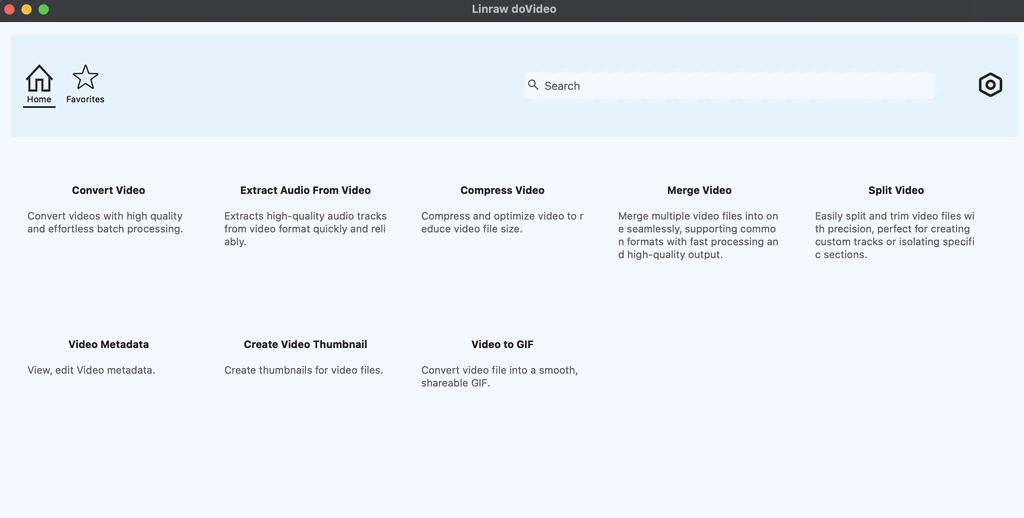
Linraw doVideo is a comprehensive, desktop-based suite of video utilities designed for efficiency. While it features a variety of robust media tools, its batch thumbnail generation module is specifically built to handle high-volume workflows on both Windows and Mac seamlessly.
Step 1: Import Multiple Video Files
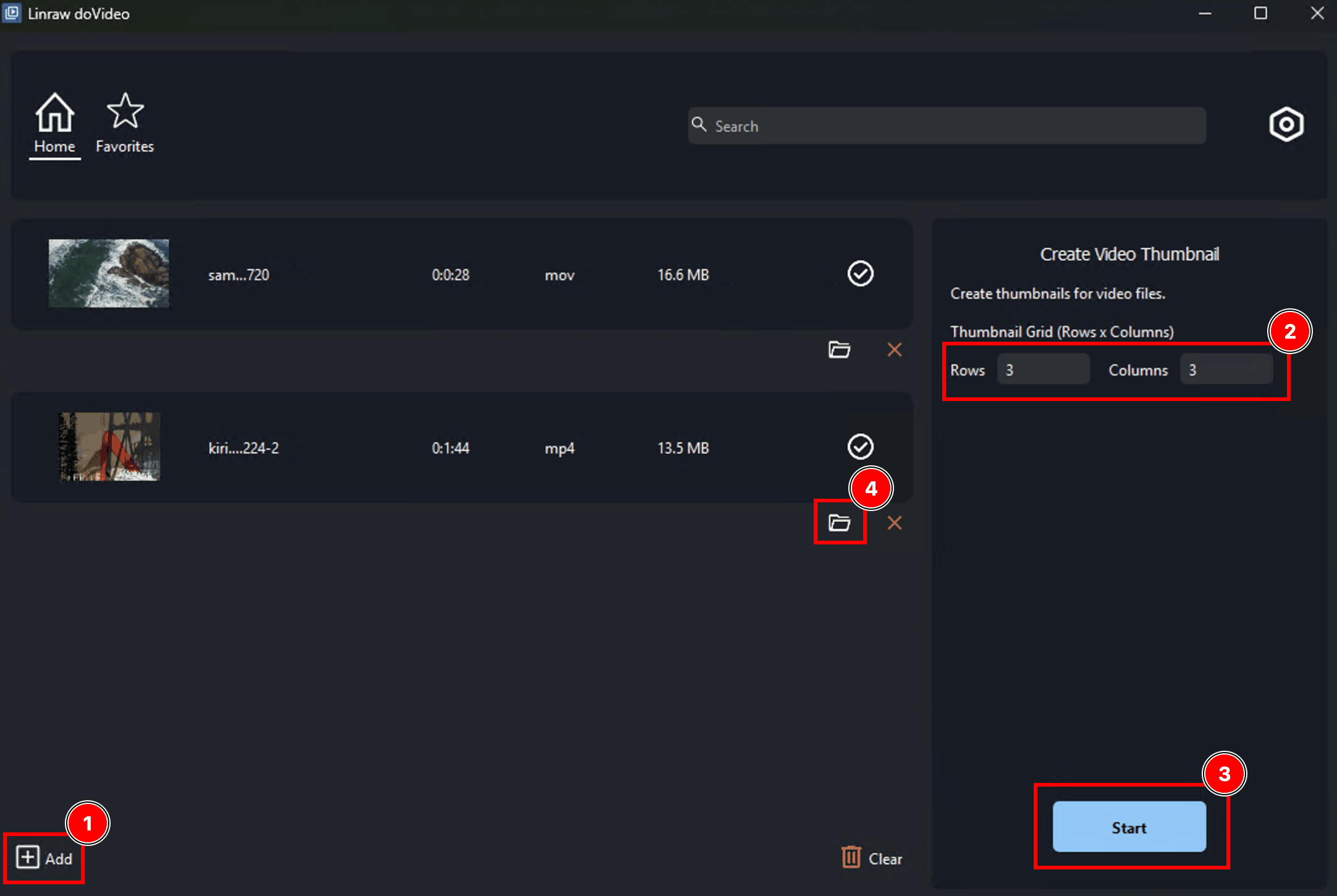
Launch Linraw doVideo and navigate to the batch thumbnail tool. You can easily drag and drop individual video files, directly into the workspace. Linraw doVideo supports a wide variety of video formats (MP4, AVI, MKV, MOV), ensuring you don't need to pre-convert your files.
Step 2: Apply Batch Settings to All Videos (Thumbnail Grid)
This is where the automation happens. In the settings panel, you can define exactly how you want your thumbnails generated:
Grid Configuration: If you want a storyboard preview, you can set a specific thumbnail grid. Simply input your desired rows x columns (e.g., a 3x3 grid to capture 9 distinct scenes from the video). Linraw doVideo will automatically calculate the intervals and stitch them together.
Step 3: Export Thumbnails in Bulk
Once your parameters are set, select your output destination folder and click "Start." Linraw doVideo will process the entire queue locally, rapidly exporting high-quality image files for every video on your list.
5. Alternative Methods to Create Video Thumbnails in Batch
While Linraw doVideo is the most streamlined desktop solution, there are other methods worth knowing about — each with its own strengths and limitations.
5.1 Using Online Tools
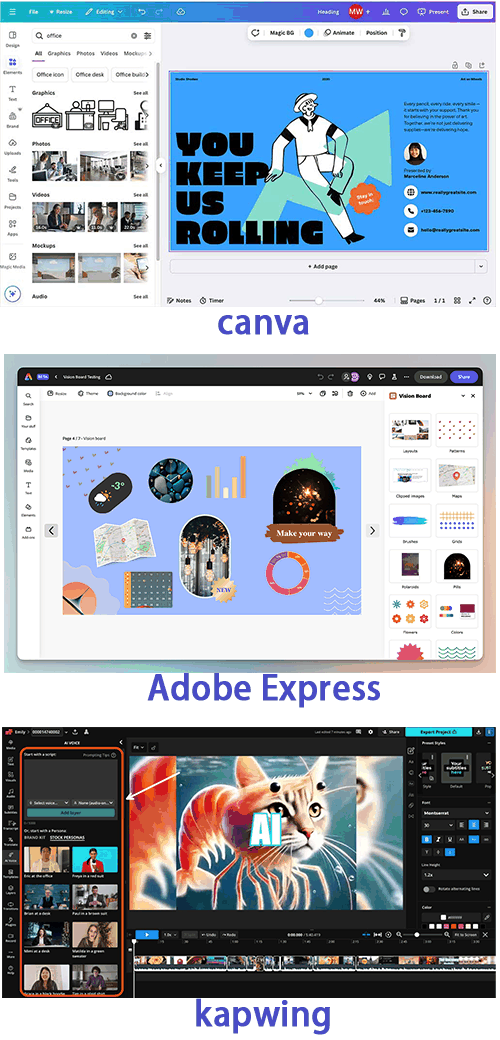
Web-Based Thumbnail Generators like Canva, Adobe Express, or Kapwing allow you to create thumbnails in a browser, without installing any software.
Pros:
No installation required
Easy drag-and-drop design interfaces
Free tiers available
Cons:
No true batch processing — you must create thumbnails one at a time or manually duplicate templates
Files must be uploaded to external servers, raising privacy concerns
Dependent on internet connection and server speed
Free plans often include watermarks or export limits
Unsuitable for large libraries of 50+ videos
Verdict: Great for occasional, one-off thumbnail creation. Not practical for bulk workflows.
5.2 Using Professional Design Software
Manual Workflow with Adobe Photoshop
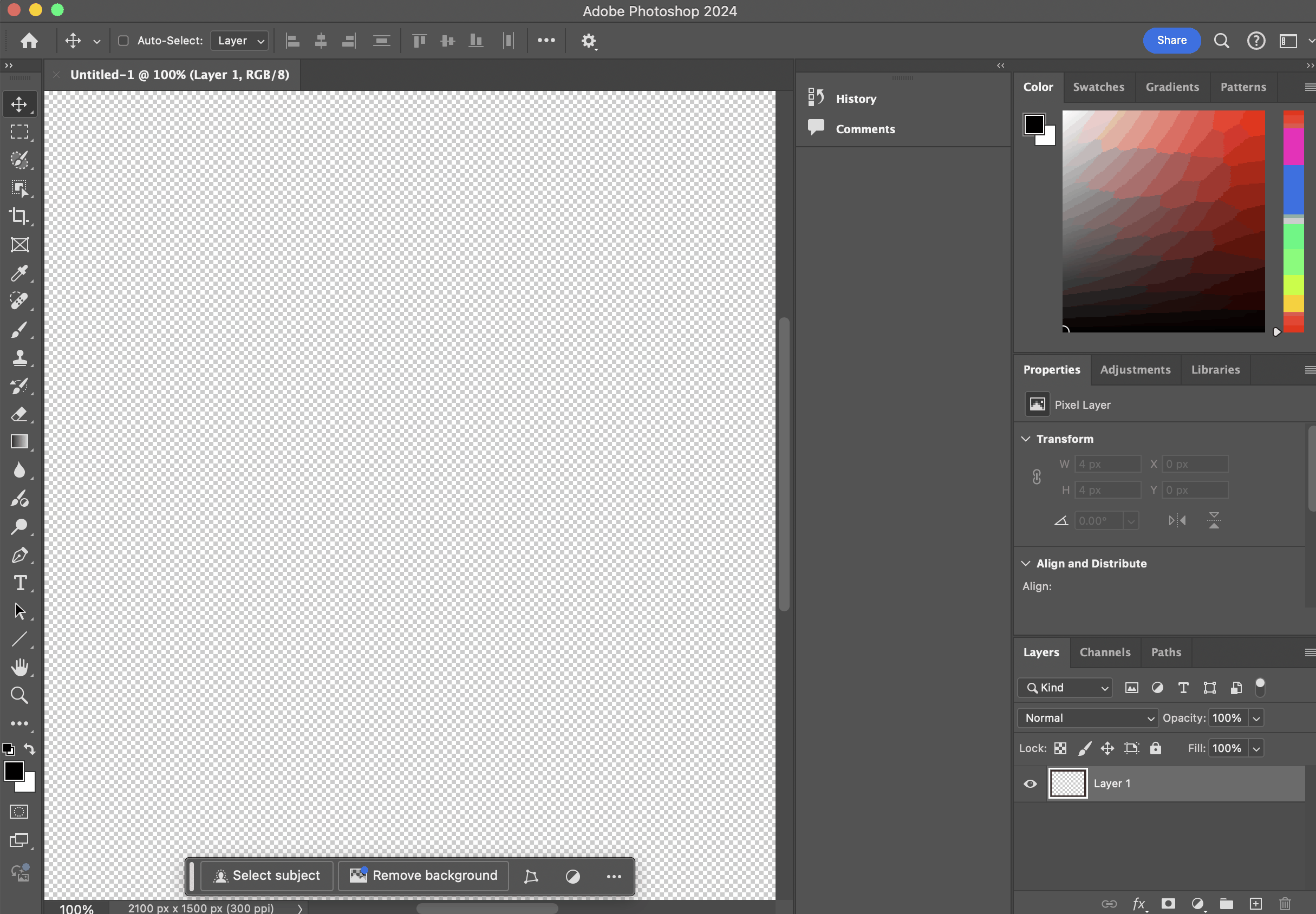
Photoshop is the gold standard for image design, and experienced users can set up Actions (recorded macro steps) to automate some repetitive thumbnail tasks.
Pros:
Full creative control
Supports batch actions via the Image Processor and Actions panel
Professional-quality output
Cons:
Expensive subscription (Adobe Creative Cloud)
Steep learning curve — not beginner-friendly
Batch actions require manual setup and technical knowledge
No native video-to-thumbnail frame capture; requires extra steps
Verdict: Powerful for designers who already use Photoshop, but overkill (and costly) for most thumbnail tasks.
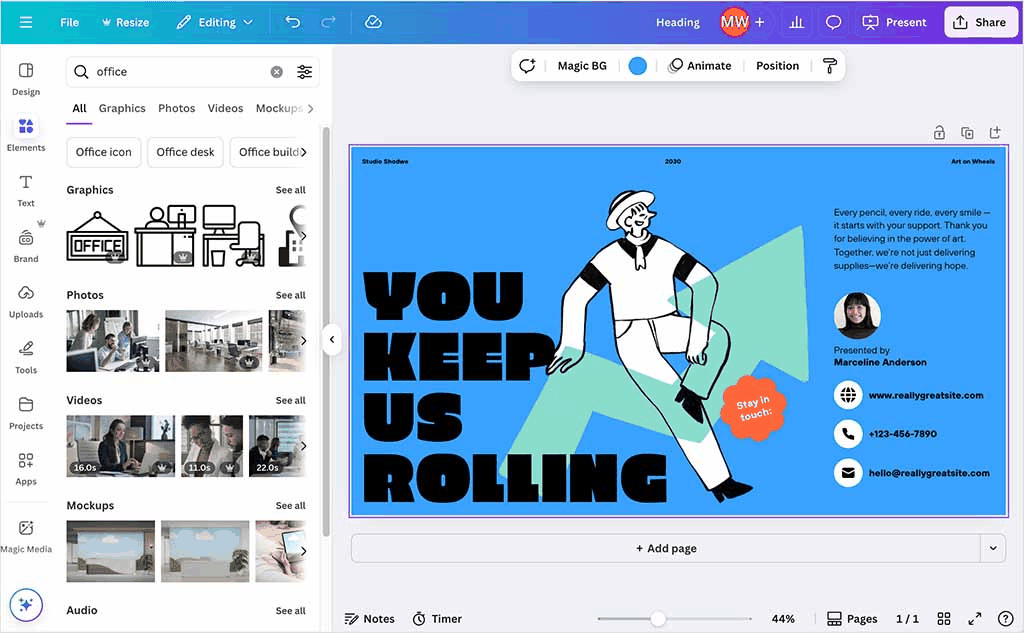
Template-Based Design in Canva
Canva's desktop app supports template duplication and some bulk design features, but it is not a true batch processor. Each thumbnail still requires individual customization.
Pros:
Beautiful pre-made templates
Easy to use
Brand Kit feature for consistent colors and fonts
Cons:
No automated batch thumbnail generation from video files
Pro plan required for advanced features
Still largely a manual, one-at-a-time workflow
Verdict: Good for polished one-off thumbnails. Not scalable for batch use.
5.3 Using Command-Line Tools
Automation with FFmpeg
FFmpeg is a free, open-source command-line tool that can extract frames from videos with great precision. A basic command looks like this:
ffmpeg -i input_video.mp4 -ss 00:00:05 -vframes 1 thumbnail.jpg
You can write shell scripts to loop this command over an entire folder of videos, making it technically capable of batch processing.
Pros:
Completely free and open-source
Highly precise frame capture
No upload required — fully local processing
Scriptable for advanced automation
Cons:
Requires comfort with the command line — not beginner-friendly
No graphical interface
No built-in thumbnail grid generation
Scripts must be written and maintained manually
Errors can be cryptic and hard to debug
Verdict: Excellent for developers or technically-minded users. A significant barrier for most content creators.
6. Linraw doVideo vs Other Thumbnail Creation Methods
| Feature/Need | Linraw doVideo | Online Generators | Design Software (Canva/PS) | FFmpeg (CLI) |
|---|---|---|---|---|
| Batch Extract Frames | ✅ Yes | ❌ No | ❌ No | ✅ Yes |
| Grid Generation (Rows x Cols) | ✅ Yes | ❌ No | ❌ No | ✅ Yes (Requires Code) |
| User-Friendly Interface | ✅ Yes | ✅ Yes | ✅ Yes | ❌ No |
| Offline / Fast Processing | ✅ Yes | ❌ No | ✅ Yes | ✅ Yes |
When to Choose Linraw doVideo: You have dozens of local video files, want to generate frames or storyboard grids automatically, value your privacy, and prefer a visual, easy-to-use interface without writing code.
When Other Tools Might Be Better: Use Canva or Photoshop if you are spending hours designing one highly clickable YouTube thumbnail with complex text and graphics. Use FFmpeg if you are a developer building a server-side application.
7. Common Mistakes to Avoid
Overcrowded Designs: If you are generating a grid, don't make the rows and columns so dense (e.g., 10x10) that the individual frames become impossible to see.
Low-Quality or Blurry Images: Ensure your output settings match standard resolutions (like 1080p or 720p). Pulling frames from low-resolution source files will result in pixelated thumbnails.
Inconsistent Branding: If you are applying custom overlays or watermarks in batch, ensure they are placed safely away from where platforms put timestamps (usually the bottom right corner).
Misleading Thumbnails (Clickbait): Make sure the frame or grid accurately represents the video content to prevent viewers from bouncing immediately.
8. FAQs
What is the best size for a video thumbnail?
The recommended size for most platforms is 1280×720 pixels (16:9 aspect ratio). YouTube, Vimeo, and most video platforms use this as their standard. File size should be kept under 2MB for fast loading.
Can I create thumbnails for multiple videos at once?
Yes — with a batch processing tool like Linraw doVideo, you can import all your videos and generate thumbnails for every file in a single operation. Online tools and most design apps do not support true batch processing.
Does Linraw doVideo work on both Windows and Mac?
Yes. Linraw doVideo is a native desktop application available for both Windows and macOS, with full feature parity on both platforms.
What is the easiest tool for beginners?
For beginners who need batch processing, Linraw doVideo is the easiest option — it has a clean graphical interface with no coding or design experience required. For one-off thumbnails, Canva is also very beginner-friendly.
Does batch processing reduce quality?
No — when configured correctly, batch processing does not compromise image quality. Linraw doVideo exports thumbnails at your specified resolution. The quality of the output depends on the resolution of the source video, not on whether thumbnails are created individually or in bulk.
How fast is batch processing compared to Canva or Photoshop?
Significantly faster for large volumes. Creating 50 thumbnails manually in Canva or Photoshop could take several hours. Linraw doVideo can process the same 50 videos in minutes, with no manual steps between files.
Is desktop software like Linraw doVideo better than online tools for privacy and speed?
Yes, on both counts. Desktop tools like Linraw doVideo process everything locally on your computer — your video files are never uploaded to an external server. This protects sensitive content and also means processing speed is limited only by your hardware, not your internet connection or a shared server.
9. Conclusion
Summary of Key Takeaways
Your thumbnails are the gateway to your video content. By transitioning from a manual workflow to an automated one, you can maintain high visual standards across massive libraries without sacrificing your time.
Why Batch Thumbnail Creation Is Essential
Whether you are a creator organizing an archive, an educator structuring a course, or a marketer deploying a campaign, batch thumbnail creation is a non-negotiable step for scaling your video operations efficiently.
Final Recommendation: Why Linraw doVideo Stands Out
Linraw doVideo bridges the gap between high-level technical automation (like FFmpeg) and user-friendly design. By offering robust features like custom frame extraction and precise grid formatting (rows x columns) in an offline, secure desktop environment, it is the optimal choice for bulk thumbnail generation.
10. Call to Action
Stop wasting hours manually opening files and taking screenshots. Try Linraw doVideo for batch video thumbnail creation today and automate your workflow in seconds.
Ready to upgrade your entire media pipeline? Explore the other video tools in the Linraw doVideo suite to discover how easy video conversion, editing, and optimization can be.
Related Chapters
