How to Batch Convert HEIC to JPG Offline on Windows & Mac
HEIC (High Efficiency Image Container) is widely used by iPhones and modern cameras because it offers high image quality with smaller file sizes. However, HEIC files are not universally supported—many Windows applications, older macOS versions, and web platforms still prefer JPG.
If you need to batch convert HEIC to JPG offline on Windows or Mac, using a desktop solution is often the most reliable and secure approach.
Try Linraw doImage FreeWhy Convert HEIC to JPG Offline?
Online HEIC converters can work for small, non-sensitive tasks, but they have limitations:
- Privacy risks - uploading personal photos to third-party servers
- File size limits - large batches may fail
- Slow speed - depends on internet connection
- Format restrictions - limited output options
An offline desktop converter avoids all of these issues and gives you full control over your images.
Method 1: The Easiest Way (Windows & Mac)
Recommended for: Users who need to convert large batches (100+ photos) quickly while preserving quality.
Native tools often crash when handling hundreds of images, and they lack customization options (like adjusting compression levels). This is where dedicated desktop software shines. Using Linraw doImage, you can process unlimited files in seconds.
Key Features
- Batch conversion - convert hundreds or thousands of HEIC images at once
- Offline processing - no internet connection required
- Cross-platform - works on both Windows and Mac
- Multiple output formats - JPG, PNG, WEBP, and more
- Original quality preserved - maintain EXIF data and image clarity
- Simple workflow - drag and drop, choose format, convert
Step-by-Step Guide:
- Download and Launch: Install Linraw doImage on your Windows or Mac computer.
- Drag and Drop: Select your folder of HEIC images and drag them into the program window.
- Choose Output Format: Select JPG (or PNG/WEBP if preferred).
- Click Start: Your files will be processed locally and saved to your destination folder instantly.
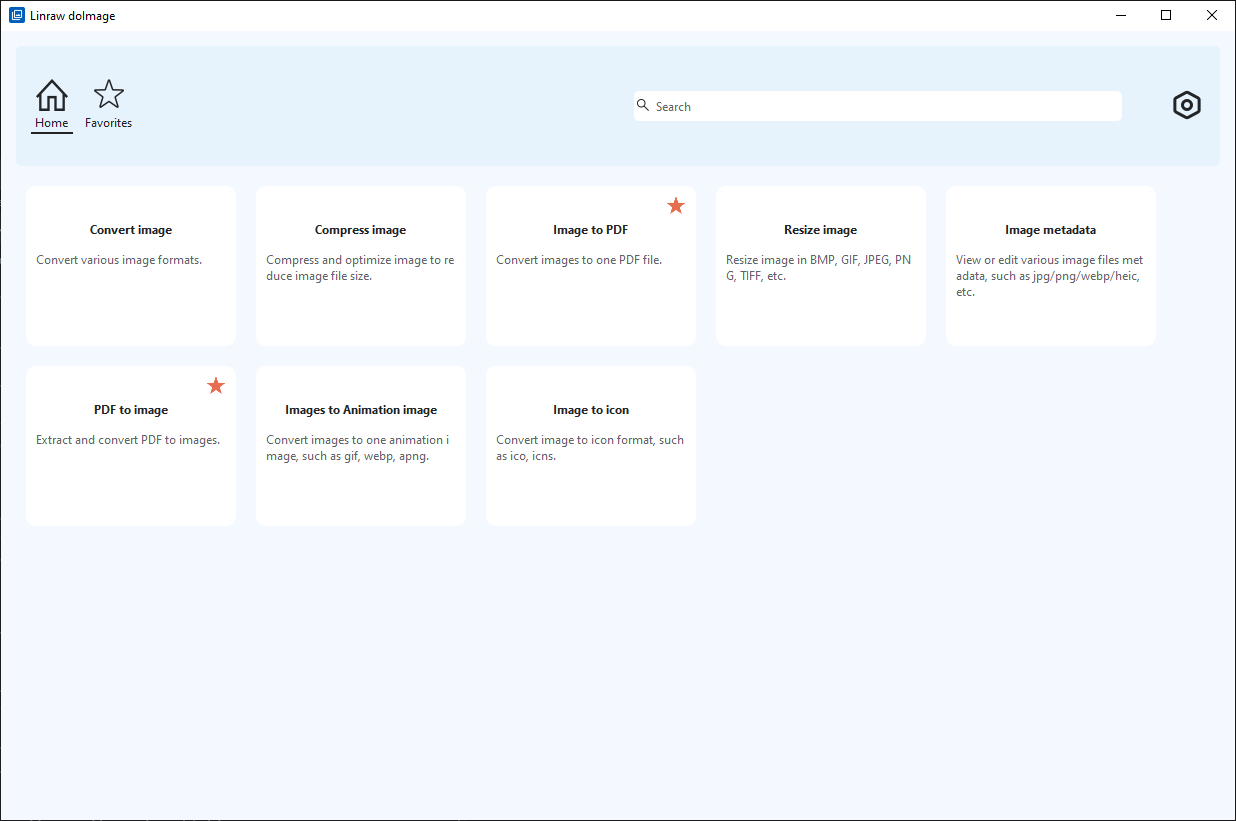
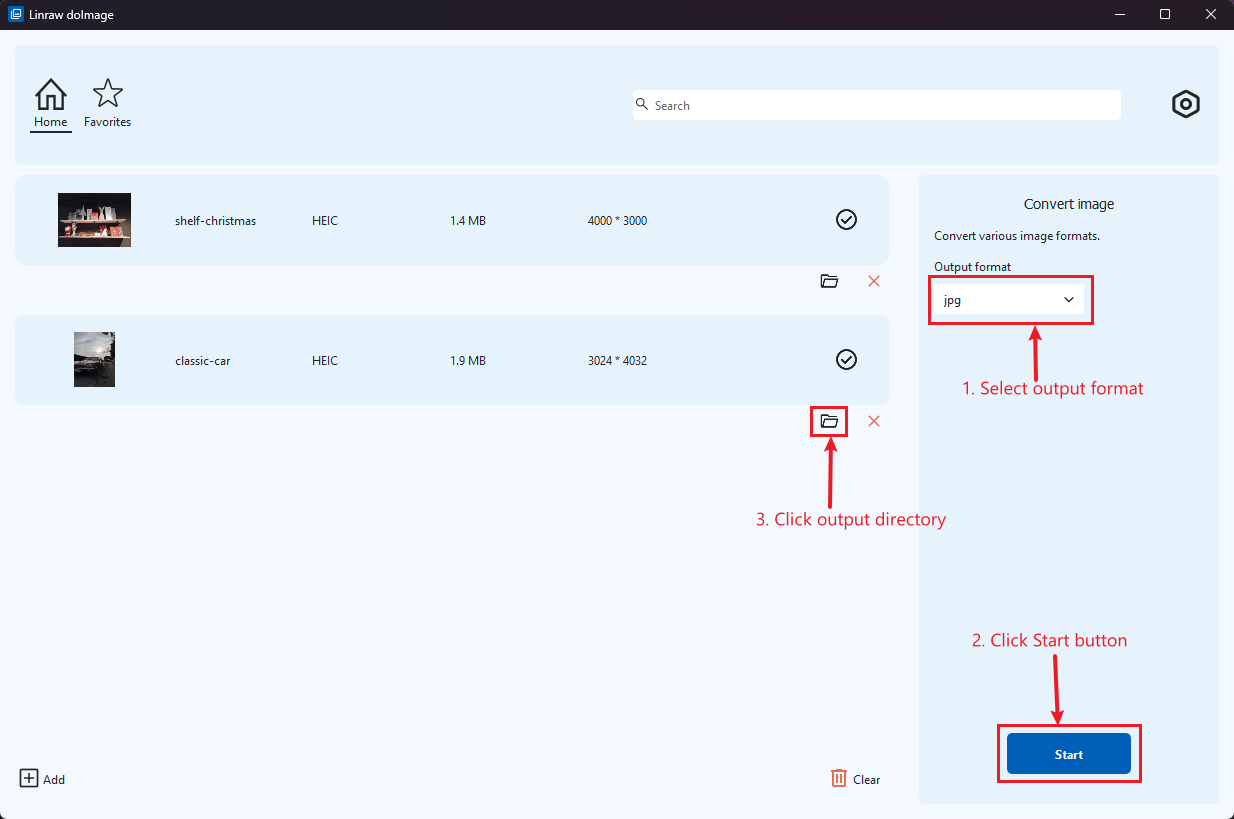
Why use this method? It supports multi-core processing, meaning it converts photos much faster than native system tools.
Method 2: Using Native Tools on Windows
Recommended for: Occasional conversions of small batches.
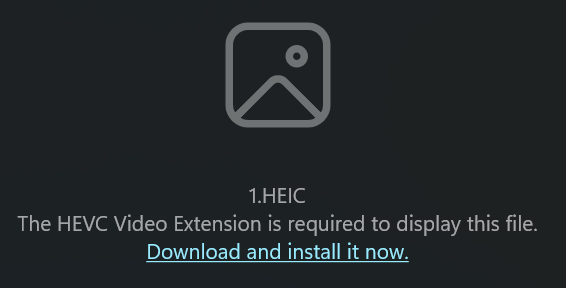
Windows does not handle HEIC natively by default without an extension, and the "Photos" app can be clunky for bulk actions. However, it is possible.
Using the Windows Photos App
- Ensure you have the HEIF Image Extensions installed from the Microsoft Store (this may cost $0.99).
- Open the folder containing your HEIC files.
- Select the photos you want to convert.
- Right-click and select Open with > Photos.
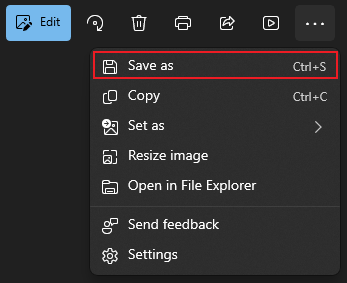
- Once open, unfortunately, Windows Photos does not have a simple "Save As" for batches. You often have to use the "Edit" feature on images individually.
Method 3: Using Native Tools on macOS
Recommended for: Mac users with a moderate number of photos.
macOS is more friendly toward HEIC (since Apple created the ecosystem), and it includes a built-in tool called Preview that can handle conversions.
Using the Preview App
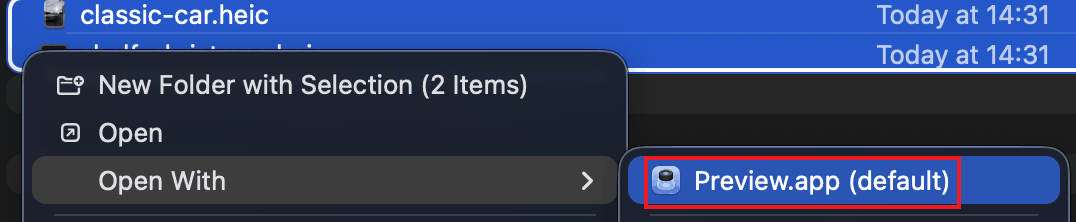
- Select all the HEIC files you wish to convert in Finder.
- Right-click and choose Open With > Preview.
- In Preview, click inside the thumbnail sidebar and press `Command + A` to select all images.
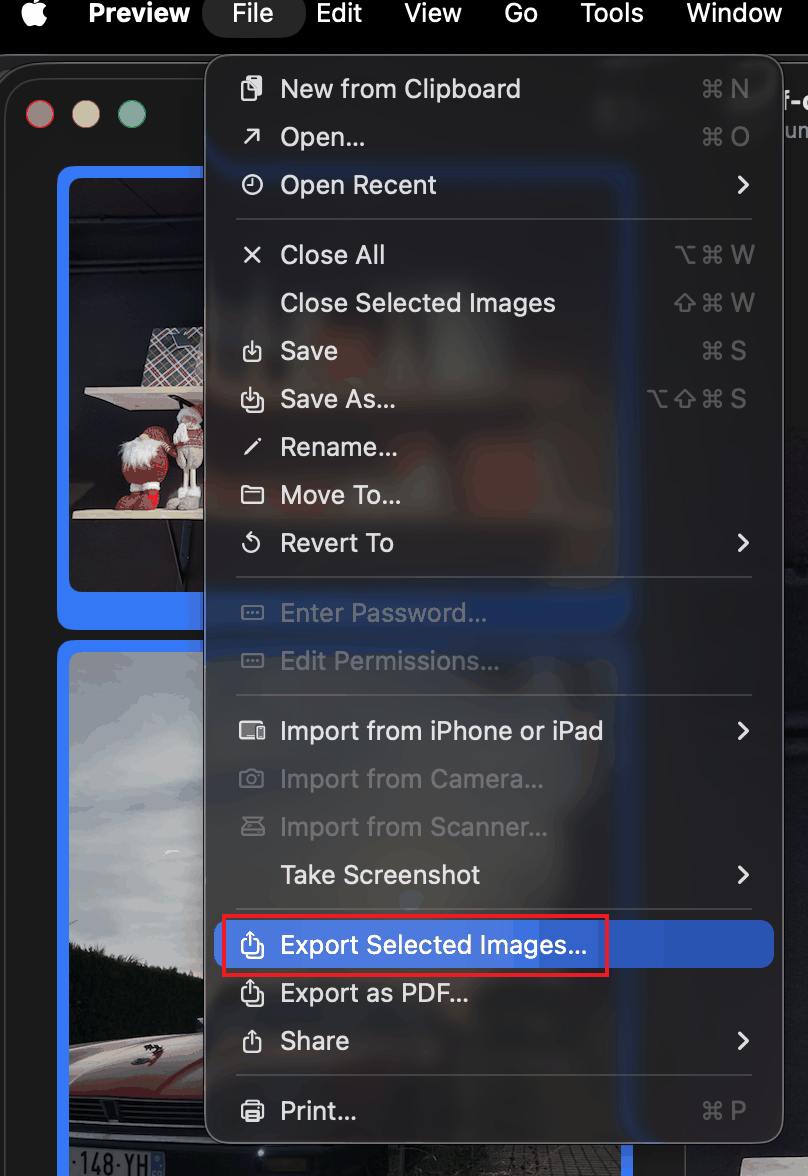
- Go to File > Export Selected Images.
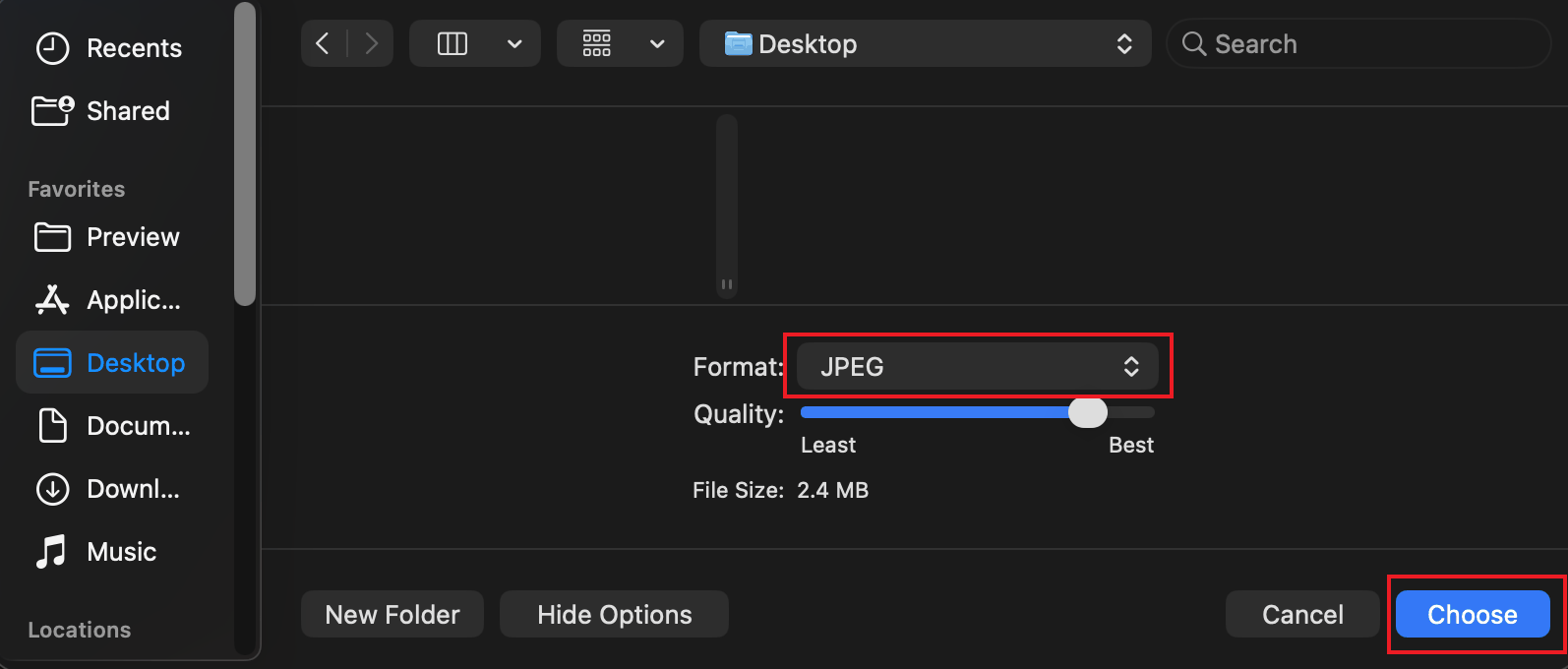
- Click the Options button, change the format to JPEG, and adjust the quality slider.
- Choose a destination folder and click Choose.
Method 4: Using Command-Line Tools
Tools like ImageMagick or libheif
magick in.heic out.jpg- Powerful but require technical knowledge
- Less user-friendly for non-technical users
Comparison: Professional Software vs. Native Tools
| Feature | Linraw doImage | Windows Native | macOS Preview | Command-Line Tools |
|---|---|---|---|---|
| Batch Speed | High | Low | Medium | High |
| Ease of Use | Simple (Drag & Drop) | Complex | Moderate | Complex |
| Reliability | Very Stable | Prone to freezing | Crashes on large batches | Stable |
| Quality Control | Precise | Limited | Basic | Precise |
| Platform | Win & Mac | Win Only | Mac Only | Win & Mac |
FAQ: Batch Converting HEIC Images
1. Does converting HEIC to JPG reduce quality?
Technically, yes, because JPG is a compressed format. However, if you use a high-quality converter like Linraw doImage and set the quality to 90% or higher, the difference is indistinguishable to the human eye.
2. Why can't I just rename .heic to .jpg?
Renaming the file extension does not change the internal file structure. The file will become unreadable. You must perform an actual format conversion.
3. Will I lose the date and location (EXIF) data?
If you use online converters or screenshotting tools, yes. However, Linraw doImage is designed to retain all original metadata, including the date taken and geolocation.
Conclusion
If you regularly work with HEIC photos, the best solution is Linraw doImage that runs on both Windows and Mac. It ensures privacy, speed, and consistent results without relying on internet services.
Our desktop software provides a simple and efficient way to convert HEIC to JPG and other formats—making it ideal for photographers, designers, and everyday users alike.
Try Linraw doImage Free